
Introduction
This manual provides instructions for the DIGITMON 6FT USB Type-C to USB-A Male cable. This cable is designed for both data synchronization and charging of compatible devices, including the Luna Cloud Gaming Controller, smartphones, and laptops. It facilitates high-speed data transfer and efficient power delivery.

Image: The DIGITMON 6FT USB Type-C to USB-A cable, coiled for display.
Key Features:
- Super Fast Charging and Syncing: Transfer speeds can reach 40-60MB/s (484Mbps), offering performance twice as fast as previous USB generations.
- Efficient Power Delivery: Supports power delivery up to 5V, 6Amp charging power.
- Wide Compatibility: Connects any device with a USB-A type interface to a USB Type-C device, such as MacBook, Chromebook, Pixel, Galaxy S8, S9, S10, Note12, and the Luna Cloud Gaming Controller.
- USB Backwards Compatible: Ensures compatibility with older USB standards.
Setup
Setting up your DIGITMON USB-C cable is straightforward. Follow these steps to connect your devices for charging or data transfer.
- Identify Ports: Locate the USB Type-C port on your device (e.g., smartphone, tablet, Luna controller) and a standard USB-A port on your host device (e.g., computer, wall charger, power bank).
- Connect USB-C End: Insert the USB Type-C connector of the cable into the corresponding port on your Type-C enabled device. Ensure it is fully seated.
- Connect USB-A End: Insert the USB-A connector of the cable into the USB-A port on your computer or power adapter. Ensure it is fully seated.
- Verify Connection:
- For charging: Your device should indicate that it is charging.
- For data transfer: Your computer should recognize the connected device, and you should be able to access its storage or initiate data sync.

Image: A smartphone connected to a laptop via the USB-C cable, illustrating a typical setup for charging and data transfer.
Operating Instructions
The DIGITMON USB-C cable operates automatically once connected. Its primary functions are charging and data synchronization.
Charging Your Device:
- Connect the USB-C end to your device and the USB-A end to a compatible power source (e.g., wall adapter, power bank, computer USB port).
- The cable supports fast charging up to 5V/6A, provided your power source and device also support these specifications.
- Monitor your device's screen for charging indicators.
Data Synchronization:
- Connect the USB-C end to your device and the USB-A end to a computer's USB port.
- Your computer should detect the connected device. You may need to select a "File Transfer" or "Data Sync" option on your device's screen if prompted.
- You can then transfer files, photos, music, and other data between your device and computer at speeds up to 484Mbps.
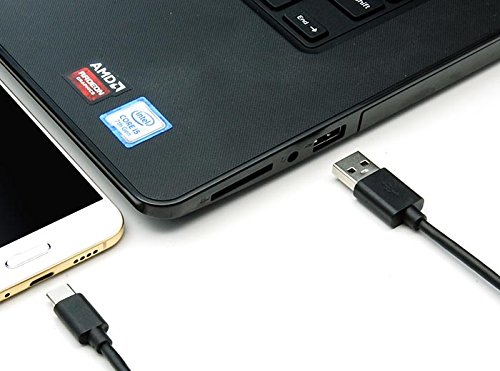
Image: The USB-C cable positioned near a smartphone and laptop, ready for connection and operation.
Maintenance
Proper care and maintenance will extend the lifespan of your DIGITMON USB-C cable.
- Storage: Store the cable in a cool, dry place away from direct sunlight and extreme temperatures. Avoid tightly coiling or bending the cable at sharp angles, as this can damage internal wires.
- Cleaning: If the connectors or cable become dirty, gently wipe them with a soft, dry, lint-free cloth. Do not use liquid cleaners or abrasive materials.
- Handling: Always grasp the connector head when plugging or unplugging the cable. Avoid pulling on the cable itself, as this can strain the connection points and lead to damage.
- Inspection: Periodically inspect the cable and connectors for any signs of wear, fraying, or damage. Discontinue use if any damage is observed.
Troubleshooting
If you encounter issues with your DIGITMON USB-C cable, refer to the following common troubleshooting steps:
| Problem | Possible Cause | Solution |
|---|---|---|
| Device not charging. | Loose connection, faulty power source, incompatible device/charger. |
|
| Slow charging speed. | Low-power USB port, non-fast charging adapter, background device activity. |
|
| Data transfer not working or slow. | Loose connection, incorrect device settings, driver issues, incompatible port. |
|
| Cable appears damaged. | Physical wear and tear. |
|
Specifications
Detailed technical specifications for the DIGITMON 6FT USB Type-C Data Sync & Charger Cable.
- Brand: DIGITMON
- Model: USB C Type-C Cable
- Cable Type: USB Type-C to USB-A
- Length: 6 Feet (approximately 1.8 meters)
- Connector Gender: Male-to-Male
- Data Transfer Rate: Up to 484 Megabits Per Second (Mbps)
- Power Delivery: Up to 5 Volts, 6 Amps (30W)
- Special Feature: Fast Charging
- Compatible Devices: Laptops, Smartphones (e.g., Galaxy S8, S9, S10, Note12), Luna Cloud Gaming Controller, and other devices with USB Type-C interface.
- Color: Black
- Shape: Round
- Number of Pins: 24 (USB Type-C connector)
- Specification Met: USB-IF
- Indoor/Outdoor Usage: Indoor, Outdoor
Warranty and Support
DIGITMON products are designed for reliability and performance. For support or warranty inquiries, please refer to the following information.
Return Policy:
This product is typically eligible for a refund or replacement within 30 days of purchase, subject to the retailer's return policy. Please retain your proof of purchase.
Customer Support:
For technical assistance, troubleshooting, or questions regarding your DIGITMON product, please visit the official DIGITMON store page on Amazon or contact their customer service through the retailer's platform. You can often find support contact information on the seller's profile page.
DIGITMON Store Link: Visit the DIGITMON Store on Amazon