
1. Product Overview
This document provides instructions for the Generic Mach4 Motion Control Card, designed for CNC engraving, servo motors, and stepper motors in an open-loop configuration. This control card is specifically compatible with the Mach4 Hobby version and Windows operating systems. It features 16 input ports and 8 output ports, all fully isolated for strong anti-interference and stable performance. It supports up to 2000KHz pulse output for servo/stepping motors and includes spindle speed feedback, PWM speed control, and 0-10V analog voltage speed regulation output.
The device supports full USB hot-plugging, allowing continuous operation even if the USB cable is temporarily disconnected and reconnected. Status indicators provide clear visual feedback on USB and Mach4 connection status.
Important Note: This Mach4 control card is only compatible with the Mach4 Hobby version, not the industrial version, and does not support Mach3. It is designed for Windows operating systems only.
Video 1: Introduction to the Mach4 USB Motion Control Card, highlighting its features and design.
2. Package Contents
Upon opening the package, verify that all components are present and undamaged. The standard package includes:
- Mach4 Motion Control Card (3-Axis USB Interface)
- USB Cable
- Wiring Diagram
- QR Code for Manual and Driver Files Download

Figure 1: The Mach4 Motion Control Card and its accompanying USB cable.
Video 2: Unpacking video for the Mach4 Motion Controller Card, showing the contents of the box.
3. Setup and Installation
Follow these steps to set up and install your Mach4 Motion Control Card:
3.1. Software Installation
- Install Mach4 Software: Open the Mach4Hobby Installer (e.g., Mach4Hobby Installer-4.2.0.2914.exe) and follow the on-screen prompts to complete the installation.
- Copy Configuration Files: Copy the provided Mach4 configuration files, plugins, and profiles to the Mach4 installation directory. Replace any existing files when prompted.
- Download Manual and Drivers: Scan the QR code provided in the package to download the latest manual and driver files.
3.2. Hardware Connection
Refer to the included wiring diagram for correct connection of the control card. Ensure all connections are secure before powering on the system.
- Connect the control card to your computer using the supplied USB cable.
- Connect your servo/stepper motors, spindle, and other peripherals according to the wiring diagram.

Figure 2: Detail of the USB port on the Mach4 Motion Control Card, used for connecting to the computer.
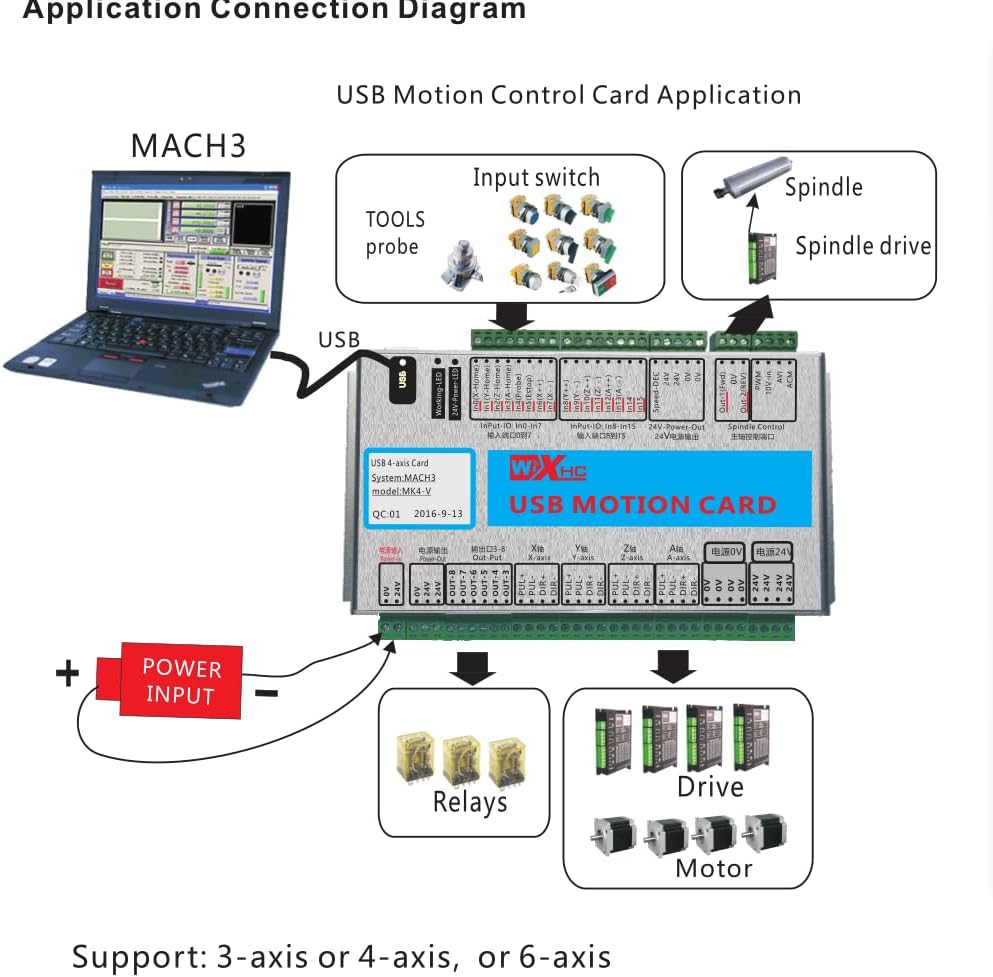
Figure 3: General application connection diagram for a USB motion control card, showing connections for power input, relays, drives, and motors.
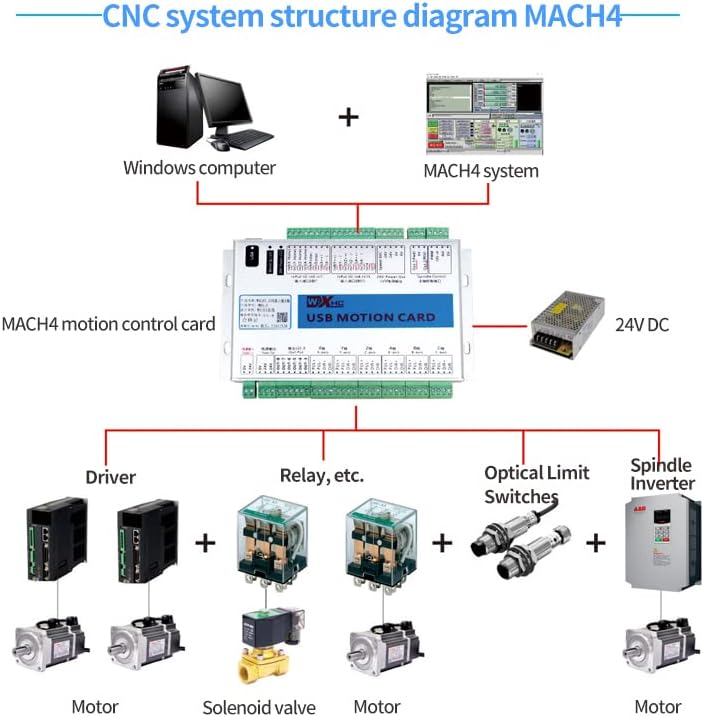
Figure 4: CNC system structure diagram for Mach4, illustrating the connection of the motion control card to a Windows computer, Mach4 system, 24V DC power, drivers, relays, optical limit switches, and spindle inverter.
4. Software Configuration and Operation
- Open wxMach.exe: Launch the wxMach.exe application and select "mach4mill".
- Configure Motor Parameters: Click "configure -> mach" and navigate to the motors window. Set the motor parameters according to your specific setup.
- Save Settings: Click "Apply" to save your settings. If a motor moves in reverse, click "reverse" to correct its direction.
- Test Motor Movement: After completing the settings, you can test motor movement using the jogging window (e.g., x+, y-).
5. Specifications
| Feature | Detail |
|---|---|
| Model | 3-Axis USB Interface (MKX-M4) |
| Pulse Output Frequency | Up to 2000KHz |
| Input Ports | 16 (fully isolated) |
| Output Ports | 8 (fully isolated) |
| Spindle Control | PWM speed control, Pulse + Direction output, 0-10V analog voltage output |
| Compatibility | Mach4 Hobby version, Windows operating system |
| Interface | USB (hot-plugging supported) |
| Dimensions | 184mm L x 127mm W x 29mm H (7.24"L x 5"W x 1.18"H) |
| Material | Aluminum casing (for shielding interference) |
| Included Components | USB cable |
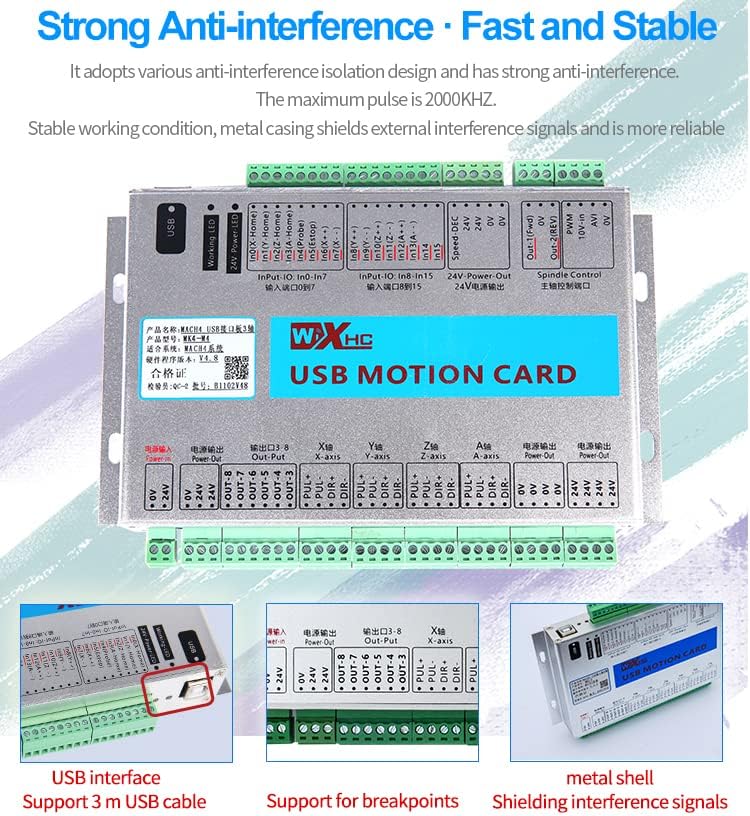
Figure 5: The Mach4 Motion Control Card, emphasizing its strong anti-interference design and metal casing for stable operation.
6. Troubleshooting and Support
If you encounter any issues during installation or operation, please refer to the downloaded manual for detailed troubleshooting steps. If problems persist, technical support is available.
We offer remote installation services and technical assistance to help resolve any installation or configuration challenges you may face. Please contact our support team for further assistance.