Introduction
This manual provides detailed instructions for the installation, operation, and maintenance of your MYPIN Solar Wireless PTZ Security Camera. Please read this manual thoroughly before using the product to ensure proper function and safety. Keep this manual for future reference.
Product Overview
What's Included
- MYPIN PTZ Security Camera
- Solar Panel
- Rechargeable Lithium-ion Battery (pre-installed or included separately)
- Mounting Bracket and Screws
- USB Charging Cable
- User Manual
Key Features
- 1080p Full HD Video: Provides clear and detailed video footage.
- Color Night Vision: Equipped with infrared LEDs and white light for clear night vision, including full-color options.
- Solar Powered & Rechargeable Battery: Continuous power supply through the solar panel, with a built-in rechargeable battery for uninterrupted operation.
- AI Smart Recognition & PIR Motion Detection: Advanced AI technology distinguishes between humans, pets, and vehicles, reducing false alarms.
- Two-Way Audio: Built-in speaker and anti-noise microphone allow for real-time two-way communication.
- PTZ Functionality: Pan 335°, Tilt 90°, and 4x digital zoom for flexible viewing angles.
- IP65 Weatherproof: Designed to withstand various weather conditions, suitable for outdoor use.
- Wireless Connectivity: Supports 2.4 GHz Wi-Fi for easy installation (5 GHz Wi-Fi not supported).
- Multiple Storage Options: Supports cloud storage (7-day free playback, max 1GB) and local storage via Micro SD card (up to 128GB, not included).
- Smart Home Integration: Compatible with Amazon Alexa for voice control and live view.

Image: MYPIN Solar Wireless PTZ Security Camera with its solar panel.
Setup
1. Initial Charging
Before first use, fully charge the camera's built-in battery using the provided USB cable and a 5V/2A power adapter (not included). A full charge ensures optimal performance, especially during initial setup and periods of low sunlight.
2. App Installation & Account Creation
- Download the VicoHome app from your smartphone's app store (iOS or Android).
- Open the app and follow the on-screen instructions to create a new account or log in if you already have one.
3. Camera Pairing with App
- Ensure your camera is powered on.
- In the VicoHome app, tap the "+" icon to add a new device.
- Select your camera model from the list.
- Follow the app's instructions to connect the camera to your 2.4 GHz Wi-Fi network. You may need to scan a QR code displayed on your phone with the camera lens.
- Once connected, name your camera and complete the setup process.
4. Solar Panel and Camera Mounting
The camera and solar panel can be installed in two ways: integrated or separated. Choose a location that provides optimal sunlight exposure for the solar panel and a clear view for the camera.
- Solar Panel Placement: Mount the solar panel in a location that receives direct sunlight for several hours daily. Ensure the cable can reach the camera.
- Camera Placement: Use the provided mounting bracket and screws to securely attach the camera to a wall or other stable surface. Adjust the camera angle for optimal surveillance coverage.

Image: Illustration of two installation methods for the solar panel and camera, showing both integrated and separate mounting options.
Operating Instructions
1. Live View and Playback
- Open the VicoHome app and select your camera to view the live feed.
- Access recorded footage through the playback feature in the app.
2. PTZ Control
In the live view interface, use the on-screen controls to pan (335° horizontally) and tilt (90° vertically) the camera lens. You can also use the digital zoom feature to get a closer look.
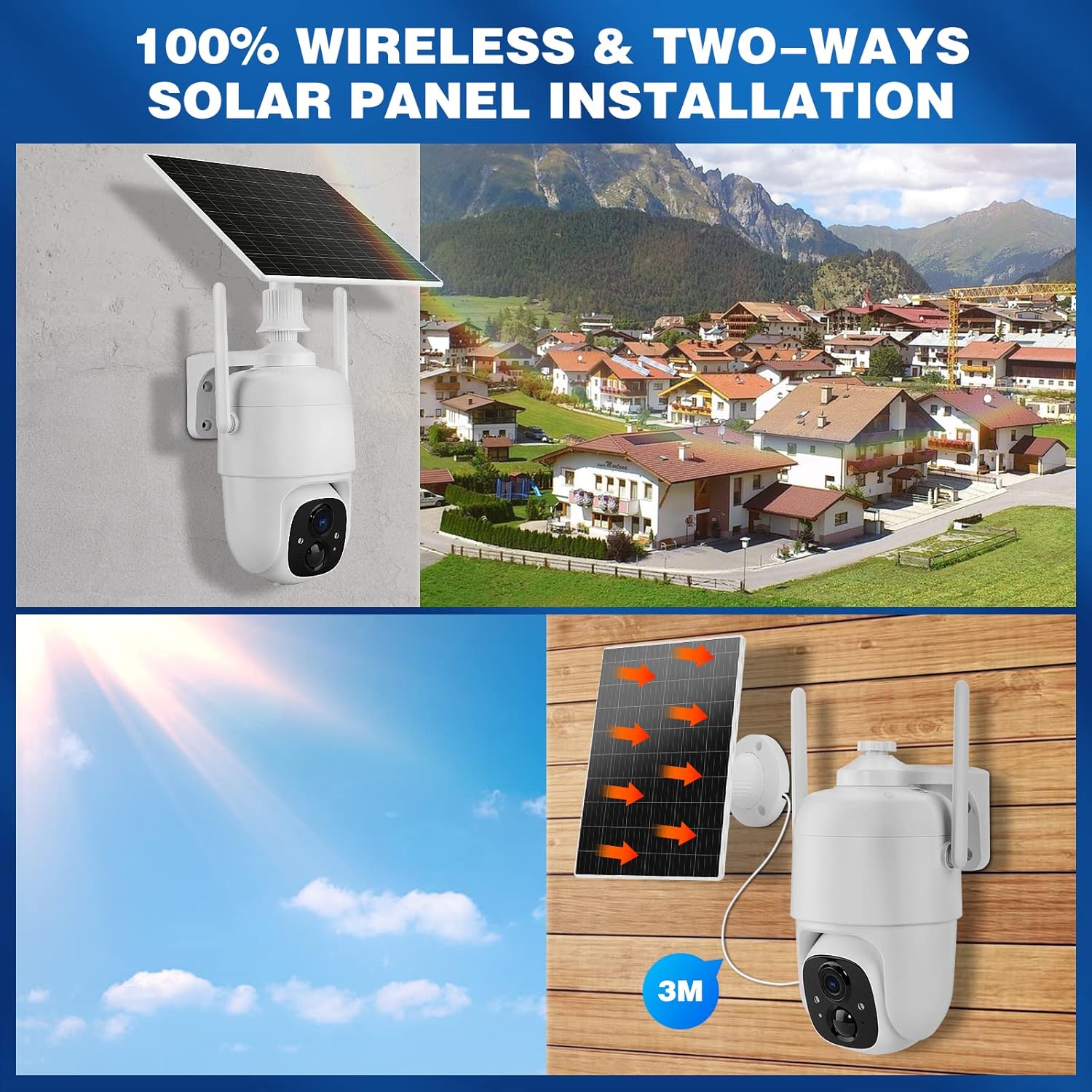
Image: Demonstrates controlling the camera's pan and tilt functions using a smartphone app.
3. Two-Way Audio
Tap the microphone icon in the app's live view to speak through the camera's speaker. The camera's built-in microphone will capture audio from the camera's vicinity, allowing for two-way communication.

Image: A person speaking through the camera to a delivery person, demonstrating the two-way audio feature.
4. Motion Detection and Alerts
- Configure motion detection sensitivity and activity zones within the VicoHome app.
- Enable AI Smart Recognition to differentiate between humans, pets, and vehicles for more accurate alerts.
- Receive instant notifications on your smartphone when motion is detected.

Image: A person walking past a gate, triggering a PIR human detection alert on a smartphone.
5. Night Vision Modes
The camera offers both infrared (IR) night vision and full-color night vision. You can switch between these modes in the app settings based on your preference and lighting conditions.

Image: A split view showing the difference between color night vision and standard IR night vision at night.
6. Storage Options
- Cloud Storage: The camera offers 7 days of free cloud playback (up to 1GB). Additional cloud plans may be available through the app.
- Micro SD Card: Insert a Micro SD card (up to 128GB, not included) into the designated slot for local video storage.
7. Amazon Alexa Integration
To integrate with Amazon Alexa, enable the VicoHome skill in the Alexa app and link your VicoHome account. You can then use voice commands to view your camera's live feed on compatible Alexa-enabled devices.

Image: A MYPIN camera and an Amazon Echo Show displaying the camera's live feed, illustrating Alexa integration.
Maintenance
1. Cleaning
- Regularly wipe the camera lens and solar panel with a soft, damp cloth to remove dust and debris.
- Do not use harsh chemicals or abrasive cleaners.
2. Battery Care
- Ensure the solar panel is free from obstructions to maximize charging efficiency.
- If the camera is stored for an extended period, charge the battery periodically to prevent deep discharge.
3. Firmware Updates
Check the VicoHome app regularly for firmware updates. Keeping your camera's firmware updated ensures optimal performance, security, and access to new features.
Troubleshooting
| Problem | Solution |
|---|---|
| Camera not connecting to Wi-Fi | Ensure your Wi-Fi is 2.4 GHz. Check Wi-Fi signal strength. Restart your router and camera. Re-pair the camera in the app. |
| Poor video quality | Check your Wi-Fi connection speed. Clean the camera lens. Ensure adequate lighting for optimal image capture. |
| Battery not charging | Ensure the solar panel is clean and receives direct sunlight. Check the connection cable between the solar panel and camera. Charge directly via USB if necessary. |
| False motion alerts | Adjust motion detection sensitivity in the app. Utilize AI Smart Recognition to filter out non-human movements. Define specific activity zones. |
| Two-way audio not working | Check microphone and speaker settings in the app. Ensure your phone's volume is up. Verify network connection stability. |
Specifications
- Model: HS0366
- Video Resolution: 1080p Full HD
- Pan Angle: 335°
- Tilt Angle: 90°
- Digital Zoom: 4x
- Night Vision: Infrared and Color Night Vision
- Wireless Connectivity: Wi-Fi 2.4 GHz (IEEE 802.11b/g/n)
- Power Source: Solar Powered, Rechargeable Lithium-ion Battery (5 Watt-hours)
- Weather Resistance: IP65
- Operating Temperature: -10°C to 45°C (14°F to 113°F)
- Storage: Cloud Storage (up to 1GB free for 7 days), Micro SD Card (up to 128GB, not included)
- Audio: Two-Way Audio (built-in microphone and speaker)
- Motion Detection: PIR with AI Human/Pet/Vehicle Recognition
- Material: Metal
- Dimensions: Approximately 20.2 x 19.7 x 13.9 cm
- Weight: Approximately 1.27 kg

Image: The MYPIN camera and solar panel installed outdoors during winter, highlighting its IP65 waterproof rating and operating temperature range.
Warranty and Support
For warranty information and technical support, please refer to the contact details provided with your purchase or visit the official MYPIN website. Keep your purchase receipt as proof of purchase for warranty claims.


