
Introduction
This manual provides detailed instructions for the installation, operation, and maintenance of your Rimoody Android Car Stereo. Please read this manual thoroughly before using the product to ensure proper function and safety. This unit is designed for specific Ford Focus models manufactured between 2004 and 2011.
Product Features
- 9-inch 2.5D Tempered Glass Touch Screen: High-definition 1080P display with a user-friendly interface.
- Android 13 Operating System: Provides a modern and responsive user experience.
- Wireless Apple Carplay & Android Auto: Seamless integration with iOS and Android smartphones for navigation, communication, and media. Supports both wired and wireless connections.
- Built-in GPS Navigation: Supports offline maps and online navigation via Wi-Fi.
- Integrated Wi-Fi: Connect to a Wi-Fi hotspot for online maps, app downloads, and streaming.
- Bluetooth Functionality: Hands-free calling, music streaming (A2DP), and automatic phonebook loading.
- FM/RDS Radio: High-quality radio tuner with 18 preset stations for news, traffic, and music.
- AHD Rear Camera Support: Automatic display of high-definition 720P reverse images when shifting into reverse gear.
- Hi-Fi Audio: High-fidelity sound reproduction with adjustable sound effects.
- Steering Wheel Control Support: Compatible with original vehicle steering wheel buttons for convenient control.
- Split Screen Function: Allows two applications to run simultaneously on the screen.
- Multilanguage Support: Supports up to 40 national languages.
Package Contents
Verify that all items are present in the package before proceeding with installation:
- Rimoody Android Car Stereo Unit
- Power Cable (x2)
- GPS Antenna
- Rear Camera Input Cable
- USB Cables (x2)
- External Microphone
- AHD Backup Camera
- Installation Tool
- Frame (x2)
- Adapter Cable
- User Manual
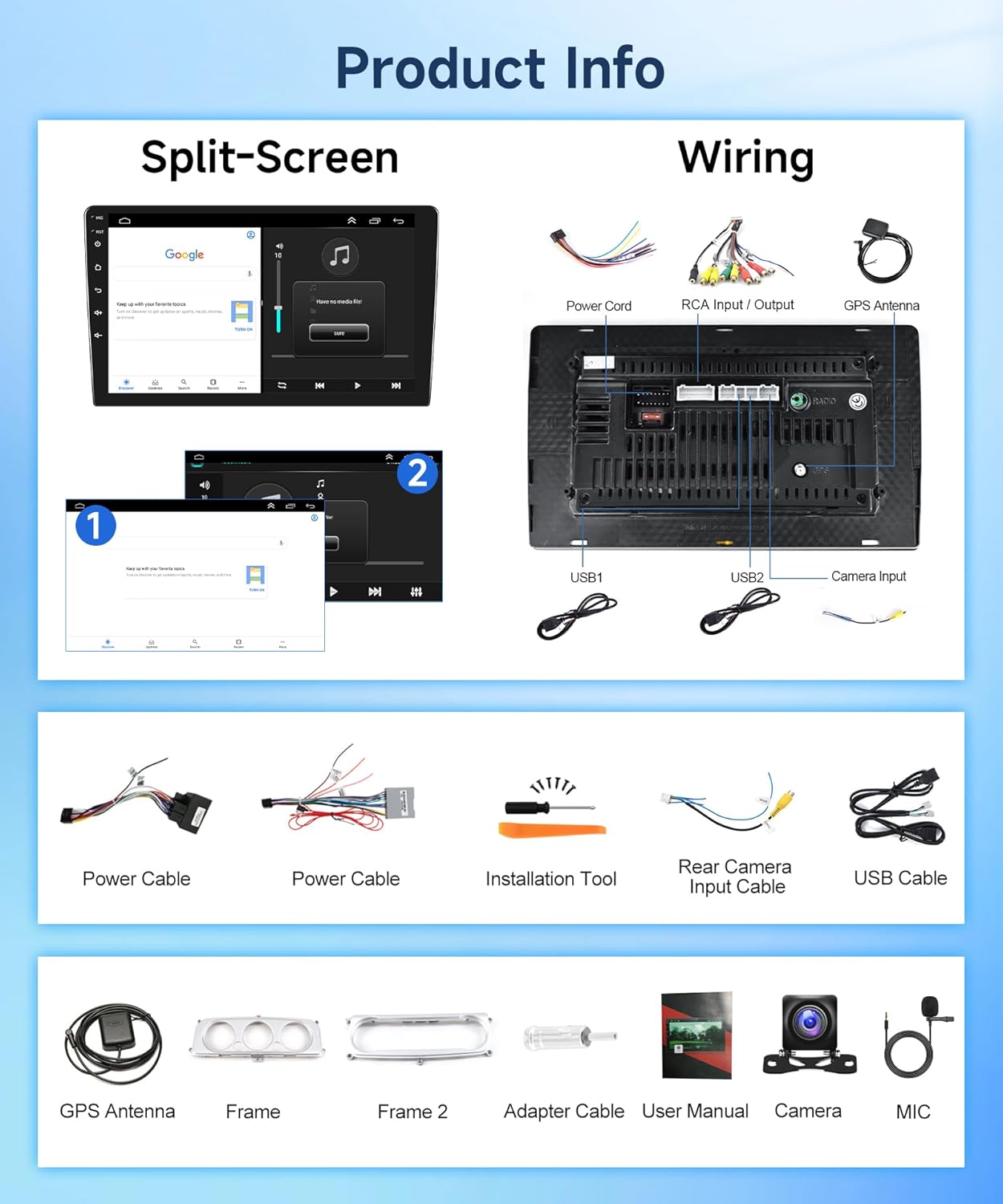
Figure 1: Included components of the Rimoody Android Car Stereo package.
Setup and Installation
Vehicle Compatibility
This unit is specifically designed for Ford Focus Exi MT 2, 3, Mk2/Mk3 models from 2004 to 2011. Ensure your vehicle falls within this range for proper fitment and functionality.
Installation Steps
- Prepare the Vehicle: Turn off the ignition and disconnect the car battery's negative terminal to prevent electrical shorts.
- Remove the Original Unit: Use appropriate stereo keys or tools to carefully remove the existing car radio and its surrounding fascia. Disconnect all wiring harnesses.
- Connect Wiring: Connect the provided power cables, GPS antenna, USB cables, and rear camera input cable to the corresponding ports on the new Rimoody unit. Ensure all connections are secure. Refer to the wiring diagram for specific connections.
- Install the New Unit: Attach the new fascia and carefully slide the Rimoody Android Car Stereo into the dashboard opening. Secure it in place using the vehicle's mounting points.
- Connect Backup Camera: Route the backup camera cable to the rear of the vehicle and mount the camera in a suitable location (e.g., near the license plate). Connect the camera's power to the reverse light circuit for automatic activation.
- Reconnect Battery: Once all connections are made and the unit is secured, reconnect the car battery's negative terminal.
- Initial Power On: Turn on the ignition and power on the stereo. Follow any on-screen prompts for initial setup.

Figure 2: Comparison of the Ford Focus dashboard before and after installing the Rimoody Android Car Stereo.
Figure 3: Wiring diagram and rear view of the stereo unit.
Operating Instructions
Power On/Off
Press the power button on the unit or use the vehicle's ignition to turn the stereo on or off.
Touch Screen Operation
The 9-inch capacitive touch screen allows for intuitive control. Tap, swipe, and pinch to navigate menus, select apps, and adjust settings.
Wireless Carplay / Android Auto
To use Wireless Carplay or Android Auto:
- Ensure Bluetooth and Wi-Fi are enabled on your smartphone.
- On the car stereo, select the Carplay or Android Auto application.
- Follow the on-screen instructions to pair your phone via Bluetooth. Once paired, the system will establish a Wi-Fi connection for wireless Carplay/Android Auto.
- Alternatively, connect your phone via a USB cable for wired Carplay/Android Auto.

Figure 4: Carplay, Android Auto, and Mirror Link connectivity options.
GPS Navigation
The unit comes with built-in GPS. For offline navigation, download map data via Wi-Fi. For online navigation, connect the unit to a Wi-Fi hotspot, then use Google Maps or other navigation applications.
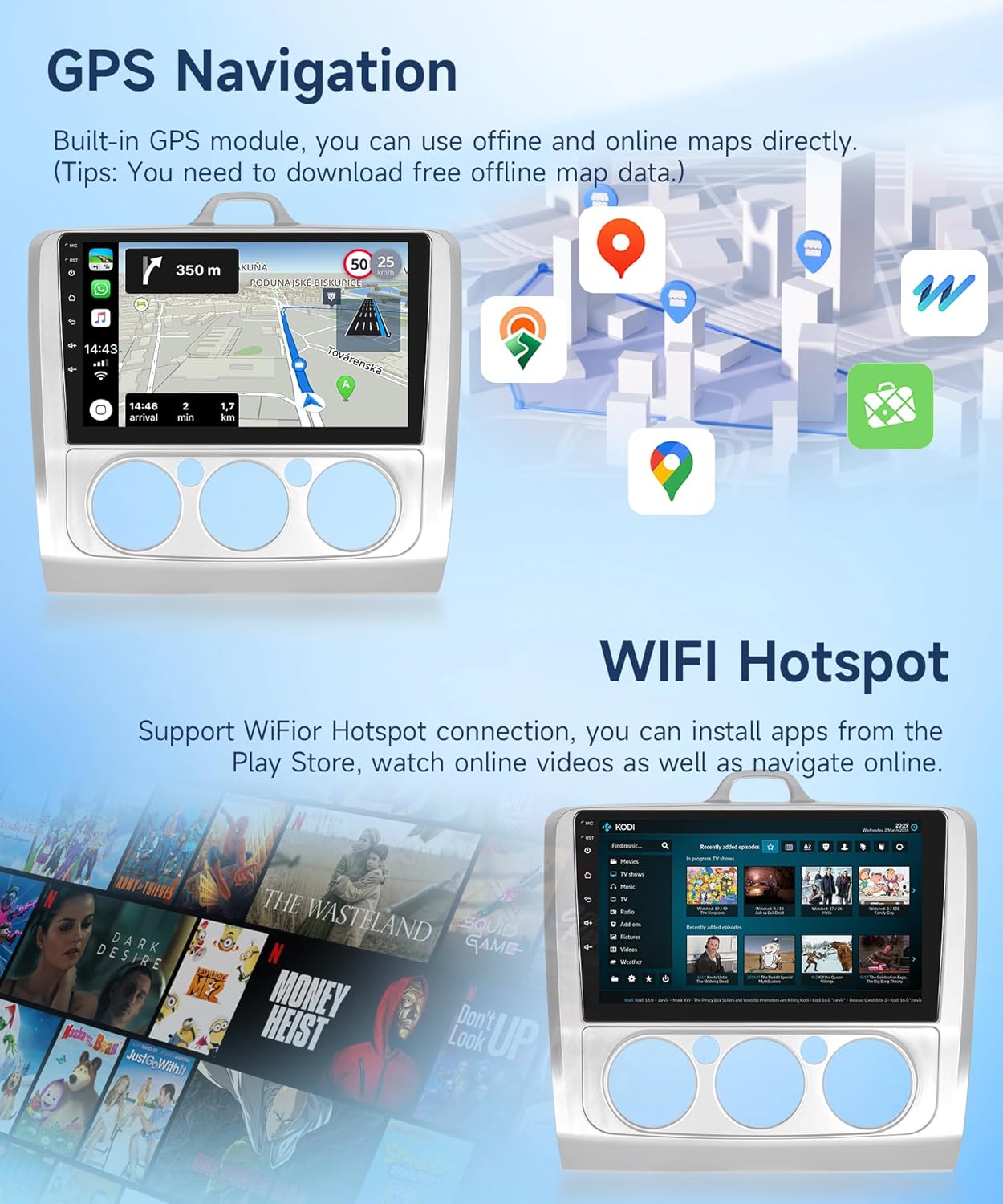
Figure 5: GPS Navigation and Wi-Fi Hotspot features.
Bluetooth Connectivity
To pair your phone via Bluetooth:
- Go to the Bluetooth settings on the car stereo.
- Enable Bluetooth on your smartphone and search for available devices.
- Select the car stereo's Bluetooth name (e.g., "Rimoody") from your phone's list and confirm pairing.
- Once connected, you can make hands-free calls, stream music, and access your phonebook.

Figure 6: Bluetooth, FM/RDS Radio, and HiFi features.
FM/RDS Radio
Access the FM radio application. You can manually tune to stations or use the auto-scan function to find and save up to 18 preset stations. RDS (Radio Data System) provides additional information like station name and program type where available.
Steering Wheel Control
If your Ford Focus has original steering wheel control buttons, you can configure them to control the stereo functions (e.g., volume, track skip, mode). Access the "Steering Wheel Control" settings in the unit's menu and follow the on-screen instructions to map the buttons.

Figure 7: Reversing Display and Steering Wheel Control setup.
Rear View Camera
When the vehicle is shifted into reverse gear, the car stereo screen will automatically display the image from the connected AHD backup camera, providing a wide-angle, waterproof, and night vision view for safer reversing.
Wi-Fi Hotspot
Connect the stereo to a mobile hotspot or home Wi-Fi network to access online features. This allows you to download apps from the Play Store, stream videos, and use online maps.
Hi-Fi Audio
The unit supports high-fidelity audio output. Adjust equalizer settings and sound effects through the audio settings menu to customize your listening experience.
Split Screen Function
To use split screen, open an application, then long-press the recent apps button or swipe up from the bottom (depending on the Android version) to enter split-screen mode. Select a second application to run alongside the first.
Figure 8: Split-Screen functionality demonstration.
Maintenance
To ensure the longevity and optimal performance of your Rimoody Android Car Stereo, follow these maintenance guidelines:
- Cleaning the Screen: Use a soft, lint-free cloth specifically designed for electronics screens. Do not use abrasive cleaners or solvents. Gently wipe the screen to remove dust and fingerprints.
- Software Updates: Periodically check for software updates through the unit's settings menu (if available) to ensure you have the latest features and bug fixes.
- Avoid Extreme Temperatures: Do not expose the unit to extreme heat or cold for prolonged periods, as this can affect its electronic components.
- Protect from Moisture: Keep the unit dry and away from liquids.
Troubleshooting
If you encounter issues with your car stereo, refer to the following common problems and solutions:
- No Power:
- Check all power connections and ensure they are securely plugged in.
- Verify the vehicle's fuse for the stereo is not blown.
- Ensure the car battery is charged and properly connected.
- No Sound:
- Check the volume level and ensure it is not muted.
- Verify speaker connections are correct and secure.
- Ensure the correct audio source is selected.
- GPS Not Working / Inaccurate:
- Ensure the GPS antenna is properly installed and has a clear view of the sky.
- Check if offline maps are downloaded or if the unit is connected to Wi-Fi for online maps.
- Bluetooth Connectivity Issues:
- Ensure Bluetooth is enabled on both the stereo and your smartphone.
- Delete previous pairings and try pairing again.
- Restart both the stereo and your phone.
- Rear Camera Not Displaying:
- Check the camera's power and video signal connections.
- Ensure the camera is correctly wired to the reverse light circuit.
- Verify camera settings in the stereo menu.
- Unit Drains Car Battery:
- Ensure the ACC (Accessory) wire is correctly connected to a switched power source that turns off with the ignition.
- If the unit remains powered or draws significant current when the car is off, consult a professional installer to check wiring.
For persistent issues, contact Rimoody customer support.
Specifications
| Feature | Specification |
|---|---|
| System | Android 13 |
| Screen Size | 9 inches |
| Memory | 2GB RAM + 32GB ROM (Internal Storage) |
| Screen Resolution | 1024*600 |
| Power Output | 4*45W |
| Steering Wheel Control | Support |
| Radio Band | FM/RDS |
| Video Output | Support |
| External Microphone | Support |
| Split Screen | Support |
| USB Interface | Double USB |
| Connectivity Technology | Bluetooth, USB, Wi-Fi |
| Map Type | Worldwide (with download) |
| Mounting Type | Dashboard Mount |
| Product Dimensions | 22.86 x 22.86 x 22.86 cm |
| Product Weight | 1.59 kg |
Warranty and Support
Your Rimoody Android Car Stereo is covered by a manufacturer's warranty. Please refer to the warranty card included in your package for specific terms and conditions. For technical support, troubleshooting assistance, or warranty claims, please contact Rimoody customer service through the retailer where the product was purchased or visit the official Rimoody website.