
1. Introduction
This manual provides instructions for the ULTRAPROLINK UL1076 OTG Type C to USB A Adapter. This product is designed to facilitate data transfer and charging between devices with USB Type-C and USB Type-A ports. It includes two distinct adapters: one for converting a Type-C port to a USB-A port (OTG) and another for converting a USB-A port to a Type-C port.
2. Product Overview
The ULTRAPROLINK UL1076 set includes two compact adapters designed for versatility and high performance.
- Type C 3.1 OTG Adapter: Allows connection of USB-A peripherals (like flash drives, keyboards, mice) to Type-C enabled devices.
- USB-A to Type C Adapter: Converts a standard USB-A port into a Type-C port, enabling connection of Type-C peripherals or cables to devices with USB-A ports.
- High Speed Data Transfer: Supports up to 5Gbps data transfer speed (USB 3.0 compatible) and Thunderbolt 3 compatibility.
- 3A Max Charging: Capable of delivering up to 3A charging current when used with a compatible cable and charger.
- Compact Design: Features a brushed aluminum alloy housing for durability and a secure fit. Includes hand straps for portability.

Image 2.1: The ULTRAPROLINK UL1076 adapter set, showcasing both the Type C OTG and USB-A to Type C adapters.
3. Setup
The ULTRAPROLINK UL1076 adapters are designed for plug-and-play functionality, requiring no additional drivers for most operating systems.
- Identify Adapter Type: Determine whether you need to connect a USB-A device to a Type-C port (use the Type C OTG adapter) or a Type-C device/cable to a USB-A port (use the USB-A to Type C adapter).
- Connect Adapter: Insert the appropriate adapter into the host device's port (e.g., Type-C adapter into a laptop's Type-C port).
- Connect Peripheral: Plug your USB-A or Type-C peripheral into the adapter.
- Enable OTG (for smartphones/tablets): For some smartphones and tablets, you may need to enable the OTG (On-The-Go) feature in your device's settings for the Type C OTG adapter to function correctly. Refer to your device's manual for specific instructions on enabling OTG.
4. Operating Instructions
4.1. Using the Type C OTG Adapter
This adapter allows you to connect standard USB-A devices to your Type-C enabled laptop, tablet, or smartphone.
- Connect a USB flash drive to transfer files.
- Attach a USB keyboard or mouse for easier input on tablets or smartphones.
- Connect external hard drives (ensure adequate power supply if required by the hard drive).

Image 4.1.1: The Type C OTG adapter in use, connecting a USB-A flash drive to a tablet for data access.
4.2. Using the USB-A to Type C Adapter
This adapter converts a traditional USB-A port into a Type-C port, expanding connectivity options for older devices.
- Connect Type-C cables to USB-A chargers for charging Type-C devices.
- Connect Type-C peripherals to laptops or desktops that only have USB-A ports.

Image 4.2.1: The USB-A to Type C adapter facilitating charging of a smartphone from a USB-A wall charger.
4.3. Data Transfer and Charging
Both adapters support high-speed data transfer and charging capabilities.
- Data Transfer: Achieve transfer rates up to 5Gbps, allowing quick transfer of large files.
- Charging: The adapters support up to 3A maximum charging. The actual charging speed depends on the connected cable and charger.
- Device-to-Device Charging: It is possible to connect two phones via a 3A cable and use one phone to charge the other, provided both devices support this functionality.

Image 4.3.1: Illustration of high-speed data transfer between a laptop and a smartphone using the adapter.
5. Device Compatibility
The ULTRAPROLINK UL1076 adapters offer universal compatibility with a wide range of Type-C OTG enabled devices and Thunderbolt 3 compatible devices.
Compatible Devices:
- Laptops: MacBook M1 Series, all MacBooks with Type C port, Dell XPS, Latitude, Precision, Chromebook, Surface Pro 7, Surface Laptop, Lenovo Yoga, HP Envy, Spectre, Elitebook, Huawei Matebook, and all other Type C enabled laptops.
- Tablets: iPad Pro 11” & 12.9” (2018/2019 models for data, not charging), iPad Air 2020, Samsung Galaxy Tab, Galaxy Book, S20 Series S21.
- Smartphones: Note 10 series, Note 9, Note 8, S10 series, S9 series, S8 series, A80, A70, A50, A40, A30s, A20e, Tab S6, S5e, S4, Huawei P40, P30 Pro, P20 Pro, P20, P10, Mate 20 Pro, Mate 20, Mate 10, OnePlus 9, 8, 8T, 7T, 7 Pro, Google Pixel 4 XL, 3a XL, 3a, Xiaomi Mi 9, Mi 8, Redmi Note 7, Moto G7, C6.

Image 5.1: A visual guide to compatible device types and models.
6. Specifications
| Feature | Detail |
|---|---|
| Model Number | UL1076 |
| Brand | ULTRAPROLINK |
| Connector Type | USB Type A, USB Type C |
| Compatible Devices | Laptops, Tablets, Smartphones, External Storage Devices, Peripherals |
| Data Transfer Speed | Up to 5Gbps (USB 3.0) |
| Current Rating | 3 Amps (Max) |
| Number of Ports | 2 (one Type C OTG, one USB-A to Type C) |
| Color | Black |
| Material | Brushed Aluminium Alloy Housing |
| Dimensions (L x W x H) | 8 x 7 x 2 Centimeters |
| Weight | 0.02 Kilograms |
| Country of Origin | China |
| UPC | 700721358816 |
7. Troubleshooting
If you encounter issues, please review the following common scenarios:
- Adapter not recognized: Ensure your smartphone or tablet has OTG functionality enabled in its settings.
- No charging or slow charging: The charging speed is dependent on the quality and specifications of the USB cable and wall charger used. Ensure they are rated for the desired charging speed.
- Incompatibility with wireless chargers: This product is not compatible with Mag-Safe wireless chargers or other wireless charging pads.
- No video output: These adapters are designed for data and power transfer only. They do not transmit HDMI, VGA, or any other video signals.
- Laptop not charging: While the adapter can charge phones and tablets, its maximum capacity of 3A is generally insufficient to charge most laptops.
- iPad Pro (2018/2019) charging issues: The adapter supports data transmission for iPad Pro 2018/iPad Pro 11 but may not support charging due to specific charging protocols of these devices.
8. Maintenance
To ensure the longevity and optimal performance of your ULTRAPROLINK adapters, follow these simple maintenance guidelines:
- Keep the adapters clean and free from dust and debris. Use a soft, dry cloth for cleaning.
- Avoid exposing the adapters to extreme temperatures, moisture, or direct sunlight.
- Handle the adapters gently. Avoid bending or twisting the connectors forcefully.
- Utilize the provided hand straps to secure the adapters and prevent loss or damage.

Image 8.1: The compact design of the adapter, highlighting the premium finish and included hand strap for secure handling.
9. Warranty and Support
ULTRAPROLINK provides comprehensive support for its products.
- Warranty: This product comes with a 6-month replacement warranty against manufacturing defects.
- Warranty Activation: To activate your warranty, scan the QR code provided on the product packaging or visit the official ULTRAPROLINK website.
- Contact Support: For any queries or support needs, please reach out to our customer service team.
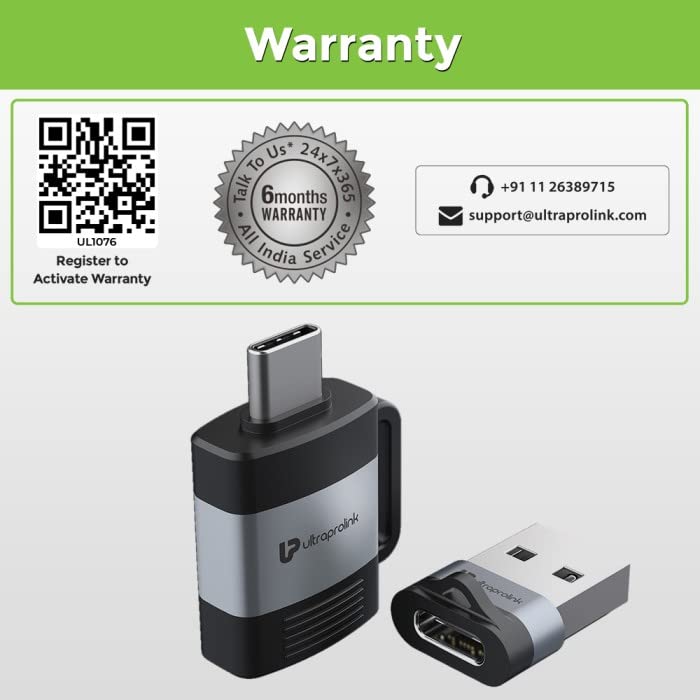
Image 9.1: Warranty details and contact information for ULTRAPROLINK support.
Support Information:
- Phone: +91 9312229953
- Email: support@ultraprolink.com
- Address: Rca Techmart Pvt Ltd S-28 Okhla Industrial Area Phase -II New Delhi-110020, India
- Warranty Activation Link: http://s.ntgs.in/ewULH9g0soG1K
