
Annadue Annaduezoq4cb5u1w5873
Annadue 4K Front and 1080p Rear Dash Cam
User Manual
Introduction
Thank you for choosing the Annadue 4K Front and 1080p Rear Dash Cam. This manual provides essential information for the proper installation, operation, and maintenance of your device. Please read it thoroughly before use to ensure optimal performance and safety.
Product Overview
The Annadue Dash Cam is designed to provide comprehensive road surveillance with its dual camera system, integrated GPS, and Wi-Fi connectivity. It captures high-resolution video to enhance driving safety and provide evidence in case of incidents.
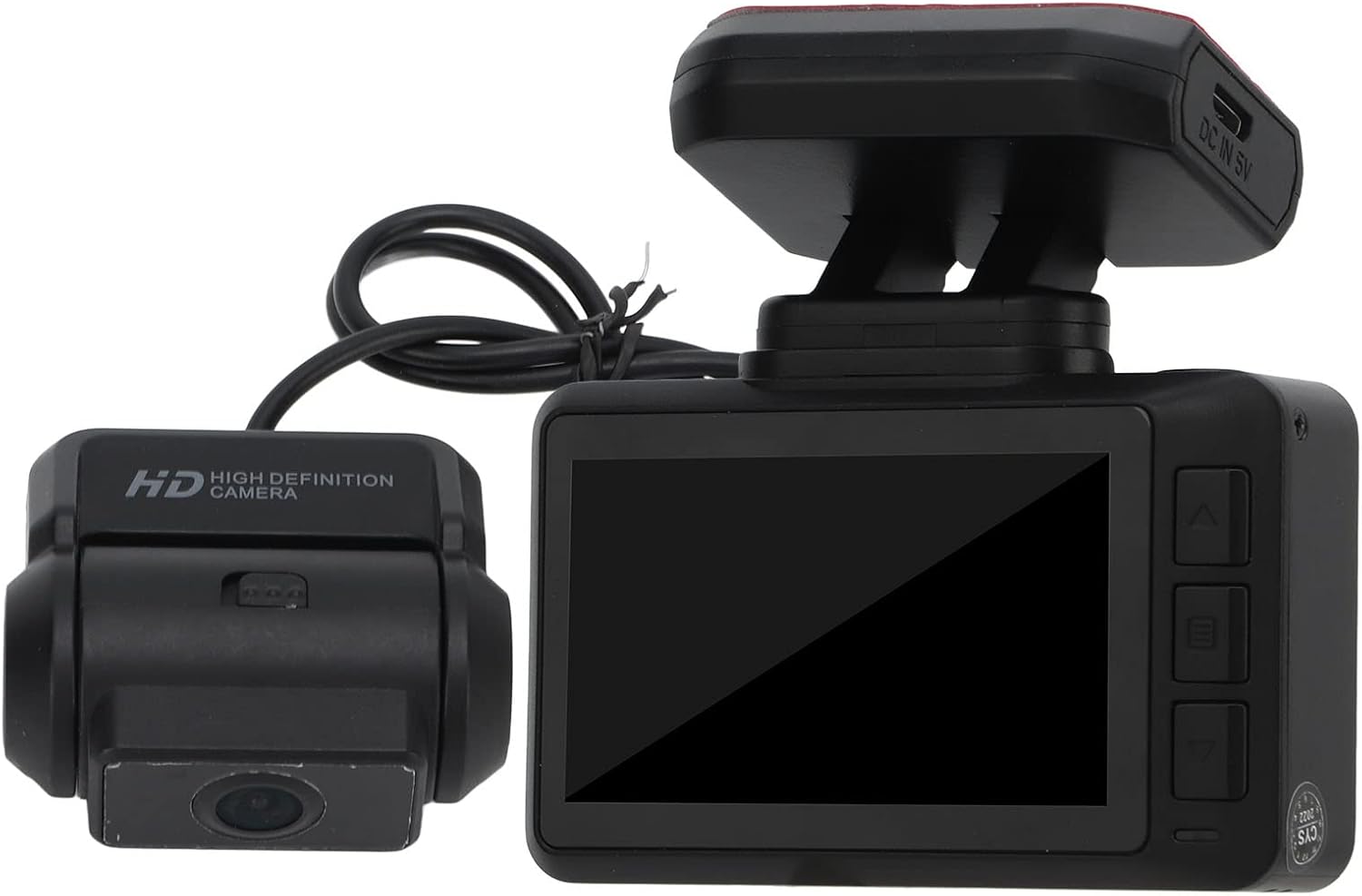
Image: Annadue 4K Front and 1080p Rear Dash Cam, showing the main unit with its screen and the separate rear camera.
Key Features:
- Dual Camera Recording: Simultaneous 4K front and 1080p rear video recording.
- Integrated GPS: Records real-time speed and driving route data.
- Wi-Fi Connectivity: Easy access to recordings and settings via a mobile application.
- Wide Angle Lenses: 170° front and 150° rear viewing angles for comprehensive coverage.
- G-Sensor: Automatic accident detection and emergency video locking.
- Loop Recording: Continuous recording, overwriting oldest files when the memory card is full.
- Gesture Detection: Allows taking photos with a simple hand gesture.
- Parking Monitoring: Monitors vehicle activity when parked.
- HD Night Vision: Enhanced low-light recording capabilities.
- Magnetic Mount: Simplifies installation and removal of the main unit.

Image: Visual representation of key features including parking monitoring, loop video, F1.6 aperture, dual cameras, NT966670 processor, HD 4K, gesture control, 1920x1080 resolution, and Wi-Fi.
Package Contents
Please verify that all items listed below are included in your package:
- 1 x Front Camera Unit
- 1 x Charging Cable (USB to Micro USB)
- 1 x Magnetic Mount (pre-installed)
- 1 x Car Charger (USB cigarette lighter adapter)
- 1 x Rear Camera
- 3 x Double-sided Adhesive Tapes
- 1 x User Manual

Image: All components included in the Annadue Dash Cam package, laid out clearly, including the front camera, rear camera, magnetic mount, car charger, cables, and adhesive tapes.
Setup
1. Insert Micro SD Card:
- Ensure the dash cam is powered off.
- Locate the Micro SD card slot on the side of the main unit.
- Insert a Class 10 or higher Micro SD card (up to 128GB, not included) into the slot until it clicks.
- To remove, gently push the card in until it clicks out.
2. Install Front Camera:
- Clean the windshield area where you intend to mount the dash cam.
- Attach the magnetic mount to the windshield using one of the double-sided adhesive tapes. Ensure a clear view of the road.
- Slide the main dash cam unit onto the magnetic mount until it securely locks.
- Adjust the camera lens angle to capture the desired view of the road ahead.
3. Install Rear Camera:
- Identify a suitable location on your rear windshield for the rear camera, ensuring a clear view.
- Clean the mounting surface thoroughly.
- Attach the rear camera using a double-sided adhesive tape.
- Connect the rear camera cable to the main front camera unit. Route the cable neatly along the vehicle's interior trim.
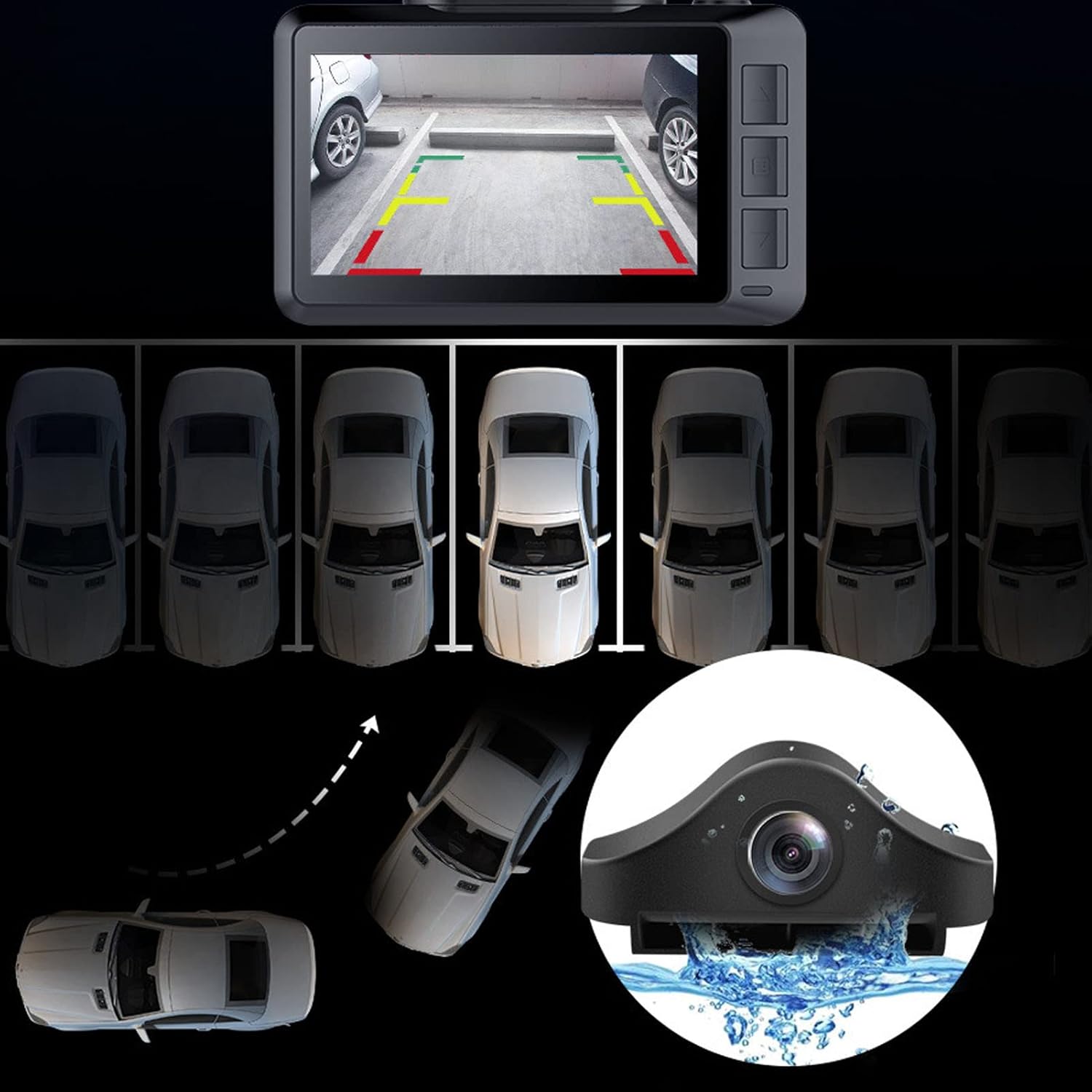
Image: Illustration of the rear camera's parking assist function, showing parking lines on the screen and a car reversing into a parking spot.
4. Power Connection:
- Connect the charging cable to the dash cam's Micro USB port.
- Plug the car charger into your vehicle's cigarette lighter socket.
- Route the power cable neatly to avoid obstructing your view or interfering with driving.
- The dash cam will automatically power on and begin recording when the vehicle's ignition is turned on.
Operating Instructions
Basic Operation:
- Power On/Off: The device powers on automatically with vehicle ignition. To manually power on/off, press and hold the Power button.
- Recording: Recording starts automatically when the device is powered on. A red indicator light or icon on the screen confirms recording.
- Loop Recording: Videos are recorded in 3-minute segments by default. When the Micro SD card is full, the oldest unprotected files are overwritten.
G-Sensor (Emergency Lock):
The built-in G-sensor detects sudden impacts or collisions. When triggered, it automatically locks the current video segment, preventing it from being overwritten by loop recording. The sensitivity can be adjusted in the settings (Off, High, Medium, Low; Medium is default).
Gesture Detection:
This feature allows you to take a photo by performing a specific hand gesture in front of the dash cam's sensor. Refer to the on-screen prompts or the full manual for specific gesture requirements.

Image: Illustration showing a hand gesture being used to trigger the dash cam to take a photo, with multiple small photo thumbnails appearing around the dash cam screen.
Wi-Fi Connectivity and Mobile App:
The dash cam features integrated Wi-Fi for seamless connection to your smartphone or tablet. Download the "Luckycam" application (password: 12345678) from your device's app store.
- Enable Wi-Fi on your dash cam via the menu settings.
- On your mobile device, connect to the dash cam's Wi-Fi network (SSID will be displayed on the dash cam screen).
- Open the Luckycam app. You can now view live footage, playback recorded videos, download files to your phone, and adjust camera settings.

Image: A smartphone displaying the Luckycam app interface, showing live video feed from the dash cam, next to the dash cam unit itself.
GPS Functionality:
The integrated GPS module automatically records your vehicle's speed and route data. This information can be viewed during video playback using compatible software on a computer or within the mobile application.
Parking Monitoring:
When enabled, the dash cam can monitor activity around your parked vehicle. If motion or impact is detected, it will automatically start recording. This feature typically requires a continuous power supply (e.g., hardwire kit, sold separately) to function when the vehicle is off.
Button Functions:
- Power Button: Press and hold to power on/off. Short press to toggle screen on/off or confirm selections.
- Menu Button: Access settings menu.
- Up/Down Buttons: Navigate through menu options or adjust settings.
Maintenance
Cleaning the Device:
Wipe the camera lenses and screen with a soft, lint-free cloth. Do not use abrasive cleaners or solvents, as they may damage the device. Ensure the device is powered off before cleaning.
Micro SD Card Care:
Regularly format your Micro SD card (at least once a month) to maintain optimal recording performance and prevent data corruption. This can usually be done through the dash cam's menu settings. Back up any important files before formatting, as it will erase all data on the card.
Environmental Considerations:
Avoid exposing the dash cam to extreme temperatures for prolonged periods. While designed for automotive use, excessive heat or cold can affect battery life and component longevity.
Troubleshooting
- Dash Cam does not power on:
- Check if the car charger is properly connected to the cigarette lighter socket and the dash cam.
- Ensure the vehicle's ignition is on.
- Test the car charger with another device to confirm it's working.
- Recording stops or freezes:
- Format the Micro SD card.
- Ensure you are using a Class 10 or higher Micro SD card. Inferior cards can cause recording issues.
- Try a different Micro SD card.
- Wi-Fi connection issues:
- Ensure Wi-Fi is enabled on the dash cam.
- Verify the correct Wi-Fi password ("12345678") is entered on your mobile device.
- Move your mobile device closer to the dash cam.
- Restart both the dash cam and your mobile device.
- GPS not acquiring signal:
- Ensure the dash cam has a clear view of the sky (not obstructed by metallic tints or other objects).
- Allow a few minutes for the GPS to acquire a signal, especially after initial setup or moving to a new location.
- Image quality is poor:
- Clean the camera lenses.
- Ensure the protective film has been removed from the lenses.
- Check video resolution settings in the menu.
Specifications
| Model | Annaduezoq4cb5u1w5873 |
| Processor | NT966670 |
| Sensor | IMX335 (Front), 720P (Rear) |
| Lens Aperture | F1.6 |
| Front Camera Angle | 170° |
| Rear Camera Angle | 150° |
| Video Resolution (Front) | 2560 x 1440 P30 (4K) |
| Video Resolution (Rear) | 1080 x 720 |
| Photo Resolution | 4608 x 3456 (16M) |
| Video Encoding | H.264, MP4 format |
| Image Format | JPEG |
| Loop Recording | Default 3 minutes (adjustable) |
| Wi-Fi Module | 802.1.1 b/g/n 8189 |
| G-Sensor | Adjustable (Off, High, Medium, Low) |
| Display | IPS (480 x 272 RGB) |
| Micro SD Card Support | Max 128GB, Class 10 or higher (not included) |
| Battery | Built-in 200 mAh Lithium Battery |
| Power Input | DC 5V 1.5A |
| Power Method | USB Cigarette Lighter Socket |
| Compatible App | Luckycam (Android 360 Security Assistant) |
| Mounting Type | Magnetic mount, Adhesive mount |

Image: The Annadue Dash Cam highlighting the Novatek NT966670 processor, indicating high-quality internal components.

Image: Close-up view of the dash cam's lens assembly, showing multiple optical elements for clear image capture.
Warranty and Support
For warranty information and customer support, please refer to the documentation provided at the time of purchase or visit the official Annadue website. Keep your purchase receipt as proof of purchase for warranty claims.
Ask a question about this manual
Ask about setup, troubleshooting, compatibility, parts, safety, or missing instructions. Manuals+ will review the question and use this page’s manual context to help answer it.