Introduction
This manual provides comprehensive instructions for the SIWIQU TV Dock Station, designed as a portable replacement for the official Nintendo Switch and Switch OLED docking stations. It enables video output to a TV and charging while playing. Please read this manual thoroughly before use to ensure proper operation and longevity of your device.
Setup Instructions
- Power Connection: Connect the official Nintendo Switch original power adapter (not included) to the USB-C input port on the SIWIQU TV Dock Station.
- HDMI Connection: Connect an HDMI cable (not included) from the HDMI port on the dock to an HDMI input port on your television or monitor.
- Console Placement: Carefully insert your Nintendo Switch or Switch OLED console into the USB-C output port of the dock. Ensure it is seated securely. The dock features a spring buffer function in the guide notch to protect the console's port.
- Peripheral Connection: Utilize the two USB ports (1x USB 2.0, 1x USB 3.0) for connecting additional peripherals such as controllers or other accessories.

Image: Rear view of the SIWIQU TV Dock Station showing the HDMI, USB-C, USB 2.0, and USB 3.0 ports. Cables are shown connected to illustrate port usage.

Image: A Nintendo Switch console is shown docked in the SIWIQU TV Dock Station, with the setup connected to a television displaying gameplay.
Operating Instructions
Display Switching (TV Mode / Tabletop Mode)
The SIWIQU TV Dock Station allows for seamless switching between TV output mode and tabletop mode. Locate the dedicated switch button on the back of the dock. Press this button to toggle between the two display modes.
- TV Output Mode: When selected, the console's display will be mirrored or extended to the connected television via the HDMI port. The dock supports 4K, 1080P, and 720P video output. Note that the Nintendo Switch console itself supports a maximum resolution of 1080P.
- Tabletop Mode: When selected, the console's display will revert to its built-in screen, allowing for portable play while the console remains docked and charging.
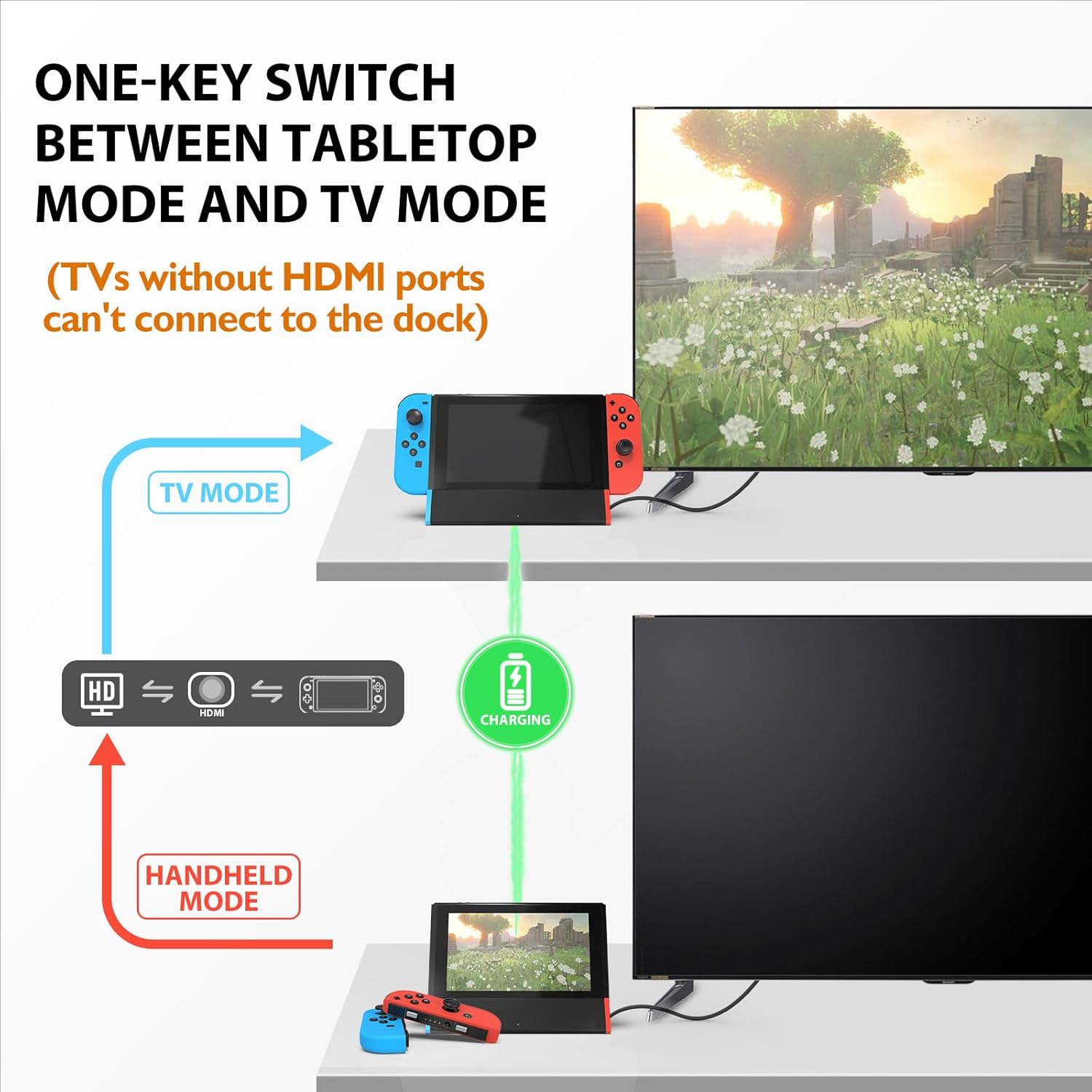
Image: A diagram showing the Nintendo Switch in the dock, with arrows indicating the one-key switch function to alternate between displaying on a TV (TV Mode) and using the console's screen (Handheld Mode) while charging.
Charging While Playing
The dock is designed to charge your Nintendo Switch or Switch OLED console simultaneously while it is in use, whether in TV mode or tabletop mode. This ensures uninterrupted gameplay sessions.

Image: Two individuals are shown playing a game on a television, with a Nintendo Switch console docked in the SIWIQU TV Dock Station visible below the screen. This illustrates the dock's function for extended gameplay.
Maintenance
To ensure the longevity and optimal performance of your SIWIQU TV Dock Station, follow these maintenance guidelines:
- Cleaning: Use a soft, dry cloth to gently wipe the exterior of the dock. Avoid using abrasive cleaners or solvents.
- Port Care: Keep all ports free from dust and debris. Do not force connectors into ports.
- Storage: When not in use, store the dock in a cool, dry place away from direct sunlight and extreme temperatures.
- Stability: The dock features an anti-skid pad at the bottom. Ensure it is placed on a stable, flat surface to prevent accidental sliding or tipping.
Troubleshooting
If you encounter issues with your SIWIQU TV Dock Station, please refer to the following common troubleshooting steps:
- No Video Output:
- Ensure the HDMI cable is securely connected to both the dock and the TV.
- Verify that the TV is set to the correct HDMI input source.
- Confirm that the official Nintendo Switch power adapter is connected to the dock and providing power.
- Press the display switch button on the back of the dock to ensure it is in TV Output Mode.
- Console Not Charging:
- Ensure the official Nintendo Switch power adapter is correctly connected to the dock and a power outlet.
- Verify that the console is properly seated in the dock's USB-C output port.
- Check if the power adapter itself is functioning correctly.
- Peripheral Devices Not Recognized:
- Ensure USB devices are fully inserted into the dock's USB ports.
- Try connecting the peripheral to a different USB port on the dock.
- Test the peripheral directly with the console if possible, to rule out device issues.
- Overheating Concerns: The dock incorporates a smart original chip with Overheating Protection. If you notice excessive heat, ensure the dock is in a well-ventilated area and not covered.

Image: An illustration highlighting the high-security features of the dock, including Recovery Protection, Overheating Protection, Short-circuit Protection, and Over Power Protection.
Specifications
| Feature | Detail |
|---|---|
| Product Dimensions | 7.1 x 2.6 x 1.6 inches (18.03 x 6.6 x 4.06 cm) |
| Item Weight | 3.53 ounces (100 Grams) |
| Brand | SiWiQU |
| Color | Blue + Red |
| Hardware Interface | USB 3.0 Type C |
| Compatible Devices | Nintendo Switch, Nintendo Switch OLED |
| Total USB Ports | 3 (1x USB-C input, 1x USB 2.0, 1x USB 3.0) |
| Total HDMI Ports | 1 |
| Wattage | 18 watts |
| Video Output | 4K, 1080P, 720P (Switch supports max 1080P) |
Warranty and Support
The SIWIQU TV Dock Station comes with a one-year warranty. For any questions, technical assistance, or warranty claims, please contact our customer service team via the Amazon message system. We offer lifetime customer support to ensure your satisfaction.