
HP 68S64UT#ABA
HP Elite Mini 800 G9 Desktop Computer User Manual
Model: 68S64UT#ABA
Introduction
The HP Elite Mini 800 G9 Desktop Computer is a compact yet powerful mini PC designed for efficiency and performance. It features an Intel Core i7 12th Gen i7-12700T Dodeca-core processor, 16 GB DDR5 RAM, and a 512 GB M.2 PCI Express NVMe SSD, making it ideal for complex presentations, data processing, and content creation. Its small form factor allows for flexible deployment in various settings, from a professional office to a home workspace.
This manual will guide you through the essential steps to get your new mini PC up and running, ensure its optimal performance, and address common issues you might encounter.
What's in the Box
Carefully unpack your HP Elite Mini 800 G9 Desktop Computer and ensure all components are present:
- Elite Mini 800 G9 Desktop PC
- Mouse
- Keyboard
- Power Adapter
Product Overview
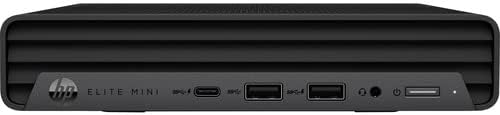
Front View: This image displays the front panel of the HP Elite Mini 800 G9, highlighting the accessible ports including USB-C, USB-A, headphone jack, and the power button. The compact design is evident.

Angled Front View: An angled perspective of the mini PC, providing a clearer view of the front panel's layout and the sleek black chassis. This angle helps visualize the device's small footprint.

Alternative Angled View: Another slightly different angled view of the HP Elite Mini 800 G9, emphasizing its compact size and the arrangement of the front ports. This view further illustrates the device's design.
Setup
- Unpack the PC: Carefully remove the HP Elite Mini 800 G9, keyboard, mouse, and power adapter from their packaging.
- Connect Peripherals:
- Connect the keyboard and mouse to the available USB ports on the PC.
- Connect your monitor(s) to the appropriate video output ports (e.g., HDMI, DisplayPort) on the rear of the PC.
- Connect to Power: Plug the power adapter into the PC's power input, then plug the power cord into a wall outlet or surge protector.
- Network Connection:
- For a wired connection, connect an Ethernet cable from your router or modem to the Ethernet port on the PC.
- For a wireless connection, ensure your Wi-Fi network is active. You will configure the wireless connection during the initial Windows setup.
- Power On: Press the power button on the front of the PC. The system will boot up, and you will be guided through the initial Windows 11 Pro setup process.
Operating Instructions
Initial Setup and Configuration
Upon first boot, Windows 11 Pro will guide you through setting up your user account, network settings, and privacy preferences. Follow the on-screen prompts to complete this process.
Basic Operation
- Power On/Off: Press the power button to turn the PC on. To shut down, click the Start button, then Power > Shut down.
- Connecting Devices: Use the various USB ports (USB-A, USB-C) to connect external devices such as external hard drives, printers, or webcams.
- Display Output: The PC supports multiple displays. Connect additional monitors to the available video output ports for extended desktop space.
- Audio: Connect headphones or speakers to the audio jack on the front panel, or use Bluetooth for wireless audio devices.
Performance and Usage Tips
- Utilize the high-speed SSD for faster boot times and application loading.
- Take advantage of the 16 GB DDR5 RAM for smooth multitasking and running demanding applications.
- Keep your operating system and drivers updated for optimal performance and security.
Maintenance
- Keep it Clean: Regularly clean the exterior of the PC with a soft, dry cloth. Use compressed air to clear dust from vents to ensure proper airflow and prevent overheating.
- Software Updates: Ensure Windows Update is enabled and regularly check for and install the latest operating system updates, security patches, and driver updates from HP's official support website.
- Antivirus Protection: Maintain up-to-date antivirus software to protect against malware and other security threats.
- Data Backup: Regularly back up your important data to an external drive or cloud storage to prevent data loss.
- Physical Environment: Place the PC in a well-ventilated area, away from direct sunlight, heat sources, and excessive dust.
Troubleshooting
Common Issues and Solutions
- PC Does Not Power On:
- Check if the power adapter is securely connected to both the PC and a working power outlet.
- Ensure the power outlet is functional by testing it with another device.
- No Display on Monitor:
- Verify that the monitor is powered on and the video cable is securely connected to both the PC and the monitor.
- Try a different video cable or monitor if available.
- Ensure the correct input source is selected on your monitor.
- No Internet Connection:
- For wired connections, check the Ethernet cable and router/modem status.
- For wireless connections, ensure Wi-Fi is enabled in Windows settings and you are connected to the correct network with the correct password.
- Restart your router/modem.
- Slow Performance:
- Close unnecessary applications running in the background.
- Check for and install any pending Windows updates or driver updates.
- Run a disk cleanup and defragmentation (for HDD, not necessary for SSD).
- Scan for malware using your antivirus software.
If you encounter issues not covered here, refer to the HP support website or contact HP customer service for further assistance.
Specifications
| Feature | Specification |
|---|---|
| Brand | HP |
| Series | Elite Mini 800 G9 |
| Model Number | 68S64UT#ABA |
| Operating System | Windows 11 Pro |
| Processor | Intel Core i7 12th Gen i7-12700T Dodeca-core (12 Core) 1.40 GHz |
| RAM | 16 GB DDR5 SDRAM |
| Storage | 512 GB M.2 PCI Express NVMe SSD |
| Graphics Coprocessor | Intel UHD Graphics 770 (Integrated) |
| Max Screen Resolution | 3840 x 2160 |
| Wireless Type | 802.11ac |
| Item Weight | 6.05 pounds |
| Product Dimensions (LxWxH) | 19.25 x 9.25 x 5.25 inches |
| Color | Black |
| Memory Slots Available | 2 |
| First Available Date | April 27, 2022 |
Warranty and Support
Your HP Elite Mini 800 G9 Desktop Computer comes with a standard manufacturer's warranty. For detailed information regarding warranty terms, coverage, and duration, please refer to the documentation included with your product or visit the official HP support website.
For technical support, driver downloads, and troubleshooting resources, please visit the HP Support Website. You can also find contact information for customer service on their website.
Ask a question about this manual
Ask about setup, troubleshooting, compatibility, parts, safety, or missing instructions. Manuals+ will review the question and use this page’s manual context to help answer it.