
1. Introduction
This manual provides detailed instructions for the Minno Maverick A10 Rugged 10-inch Android 10 Tablet. It covers initial setup, operation, maintenance, and troubleshooting to ensure optimal performance and longevity of your device. Please read this manual thoroughly before using the tablet.
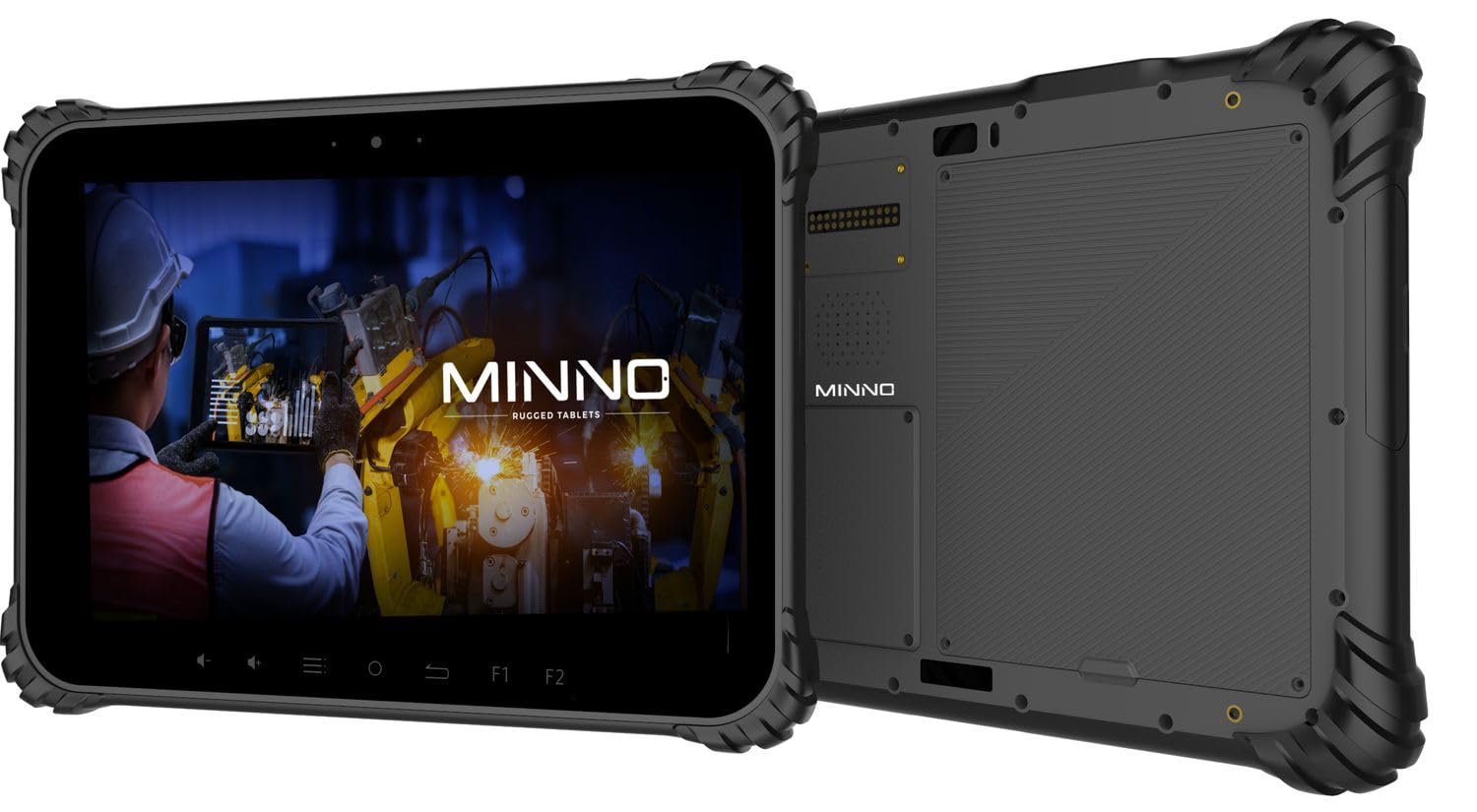
Figure 1.1: Minno Maverick A10 Rugged Tablet
2. Package Contents
Verify that all items are present in the package:
- Minno Maverick A10 Rugged Android Tablet
- Power Adapter
- Briefcase Handle
- Hand Strap (pre-installed)
3. Device Overview
3.1 Key Features
- Rugged Design: IP67 dust and waterproof, MIL-STD-810H certified for drop, shock, and vibration resistance.
- Display: 10-inch sunlight-readable touchscreen.
- Performance: Android 10 operating system, 4GB RAM, 64GB internal storage.
- Connectivity: LTE (unlocked for AT&T & T-Mobile), Wi-Fi, Bluetooth, NFC, GPS.
- Battery: 11,700 mAh swappable battery for extended use.
- Cameras: 13 MP rear camera, 5 MP front camera.
- Physical Buttons: Dedicated buttons for easy access to functions.

Figure 3.1: Minno Maverick A10 with core specifications
3.2 Physical Buttons and Ports
The tablet features physical buttons for common functions and easy access, even in demanding environments.

Figure 3.2: Tablet cameras and easy access buttons
- Power Button: Located on the side, used to power on/off or wake/sleep the device.
- Volume Up/Down: Adjusts audio volume.
- Function Buttons (F1, F2): Customizable buttons for quick access to specific applications or features.
- Return Button: Navigates back to the previous screen.
- Home Button: Returns to the home screen.
- Menu Button: Accesses application options or recent apps.
- USB Ports: For charging and data transfer.
- Covered Ports: Designed to protect against dust and water ingress.
4. Initial Setup
4.1 Charging the Battery
Before first use, fully charge the tablet battery. Connect the provided power adapter to the tablet's charging port and plug it into a power outlet. The charging indicator will show the charging status.
4.2 Powering On/Off
- To Power On: Press and hold the Power button until the Minno logo appears on the screen.
- To Power Off: Press and hold the Power button until the power options menu appears. Select "Power off" and confirm.
- To Sleep/Wake: Briefly press the Power button to put the tablet into sleep mode or wake it up.
4.3 Initial Configuration
Upon first power-on, follow the on-screen prompts to complete the initial setup, including:
- Language selection
- Wi-Fi network connection
- Google account setup
- Date and time settings
4.4 Installing SIM/SD Card
The tablet supports a SIM card for LTE connectivity and an SD card for expanded storage. Locate the covered slot on the side of the tablet. Carefully open the cover, insert the SIM card and/or SD card into their respective slots, ensuring correct orientation. Close the cover securely to maintain IP67 rating.
5. Basic Operation
5.1 Touchscreen Navigation
The 10-inch display is a multi-touch screen. Use standard Android gestures:
- Tap: Select an item or open an application.
- Tap and Hold: Access contextual menus or move icons.
- Swipe: Scroll through lists or switch between screens.
- Pinch-to-Zoom: Zoom in or out on images and web pages.
5.2 Connectivity
- Wi-Fi: Go to Settings > Network & internet > Wi-Fi to connect to available networks.
- LTE: Ensure a valid SIM card is installed. Go to Settings > Network & internet > Mobile network to enable mobile data.
- Bluetooth: Go to Settings > Connected devices > Bluetooth to pair with Bluetooth accessories.
6. Advanced Features
6.1 Camera Usage
The tablet is equipped with a 13 MP rear camera and a 5 MP front camera. Open the Camera application to capture photos and videos. Adjust settings such as flash, timer, and mode within the app.
6.2 GPS Navigation
The integrated GPS module allows for location tracking and navigation. Ensure location services are enabled in Settings > Location for optimal performance with mapping applications.
6.3 NFC Functionality
NFC (Near Field Communication) allows for short-range wireless communication. Enable NFC in Settings > Connected devices > Connection preferences > NFC to use features like contactless payments or quick data sharing with compatible devices.
7. Care and Maintenance
7.1 Cleaning the Tablet
Use a soft, lint-free cloth to clean the screen and body of the tablet. For stubborn marks, slightly dampen the cloth with water or a screen-cleaning solution. Avoid harsh chemicals or abrasive materials.
7.2 Battery Care
The tablet features a swappable 11,700 mAh battery. To maximize battery life:
- Avoid extreme temperatures.
- Do not fully discharge the battery regularly.
- Use only the provided power adapter.
- If replacing the battery, ensure it is an official Minno replacement part.
7.3 Environmental Protection
The Minno Maverick A10 is designed for harsh environments with IP67 and MIL-STD-810H certifications.

Figure 7.1: IP67 Dustproof and Spillproof Protection

Figure 7.2: MIL-STD-810H Certified Durability
- IP67 Rating: Provides protection against dust ingress and immersion in water up to 1 meter for 30 minutes. Ensure all port covers are securely closed.
- MIL-STD-810H: Certified to resist drops up to 4 feet, withstand prolonged intense vibrations, and operate in extreme temperatures from -4°F to 150°F.
8. Troubleshooting
If you encounter issues with your Minno Maverick A10, refer to the following common solutions:
| Problem | Possible Solution |
|---|---|
| Tablet does not power on | Ensure the battery is charged. Connect the power adapter and try again. If the battery is swappable, ensure it is correctly seated. |
| Touchscreen is unresponsive | Restart the tablet by holding the power button. If the issue persists, perform a factory reset (data will be lost). |
| Cannot connect to Wi-Fi | Check if Wi-Fi is enabled in settings. Restart your router. Ensure you are entering the correct password. |
| LTE/Mobile data not working | Ensure a valid SIM card is properly inserted. Check mobile data settings and APN configurations. Contact your service provider. |
| Applications are crashing | Clear the cache of the problematic application (Settings > Apps > [App Name] > Storage & cache). Update the app or the Android system. |
9. Specifications
Detailed technical specifications for the Minno Maverick A10 Rugged Tablet:
| Feature | Specification |
|---|---|
| Model Number | A10Z03001 |
| Operating System | Android 10 |
| Screen Size | 10 Inches |
| Screen Resolution | 1280x800 (Max: 1920x1200 Pixels) |
| RAM | 4 GB |
| Internal Storage | 64 GB |
| Processor Brand | MediaTek |
| Wireless Type | 802.11ac (Wi-Fi), Bluetooth, NFC, GPS, 4G LTE |
| Rear Webcam Resolution | 13 MP |
| Front Camera Resolution | 5 MP |
| Battery | 11,700 mAh Lithium-ion polymer (swappable) |
| Item Weight | 3.89 pounds |
| Product Dimensions | 10 x 1 x 8 inches |
| Color | Black |
| Durability Certifications | IP67, MIL-STD-810H |
10. Warranty and Support
10.1 Warranty Information
Minno warrants its products to be free from material and workmanship defects for 2 years from the date of purchase. This warranty covers manufacturing defects under normal use. It does not cover damage caused by misuse, accidents, unauthorized modifications, or natural disasters.
10.2 Customer Support
For technical assistance, warranty claims, or further inquiries, please contact Minno customer support through the official Minno website or your point of purchase. Have your model number (A10Z03001) and purchase date ready when contacting support.


