
Introduction
This manual provides detailed instructions for the setup, operation, and maintenance of your PUSAT One Shot Pro Wireless Gaming Mouse. Please read this manual thoroughly before using the product to ensure optimal performance and longevity.
Package Contents
Please verify that all items listed below are present in your package:
- PUSAT One Shot Pro Wireless Gaming Mouse
- USB Wireless Receiver
- USB-C to USB-A Charging Cable
- Additional Side Buttons (interchangeable)
- User Manual (this document)

Figure 1: PUSAT One Shot Pro mouse, charging cable, and interchangeable side buttons, displayed with its retail packaging.
Product Overview
Familiarize yourself with the various components and controls of your PUSAT One Shot Pro Wireless Gaming Mouse.
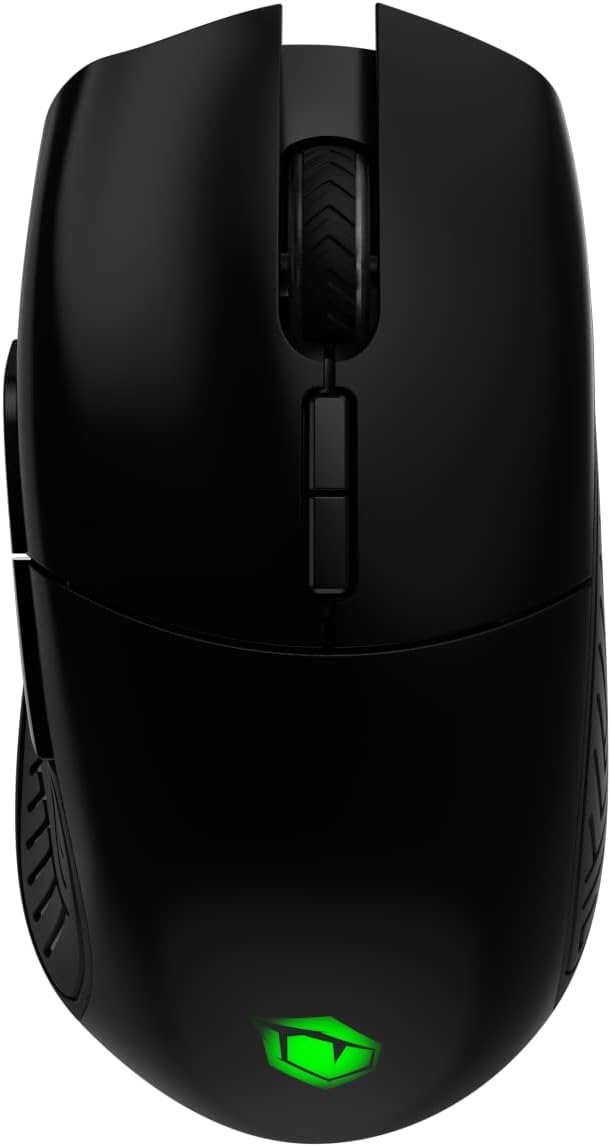
Figure 2: Top view of the PUSAT One Shot Pro mouse, showing the left and right click buttons, scroll wheel, and DPI switch buttons.

Figure 3: Left side view of the PUSAT One Shot Pro mouse, highlighting the two programmable side buttons and textured grip.

Figure 4: Bottom view of the PUSAT One Shot Pro mouse, showing the optical sensor, ON/OFF switch, user profile switch, and the compartment for the USB receiver.
Button Functions:
- Left Click Button: Standard primary click function.
- Right Click Button: Standard secondary click function.
- Scroll Wheel: Scrolls content up/down, also functions as a middle click button.
- DPI Switch Buttons: Adjusts the mouse's sensitivity (DPI) on the fly.
- Programmable Side Buttons (8 total): Customizable buttons for various functions, often used for macros or in-game actions.
- User Profile Switch (Bottom): Allows switching between different user-defined profiles.
- ON/OFF Switch (Bottom): Powers the mouse on or off.
Setup
Connecting the Mouse:
- Locate the USB wireless receiver. It is typically stored in a compartment on the underside of the mouse (refer to Figure 4).
- Remove the USB wireless receiver from its storage slot.
- Plug the USB wireless receiver into an available USB port on your computer (PC or Notebook).
- Flip the ON/OFF switch on the bottom of the mouse to the "ON" position.
- Your computer should automatically detect and install the necessary drivers. The mouse will be ready for use once the installation is complete.
For optimal wireless performance, ensure the USB receiver is placed in a location with minimal interference and a clear line of sight to the mouse.
Operating Instructions
Basic Usage:
- Move the mouse on a flat surface to control the cursor on your screen.
- Use the left and right click buttons for primary and secondary actions.
- Rotate the scroll wheel to navigate through documents or web pages.
DPI Adjustment:
The PUSAT One Shot Pro mouse features adjustable DPI (Dots Per Inch) settings, allowing you to change cursor sensitivity. Use the dedicated DPI switch buttons, usually located near the scroll wheel, to cycle through preset DPI levels (1,000 to 16,000 DPI). Each change typically corresponds to a visual indicator, such as an RGB lighting color change, though specific indicators may vary.
Programmable Buttons:
The mouse is equipped with 8 programmable buttons. To customize these buttons, you will typically need to download and install the official PUSAT software from the manufacturer's website. This software allows you to assign macros, keyboard functions, or other commands to each programmable button.
Charging
The PUSAT One Shot Pro mouse is equipped with a rechargeable Lithium Ion battery (700 mAh) and supports both wired and wireless charging.
Wired Charging:
- Connect the USB-C end of the charging cable to the port on the front of the mouse.
- Connect the USB-A end of the charging cable to an available USB port on your computer or a USB wall adapter.
- The mouse's RGB lighting or an indicator light will typically show the charging status.

Figure 5: The PUSAT One Shot Pro mouse connected via its USB-C charging cable.
Wireless Charging:
The PUSAT One Shot Pro supports wireless charging. To charge wirelessly, place the mouse on a compatible wireless charging pad. Ensure the mouse is correctly positioned on the charging pad for the charging process to initiate. The mouse's indicator lights will typically confirm that wireless charging is active.
Note: A wireless charging pad is sold separately and is not included with the mouse.
Maintenance
Cleaning:
- Ensure the mouse is turned off before cleaning.
- Use a soft, lint-free cloth slightly dampened with water or a mild cleaning solution to wipe the surface of the mouse.
- Avoid using harsh chemicals, abrasive cleaners, or solvents.
- Use compressed air to remove dust and debris from crevices and around buttons.
- Clean the optical sensor on the bottom of the mouse periodically with a cotton swab to ensure accurate tracking.
Battery Care:
- Avoid fully discharging the battery frequently.
- Store the mouse in a cool, dry place when not in use for extended periods.
- If storing for a long time, charge the battery to about 50% to prolong its lifespan.
Troubleshooting
| Problem | Possible Cause | Solution |
|---|---|---|
| Mouse not responding |
|
|
| Lagging or erratic cursor movement |
|
|
| Buttons not working or programmable features not active |
|
|
| Wireless charging not working |
|
|
Specifications
| Feature | Detail |
|---|---|
| Brand | PUSAT |
| Model | One Shot Pro |
| Connectivity | 2.4GHz Wireless (USB Receiver) |
| DPI Range | 1,000 - 16,000 DPI |
| Number of Buttons | 8 (Programmable) |
| Sensor Type | Optical |
| Battery Type | 1 Lithium Ion Battery (Included) |
| Battery Capacity | 700 mAh |
| Charging | USB-C Wired, Wireless Charging Compatible |
| Dimensions (L x W x H) | 12.5 x 6.6 x 4.2 cm |
| Weight | 110 g |
| Color | Black |
| Hardware Platform | PC, Notebook |
Safety Information
- Do not expose the mouse to extreme temperatures, humidity, or direct sunlight.
- Avoid dropping or subjecting the mouse to strong impacts.
- Do not attempt to disassemble or modify the mouse. This may void the warranty and cause damage.
- Keep the mouse away from liquids. If liquid enters the device, discontinue use immediately and contact support.
- Dispose of the battery according to local regulations. Do not dispose of batteries in general household waste.
Warranty and Support
For warranty information and technical support, please refer to the warranty card included with your product or visit the official PUSAT website. If you encounter any issues not covered in this manual, please contact PUSAT customer service for assistance.