
ACS OF MIAMI N14TBR110-TA60E
User Manual: N14TBR110-TA60E Motherboard
Model: N14TBR110-TA60E | Brand: ACS OF MIAMI
Introduction
This manual provides essential information for the installation, operation, and maintenance of the ACS OF MIAMI N14TBR110-TA60E Motherboard. This component is a replacement part featuring an Intel Core i3-1115G4 processor, 8GB of RAM, and is designed for specific laptop models. Please read this manual thoroughly before proceeding with any installation or troubleshooting.
Product Overview
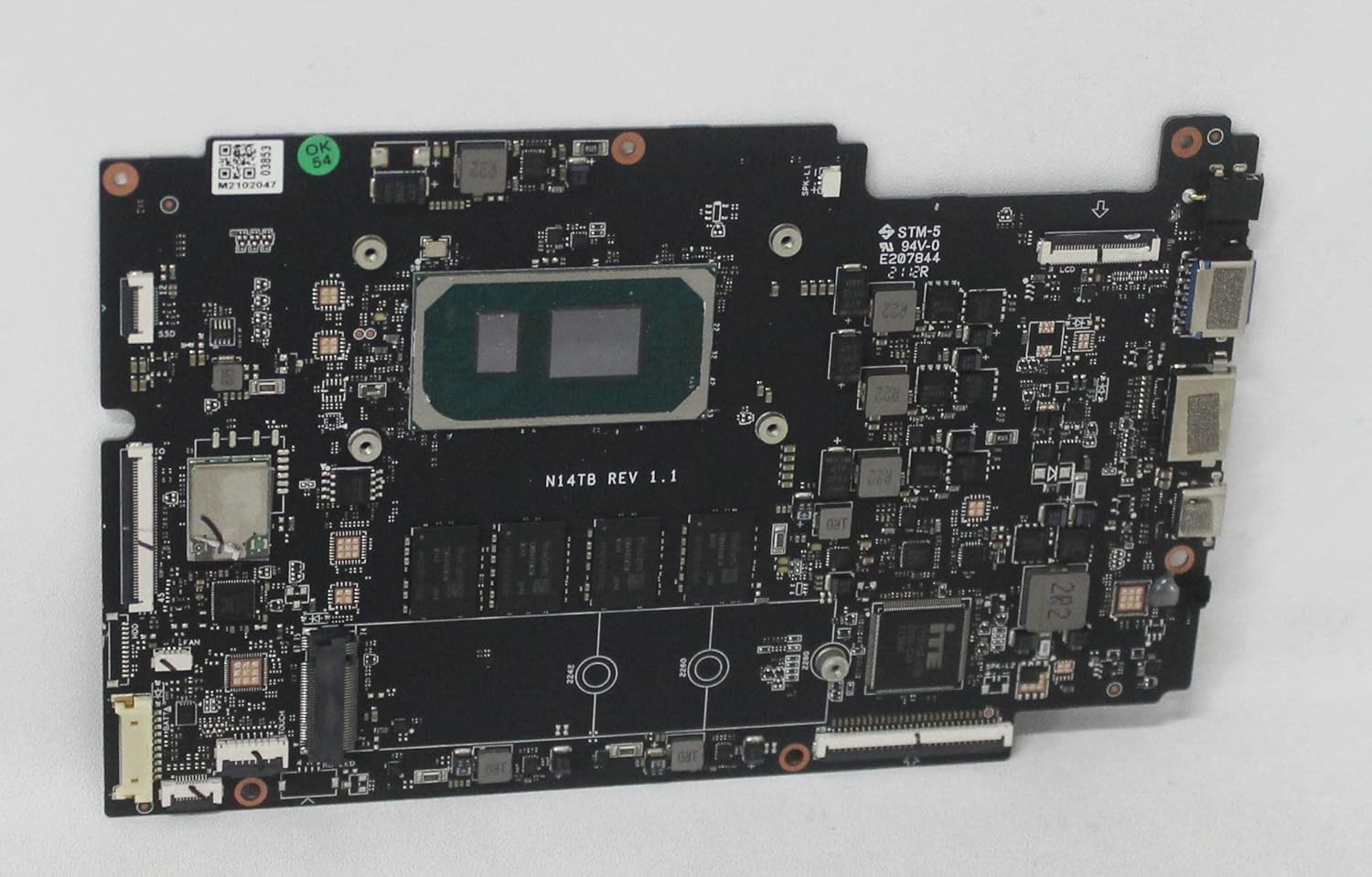
Figure 1: Top view of the N14TBR110-TA60E Motherboard. This image displays the layout of the main components including the CPU (Intel Core i3-1115G4), RAM slots, various connectors, and integrated circuits. Key markings like "N14TB REV 1.1" are visible.
The N14TBR110-TA60E motherboard is a critical component for compatible laptop systems. It integrates the CPU, RAM, and various controllers necessary for system operation. Key features include:
- Integrated Intel Core i3-1115G4 Processor (3Ghz)
- 8GB Onboard RAM
- Designed as a replacement part for Gwtn156-7Bk and similar models.
- Revision 1.1
Specifications
| Feature | Detail |
|---|---|
| Model Name | N14TBR110-TA60E |
| Processor | Intel Core i3-1115G4 (3Ghz) |
| RAM | 8 GB (Onboard) |
| CPU Socket | LGA 1200 (Integrated) |
| Compatible Processors | Intel Core 2 DUO (Note: The listed compatible processor 'Intel Core 2 DUO' may refer to a broader compatibility or a data entry discrepancy, as the integrated i3-1115G4 is an 11th generation processor.) |
| Chipset Type | Intel CMOS |
| Graphics Card Interface | Integrated |
| Main Power Connector Type | 24-Pin |
| Manufacturer | ACS OF MIAMI |
Setup and Installation
Installing a motherboard requires careful handling and technical knowledge. It is recommended that this procedure be performed by a qualified technician. Always ensure the laptop is powered off and disconnected from all power sources before beginning.
Safety Precautions:
- Disconnect Power: Ensure the laptop is completely powered off and the battery is removed.
- Static Discharge: Use an anti-static wrist strap or frequently touch a grounded metal object to prevent electrostatic discharge (ESD), which can damage components.
- Handle with Care: Hold the motherboard by its edges, avoiding contact with components and connectors.
Installation Steps:
- Prepare the Laptop: Disassemble the laptop according to its specific service manual to access the existing motherboard. Document screw locations and cable connections.
- Remove Old Motherboard: Carefully disconnect all cables (display, keyboard, touchpad, speakers, Wi-Fi, etc.) and remove all screws securing the old motherboard. Gently lift it out.
- Install New Motherboard: Align the N14TBR110-TA60E motherboard with the standoffs in the laptop chassis. Ensure all ports align with the chassis openings.
- Secure Motherboard: Fasten the motherboard with the appropriate screws. Do not overtighten.
- Reconnect Components: Reconnect all cables and components (e.g., fan, speakers, display, keyboard, battery) to their respective connectors on the new motherboard. Refer to the laptop's service manual for correct cable routing.
- Reassemble Laptop: Carefully reassemble the laptop chassis.
- Initial Boot: Connect the power adapter and attempt to power on the laptop. Observe for any error codes or unusual behavior.
Operating Considerations
Once installed, the motherboard functions as the central nervous system of your laptop. Proper operation relies on compatible drivers and a stable operating system.
Driver Installation:
- After installing the new motherboard, it is crucial to install or update all necessary drivers for the integrated components (chipset, graphics, audio, network, etc.).
- Visit the laptop manufacturer's official website or the component manufacturer's website (e.g., Intel for chipset and graphics drivers) to download the latest drivers for your specific laptop model and operating system.
BIOS/UEFI Configuration:
- Access the BIOS/UEFI setup utility during boot-up (usually by pressing F2, Del, or F10, depending on the laptop model) to verify system recognition of components like RAM, storage drives, and boot order.
- Ensure the date and time are correctly set.
- Only modify settings if you understand their function, as incorrect configurations can lead to system instability.
Maintenance
Proper maintenance can extend the lifespan of your motherboard and laptop system.
- Dust Removal: Periodically clean dust from the laptop's cooling system (fans, heatsinks) using compressed air. Ensure the laptop is powered off and disconnected from power before cleaning.
- Temperature Monitoring: Monitor system temperatures using software utilities to ensure components are operating within safe thermal limits. Excessive heat can degrade component performance and lifespan.
- Software Updates: Keep your operating system and drivers updated to ensure optimal performance and security.
- Physical Handling: Avoid dropping or subjecting the laptop to physical shocks, which can damage internal components, including the motherboard.
Troubleshooting
If you encounter issues after motherboard replacement, consider the following common troubleshooting steps:
- No Power/No Boot:
- Verify all power cables are securely connected.
- Ensure the laptop battery is properly seated or removed if testing with AC power only.
- Check the power adapter for functionality.
- No Display:
- Ensure the display cable (e.g., eDP/LVDS) is securely connected to the motherboard and the display panel.
- Test with an external monitor if possible to rule out a display panel issue.
- Peripheral Malfunction (Keyboard, Touchpad, USB):
- Check the ribbon cables for these components to ensure they are fully seated in their connectors on the motherboard.
- Reinstall or update relevant drivers.
- System Instability/Crashes:
- Ensure all drivers are up to date.
- Check for proper cooling and ensure fans are spinning.
- Run system diagnostics (e.g., memory test, disk check).
If issues persist, it is advisable to consult a professional technician or contact ACS OF MIAMI support.
Warranty and Support
ACS OF MIAMI provides a limited warranty for its replacement parts. For specific warranty terms and conditions, please refer to the documentation provided with your purchase or contact ACS OF MIAMI directly.
For technical support, inquiries, or warranty claims, please contact ACS OF MIAMI through their official channels. Information regarding their commitment to quality and service can be found in the product description:
- "ACS OF MIAMI is committed to bring you quality products with a great service at the best pricing the industry Shop with confidence"
- "QUALITY PARTS Our laptop parts are sourced from the worlds leading manufacturers which ensures it is of the highest quality and we also salvage parts from used devices This helps us making the best use of e waste and thus saving our planet All our laptop parts are also backed by a limited warranty"
Please have your model number (N14TBR110-TA60E) and purchase details ready when contacting support.
Ask a question about this manual
Ask about setup, troubleshooting, compatibility, parts, safety, or missing instructions. Manuals+ will review the question and use this page’s manual context to help answer it.