
Introduction
This manual provides detailed instructions for the installation, operation, and maintenance of your Podofo 9-inch Autoradio Carplay Android Auto system, model 1G+16G+Carplay+HiFi. This unit is specifically designed for Peugeot 308 and 408 models manufactured between 2007 and 2013. Please read this manual thoroughly before installation and use to ensure proper function and safety.
Safety Information
- Always ensure the vehicle is turned off and the battery is disconnected before performing any installation or wiring.
- Improper installation can lead to vehicle damage or electrical malfunction. If you are unsure about the installation process, seek professional assistance.
- Do not operate the device in a way that distracts you from driving. Always prioritize road safety.
- Avoid exposing the unit to extreme temperatures, direct sunlight for prolonged periods, or excessive moisture.
- Use only specified power cables and accessories to prevent damage or fire.
Package Contents
Verify that all items listed below are included in your package:
- 1 x Autoradio (including frame)
- 1 x Rear Camera
- 1 x Canbus Decoder
- 1 x Power Cable
- 1 x Original USB Cable
- 1 x GPS Antenna
- 1 x Radio Antenna
- 1 x Rear Camera Input Cable
- 1 x External Microphone
- 1 x RCA Cable Set
- 2 x USB Cables
- 1 x Installation Tools Kit
- 1 x User Manual (English version)
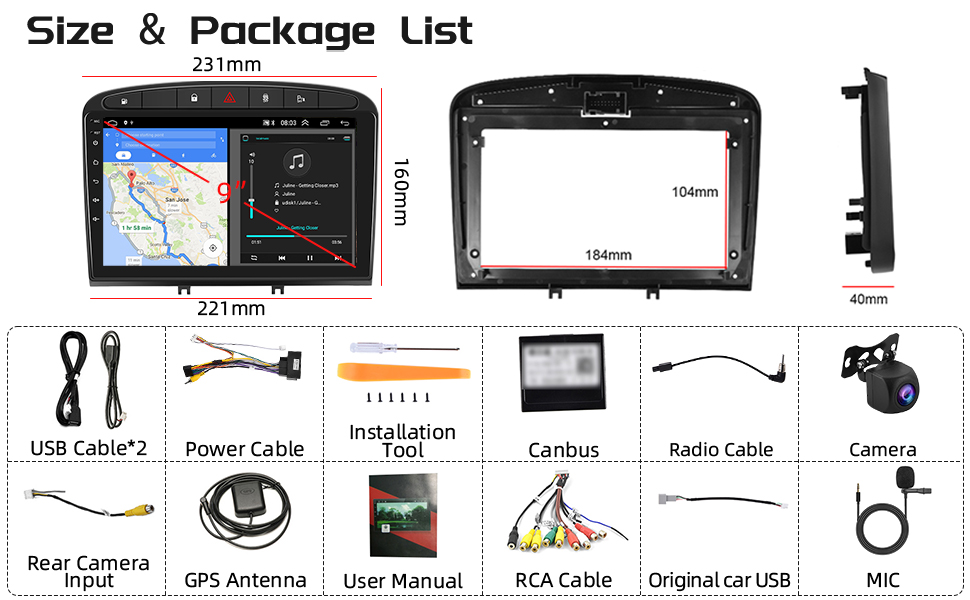
This image displays the main autoradio unit with its frame, along with all the cables, antennas, rear camera, installation tools, and user manual included in the package.
Setup and Installation
1. Pre-Installation Check
- Ensure your vehicle is a Peugeot 308 or 408 model from 2007-2013.
- Confirm the dimensions of the unit (231mm top width x 221mm bottom width x 160mm height) fit your car's dashboard opening.
- Disconnect the vehicle's battery before starting installation.
This image illustrates the precise dimensions of the autoradio unit and its accompanying frame, crucial for verifying compatibility with your vehicle's dashboard.
2. Wiring Connections
Connect the provided cables according to the wiring diagram. The Canbus decoder ensures compatibility with your vehicle's existing systems, including steering wheel controls.
- Power Cable: Connect to the vehicle's power harness.
- Canbus Decoder: Integrate the Canbus decoder as per the vehicle-specific instructions to enable communication with the car's electronics.
- USB Cables: Connect the two USB cables for external device connectivity.
- GPS Antenna: Mount the GPS antenna in a location with a clear view of the sky, typically on the dashboard or under the windshield.
- Radio Antenna: Connect the radio antenna for FM/RDS reception.
- Rear Camera: Connect the rear camera input cable and install the camera at the rear of the vehicle. Ensure proper power supply to the camera.
- External Microphone: Connect the external microphone for improved call quality.
- RCA Cables: Use the RCA cable set for additional audio/video inputs or outputs if needed.
3. Mounting the Unit
Carefully insert the autoradio unit into the dashboard opening. Secure it using the provided mounting brackets and screws. Ensure all cables are properly routed and not pinched.

This image shows a comparison of the car's dashboard before and after the installation of the Podofo Autoradio, highlighting the integrated fit.
Operating Instructions
1. Initial Power On and System Setup
After installation, reconnect the vehicle battery. The unit will power on automatically or by pressing the power button. Follow the on-screen prompts for initial setup, including language selection and time zone.
2. Wireless Carplay & Android Auto
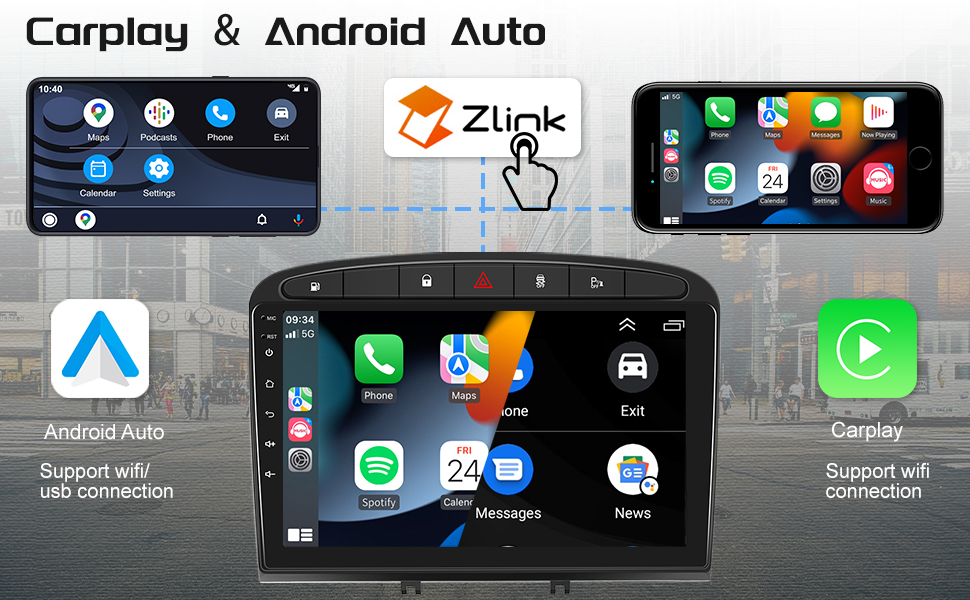
The unit supports both wireless and wired Apple Carplay and Android Auto via the "Zlink" application. This allows you to mirror your smartphone's applications directly onto the autoradio screen.
- Connection: Open the "Zlink" app on the autoradio. For wireless connection, enable Bluetooth and Wi-Fi on your smartphone and pair it with the autoradio. For wired connection, connect your phone via USB.
- Functionality: Access navigation apps (Google Maps, Waze), music streaming (Spotify), messaging (WhatsApp), and other compatible applications directly from the autoradio display.

This image illustrates the seamless integration of wireless Carplay and Android Auto, displaying smartphone applications like Spotify, Phone, and Maps on the autoradio screen.
3. Bluetooth Connectivity
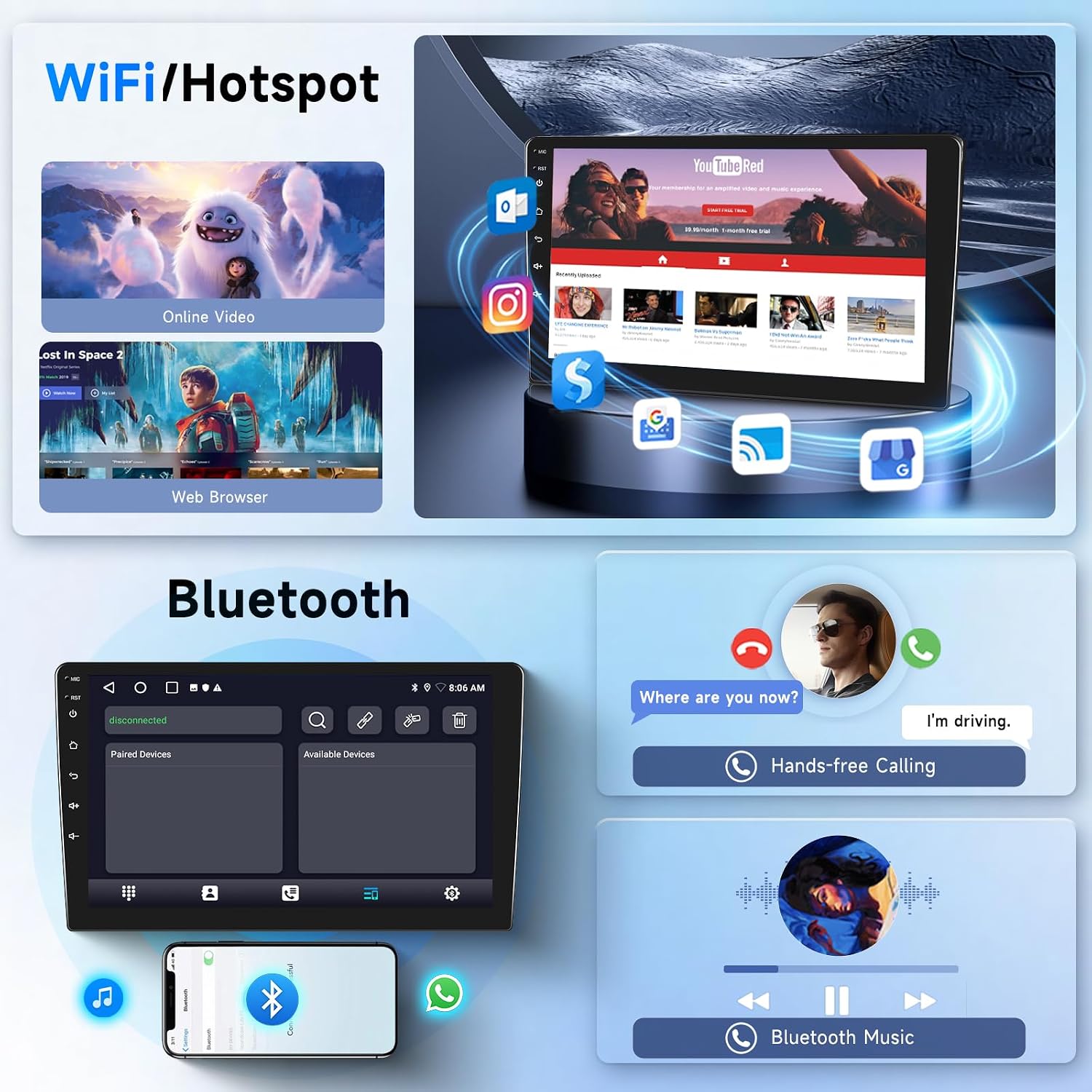
The integrated Bluetooth module enables hands-free calling and audio streaming.
- Pairing: Go to the Bluetooth settings on the autoradio and your smartphone. Search for and select the autoradio's Bluetooth name to pair.
- Hands-Free Calls: Make and receive calls directly through the autoradio. Use the external microphone for clear voice transmission.
- Bluetooth Music: Stream audio from your smartphone to the autoradio's speakers.

This image displays the Bluetooth interface for managing calls and playing music, alongside the Wi-Fi/Hotspot feature for internet access and online content.
4. Wi-Fi and Internet Access
Connect the autoradio to a Wi-Fi network or a mobile hotspot to access online features and download applications.
- Connection: Navigate to Wi-Fi settings and select your desired network. Enter the password if required.
- Applications: Download various apps from the pre-installed app store or browser.
5. GPS Navigation
The unit is equipped with a GPS module for navigation. It comes with the "HereWego" map application pre-installed, supporting both online and offline maps.
- Online Maps: Requires Wi-Fi or mobile data connection.
- Offline Maps: Download map data for your region to use navigation without an internet connection.

This image shows the GPS navigation system, offering both online and offline map capabilities, along with the FM/RDS radio interface showing frequency tuning.
6. FM/RDS Radio
Enjoy your favorite radio programs with the built-in FM/RDS tuner. The unit supports a frequency range of 87.5-107.5 MHz and allows saving up to 6 channels.
- Tuning: Use the touch screen to scan for stations or manually tune to a specific frequency.
- RDS: Radio Data System provides additional information like station name and song title where available.
7. Steering Wheel Control (SWC)
The Canbus decoder enables integration with your vehicle's existing steering wheel controls. This allows you to manage audio, calls, and other functions without taking your hands off the wheel.
- Configuration: Access the SWC settings in the system menu to map your steering wheel buttons to specific functions on the autoradio.
This image demonstrates the steering wheel control setup screen, allowing users to configure buttons, and the split-screen feature for multitasking like navigation and media playback.
8. HiFi Audio
The unit features HiFi audio processing for enhanced sound quality. Adjust equalizer settings to customize your listening experience.

This image shows the Digital Sound Processor (DSP) audio setup screen, providing controls for equalization, balance, and various sound presets to optimize the in-car audio experience.
9. Rear Camera Display
When the vehicle is shifted into reverse gear, the display automatically switches to the rear camera view, providing a clear image with 1280x720 pixels, waterproofing, and night vision capabilities.
10. Split Screen Functionality
Utilize the split-screen feature to run two applications simultaneously, such as navigation and music playback, or a web browser and navigation.

This image displays several key user interfaces of the autoradio, including the main home screens, Bluetooth call and music interfaces, FM radio, video playback, split-screen mode, and the rear camera display.
Maintenance
- Cleaning: Use a soft, dry cloth to clean the screen and unit. Avoid abrasive cleaners or solvents.
- Software Updates: Periodically check for software updates to ensure optimal performance and access to new features. Updates can typically be downloaded via Wi-Fi.
- Cable Connections: Ensure all cables remain securely connected. Loose connections can lead to intermittent issues.
Troubleshooting
| Problem | Possible Cause | Solution |
|---|---|---|
| Unit does not power on. | Loose power connection, blown fuse, vehicle battery disconnected. | Check power cable connections. Inspect vehicle fuses. Ensure battery is connected. |
| Steering wheel controls not working. | Canbus decoder not properly connected or configured. | Verify Canbus connection. Access SWC settings in the unit to configure buttons. |
| No sound. | Volume too low, mute activated, speaker wires disconnected. | Increase volume. Check if mute is active. Inspect speaker wiring. |
| GPS signal weak or inaccurate. | GPS antenna improperly placed, obstruction. | Relocate GPS antenna to a position with a clear view of the sky. |
| Carplay/Android Auto not connecting. | Incorrect Zlink app usage, Bluetooth/Wi-Fi issues, incompatible phone OS. | Ensure Zlink app is open. Check phone's Bluetooth/Wi-Fi. Try wired connection. Update phone OS if necessary. |
| Rear camera not displaying. | Camera power issue, incorrect cable connection, camera malfunction. | Verify camera power and RCA cable connection. Check camera settings in the unit. |
Specifications
| Feature | Detail |
|---|---|
| Model Number | 1G+16G+Carplay+HiFi |
| Compatible Vehicles | Peugeot 308/408 (2007-2013) |
| Screen Size | 9 inches |
| Operating System | Android (1G RAM, 32G ROM, Quad-core) |
| Connectivity Technology | Bluetooth, Carplay, Android Auto, USB, Wi-Fi |
| Control Method | Touchscreen |
| Special Features | ABS, Aluminum, Glass construction |
| Compatible Devices | Smartphone |
| Total HDMI Ports | 1 |
| Audio Output Mode | Stereo |
| Surround Sound Channel Configuration | 2.0 or 2.1 |
| Video Encoding | H.264, H.265/HEVC, MPEG-4 |
| Output Power | 180 Watts (Peak), 45 Watts (RMS per channel) |
| Number of Channels | 4 |
| Internet Applications | Android Auto, CarPlay |
| Digital Media Format | WAV, WMA |
| Item Weight | 16 Grams |
| Color | Black |
| Rear Camera | HD (1280x720 pixels), Waterproof, Night Vision |
Warranty and Support
For warranty information and technical support, please refer to the contact details provided with your purchase or visit the official Podofo website. Keep your proof of purchase for warranty claims.
Note: Software updates are generally provided by the manufacturer. Information regarding guaranteed software updates is not available at the time of this manual's publication.
Spare Parts: Information regarding the availability of spare parts is not available.