
1. Introduction
The Yyton OBD2 Bluetooth Scanner is a versatile car diagnostic tool designed to help users identify and resolve vehicle issues efficiently. Compatible with iPhone, Android, and Windows devices, this scanner provides comprehensive data to diagnose check engine lights, monitor live sensor data, and perform emissions tests. It supports all OBD2 compliant cars manufactured from 1996 onwards, including gasoline and diesel vehicles, across American, European, and Asian markets.

Image: The Yyton OBD2 Bluetooth Scanner, a compact diagnostic tool.

Image: The Yyton OBD2 Scanner positioned against a car background, highlighting its automotive application.
2. Setup Guide
Follow these steps to set up your Yyton OBD2 Bluetooth Scanner and connect it to your mobile device:
- Download the Application: Download the recommended third-party OBD app. For iOS devices, use 'Car Scanner'. For Android devices, use 'Torque'. These apps are available for free on the App Store and Google Play respectively.
- Locate OBD2 Port: Identify your vehicle's OBD2 diagnostic port, typically located under the dashboard on the driver's side.
- Plug in the Device: Firmly insert the Yyton OBD2 scanner into the vehicle's OBD2 port. Ensure the vehicle's engine is running.
- Observe Indicator Lights: Once plugged in and the engine is running, the red power indicator light on the scanner will illuminate. If the green signal light is also on, it indicates successful compatibility and communication between the scanner and the vehicle.
- Enable Bluetooth: On your mobile device, navigate to your Bluetooth settings and ensure Bluetooth is enabled.
- Pair with Device: Open the downloaded OBD app. The app will guide you through the process of pairing with the 'OBDII' device via Bluetooth. If the connection is successful, the red light on the scanner will remain on, and the green light will flash.
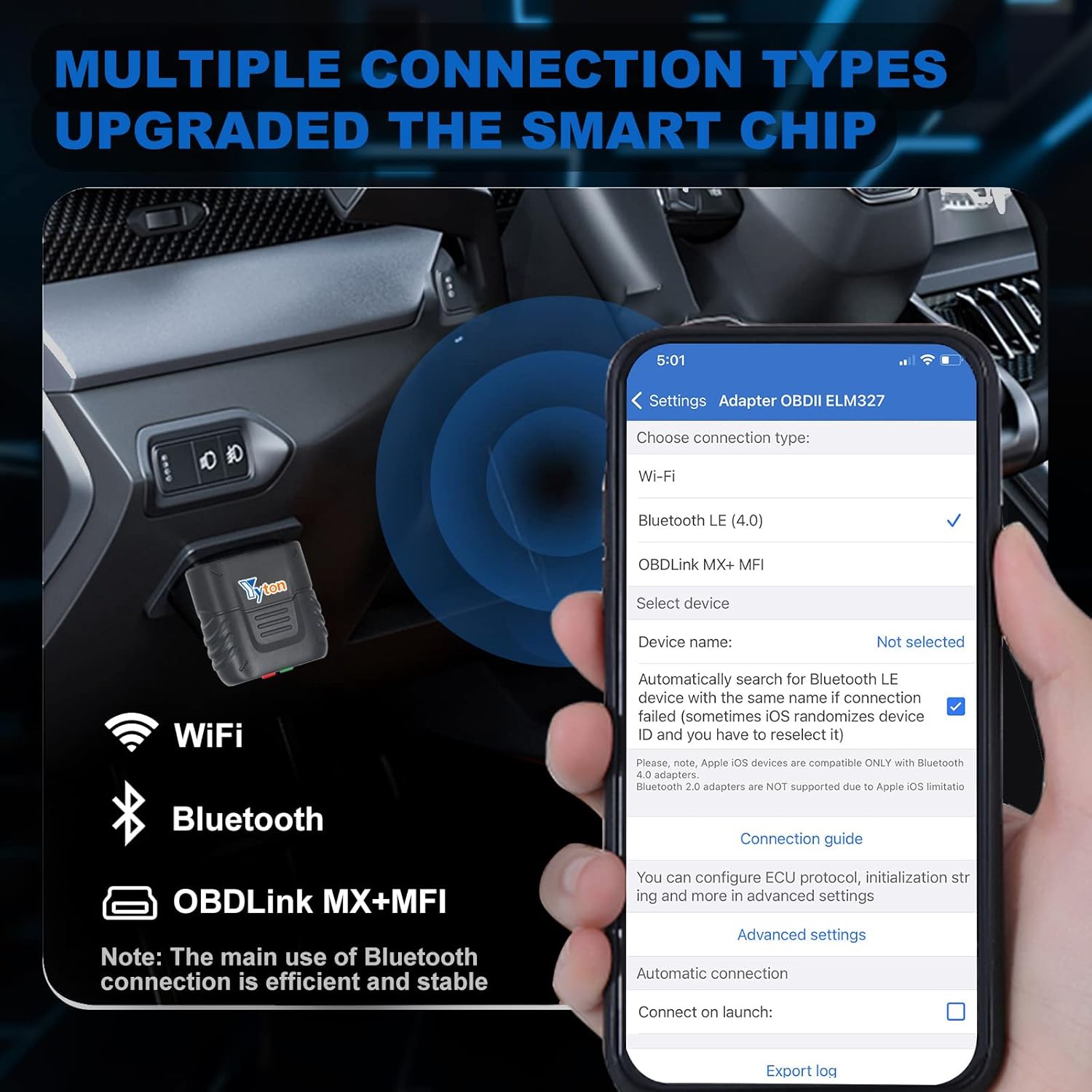
Image: A visual representation of the quick setup steps for the Yyton OBD2 Scanner.

Image: The compact Yyton OBD2 Scanner held in a user's hand, demonstrating its portability.
Setup Videos:
Video: Demonstrates the connection process for the Yyton OBD2 Scanner with an Android system.
Video: Guides users through downloading the Torque application and establishing a Bluetooth connection on Android devices.
Video: Provides instructions for downloading the Car Scanner application and connecting via Bluetooth on iOS devices.
Video: Illustrates the Bluetooth connection process for the Yyton OBD2 Scanner with an iOS system.
3. Operating the Scanner
Once connected, the Yyton OBD2 Scanner, in conjunction with your chosen app, provides a wide range of diagnostic functions:
- Read Codes: Displays detailed descriptions of Diagnostic Trouble Codes (DTCs), including current, pending, and permanent codes.
- Live Data Streaming: View continuous streaming information from the vehicle in real-time, often presented in graphical (waveform) displays.
- Freeze Frame Data: Capture and store a snapshot of sensor data at the moment a fault code was set, providing context for the issue.
- I/M Readiness: Checks the readiness of various emission-related systems on the vehicle, crucial for emissions testing.
- Oxygen Sensor Tests: Retrieve and view Oxygen Sensor Monitor test results from the vehicle's onboard computer.
- Onboard Monitor Tests: Display test results for emissions-related powertrain components and systems.
- EVAP System Test: Initiate a leak test of the vehicle's evaporative system.
- Vehicle Information: Access important vehicle details such as VIN (Vehicle Identification Number), CID (Calibration ID), and CVN (Calibration Verification Number).
- Component Testing: Send commands to test the functionality of specific vehicle components.

Image: An overview of the powerful full system diagnostic capabilities of the scanner.

Image: Illustrates various service functions including reading codes, live data, and emissions tests.

Image: Shows how the scanner transmits car data directly to your phone for deep diagnostics and enhanced parameters.
Operation Video:
Video: A comprehensive demonstration of the Yyton OBD2 Scanner's features and operation.
4. Maintenance
To ensure the longevity and optimal performance of your Yyton OBD2 Bluetooth Scanner, follow these maintenance guidelines:
- Storage: Store the device in a cool, dry place away from direct sunlight and extreme temperatures when not in use.
- Cleaning: Use a soft, dry cloth to clean the exterior of the scanner. Avoid using harsh chemicals or abrasive materials that could damage the device.
- Software Updates: The accompanying mobile applications (Car Scanner, Torque) are typically updated regularly. Ensure your app is always updated to the latest version to benefit from new features and improved compatibility. These updates are free for life.
- Handle with Care: Avoid dropping the device or subjecting it to physical impact, as this can damage internal components.
5. Troubleshooting
If you encounter issues with your Yyton OBD2 Bluetooth Scanner, refer to the following common troubleshooting tips:
- Device Not Powering On: Ensure the scanner is firmly plugged into the vehicle's OBD2 port and the vehicle's engine is running. The red power indicator light should be on.
- No Connection/Pairing Issues:
- Verify Bluetooth is enabled on your mobile device.
- Confirm the green signal light on the scanner is on and flashing, indicating successful matching with the vehicle.
- Restart your mobile device and the vehicle's engine, then attempt to reconnect.
- Ensure no other Bluetooth devices are interfering with the connection.
- Check Engine Light Remains On After Fix: After addressing a vehicle issue, you can use the scanner to clear the Diagnostic Trouble Codes (DTCs) and reset the check engine light. If the light reappears, it indicates the underlying problem has not been fully resolved or a new issue has arisen.
- Inaccurate Readings: Ensure your mobile app is up-to-date. Sometimes, older app versions may not fully support newer vehicle protocols or provide accurate data.

Image: Explains the meaning of the red (power) and green (compatibility) indicator lights on the scanner.
6. Specifications
| Feature | Detail |
|---|---|
| Brand | Yyton |
| Model Number | 1 |
| Item Weight | 2.08 ounces |
| Package Dimensions | 3.86 x 2.56 x 1.06 inches |
| Operating System Compatibility | iOS, Android, Windows |
| Connectivity | Bluetooth LE, WiFi, OBDlink MX+ MFI |
| Supported Protocols | 9 Protocols (compatible with all consumer cars, light trucks, and other cars of 1996 and newer models) |
7. Warranty and Support
For any after-sales questions or technical assistance regarding your Yyton OBD2 Bluetooth Scanner, please feel free to contact Yyton customer support. Refer to the product packaging or the official Yyton website for contact information.