
WZWNEER SB-gjpl-0026
WZWNEER Smart Watch User Manual
Model: SB-gjpl-0026 | Brand: WZWNEER
1. Introduction
Thank you for choosing the WZWNEER Smart Watch. This device is designed to enhance your daily life by providing smart notifications, comprehensive health tracking, and various convenient features. This manual will guide you through the setup, operation, and maintenance of your new smartwatch.
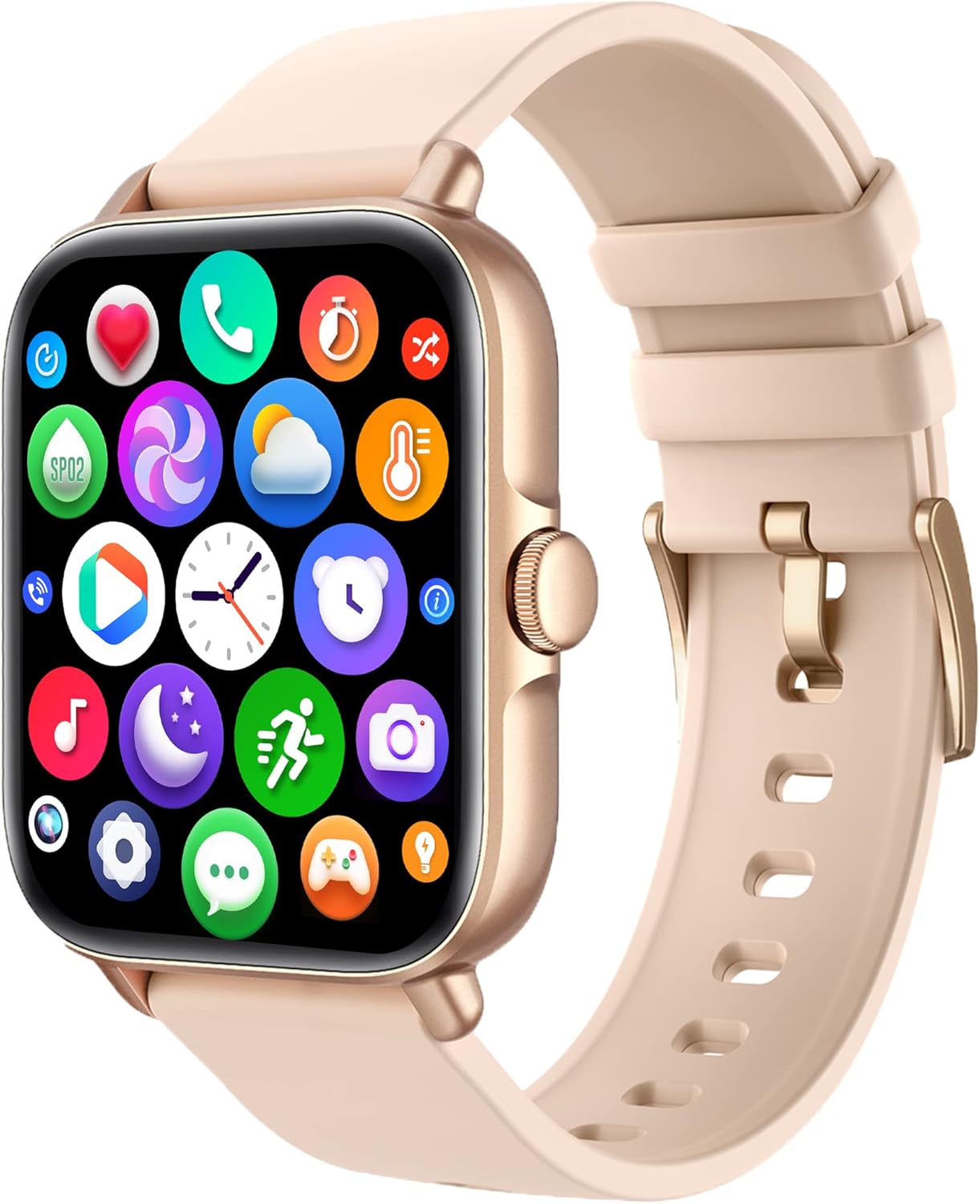
Image: The WZWNEER Smart Watch in light pink, showcasing its vibrant display and sleek design.
2. Package Contents
Please ensure all items are present in your package:
- WZWNEER Smart Watch (Model: SB-gjpl-0026)
- Charging Cable (Magnetic USB)
- User Manual (this document)
3. Setup Guide
3.1 Charging the Smart Watch
Before first use, fully charge your smartwatch. Connect the magnetic charging cable to the charging points on the back of the watch and plug the USB end into a standard USB power adapter (not included) or a computer USB port.

Image: The smartwatch connected to its magnetic charging cable, displaying a 100% charge indicator.
A full charge typically takes about 2 hours. The watch has a 235mAh battery, providing up to 2 days of Bluetooth call usage and 20 days of standby time.
3.2 Downloading the Companion App
To unlock all features and synchronize data, download the dedicated companion application on your smartphone. Scan the QR code provided in the watch's quick start guide or search for the app name (usually mentioned on the watch packaging or screen) in your phone's app store (Google Play Store for Android, Apple App Store for iOS).
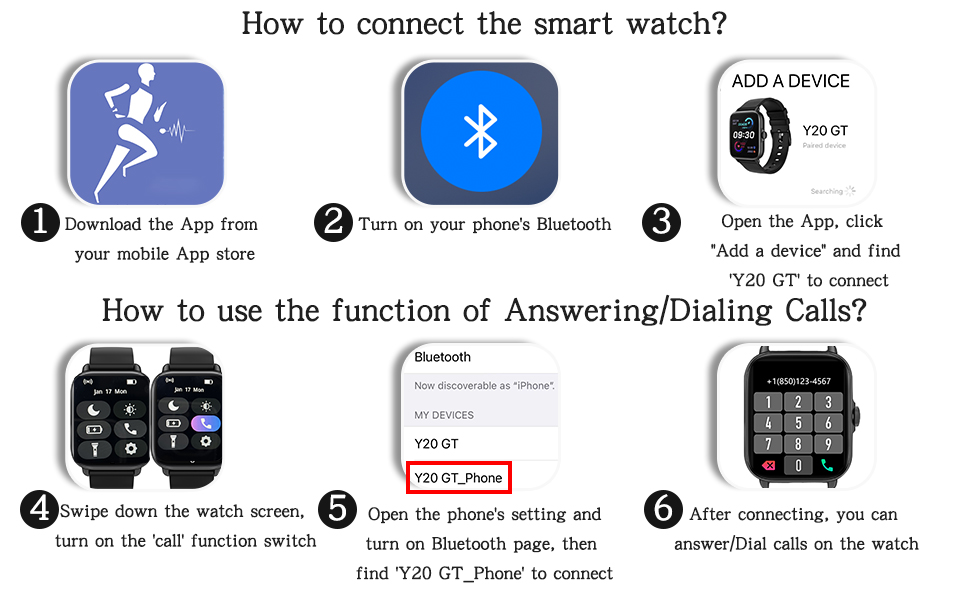
Image: A visual guide illustrating the steps to download the app and connect the smartwatch via Bluetooth.
3.3 Pairing with Your Phone
- Ensure Bluetooth is enabled on your smartphone.
- Open the companion app and follow the on-screen instructions to "Add a device" or "Bind device."
- Select your WZWNEER Smart Watch from the list of available devices. The watch model number (e.g., "Y20 GT") should appear.
- Confirm the pairing request on both your phone and the watch if prompted.
3.4 Connecting for Bluetooth Calls
For call functionality, an additional Bluetooth connection is required:
- On your smartwatch, swipe down from the top of the screen to access the quick settings panel.
- Locate and enable the 'Call' function switch (often represented by a phone icon).
- On your smartphone, go to your Bluetooth settings.
- Find and connect to the device named "Y20 GT_Phone" (or similar, specific to the call function).
Once connected, you can make and answer calls directly from your watch.

Image: Screenshots on the smartwatch showing incoming call interface, dial pad, and message alerts.
4. Operating Your Smart Watch
4.1 Basic Navigation
- Touchscreen: Swipe left/right, up/down to navigate menus and access different functions. Tap to select.
- Side Button/Dial: Press to return to the home screen or wake the device. Rotate the dial (if applicable) to scroll through lists or adjust settings.
- Raise to Wake: The screen will automatically light up when you raise your wrist.
4.2 Making and Answering Calls
After connecting the "Y20 GT_Phone" Bluetooth, you can:
- Answer Calls: When a call comes in, the watch will display the caller ID. Tap the green answer icon to take the call on your watch.
- Make Calls: Access the dial pad or contact list on your watch to initiate a call.
Video: Demonstration of the smart watch's call and text notification features.
4.3 Smart Notifications
Receive SMS, Facebook, WhatsApp, Instagram, Twitter, and other app notifications directly on your watch. Ensure notification permissions are enabled in the companion app and your phone's settings.

Image: The smartwatch screen showing icons for various social media and messaging applications, indicating notification support.
4.4 Health Tracking
The WZWNEER Smart Watch provides comprehensive health monitoring:
- Heart Rate Monitor: Tracks your heart rate automatically throughout the day. View real-time data on the watch and detailed graphs in the app.
- Sleep Tracking: Analyzes your sleep patterns, including deep sleep, light sleep, and wake-up times. This data helps you understand and improve your sleep quality.
- Blood Oxygen (SpO2) Monitor: Measures your blood oxygen saturation. Useful for monitoring your physical condition, especially during high-intensity activities.
- Activity Tracking: Records daily steps, distance traveled, and calorie consumption.

Image: The smartwatch screen showing current heart rate, maximum, and minimum values, along with a heart rate trend graph.

Image: A person sleeping with the smartwatch, and the watch screen showing sleep duration and quality breakdown.
All health data can be synchronized to the companion app for detailed analysis and historical trends.
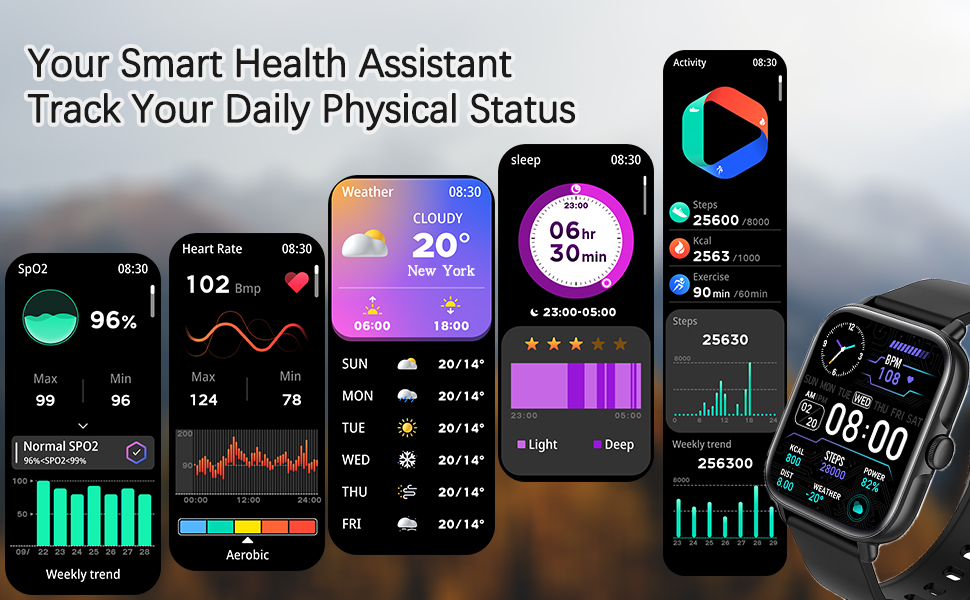
Image: A collage of smartwatch screens showing various health metrics including SpO2, heart rate, weather, sleep data, and daily activity tracking.
4.5 Sport Modes
The watch supports 28 sport modes, including swimming, running, climbing, yoga, and more. Select your activity to track specific metrics relevant to that exercise.

Image: A woman doing a yoga pose, with the smartwatch screen showing "WALKING" mode, heart rate, steps, and calories burned.
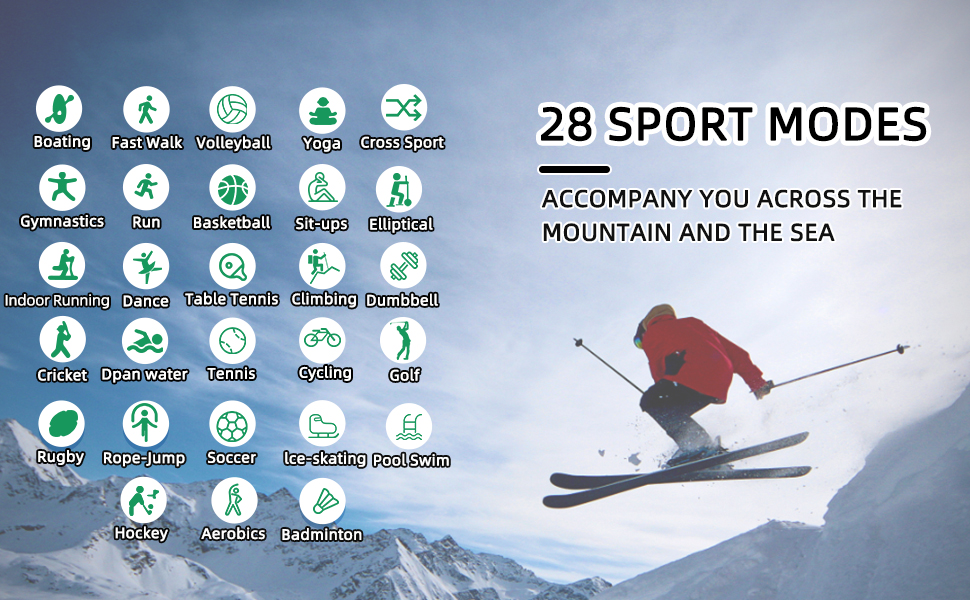
Image: A comprehensive list of icons representing the 28 supported sport modes, including running, cycling, swimming, and more.
4.6 AI Voice Control
Connect your watch to your phone's Bluetooth to utilize AI voice control. This feature allows you to make calls, play music, check the weather, and perform other operations using voice commands.
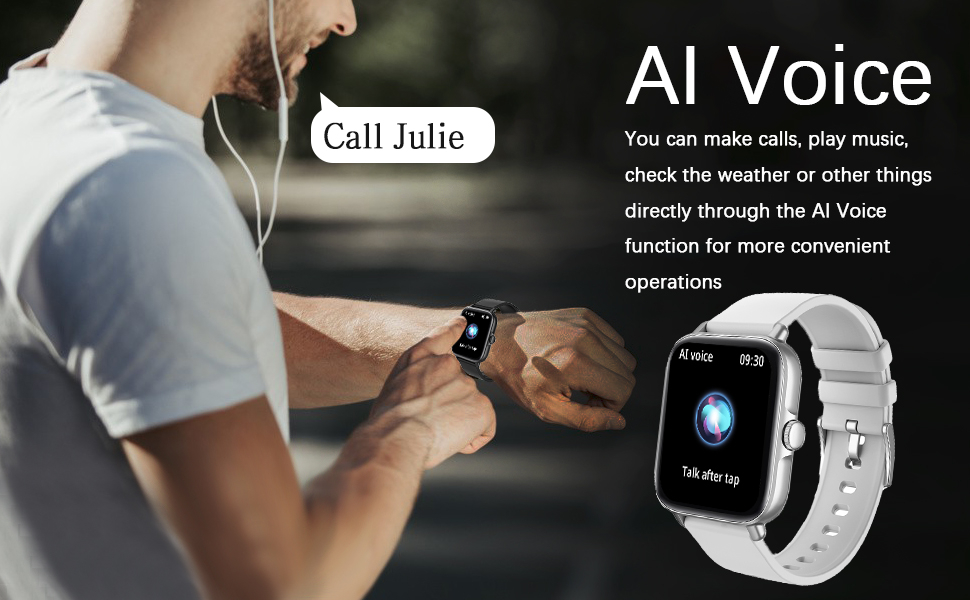
Image: A man using the AI voice control feature on his smartwatch, with a speech bubble indicating a voice command.
4.7 Life Assistant Features
- Music Control: Control music playback on your phone (play, pause, next/previous track) directly from your watch.
- Camera Control: Use your watch as a remote shutter for your phone's camera.
- Weather Display: Get real-time weather forecasts for your location (requires phone connection).
- Sedentary Reminder: Reminds you to move if you've been inactive for too long.
- Drink Water Reminder: Helps you stay hydrated by reminding you to drink water.
- Alarm Clock: Set alarms that vibrate on your wrist.
- Stopwatch & Flashlight: Convenient tools accessible from your watch.
- Find Phone: If your phone is misplaced, use this feature on your watch to make it ring.

Image: Screenshots of the smartwatch interface demonstrating music control, weather forecast, and camera remote shutter functions.
4.8 Customizing Watch Faces
The 1.7" HD full touch screen offers over 150 watch face styles in the companion app. You can also upload your favorite photos to create personalized watch faces.

Image: The smartwatch displaying different customizable watch faces, including a photo of a dog and a galaxy theme, along with strap length measurements.
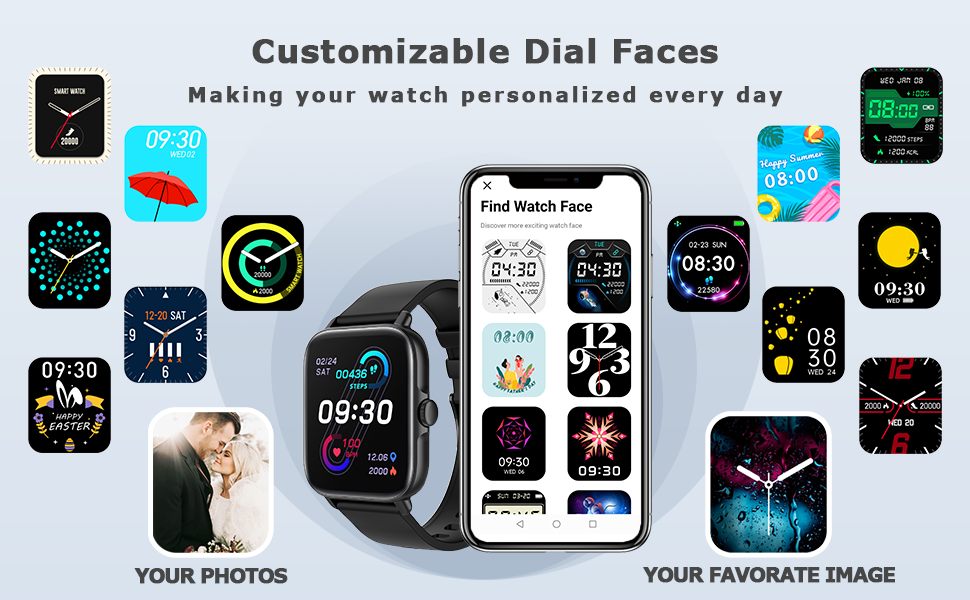
Image: A collection of diverse customizable watch faces, including options to use personal photos, accessible through the companion app.
5. Maintenance
5.1 Cleaning Your Smart Watch
Regularly clean your watch and strap to prevent skin irritation and maintain device functionality. Use a soft, lint-free cloth. If necessary, dampen the cloth with a small amount of water. Avoid harsh chemicals or abrasive materials.
5.2 Water Resistance (IP68)
The WZWNEER Smart Watch is IP68 waterproof, meaning it is resistant to dust and can withstand immersion in water up to 1.5 meters for up to 30 minutes. It is suitable for daily use, hand washing, and light rain. However, it is not recommended for hot showers, saunas, or diving, as steam and high temperatures can compromise the seal.
5.3 Battery Care
- Avoid fully discharging the battery frequently.
- Do not expose the watch to extreme temperatures (hot or cold) as this can affect battery life.
- Use only the provided charging cable.
6. Troubleshooting
| Problem | Possible Solution |
|---|---|
| Watch won't turn on/charge. | Ensure the charging cable is properly connected to the watch and a working power source. Try a different USB port or adapter. Allow it to charge for at least 10 minutes before attempting to turn it on. |
| Cannot pair with phone. | Make sure Bluetooth is enabled on your phone and the watch. Restart both devices. Ensure the companion app has necessary permissions. Forget previous Bluetooth connections on your phone and try pairing again. |
| Call function not working. | Verify that the "Y20 GT_Phone" (or similar) Bluetooth connection is established in your phone's Bluetooth settings, in addition to the main watch connection. Ensure the call function is enabled on the watch's quick settings. |
| Notifications not received. | Check notification permissions in the companion app and your phone's system settings. Ensure the app is running in the background and not being optimized by battery saving features. |
| Inaccurate health data. | Ensure the watch is worn snugly on your wrist, not too loose or too tight. Clean the sensor on the back of the watch. Ensure your personal information (height, weight, age) is accurate in the app. |
7. Specifications
| Feature | Detail |
|---|---|
| Model Number | SB-gjpl-0026 |
| Brand | WZWNEER |
| Display | 1.7" HD Full Touch Screen |
| Battery Capacity | 235 mAh Lithium Polymer |
| Battery Life (Bluetooth Call) | Up to 2 days |
| Battery Life (Standby) | Up to 20 days |
| Charging Time | Approx. 2 hours |
| Connectivity | Bluetooth |
| Compatibility | iOS 9.0 and above, Android 4.4 and above |
| Water Resistance | IP68 |
| Product Dimensions | 3.7 x 3.4 x 1.7 inches |
| Item Weight | 3.84 ounces |
| Special Features | Bluetooth Call, Heart Rate Monitor, Sleep Monitor, Blood Oxygen (SpO2), 28 Sport Modes, AI Voice Control, Music/Camera Control, Notifications, Weather, Sedentary/Drink Reminders, Alarm, Find Phone |
8. Warranty and Support
WZWNEER products are manufactured to the highest quality standards. For information regarding warranty coverage, technical support, or service inquiries, please refer to the warranty card included with your product or visit the official WZWNEER website. Please retain your proof of purchase for warranty claims.
Ask a question about this manual
Ask about setup, troubleshooting, compatibility, parts, safety, or missing instructions. Manuals+ will review the question and use this page’s manual context to help answer it.