
1. Product Overview
This manual provides essential information for the installation, operation, and maintenance of the Cloudray EZCAD3 Fiber Marking Controller, model JCZ DLC2-M4-2D. This advanced control board is designed for fiber laser marking machines, offering robust performance and support for complex marking tasks, including 2.5D deep marking.
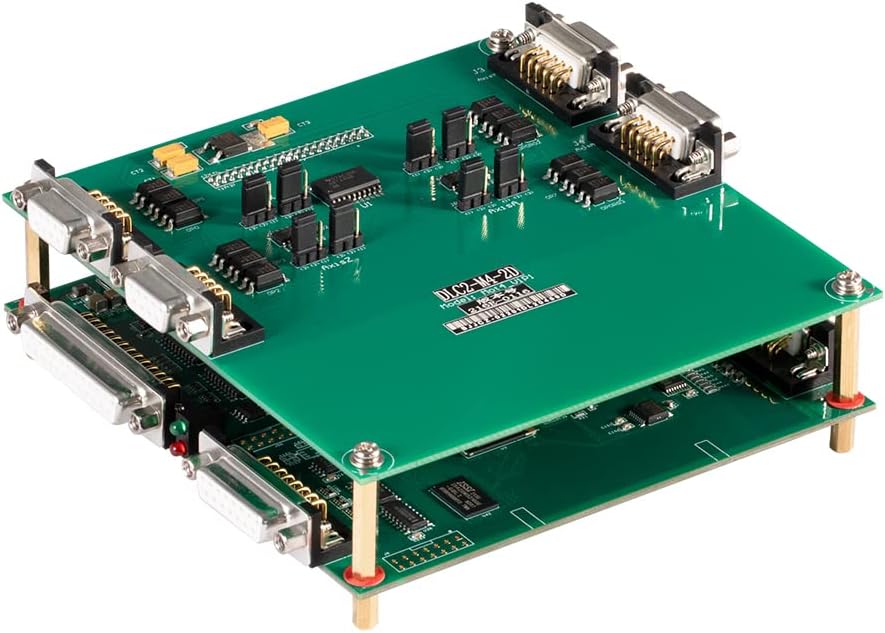
Image 1: Top-down view of the Cloudray EZCAD3 Fiber Marking Controller JCZ DLC2-M4-2D, showcasing its dual-layer PCB design with various electronic components and connectors.
2. Key Features
- Advanced Software Kernel: Utilizes a 64-bit EZCAD3 software kernel for faster processing of large files, capable of handling gigabyte-level data.
- Diverse Marking Methods: Offers 8 types of marking filling methods in EZCAD3 and 5 types in EZCAD2 for versatile application.
- 2.5D Deep Marking Support: Supports 2.5D deep marking and relief marking functions, requiring a motorized Z-axis lifting column for optimal performance.
- Offline Operation: Marking files can be saved directly onto the control board, enabling offline marking initiation via the I/O interface.
- 3D Galvanometer Compatibility: Achieves 3D curved surface or large-format marking when paired with a 3D galvanometer.
- Real-time Monitoring: Allows real-time monitoring of the processing area through a webcam integrated into the software interface (webcam software license sold separately).
- Network Control: Supports TCP/IP command control via a server on the same local network for remote operation.
- Parameter Optimization: EZCAD3 includes a parameter assistant to quickly generate arrays of processing parameters, aiding in finding the best settings for marking results.

Image 2: Angled view of the Cloudray EZCAD3 Fiber Marking Controller, highlighting the various input/output ports and connectors for integration into a fiber marking system.
3. Setup Instructions
3.1 Unpacking and Inspection
Carefully unpack the control board and inspect it for any visible damage. Ensure all components are present according to the packing list. If any damage or missing parts are found, contact your supplier immediately.
3.2 Hardware Connections
- Power Supply: Connect a stable +12V DC / 3A power supply to the designated power input port on the control board. Ensure correct polarity.
- Galvanometer Connection: Connect the galvanometer scanner to the appropriate ports on the control board. Refer to the wiring diagram provided with your galvanometer for specific pin assignments.
- Laser Source Connection: Connect the fiber laser source control signals (e.g., Q-switch, enable, power modulation) to the corresponding output ports on the control board.
- Computer Connection: Connect the control board to your computer via a USB cable. Ensure the USB connection is secure.
- I/O Connections: If using external devices or sensors, connect them to the available input and output signal ports as required for your application.
- Z-Axis (Optional): For 2.5D deep marking, connect a motorized Z-axis lifting column to the designated control ports.

Image 3: Dimensional drawing illustrating the layout and measurements of the 1st Layer (DLC2 Control Board) and 2nd Layer (M4 Motion Control Board) of the Cloudray controller, including mounting hole positions.
3.3 Software Installation
Install the EZCAD3 software on your computer. Follow the instructions provided with the software package. Ensure that the correct drivers for the control board are installed during this process.
4. Operating Instructions
4.1 Starting the Software
Launch the EZCAD3 software. The software should automatically detect the connected control board. If not, check your USB connection and driver installation.
4.2 Loading and Creating Designs
You can import existing design files (e.g., DXF, AI, PLT) or create new designs directly within the EZCAD3 software. Utilize the various drawing and editing tools available.
4.3 Setting Marking Parameters
Configure the laser marking parameters according to your material and desired marking effect. This includes:
- Laser power
- Marking speed
- Frequency
- Fill type and density
- Number of passes
- Z-axis height (for 2.5D marking)
Use the parameter assistant feature to help optimize these settings.
4.4 Preview and Positioning
Use the software's preview function to visualize the marking path. Adjust the position of your workpiece and the marking area as needed. For systems with a webcam, use the real-time monitoring feature for precise alignment.
4.5 Initiating Marking
Once all parameters are set and the design is positioned, click the 'Mark' button in the software to begin the laser marking process. Ensure all safety precautions are observed before starting.
5. Maintenance
To ensure the longevity and optimal performance of your Cloudray EZCAD3 Fiber Marking Controller, follow these maintenance guidelines:
- Keep Clean: Regularly clean the control board and its connectors to prevent dust accumulation, which can lead to overheating or short circuits. Use a soft, dry brush or compressed air.
- Environment: Operate the board in a clean, dry, and temperature-controlled environment. Avoid exposure to excessive humidity, extreme temperatures, or corrosive substances.
- Static Discharge: Always handle the board with anti-static precautions to prevent damage from electrostatic discharge (ESD).
- Connection Checks: Periodically check all cable connections to ensure they are secure and free from damage.
6. Troubleshooting
If you encounter issues with your Cloudray EZCAD3 Fiber Marking Controller, refer to the following common troubleshooting steps:
- No Power: Verify that the +12V DC power supply is correctly connected and functioning. Check the power indicator light on the board.
- Software Not Detecting Board: Ensure the USB cable is securely connected to both the computer and the control board. Reinstall the EZCAD3 software and drivers if necessary. Try a different USB port or cable.
- Laser Not Firing: Check connections to the laser source. Verify laser parameters in EZCAD3. Ensure the laser source is enabled and ready.
- Galvanometer Not Moving: Check galvanometer connections. Ensure the galvanometer is powered and calibrated correctly within the software.
- Marking Quality Issues: Review and adjust laser parameters (power, speed, frequency, fill settings). Ensure the focal distance is correct. Check for any mechanical issues with the laser system.
- Software Errors: Consult the EZCAD3 software manual for specific error codes. Ensure your software version is up to date.
If the problem persists after attempting these steps, contact Cloudray technical support or your local distributor for further assistance.
7. Specifications
| Parameter | Value |
|---|---|
| Brand | Cloudray |
| Model Number (Manufacturer) | LC04JCZDS303 |
| Item Model Number | JCZ DLC2-M4-2D |
| Software Compatibility | EZCAD3 |
| Power Input | +12V DC / 3A |
| Extend Axes Support | 4 |
| Input Signals | 10 |
| Output Signals | 8 |
| Package Dimensions | 27 x 17 x 8 cm |
| First Available Date | 24 April 2022 |

Image 4: Comparison table detailing parameters for DLC2-M4 (EZCAD3), LMC-V4 (EZCAD2), and LMC-V4 Lite (EZCAD2 Lite) controllers, including software, power input, extend axes, input signals, and output signals.
8. Warranty and Support
For warranty information and technical support, please refer to the documentation provided with your purchase or contact Cloudray directly through their official website or customer service channels. Ensure you have your product model number (JCZ DLC2-M4-2D) and purchase details available when seeking support.
