
Introduction
Thank you for choosing the WMT USB Condenser Gaming Microphone WMT800. This manual provides detailed instructions for setting up, operating, and maintaining your microphone to ensure optimal performance. Please read this manual thoroughly before use and retain it for future reference.
Product Features
- Brilliant RGB Lighting: Features 12 personalized RGB lighting modes, including 6 dynamic multi-color and 6 static solid color options, controllable via a dedicated key.
- High-Quality Sound Capture: Equipped with a cardioid pickup pattern and supports a high sample rate of 192kHz/24bit for clear, smooth, and crisp audio, suppressing unwanted background noise.
- Convenient Controls: Includes an easy-to-reach gain knob for volume adjustment and a one-press mute button with an LED indicator to show working status.
- No-Latency Monitoring: A 3.5mm headphone jack allows for real-time, latency-free audio monitoring.
- Plug and Play Connectivity: Compatible with PC, Mac, PS4, PS5, and Android phones via USB-A and USB-C cables. No additional drivers are required.
- Versatile Mounting: Can be used with the included desk stand or easily installed on a standard boom arm.
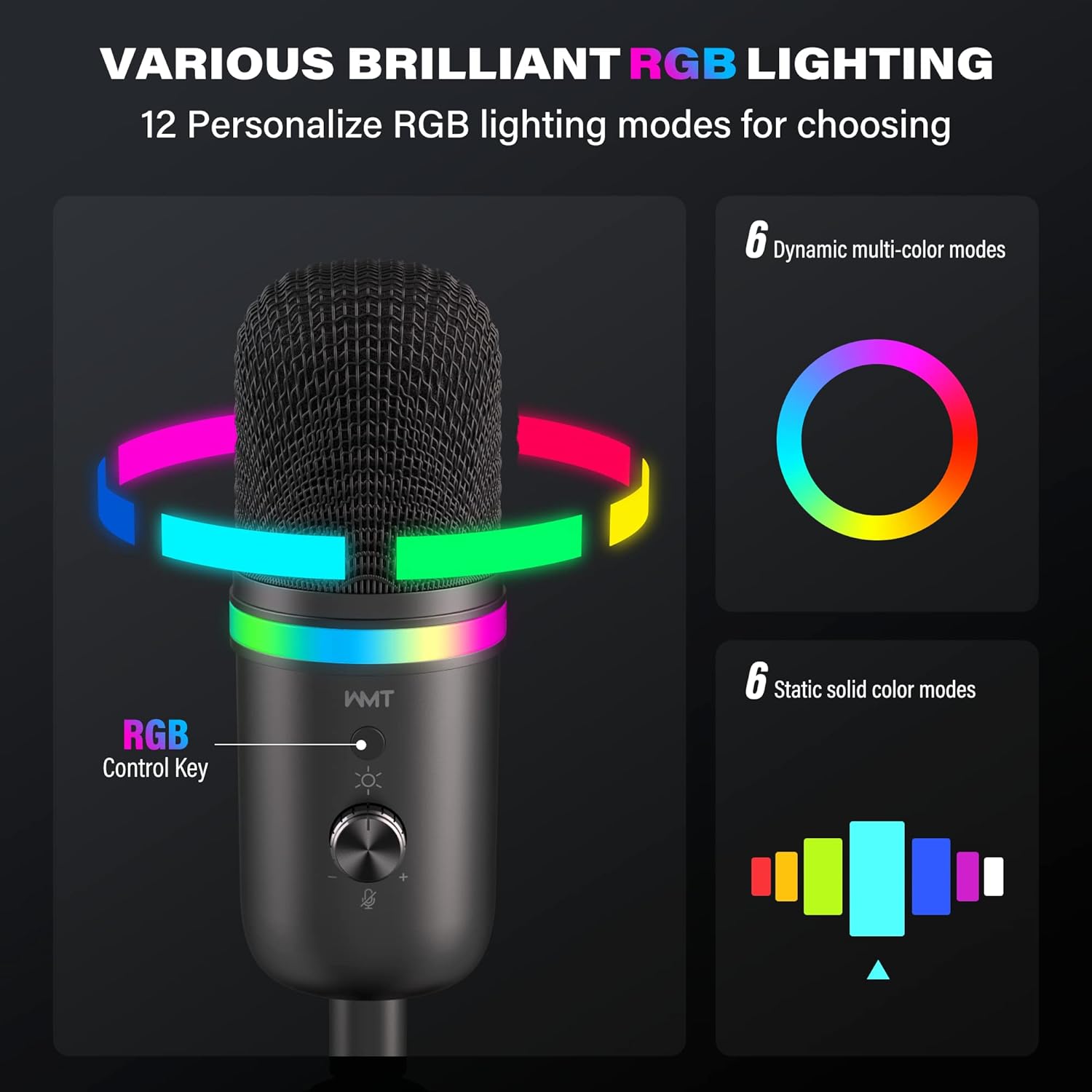
Image: The WMT USB Microphone showcasing its 12 personalized RGB lighting modes, including dynamic multi-color and static solid color options.
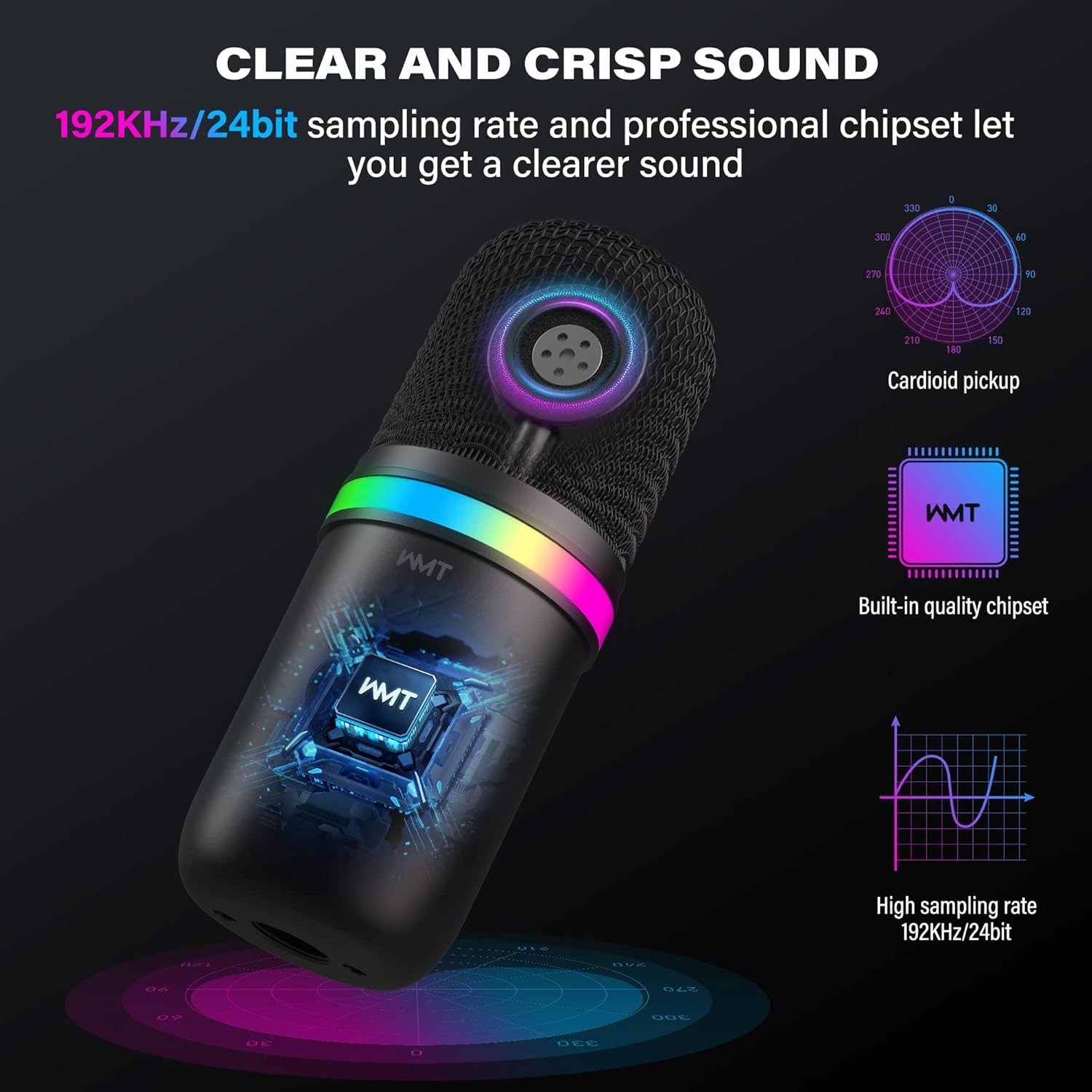
Image: Diagram illustrating the microphone's 192kHz/24bit sampling rate, built-in quality chipset, and cardioid pickup pattern for clear sound.
Package Contents
The WMT USB Condenser Gaming Microphone WMT800 package includes:
- WMT USB Condenser Gaming Microphone
- Desk Stand
- USB-A Cable
- USB-C Cable
Setup Instructions
- Unpack the Microphone: Carefully remove the microphone and all accessories from the packaging.
- Assemble the Stand: Attach the microphone to the included desk stand. Ensure it is securely fastened. Alternatively, if using a boom arm, remove the desk stand and screw the microphone onto your standard boom arm.
- Connect to Device:
- For PC, Mac, PS4, PS5: Use the provided USB-A or USB-C cable to connect the microphone to an available USB port on your device.
- For Android Phones: Use the provided USB-C cable to connect the microphone to your phone.
- For iPhone: An additional adapter (not included) is required to connect the microphone to an iPhone.
- Plug and Play: The microphone is designed for plug-and-play operation. No additional drivers are typically required for Windows, macOS, PS4, PS5, or Android devices.
- Verify Connection: Once connected, your operating system should automatically detect the microphone. You may need to select "WMT Microphone" as the input device in your system's sound settings or application preferences.
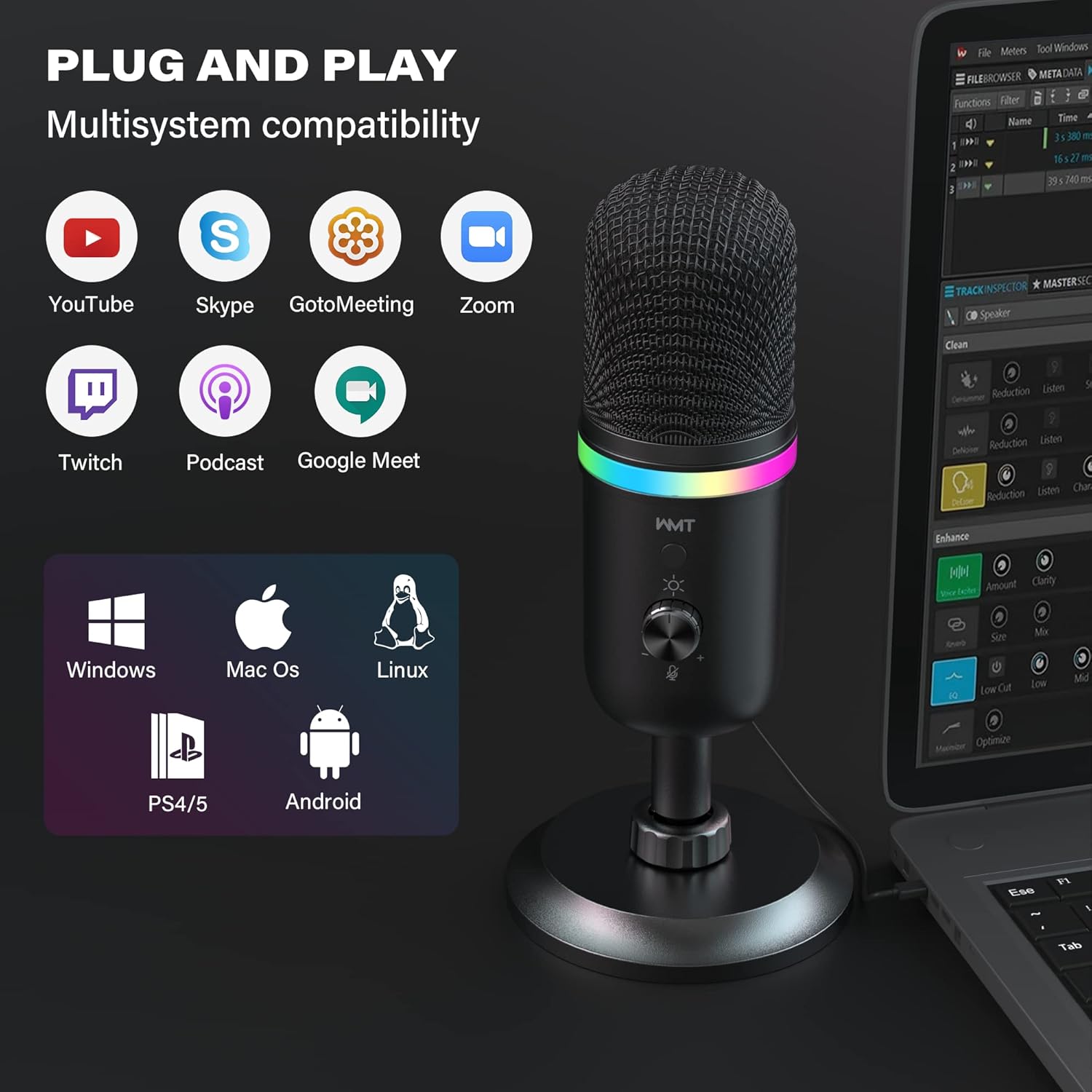
Image: The WMT USB Microphone demonstrating its plug-and-play compatibility with various operating systems and platforms, including Windows, Mac OS, Linux, PS4/PS5, and Android.

Image: The WMT USB Microphone on its stable and anti-skid desk stand, highlighting its 360-degree adjustability and exceptional anti-vibration design.
Operating Instructions
1. Adjusting RGB Lighting
The microphone features 12 personalized RGB lighting modes. To cycle through the modes or turn off the lighting, press the RGB Control Key located on the microphone body.
Image: The WMT USB Microphone showing the RGB Control Key and various lighting options.
2. Mute Function
Press the gain knob lightly to mute or unmute the microphone. An LED indicator will change color (e.g., red) to show the mute status, providing a clear visual cue.

Image: The WMT USB Microphone demonstrating the press-to-mute function with its LED indicator changing color to signify mute status.
3. Adjusting Microphone Gain (Volume)
Rotate the gain knob on the microphone body to adjust the input sensitivity (volume). Turn clockwise to increase gain and counter-clockwise to decrease it. Adjust the gain to prevent distortion or ensure adequate sound capture during recording or streaming.
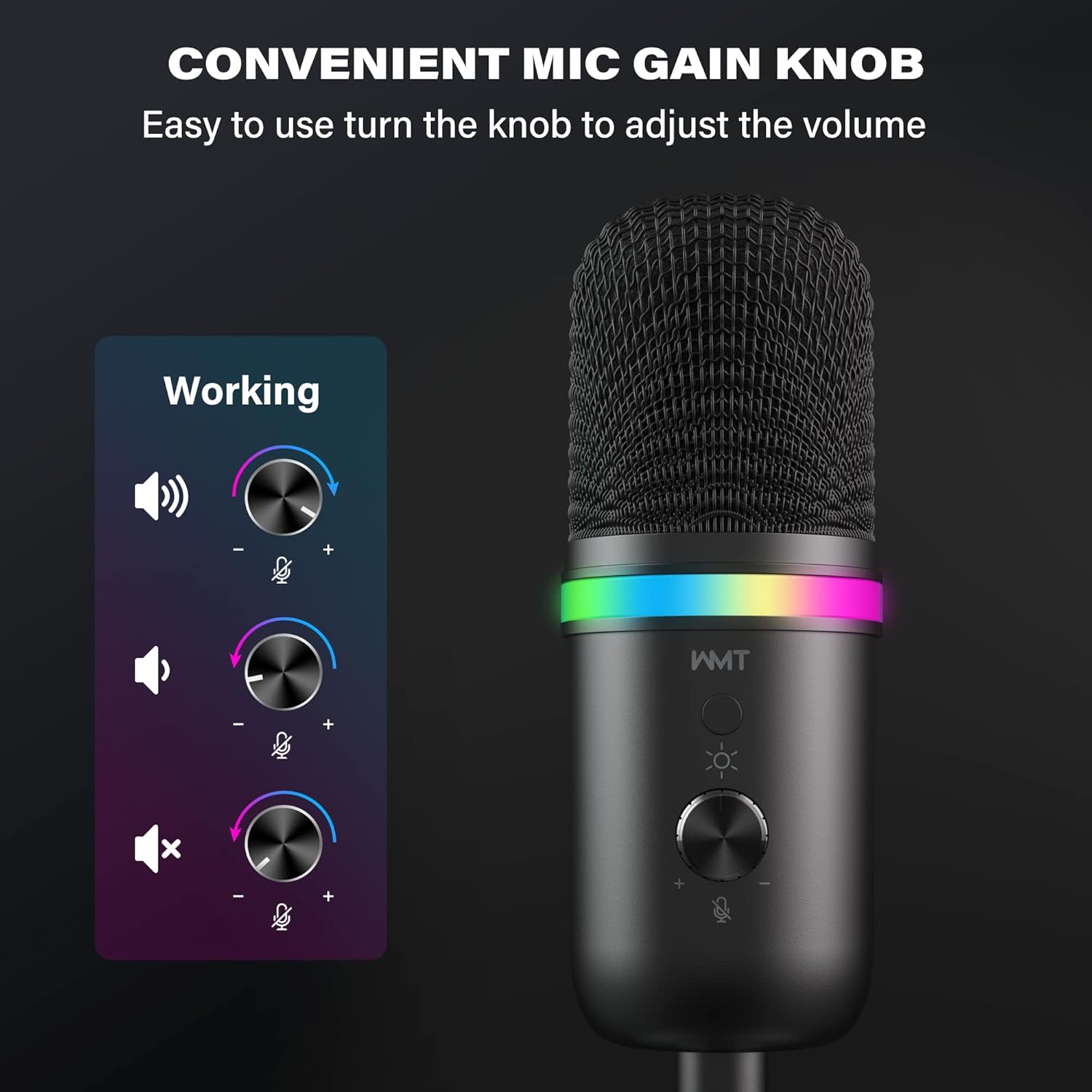
Image: The WMT USB Microphone highlighting the convenient mic gain knob for easy volume adjustment during use.
4. Real-time Headphone Monitoring
Plug your headphones into the 3.5mm headphone jack located on the back of the microphone. This allows for direct, latency-free monitoring of your audio input, ensuring you hear exactly what the microphone is capturing.
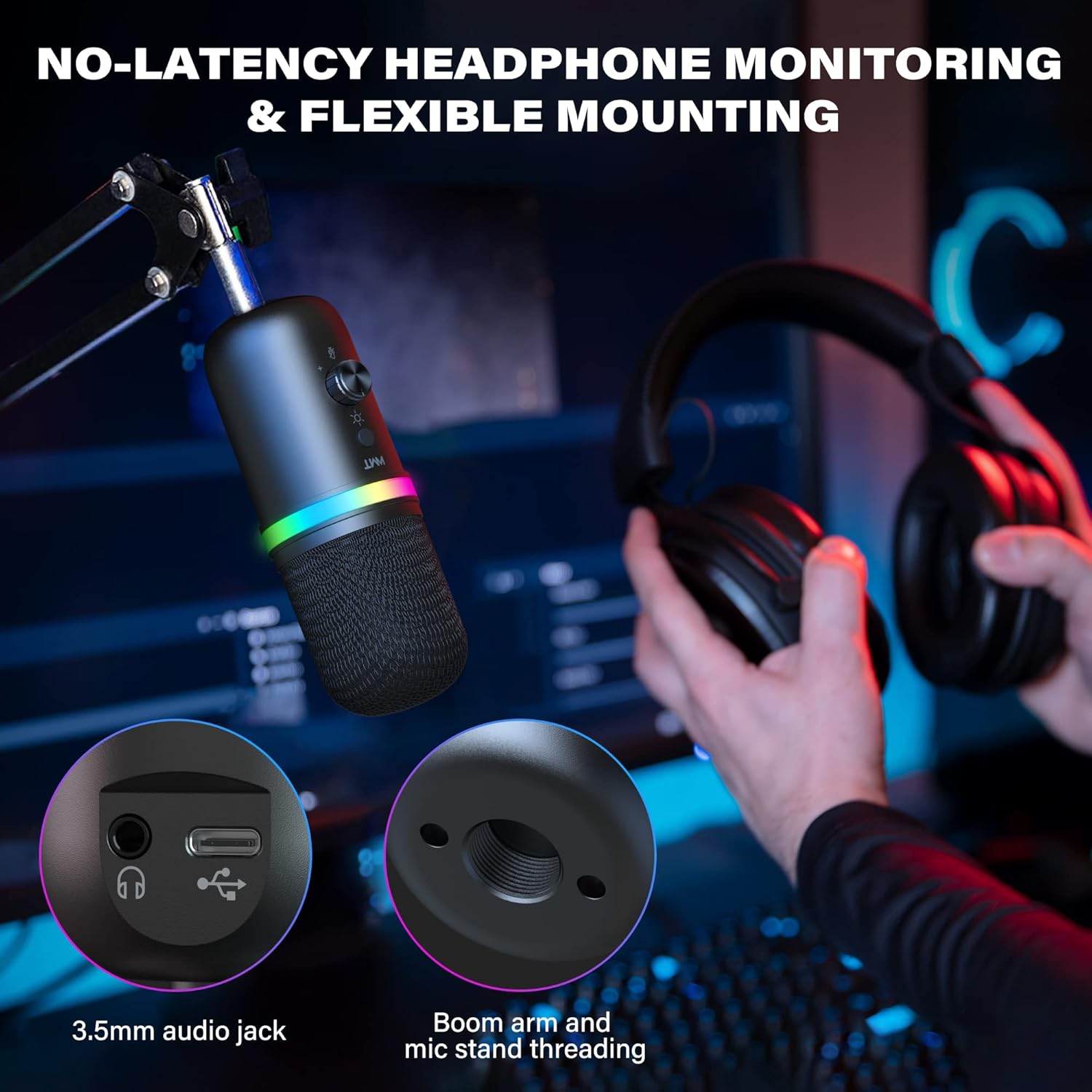
Image: The WMT USB Microphone showing the 3.5mm audio jack for no-latency headphone monitoring and the boom arm threading for flexible mounting options.
Maintenance
- Cleaning: Use a soft, dry cloth to wipe the microphone body. Do not use liquid cleaners or solvents, as they may damage the finish or internal components.
- Storage: When not in use, store the microphone in a clean, dry place away from extreme temperatures and humidity.
- Handling: Avoid dropping or subjecting the microphone to strong impacts, which can damage the internal condenser element.
Troubleshooting
- No Sound Output:
- Ensure the microphone is properly connected to your device's USB port.
- Check if the microphone is muted. Press the gain knob to toggle mute status; the LED indicator should change.
- Verify that "WMT Microphone" is selected as the default input device in your operating system's sound settings and within any recording/communication software you are using.
- Adjust the gain knob to ensure the volume is not set too low.
- Try connecting the microphone to a different USB port or another compatible device to rule out port or device issues.
- Distorted or Low-Quality Sound:
- Adjust the gain knob. If the sound is distorted, the gain might be too high. If it's too low, increase the gain.
- Ensure you are speaking directly into the front of the microphone, as it has a cardioid pickup pattern designed to capture sound from one direction.
- Check for environmental noise. The cardioid pattern helps, but excessive background noise can still affect quality.
- Ensure the microphone is positioned correctly and not too close or too far from the sound source.
- RGB Lighting Not Working:
- Press the RGB Control Key to cycle through modes or turn the lighting on.
- Ensure the microphone is properly powered via the USB connection.
Specifications
| Feature | Detail |
|---|---|
| Brand | WMT |
| Model Name | WMT800 |
| Connectivity | USB, USB Type-C |
| Connector Type | USB, USB Type-C, 3.5mm Headphone Jack |
| Special Features | Stand, Volume Control, RGB Lighting, Mute Button, Real-time Monitoring |
| Compatible Devices | PC, Laptop, Mac, PS4, PS5, Android Phone |
| Color | Black |
| Polar Pattern | Unidirectional (Cardioid) |
| Microphone Form Factor | Table Array |
| Power Source | Corded Electric (USB) |
| Signal-to-Noise Ratio | 80 dB |
| Frequency Response | 192 KHz / 24bit |
| Material | Plastic |
| Recommended Uses | Gaming, Singing, Streaming, Podcasting, Voiceovers, Zoom, Skype, YouTube, Discord |
| Parcel Dimensions | 21.59 x 10.39 x 10.01 cm |
| Weight | 408 g |
Warranty and Support
Warranty Information
Specific warranty details for the WMT USB Condenser Gaming Microphone WMT800 are not provided in this manual. Please refer to the product packaging or the official WMT website for the most up-to-date warranty policy and registration information.
Customer Support
For technical assistance, troubleshooting, or further inquiries regarding your WMT USB Condenser Gaming Microphone WMT800, please visit the official WMT support website or contact their customer service department. Contact information can typically be found on the manufacturer's website or product packaging.