
1. Introduction
This manual provides detailed instructions for the READSON WL82 Tri-Mode Mechanical Keyboard. Please read it thoroughly to ensure proper setup and operation of your device. This keyboard offers versatile connectivity options and customizable RGB backlighting for an enhanced user experience.
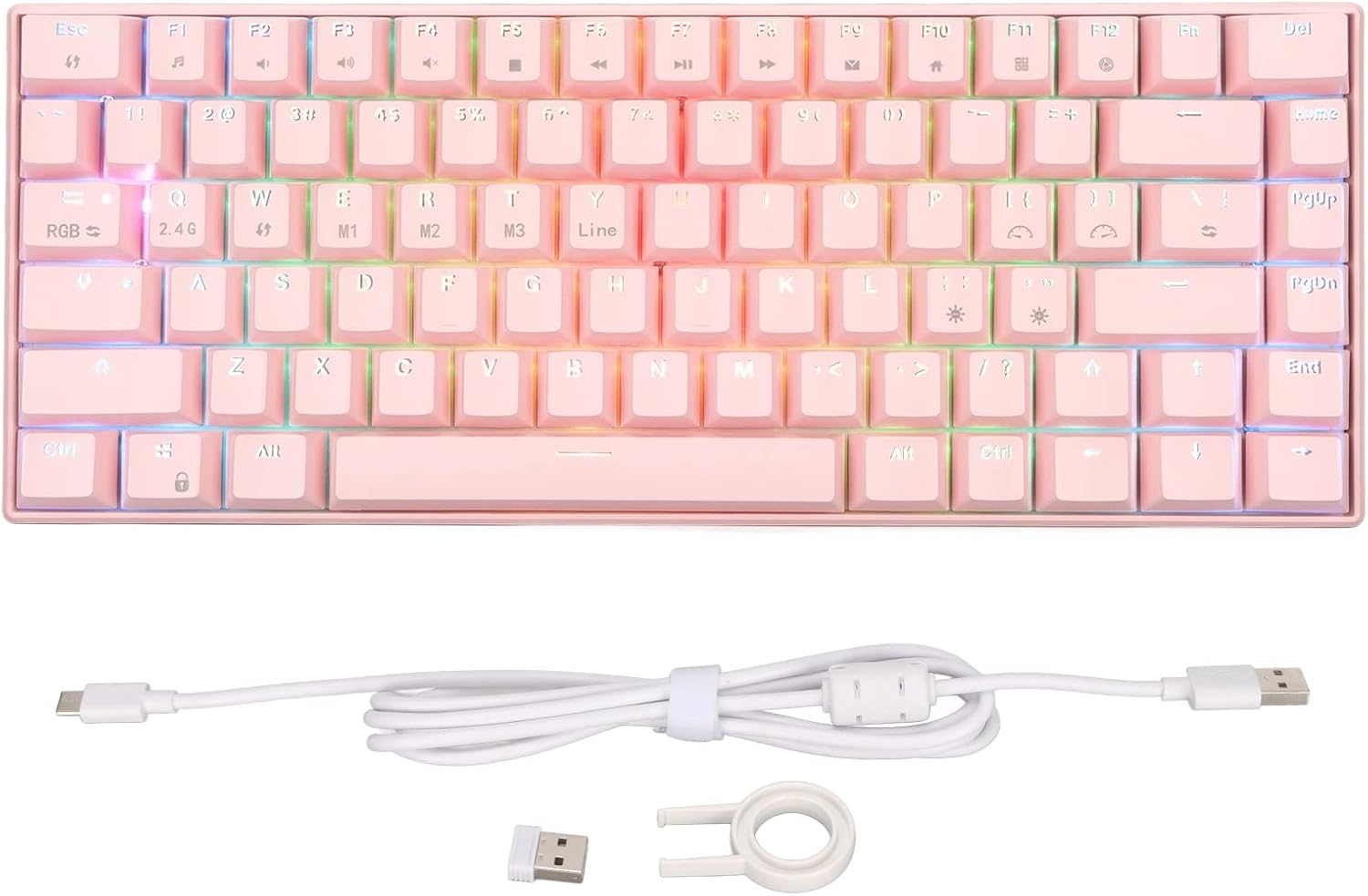
Image: The READSON WL82 mechanical keyboard in pink, shown with its USB-C cable, 2.4G USB adapter, and keycap puller. This image displays all components included in the package.
2. Package Contents
Verify that all items are present in your package:
- 1 x READSON WL82 Mechanical Keyboard
- 1 x Keycap Puller
- 1 x 2.4G USB Adapter
- 1 x USB Type-C Data Cable
- 1 x User Manual
3. Product Features
- Tri-Mode Connectivity: Supports 2.4G wireless, Bluetooth 3.0/5.0, and wired (USB Type-C) connections.
- Dynamic RGB Backlighting: Multiple lighting modes with adjustable speed and brightness.
- Full Key Anti-Ghosting: Ensures all key presses are registered accurately without conflict.
- Rechargeable Battery: Built-in 1800mAh lithium battery, providing long-lasting power and rechargeable via wired connection.
- Ergonomic Design: Designed for comfortable use, reducing wrist stress during extended typing sessions.
- Wide Compatibility: Supports various operating systems including Windows, HarmonyOS, Android, and iOS.

Image: A diagram highlighting key features of the keyboard, including its wireless/wired modes, 1800mAh battery, adjustable lighting, RGB backlight, and ergonomic design. The keyboard is shown below a monitor.
4. Setup
4.1. Wired Connection
- Connect the USB Type-C cable to the keyboard's Type-C port.
- Connect the other end of the cable to an available USB port on your computer.
- The keyboard will be automatically recognized and ready for use. The keyboard will also charge in wired mode.
4.2. 2.4G Wireless Connection
- Locate the 2.4G USB adapter.
- Plug the 2.4G USB adapter into an available USB port on your computer.
- On the keyboard, switch to 2.4G mode. This is typically done by pressing Fn + R.
- The keyboard should connect automatically.
4.3. Bluetooth Connection
- On the keyboard, switch to Bluetooth mode. The keyboard supports up to three Bluetooth devices (M1, M2, M3) via Fn + Q, Fn + W, and Fn + E respectively.
- For first-time pairing, press and hold Fn + Q (or W/E for other slots) until the indicator light flashes, indicating pairing mode.
- On your device (computer, tablet, smartphone), open Bluetooth settings and search for "READSON WL82" or a similar device name.
- Select the keyboard to pair. The indicator light will stop flashing once connected.
- To switch between paired Bluetooth devices, press Fn + Q, Fn + W, or Fn + E.

Image: A top-down view of the READSON WL82 keyboard, showing the USB-C cable connected, illustrating the wired connection option. The 2.4G adapter is also visible.
5. Operating Instructions
5.1. Function Keys (Fn Combinations)
The keyboard features a Function (Fn) key to access secondary functions printed on the keycaps. Common combinations include:
- Fn + Q/W/E: Switch between Bluetooth devices (M1, M2, M3).
- Fn + R: Switch to 2.4G wireless mode.
- Fn + T: Switch to wired mode.
- Fn + F1-F12: Multimedia controls (e.g., volume, play/pause, previous/next track). Refer to keycap legends for specific functions.
- Fn + RGB Key: Cycle through RGB lighting modes.
- Fn + Arrow Keys: Adjust backlight brightness and speed (specific combinations may vary, refer to keycap legends).

Image: A close-up view of the pink keycaps on the READSON WL82 keyboard, showing the legends for function keys and multimedia controls, which are accessed using the Fn key.
5.2. RGB Backlighting
The keyboard offers multiple dynamic RGB lighting effects. Use the Fn key in combination with the designated RGB key (often marked "RGB" or with a light icon) to cycle through different lighting modes. Brightness and speed can typically be adjusted using Fn + arrow keys or other designated keys as indicated on the keycaps.
6. Maintenance
- Cleaning: Use a soft, dry cloth to wipe the keyboard surface. For deeper cleaning, use the provided keycap puller to carefully remove keycaps and clean underneath with compressed air or a small brush.
- Storage: Store the keyboard in a cool, dry place away from direct sunlight and extreme temperatures to prevent damage.
- Battery Care: To prolong battery life, avoid fully discharging the battery frequently. Charge the keyboard regularly, especially when not in use for extended periods.
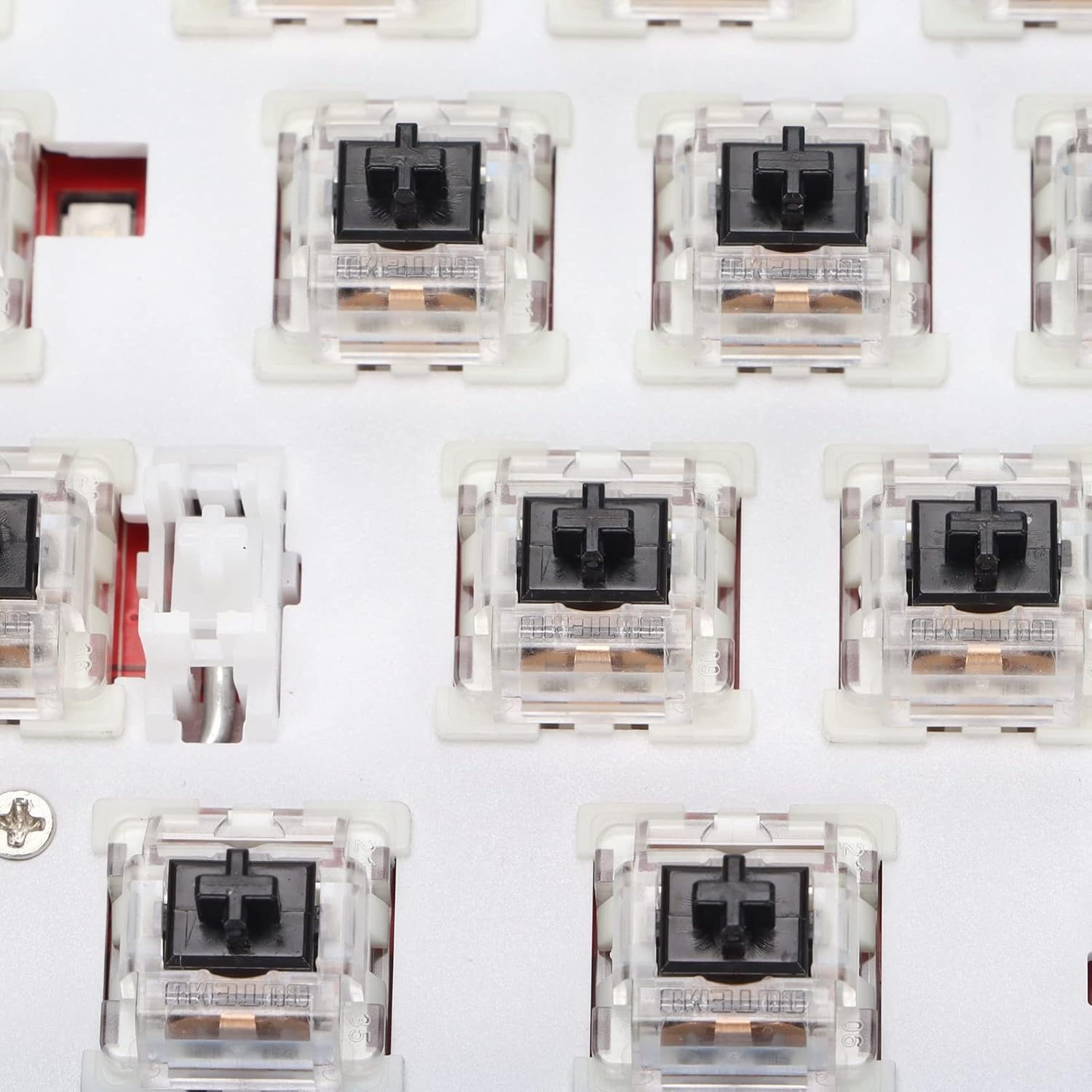
Image: A close-up view of the mechanical switches beneath the keycaps of the READSON WL82 keyboard, illustrating the internal components that can be accessed for cleaning or customization.
7. Troubleshooting
- Keyboard not responding:
- Check the connection mode (wired, 2.4G, Bluetooth) and ensure it matches your device's connection.
- For wired, ensure the USB cable is securely connected to both the keyboard and the computer.
- For 2.4G, ensure the adapter is plugged into a working USB port and the keyboard is in 2.4G mode (Fn + R).
- For Bluetooth, ensure it's paired correctly and selected as the active input device on your system.
- Check the battery level. Connect the keyboard via USB-C to charge if the battery is low.
- Bluetooth connection issues:
- Ensure the keyboard is in Bluetooth pairing mode (indicator light flashing after holding Fn + Q/W/E).
- Remove previous pairings of the keyboard from your device's Bluetooth list and try pairing again.
- Ensure your device's Bluetooth is enabled and discoverable.
- Backlight not working:
- Ensure the backlight is not turned off or set to minimum brightness. Use Fn + RGB Key to cycle modes and Fn + Arrow Keys to adjust brightness.
- Check battery level; low battery might automatically disable backlighting to conserve power.
- Keys not registering:
- Clean under the keycaps for any debris that might be obstructing the switches.
- Ensure the keyboard is not in a locked mode (if applicable, check for a lock indicator).
- Lag or delay in wireless mode:
- Ensure the 2.4G adapter or Bluetooth receiver is not obstructed by other objects.
- Move the keyboard closer to the receiver.
- Avoid interference from other wireless devices operating on similar frequencies.
8. Specifications
| Feature | Detail |
|---|---|
| Model | WL82 |
| Connectivity | 2.4G Wireless, Bluetooth 3.0/5.0, USB Type-C Wired |
| Backlight | RGB (Multiple Modes) |
| Key Conflict | Full Key Anti-Ghosting |
| Battery Capacity | 1800 mAh Lithium Battery |
| Operating Voltage | DC 5V |
| Operating Current | 300 mA (Maximum) |
| Standby Current | 0.5 mA |
| Material | ABS (Acrylonitrile Butadiene Styrene) |
| Manufacturer | Zhiyavex |
9. Compatibility
The READSON WL82 keyboard is compatible with the following operating systems:
- Windows 2000
- Windows ME
- Windows XP
- Windows Vista
- Windows 7
- Windows 8
- Windows 10
- HarmonyOS
- Android
- iOS
10. Warranty and Support
For any issues or inquiries regarding your READSON WL82 keyboard, please contact customer service through your point of purchase or the retailer. The product package includes a user manual and necessary accessories. Please verify the contents upon receipt. If there are any discrepancies or problems, contact customer service for timely assistance.
Warranty information is typically provided at the point of purchase or through the retailer. Please retain your proof of purchase for any potential warranty claims.

