
1. Introduction
This manual provides comprehensive instructions for the installation, operation, and maintenance of your Dzxiaso Android Stereo system, designed specifically for Chevy Chevrolet Silverado models from 2014 to 2018. Please read this manual thoroughly before installation and use to ensure proper function and to maximize your product experience.
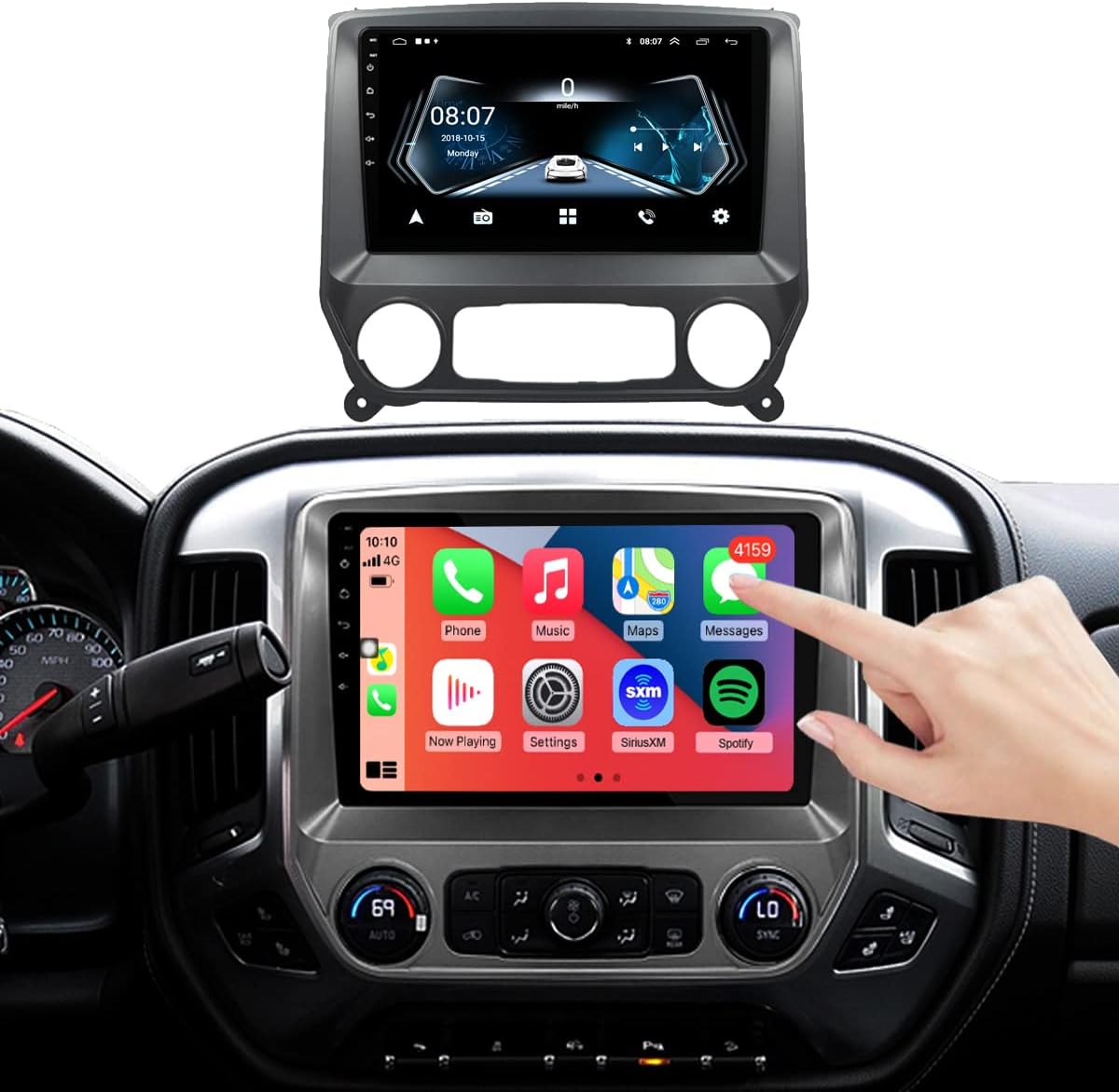
Image 1.1: Dzxiaso Android Stereo integrated into a Chevrolet Silverado dashboard.
2. Product Overview
The Dzxiaso Android Stereo is an advanced in-dash navigation and entertainment system featuring a 10.1-inch IPS touch screen. It operates on an Android platform, offering 2GB RAM and 32GB ROM for smooth performance and ample storage. Key functionalities include built-in wireless CarPlay, wired Android Auto, GPS navigation, FM radio, and support for various third-party applications.

Image 2.1: Dzxiaso Android Stereo unit highlighting compatibility and UI options.
3. Compatibility
This unit is designed for:
- Chevy Chevrolet Silverado (2014-2018)
- GMC Sierra (2014-2019)
Important Note:
This product is not suitable for vehicles equipped with a BOSE amplifier system.

Image 3.1: Visual guide for BOSE amplifier system incompatibility.
4. Package Contents
Verify that all components are present in the package:
- Radio Unit (10.1-inch Android Stereo)
- Wires Harness
- CANbus Box
- Frame (for installation)
- USB-4P Cable
- USB-6P Cable
- GPS Antenna
- RCA Cable
- Rear View Camera Cable

Image 4.1: All components included in the Dzxiaso Android Stereo package.
5. Setup & Installation
The Dzxiaso Android Stereo is designed for a complete plug-and-play installation. However, professional installation is recommended if you are unfamiliar with car audio system wiring or dashboard disassembly.
5.1 Pre-Installation Checks
- Ensure your vehicle is compatible (refer to Section 3).
- Disconnect the vehicle's battery before starting installation.
- Gather necessary tools: pry tool, screwdriver set.
5.2 Installation Steps
- Carefully remove the factory radio and dashboard trim using appropriate pry tools.
- Connect the provided wires harness to the vehicle's existing wiring. Ensure all connections are secure.
- Integrate the CANbus box as per the wiring diagram (typically connects inline with the main harness).
- Connect the GPS antenna, USB cables, RCA cables, and rear view camera cable to the corresponding ports on the new stereo unit.
- Mount the new stereo unit into the provided frame.
- Carefully place the assembled unit into the dashboard opening, ensuring no wires are pinched.
- Secure the unit and reattach the dashboard trim.
- Reconnect the vehicle's battery.

Image 5.1: Example of a wiring harness connection.

Image 5.2: Before and after installation view, demonstrating the integrated backup camera functionality.
6. Operating Instructions
6.1 Basic Operation
- Power On/Off: Press and hold the power button (if available) or turn the vehicle ignition on/off.
- Touch Screen: Navigate the interface by tapping, swiping, and pinching on the 10.1-inch IPS display.
- Volume Control: Adjust volume using the on-screen controls or retained steering wheel controls.
- Home Screen: Access various applications and settings from the customizable home screen.
6.2 Steering Wheel Controls
The system retains factory steering wheel control functionality, allowing you to manage audio, calls, and other features without taking your hands off the wheel.
7. Features
7.1 Wireless CarPlay & Wired Android Auto
Connect your smartphone for seamless integration of navigation, music, calls, and messages. Wireless CarPlay offers convenience, while wired Android Auto ensures a stable connection.
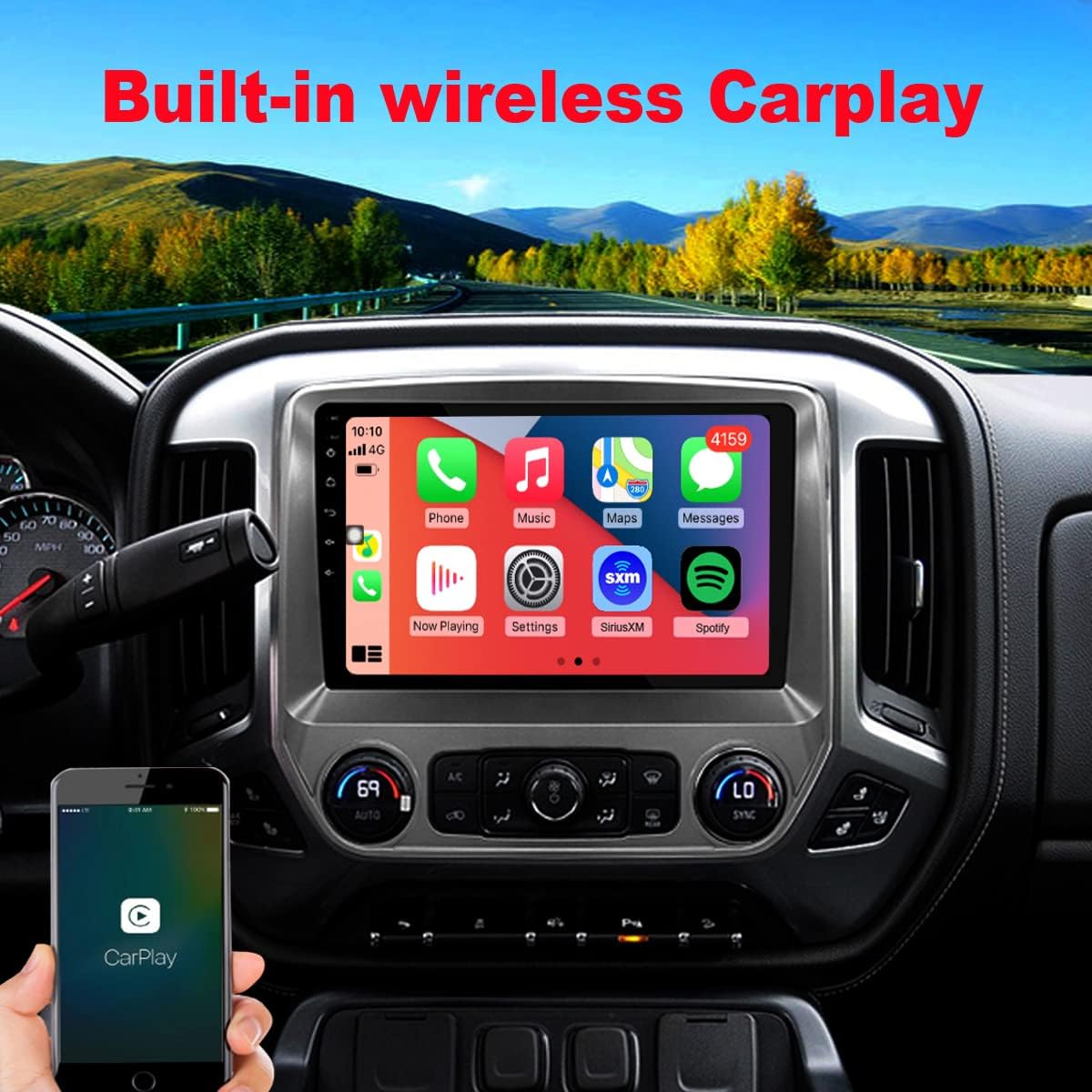
Image 7.1: Wireless CarPlay interface on the Dzxiaso stereo.

Image 7.2: Smartphone displaying the CarPlay logo.
7.2 Digital Sound Processor (DSP) & Equalizer
Customize your audio experience with the built-in 32-step equalizer and DSP adjustments. This allows for fine-tuning of sound output, including bass, treble, and sound stage settings, to match your preferences.

Image 7.3: DSP Equalizer Adjustments interface.

Image 7.4: S-PRO audio delay diagram for sound optimization.
7.3 IPS Touch Screen
The 10.1-inch IPS (In-Plane Switching) display offers wide viewing angles and accurate color reproduction for a clear and vibrant visual experience.

Image 7.5: Comparison of IPS screen quality versus a normal screen.
7.4 Additional Features
- GPS Module: Integrated GPS for navigation.
- Wi-Fi: Connect to Wi-Fi networks for internet access and app downloads.
- Dual USB Ports: For media playback, charging, and wired Android Auto connection.
- FM Radio: Built-in FM tuner for radio reception.
- Back Camera Support: Compatible with aftermarket backup cameras for enhanced safety.
- 3rd Party APK Installation: Supports installation of additional Android applications.
8. Maintenance
- Screen Cleaning: Use a soft, lint-free cloth to gently wipe the touchscreen. Avoid abrasive cleaners or solvents.
- Software Updates: Periodically check for software updates to ensure optimal performance and access to new features. Updates can typically be found via the system settings or the manufacturer's website.
- General Care: Avoid exposing the unit to extreme temperatures or direct sunlight for prolonged periods.
9. Troubleshooting
If you encounter issues, refer to the following common troubleshooting steps:
| Problem | Possible Cause | Solution |
|---|---|---|
| No Power | Loose wiring connection, blown fuse. | Check all power connections. Inspect vehicle fuses and the unit's fuse. Ensure battery is reconnected. |
| No Sound Output | Incorrect wiring, volume too low, BOSE amplifier incompatibility. | Verify speaker wiring. Increase volume. Confirm vehicle does not have a BOSE amplifier system. |
| CarPlay/Android Auto Not Connecting | Incorrect settings, faulty USB cable, phone software issue. | Ensure CarPlay/Android Auto is enabled in settings. Try a different USB cable. Restart phone and stereo unit. |
| GPS Signal Weak/Inaccurate | GPS antenna placement, environmental interference. | Ensure GPS antenna is mounted in a clear, unobstructed location. |
| Touchscreen Unresponsive/Lagging | Software glitch, excessive background apps. | Restart the unit. Close unnecessary applications. Perform a factory reset if issues persist (note: this will erase data). |
If the problem persists after attempting these solutions, please contact technical support.
10. Specifications
- Display Size: 10.1 Inches IPS Touch Screen
- Operating System: Android
- RAM: 2GB
- ROM: 32GB
- Connectivity: USB, Wi-Fi, Bluetooth
- Special Features: Wireless CarPlay, Android Auto, GPS, FM Radio, DSP Equalizer, Steering Wheel Control Retention
- Audio Output Mode: Stereo
- Mounting Type: Dashboard Mount
- Item Weight: Approximately 4.77 pounds
- Package Dimensions: 16.18 x 12.71 x 5.83 inches
11. Warranty and Support
Dzxiaso provides technical support for this product. If you have questions or require assistance, please contact the technical support team. They are available to answer your questions via email 24/7.
For warranty information, please refer to the documentation included with your purchase or contact Dzxiaso customer service directly.