
1. Product Overview
The CopGain P2 Triple Portable Monitor is designed to expand your laptop's display capabilities, offering two additional 12-inch Full HD (1080P) IPS screens. This multi-functional external monitor system enhances productivity by providing simultaneous or independent display solutions. Each screen features multiple connectivity options, including two Type-C ports (for display and power delivery), one HDMI port, and one USB 2.0 port. The monitors can rotate up to 207 degrees, allowing for flexible viewing angles. A retractable stand is integrated to provide stability and prevent strain on your laptop.
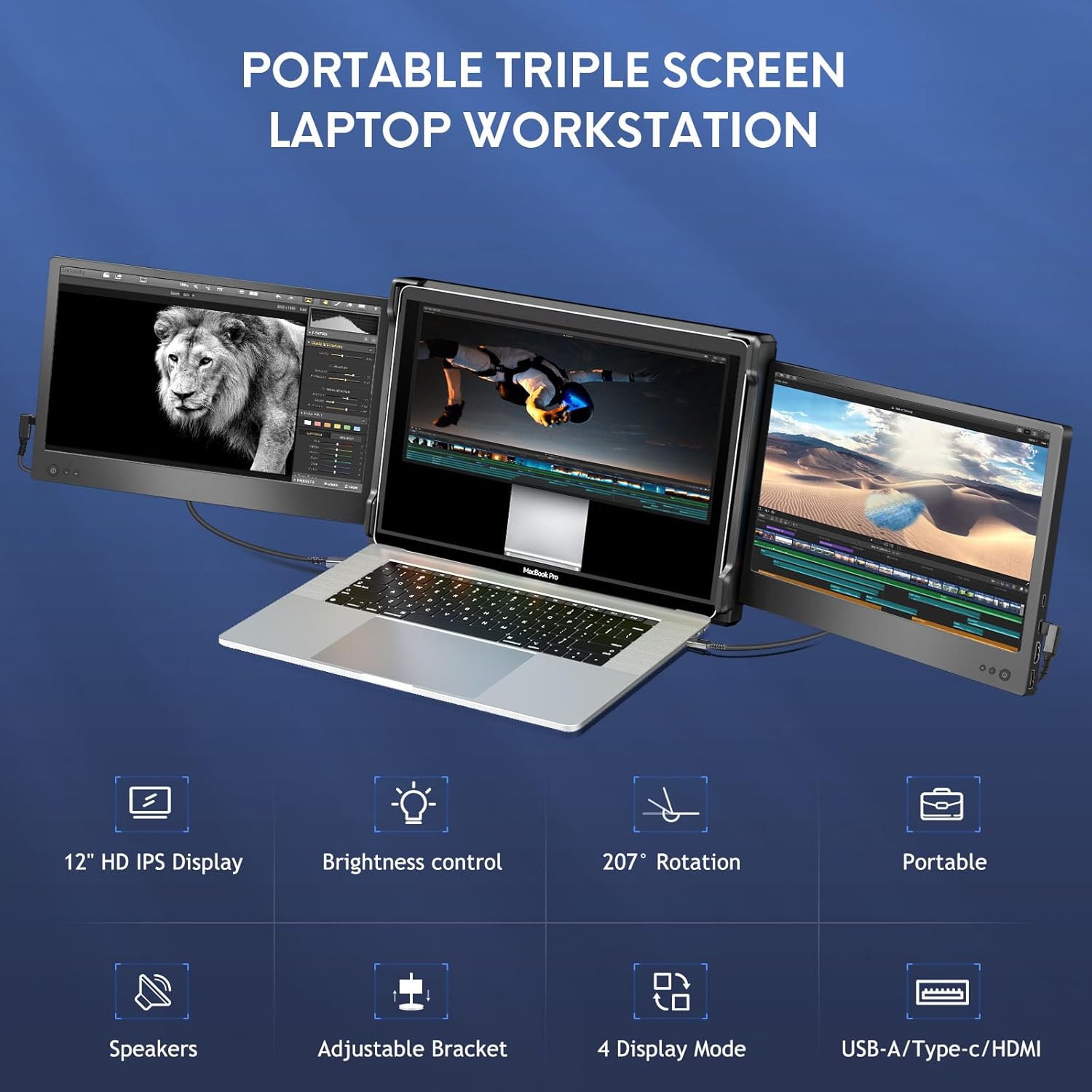
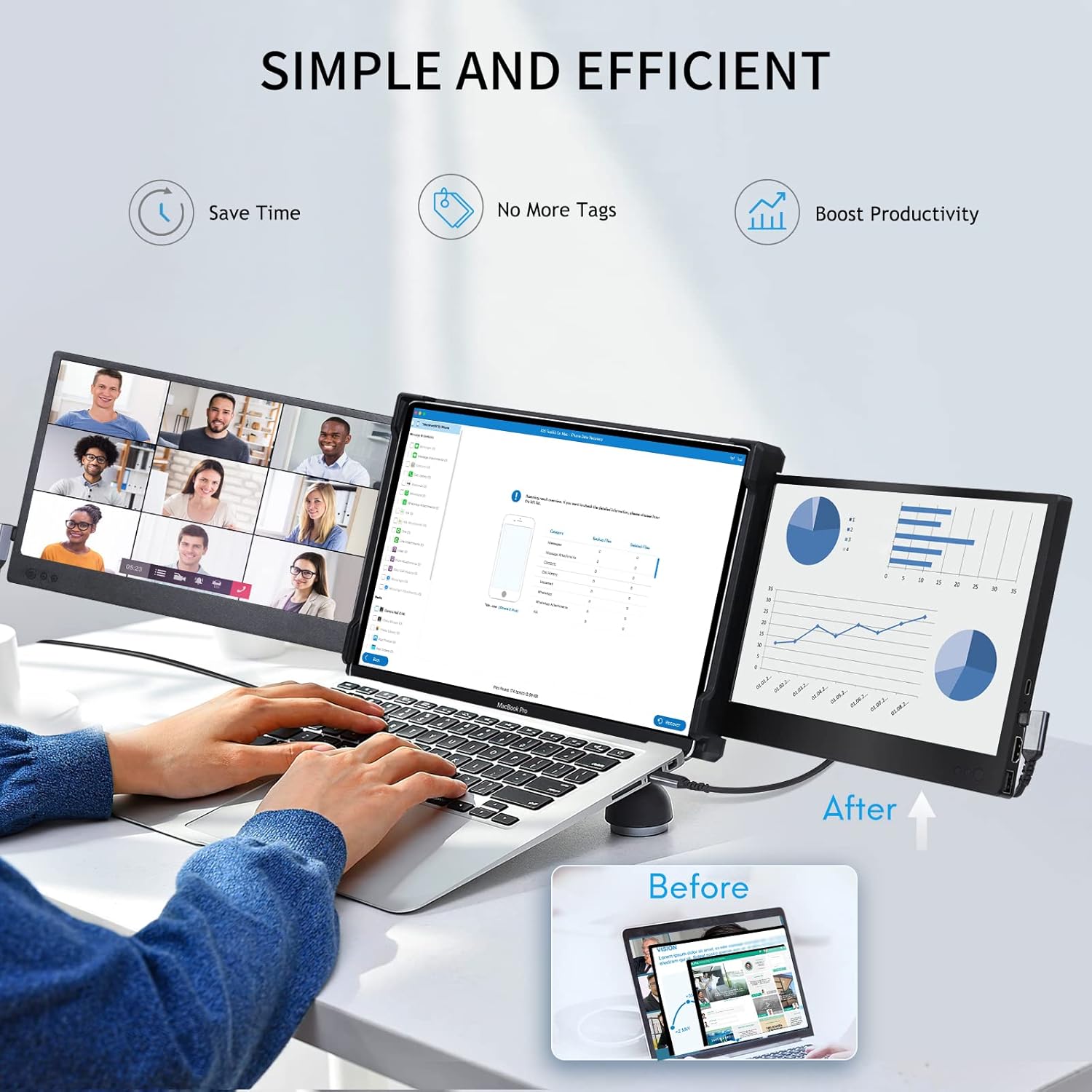
The system is designed for ease of use, featuring a stable and expandable bracket that clips securely onto laptop frames ranging from 13 to 16 inches. It is a plug-and-play device, requiring no additional driver installations for most operating systems.
2. What's in the Box
Upon opening the package, ensure all the following items are present:
- Triple Screen Extender Unit
- USB-C to USB-A Cables (x2)
- USB-C Cables (x2)
- HDMI Cables (x2)
- Retractable Bracket (integrated)
- Operations Manual
- Storage Bag
- Packaging Box
3. Specifications
| Feature | Specification |
|---|---|
| Product Dimensions | 12.1 x 8.35 x 1.16 inches |
| Item Weight | 2.65 pounds |
| Screen Size | 12 Inches (each) |
| Resolution | FHD 1080p (1920 x 1080 Pixels) |
| Aspect Ratio | 16:9 |
| Panel Type | IPS with wide viewing angle |
| Image Brightness | 300 nit |
| Total USB Ports | 6 (2 Type-C, 1 USB 2.0 per screen) |
| Screen Surface Description | Glossy |
4. Compatibility
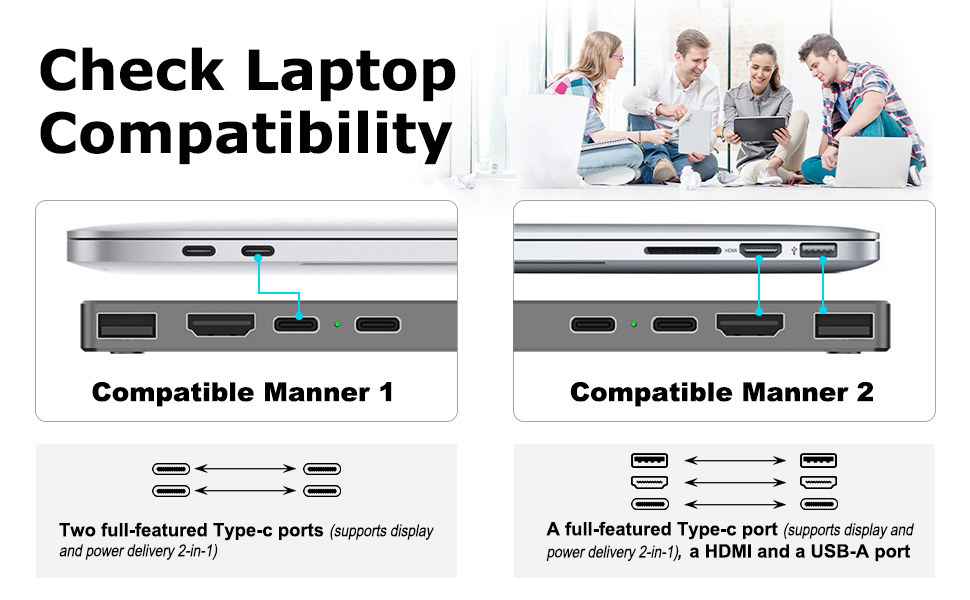
The CopGain P2 monitor is compatible with a wide range of laptops and operating systems. It is designed for laptops with screen sizes between 13 and 16 inches. Supported operating systems include Mac, PC, Chrome, Windows, Linux, Android, and gaming consoles like PS5, Xbox, and Switch.
Important Note: Please ensure your laptop has the necessary ports for connection. The monitor requires either two full-featured USB-C ports or one full-featured USB-C port combined with one HDMI port and one USB-A port for full functionality.


5. Setup Instructions
Follow these steps to set up your CopGain P2 Triple Portable Monitor:
- Unpack the Monitor: Carefully remove the triple screen extender unit and all accessories from the packaging.
- Unfold the Screens: Gently unfold the two side screens from the central frame. The unit is designed to expand, revealing the two additional displays.
- Attach to Laptop: Position the central frame over the top edge of your laptop screen. The stable and expandable bracket will securely clip onto your laptop without requiring magnets or additional accessories.
- Deploy Retractable Stand: Locate the retractable stand at the bottom of the central frame and extend it. This stand provides additional support and prevents the laptop monitor from being pressed at an inappropriate angle.
- Connect Cables:
- For Laptops with Two Full-Featured USB-C Ports: Use two USB-C to USB-C cables to connect each external screen to your laptop.
- For Laptops with One Full-Featured USB-C Port and One HDMI/USB-A Port: Use one USB-C to USB-C cable for one screen, and one HDMI cable along with one USB-A cable for the other screen.
- Power On: Once connected, the screens should automatically power on. If not, press the power button located on the side of each screen.
- Configure Display Settings: Access your laptop's display settings to configure the screens. You can choose between 'Mirror Display' (duplicate your main screen) or 'Extend Display' (expand your desktop across all three screens) modes. Adjust resolution and arrangement as needed.

6. Operating Instructions
The CopGain P2 monitors are designed for intuitive operation. Here's how to use them effectively:
6.1 Display Modes
- Extend Mode: This is the recommended mode for multi-tasking. It allows you to have different applications open on each screen, effectively expanding your desktop workspace. Configure this in your operating system's display settings.
- Mirror Mode: This mode duplicates your main laptop screen onto the external monitors. Useful for presentations or sharing content. Configure this in your operating system's display settings.
6.2 Adjusting Settings
Each external monitor has dedicated buttons for adjusting display settings:
- Power Button: Turns the individual screen on or off.
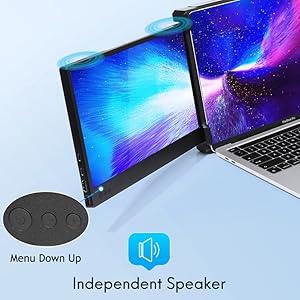
- Menu Buttons: Navigate through the on-screen display (OSD) menu to adjust settings such as brightness, contrast, color temperature, and other display parameters.
6.3 Physical Adjustments
- Screen Rotation: The screens can be rotated up to 207 degrees to achieve optimal viewing angles for various tasks or presentations.
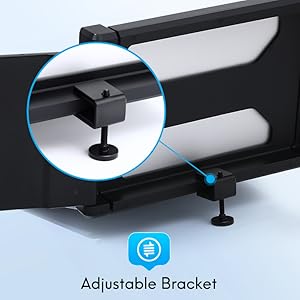
- Adjustable Bracket: The integrated bracket ensures the monitors are securely positioned and can be adjusted to fit different laptop sizes and viewing preferences.
7. Maintenance
Proper care and maintenance will ensure the longevity and optimal performance of your CopGain P2 Triple Portable Monitor:
- Cleaning: Use a soft, lint-free cloth to gently wipe the screen surfaces. For stubborn smudges, lightly dampen the cloth with water or a screen-safe cleaning solution. Avoid harsh chemicals, abrasive materials, or direct spraying onto the screens.
- Storage: When not in use, fold the screens back into their compact form and store the unit in the provided storage bag to protect it from dust and scratches.
- Handling: Always handle the monitor carefully. Avoid applying excessive force to the screens or hinges. Do not place heavy objects on the unit.
- Environmental Conditions: Keep the monitor away from extreme temperatures, direct sunlight, and high humidity.
8. Troubleshooting
If you encounter issues with your CopGain P2 Triple Portable Monitor, refer to the following common troubleshooting steps:
- No Display on Screens:
- Ensure all cables (USB-C, HDMI) are securely connected to both the monitor and your laptop.
- Verify that your laptop's ports are functional and support video output.
- Check if the external monitors are powered on using their individual power buttons.
- Restart your laptop.
- Confirm your laptop's display settings are configured for 'Extend Display' or 'Mirror Display' as desired.
- Incorrect Display Mode or Resolution:
- Go to your laptop's display settings (e.g., System Preferences > Displays on Mac, Display Settings on Windows) to adjust the arrangement, resolution, and scaling of each screen.
- Ensure the correct display mode (Extend or Mirror) is selected.
- Screens Not Bright Enough or Colors Are Off:
- Use the menu buttons on each external monitor to access the OSD and adjust brightness, contrast, and color settings.
- Ensure sufficient power is being supplied to the monitors. If using USB-A for power, try connecting to a higher-power USB port or an external power adapter if available.
- Screens Not Fitting Laptop:
- Ensure your laptop screen size is within the supported range of 13-16 inches.
- Adjust the expandable bracket to fit your laptop's dimensions.
For further assistance, please refer to the detailed user guide included in your package or contact customer support.
9. Warranty and Support
The CopGain P2 Triple Portable Monitor comes with a manufacturer's warranty. Please refer to the warranty card included in your product packaging for specific terms, conditions, and duration. For technical support, troubleshooting assistance, or warranty claims, please contact CopGain customer service through the contact information provided in your user manual or on the official CopGain website.