
1. Introduction
This manual provides detailed instructions for the installation, operation, and maintenance of your BooiParts G31T-LM V1.0 Desktop Motherboard. Please read this manual thoroughly before proceeding with installation to ensure proper setup and to prevent damage to the components.
2. Safety Information
- Always disconnect the power supply from the wall outlet before installing or removing any components.
- Wear an anti-static wrist strap or frequently touch a grounded metal object to discharge static electricity before handling the motherboard or other components. Static electricity can damage sensitive electronic parts.
- Handle the motherboard by its edges to avoid touching sensitive components.
- Ensure all cables are connected correctly and securely before powering on the system.
- Do not expose the motherboard to moisture or extreme temperatures.
3. Package Contents
Verify that all items are present in your package. If any items are missing or damaged, contact your retailer.
- BooiParts G31T-LM V1.0 Desktop Motherboard
- I/O Shield (may be included)
- SATA Data Cable (may be included)
- User Manual (this document)
4. Product Overview
The BooiParts G31T-LM V1.0 motherboard is designed for Intel LGA 775 processors and supports DDR2 memory. Below are key components and their locations.
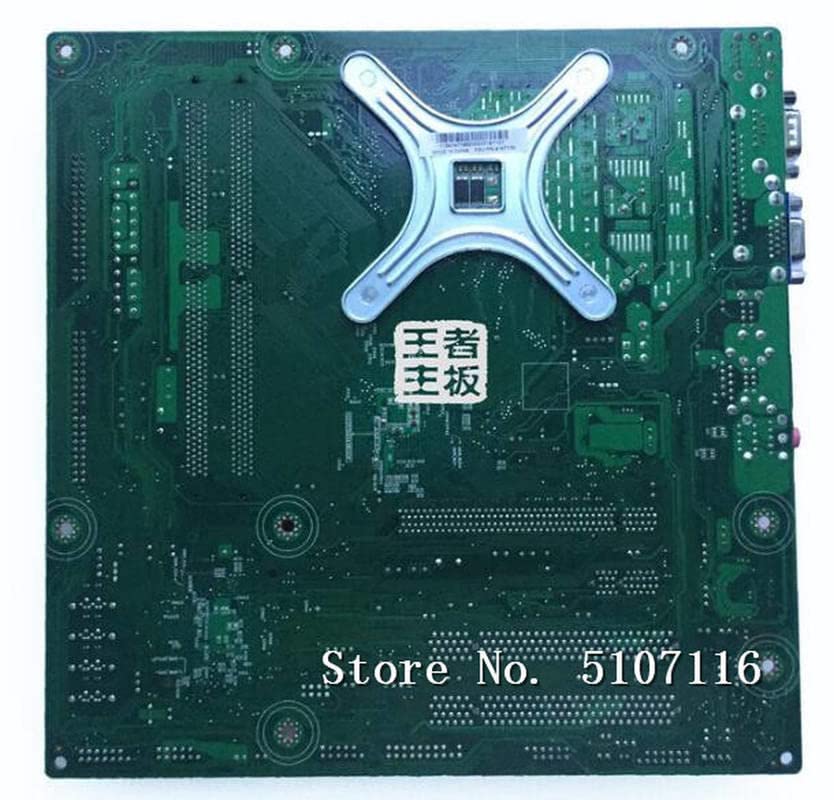
Figure 4.1: Top view of the BooiParts G31T-LM V1.0 motherboard. This image highlights the central LGA 775 CPU socket, two DDR2 RAM slots to its right, and various expansion slots (PCIe and PCI) below the CPU area. Power connectors and SATA ports are also visible along the edges.

Figure 4.2: Angled view of the BooiParts G31T-LM V1.0 motherboard. This perspective provides a clearer view of the rear I/O panel, including PS/2 ports, serial port, VGA output, USB ports, Ethernet port, and audio jacks. Key components like the chipset heatsink and power delivery components are also visible.
4.1 Key Components
- LGA 775 CPU Socket: For Intel Core 2 Duo and Pentium D processors.
- DDR2 DIMM Slots: Two slots supporting up to 8GB DDR2 memory.
- PCI Express Slot: For graphics cards.
- PCI Slots: For other expansion cards.
- SATA Port: For connecting storage devices.
- Rear I/O Panel: Includes PS/2 ports, USB ports, VGA, LAN, and audio jacks.
5. Setup
5.1 Preparation
- Ensure your computer case is compatible with Micro-ATX motherboards.
- Gather all necessary components: CPU, CPU cooler, DDR2 RAM, power supply, storage devices, and graphics card (if not using integrated graphics).
5.2 CPU Installation
- Locate the LGA 775 socket on the motherboard.
- Lift the load lever and open the CPU socket cover.
- Carefully align the CPU with the socket, ensuring the notches on the CPU match the keys on the socket. Do not force the CPU into place.
- Close the socket cover and push down the load lever until it locks into place.
5.3 CPU Cooler Installation
Apply thermal paste to the CPU if not pre-applied on the cooler. Install the CPU cooler according to its manufacturer's instructions, ensuring it is securely fastened and the fan cable is connected to the CPU_FAN header on the motherboard.
5.4 RAM Installation
- Open the clips at both ends of the DDR2 DIMM slots.
- Align the RAM module with the slot, ensuring the notch on the module matches the key in the slot.
- Press down firmly on both ends of the RAM module until the clips snap into place.
5.5 Motherboard Installation into Case
- Install the I/O shield into the rear opening of your computer case.
- Carefully place the motherboard into the case, aligning the screw holes on the motherboard with the standoffs in the case.
- Secure the motherboard with screws. Do not overtighten.
5.6 Connecting Power
- Connect the 24-pin ATX power connector from your power supply to the corresponding header on the motherboard.
- Connect the 4-pin ATX 12V power connector (CPU power) to its header near the CPU socket.
5.7 Connecting Storage Devices
Connect your SATA storage devices (HDD/SSD) to the SATA port on the motherboard using a SATA data cable. Connect the power cable from your power supply to the storage device.
5.8 Connecting Front Panel Connectors
Connect the front panel cables (Power SW, Reset SW, HDD LED, Power LED, USB, Audio) from your case to the corresponding headers on the motherboard. Refer to the motherboard's silkscreen labels for correct pin orientation.
5.9 Connecting Peripherals
Connect your keyboard, mouse, monitor, and other peripherals to the appropriate ports on the rear I/O panel.
6. Operating Instructions
6.1 First Boot-Up
After completing all connections, turn on your power supply and press the power button on your computer case. The system should power on, and you should see a display on your monitor. If not, refer to the Troubleshooting section.
6.2 BIOS/UEFI Setup
During startup, press the designated key (usually DEL or F2) to enter the BIOS/UEFI setup utility. Here you can configure system settings, boot order, and monitor hardware status.
7. Maintenance
- Cleaning: Regularly clean dust from the motherboard and components using compressed air. Ensure the system is powered off and unplugged before cleaning.
- BIOS Updates: Check the manufacturer's website for BIOS updates. Only update the BIOS if necessary and follow the instructions carefully to avoid system instability.
- Cable Management: Ensure cables are neatly routed to improve airflow and prevent interference.
8. Troubleshooting
8.1 No Power
- Check if the power supply is switched on and properly connected to the motherboard (24-pin and 4-pin connectors).
- Ensure the front panel power switch cable is correctly connected to the motherboard header.
- Test the power supply with another system or a power supply tester.
8.2 No Display
- Verify that the monitor is connected to the correct video output (onboard VGA or discrete graphics card).
- Reseat the RAM modules. Incorrectly seated RAM is a common cause of no display.
- If using a discrete graphics card, ensure it is properly seated in its PCIe slot and has adequate power connected.
- Try booting with only one RAM stick.
8.3 System Instability/Crashes
- Check CPU and GPU temperatures. Overheating can cause instability.
- Ensure all drivers are up to date.
- Run memory diagnostic tools to check for faulty RAM.
- Verify power supply wattage is sufficient for all components.
9. Specifications
The following table outlines the key specifications for the BooiParts G31T-LM V1.0 Motherboard.
| Feature | Specification |
|---|---|
| Brand | BooiParts |
| Model Name | G31T-LM V1.0 |
| CPU Socket | LGA 775 |
| Compatible Processors | Intel Core 2 Duo, Intel Pentium D |
| Chipset Type | Intel G31 |
| RAM Memory Technology | DDR2 |
| Memory Slots Available | 2 |
| Memory Storage Capacity (Max) | 8 GB |
| Graphics Card Interface | PCI Express |
| Total SATA Ports | 1 |
| Total PCIe Ports | 2 |
| Main Power Connector Type | 24-Pin |
| Compatible Devices | Personal Computer |
| Model Number | T4900V 53Y3282 45C2882 |
10. Warranty and Support
For warranty information and technical support, please refer to the documentation provided with your purchase or contact your retailer. Keep your proof of purchase for warranty claims.