
Introduction
This manual provides detailed instructions for the safe and efficient use of your IFREQTECH CD-58 Desktop Charger. Please read this manual thoroughly before operating the charger to ensure proper function and to prevent damage to the unit or connected devices. This charger is designed for specific Yaesu/Vertex Standard radio batteries.
Package Contents
- 1 x CD-58 Desktop Charger
- 1 x PA-55B AC Power Adapter

Image: IFREQTECH CD-58 Desktop Charger, AC power adapter, and spacer plate. The image displays the round black charger base, the black AC power adapter with its cable, and a small black spacer plate.
Safety Information
- Use only the supplied AC power adapter with this charger.
- Do not attempt to charge batteries not listed as compatible. Refer to the 'Compatible Models' section.
- Do not expose the charger to water or excessive moisture.
- Do not disassemble or modify the charger. Servicing should be performed by qualified personnel only.
- Ensure proper ventilation around the charger during operation.
- Keep out of reach of children.
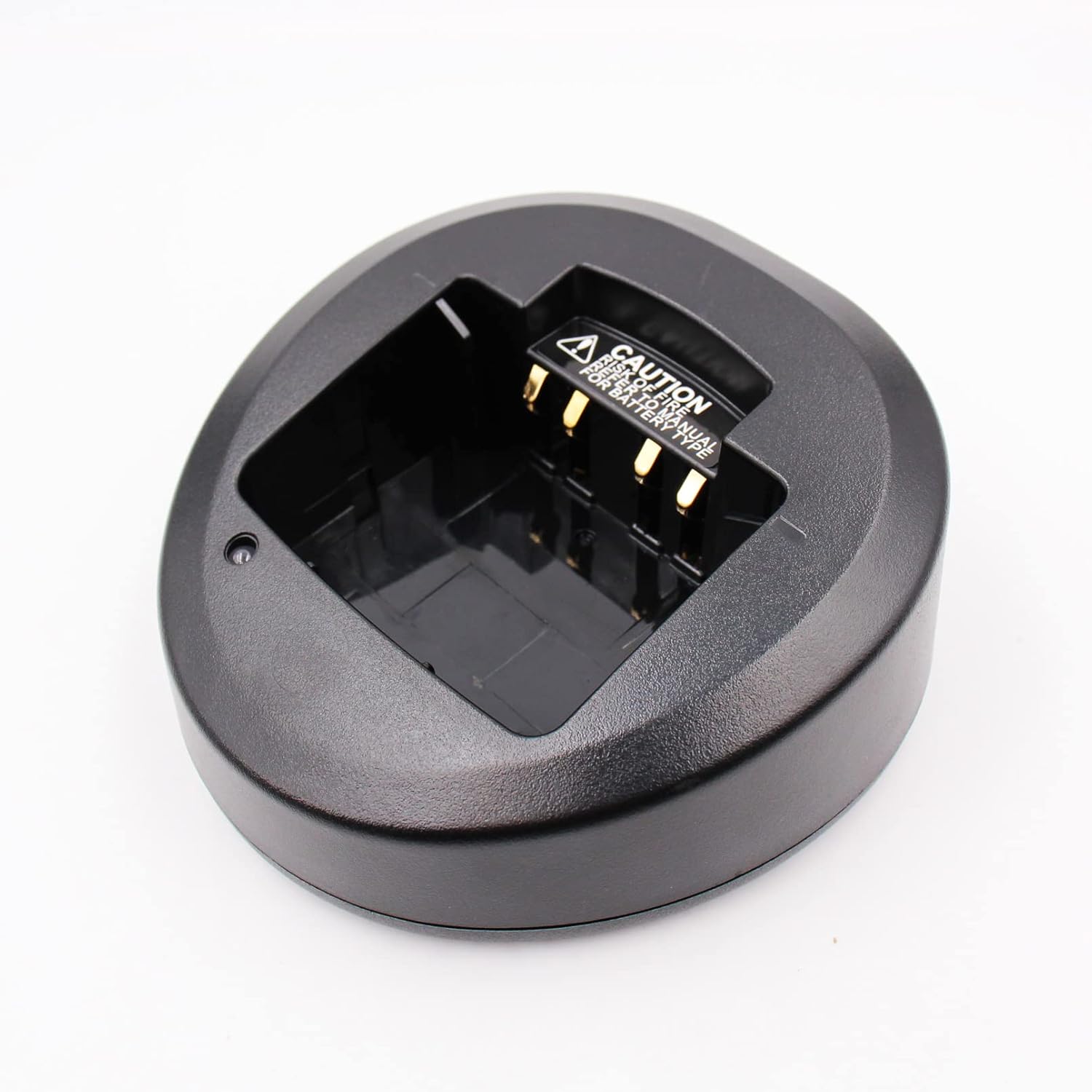
Image: Top view of the IFREQTECH CD-58 Desktop Charger base. The image shows the circular black charger with gold charging contacts and a white caution label inside the battery slot, advising to read the manual for battery type.
Setup
- Connect the PA-55B AC power adapter to the DC input jack on the back of the CD-58 Desktop Charger.
- Plug the AC power adapter into a standard AC 100-240V wall outlet.
- If charging a radio with a battery attached, and the radio does not fit securely, use the provided spacer plate. Place the spacer plate into the charger slot before inserting the radio.

Image: Setup diagram for the CD-58 charger. The diagram shows a radio, a spacer plate, the CD-58 charger, and an AC line outlet, with arrows indicating the connection sequence: radio onto spacer plate, spacer plate into charger, charger connected to AC adapter, and AC adapter plugged into the outlet.
Operating Instructions
Charging a Battery
- Ensure the charger is properly connected to a power source as described in the 'Setup' section.
- Carefully insert the compatible battery (or radio with battery attached) into the charging slot of the CD-58 Desktop Charger. Ensure the battery contacts align with the charger contacts.
- The LED indicator on the charger will illuminate to show the charging status.
- Once charging is complete, remove the battery or radio from the charger.
LED Indicator Status
- Red Light: Battery is charging.
- Green Light: Charging is complete.
- Flashing Red/Green: Error or incompatible battery detected. Remove the battery and re-insert. If the issue persists, consult the troubleshooting section.
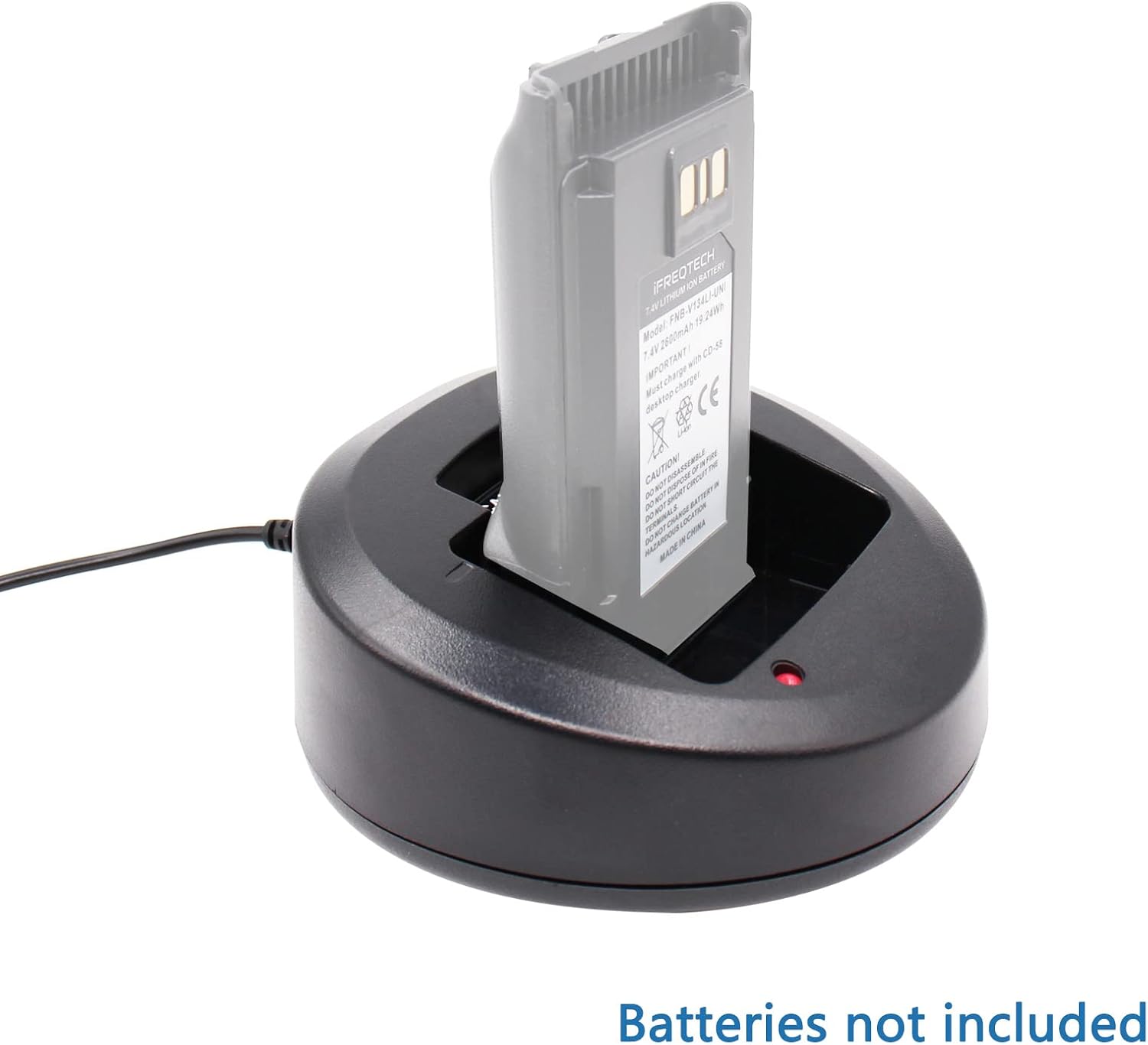
Image: IFREQTECH CD-58 Desktop Charger with a radio battery inserted. The image shows a black radio battery securely placed in the charger slot, with a red LED light illuminated on the charger base, indicating that the battery is currently charging.
Compatible Models
Compatible Yaesu/Vertex Standard Battery Models:
- FNB-V130LI, FNB-V130LI-UNI
- FNB-V131LI, FNB-V131LI-UNI
- FNB-V132LI, FNB-V132LI-UNI
- FNB-V133LI, FNB-V133LI-UNI
- FNB-V134LI, FNB-V134LI-UNI
Important Note: The CD-58 charger (VAC-UNI) is specifically designed for the 'UNI' series of batteries listed above. It is NOT SUITABLE for FNB-V103, FNB-V104, FNB-V106, FNB-V96, or FNB-V113 batteries.
Compatible Yaesu/Vertex Radio Models:
- VX-231, VX-261
- VX-351, VX-354
- VX-450, VX-451, VX-454, VX-459
- EVX-531, EVX-534, EVX-539
Specifications
| Model | CD-58 |
| Input Voltage | AC 100-240V |
| Output Voltage | Varies by battery type (Microprocessor controlled) |
| Dimensions | 6.14 x 4.96 x 2.64 inches |
| Item Weight | 6.7 ounces |
| Color | Black |
| Certifications | UL, CE |
| Features | Microprocessor controlled charging, over-current protection, over-voltage protection, short circuit protection, LED charging status indicator. |
Maintenance
- Keep the charger clean and free from dust. Use a soft, dry cloth for cleaning.
- Ensure the charging contacts are clean and free of debris to maintain optimal connection.
- Store the charger in a cool, dry place when not in use.
Troubleshooting
Charger LED does not light up:
- Ensure the AC power adapter is securely plugged into both the charger and the wall outlet.
- Verify the wall outlet has power.
- Check if the battery is correctly inserted and making proper contact with the charger terminals.
LED flashes red/green:
- This indicates an error or an incompatible battery. Remove the battery and re-insert it.
- Confirm that the battery model is listed in the 'Compatible Models' section.
- If the issue persists, the battery may be faulty.
Battery does not charge fully:
- Ensure the battery is fully seated in the charger.
- The battery may be at the end of its lifespan and require replacement.
Warranty and Support
IFREQTECH products are designed for reliability and performance. For warranty information or technical support, please refer to the product packaging or contact IFREQTECH customer service through their official website or the retailer where the product was purchased. Please have your product model (CD-58) and purchase details available when contacting support.
For more information, visit the IFREQTECH Store.