
Introduction
This manual provides comprehensive instructions for the safe and effective use of your BrizLabs 100 LED USB Color Changing Fairy String Lights. Please read this manual thoroughly before operation and retain it for future reference.
Product Features
- Dynamic RGB Colors: All static colors, including single, dual, triple, and multicolor combinations (e.g., red, purple & orange, red, green & white), can be set to dynamic effects with 8 built-in lighting modes.
- Unique Holiday Color Buttons: Features pre-set mixed colors for various festivals, including Christmas (multicolor, red & green, red & white), Halloween (purple & orange), July 4th (red, white & blue), and Easter (pastel).
- Stylish Rainbow Mode: Experience a unique rainbow mode that smoothly shifts hues, enhancing any space for parties, special events, or a relaxing atmosphere.
- Music Synchronization: Utilize the built-in microphone in the adapter to synchronize lights with music rhythm, creating an immersive audio-visual experience.
- Timer Options & Memory Function: Set the lights to automatically turn on for 4, 6, or 8 hours and off for the remaining time daily. The lights retain the last selected setting upon restart.
Package Contents
- 1x Fairy String Lights (33ft, 100 LED)
- 1x User Manual
- 1x Remote Controller (with 1 CR2032 battery included)
Specifications
| Feature | Detail |
|---|---|
| Brand | BrizLabs |
| Model Number | 81E |
| Light Source Type | LED |
| Number of Light Sources | 100 |
| Length | 33 feet |
| Power Source | USB Powered (5 Volts, 5 Watts) |
| Light Color | RGB (Color Changing) |
| Special Features | Color Changing, Dimmable, Remote Controlled, Timer, Twinkling |
| Indoor/Outdoor Usage | Indoor |
| Material | Plastic |
| Controller Type | Remote Control |
| Battery (Remote) | 1 CR2032 (included) |
Setup Instructions
- Unpack: Carefully remove the fairy lights and remote control from the packaging.
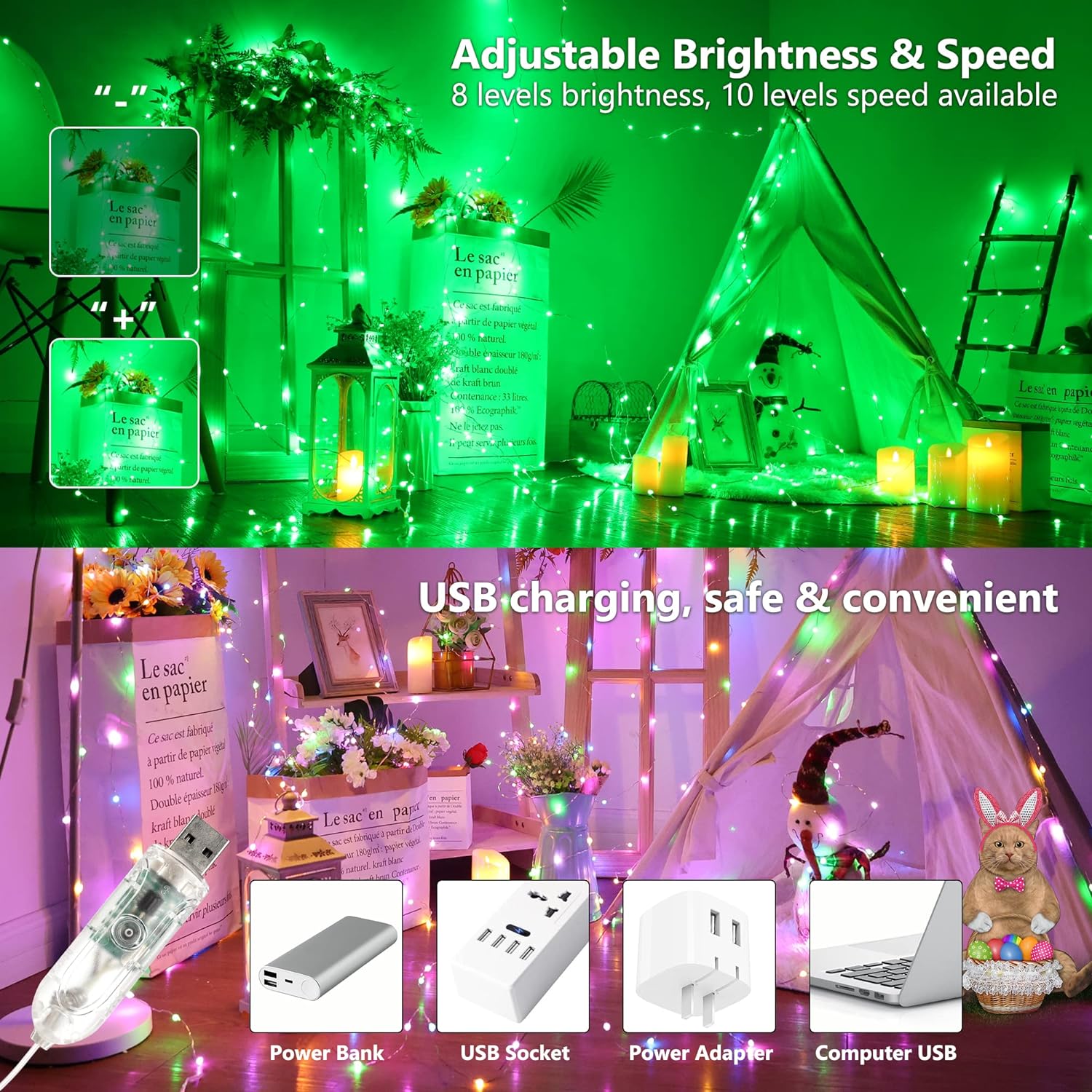
- Power Connection: Connect the USB plug of the fairy lights to a compatible USB power source (e.g., power bank, USB wall adapter, computer USB port).
- Remote Preparation: Before first use, remove the transparent insulation sheet from the battery compartment of the remote control.
- Placement: Arrange the flexible string lights in your desired indoor location.
Image: BrizLabs 100 LED USB Fairy Lights with Remote and various power options.
Operating Instructions
Remote Control Overview
The included remote control allows for comprehensive management of your fairy lights. Ensure the remote is pointed towards the USB adapter for optimal signal reception.
Image: Detailed layout of the BrizLabs remote control with button functions labeled.

Basic Operation
- Press the 'ON' button to turn the lights on.
- Press the 'OFF' button to turn the lights off.
Color Selection
- Use the 'R', 'G', 'B', 'W' buttons for primary red, green, blue, and white colors.
- Select from the 16 color buttons for various static color options.
Dynamic Modes
- The remote features 8 built-in modes (MODE 1 to MODE 8) that apply dynamic effects to the currently selected static color or multicolor setting.
- Use the 'Forward' (►►) and 'Backward' (◄◄) buttons to cycle through the 352 available dynamic modes.
- Press the 'AUTO' button for automatic cycling through all modes.
- Press the 'Pause/Run' (►►) button to pause or resume the current dynamic mode.
Image: A room decorated with BrizLabs fairy lights displaying various dynamic RGB color changes, highlighting the 'Dynamic RGB Revolution' feature.

Holiday Modes
- Utilize the dedicated holiday buttons for pre-set color combinations:
- Pumpkin icon: Purple & Orange (Halloween)
- Heart icon: Red & White (Valentine's Day)
- Christmas tree icon: Red & Green (Christmas)
- Calendar icon: Special Festival Colors (e.g., Red, White & Blue for July 4th, Pastel for Easter)
- Rainbow icon: Multiple Colors
Image: A collage showing BrizLabs fairy lights set to various holiday themes, including Halloween (purple and orange), Christmas (red and green), and July 4th (red, white, and blue).

Music Sync Mode
- Press the music note icon button to activate music synchronization.
- The built-in microphone in the USB adapter will detect sound, and the lights will pulse and change in rhythm with the music.
Image: A festive indoor scene with BrizLabs fairy lights, indicating '2 Music Modes Available' where lights dance to the beat.

Brightness and Speed Adjustment
- Use the 'Brightness +/-' buttons (sun icons) to adjust the light intensity (8 levels available).
- Use the 'Speed +/-' buttons to control the speed of dynamic modes (10 levels available).
Timer Function
- Press '4H', '6H', or '8H' to activate the timer. The lights will stay on for the selected duration and then turn off automatically, repeating the cycle daily.
- The blue indicator light inside the USB adapter will illuminate when the timer is active.
- Press 'Time OFF' to cancel the timer function. The blue indicator light will turn off.
Memory Function
- The lights are equipped with a memory function, retaining the last selected mode and settings (color, brightness, speed, timer) when powered off and on again.
Maintenance
- Cleaning: Gently wipe the lights with a soft, dry cloth. Do not use liquid cleaners or immerse in water.
- Storage: When not in use, carefully coil the string lights and store them in a cool, dry place away from direct sunlight and moisture.
- Handling: The wire is flexible but can tangle. Handle with care to prevent damage to the wire or LEDs.
Troubleshooting
| Problem | Possible Cause | Solution |
|---|---|---|
| Lights do not turn on. | No power, remote battery dead, insulation sheet not removed. | Ensure USB is securely plugged into a working power source. Check remote battery and remove insulation sheet. |
| Remote not responding. | Remote battery dead, remote not pointed at adapter, interference. | Replace CR2032 battery. Point remote directly at the USB adapter. Minimize interference from other remote controls. |
| Lights flicker or change unexpectedly. | Loose connection, power fluctuation, external interference. | Check USB connection. Try a different USB power source. Ensure no other devices are causing signal interference. |
| Timer function not working. | Timer not set correctly, 'Time OFF' pressed. | Re-select desired timer (4H/6H/8H). Check if the blue indicator light on the adapter is on. |
Official Product Video
Watch this video for a demonstration of the BrizLabs Fairy String Lights in various settings and modes.
Video: A demonstration of the BrizLabs Fairy String Lights showcasing different colors and modes in various decorative applications.
Warranty and Support
For any product inquiries, technical support, or warranty information, please contact BrizLabs customer service through your original purchase platform. Please refer to your purchase receipt for specific warranty terms and conditions.


