
UPGRAVITY UPGRAVITY Dual Monitor Wall Mount
UPGRAVITY Dual Monitor Wall Mount Instruction Manual
Model: Dual Monitor Wall Mount (VESA 75/100)
1. Introduction
This manual provides detailed instructions for the installation, operation, and maintenance of your UPGRAVITY Dual Monitor Wall Mount. Designed for two 17-32 inch flat or curved computer screens, this mount features height-adjustable gas spring arms capable of holding up to 17.6 lbs per arm, with VESA compatibility for 75x75mm and 100x100mm patterns. Please read this manual thoroughly before installation to ensure safe and proper use.
2. Safety Information
Always prioritize safety during installation and use. Failure to follow these instructions may result in property damage or personal injury.
- Ensure the mounting surface can safely support the combined weight of the mount and your monitors.
- DO NOT install into drywall alone. This mount must be installed into a solid wood stud, concrete wall, or brick wall.
- Use appropriate tools and hardware as specified.
- Keep children and pets away from the work area during installation.
- Adjust gas spring tension carefully to match monitor weight.
3. Package Contents
Verify that all components are present before beginning installation:
- Wall Plate Assembly
- Dual Gas Spring Monitor Arms (2)
- VESA Monitor Plates (2)
- Mounting Hardware Kit (screws, washers, spacers, wall anchors)
- Tools (Allen wrenches)
- Instruction Manual
4. Setup & Installation
4.1 Mounting the Wall Plate

Image: The wall mount is compatible with brick, cement, and wood walls. Do not install on drywall alone.
- Locate a suitable mounting position on a solid wood stud, concrete wall, or brick wall. Use a stud finder for wood studs.
- Hold the wall plate against the wall at the desired height and use a pencil to mark the drilling locations. Ensure the plate is level.
- Drill pilot holes at the marked locations. The size of the drill bit will depend on your wall type and the provided lag screws/anchors.
- Secure the wall plate to the wall using the provided lag screws. For concrete or brick, insert wall anchors before screwing.
4.2 Attaching Monitor Arms

Image: The dual monitor wall mount with its two articulated arms ready for monitor attachment.
- Slide the monitor arms onto the horizontal bar of the wall plate.
- Ensure the arms are securely seated and can move freely along the bar.
4.3 Mounting Monitors

Image: Universal compatibility details, showing VESA patterns and weight capacity.
- Attach the VESA monitor plates to the back of your monitors using the appropriate screws from the hardware kit. Ensure a secure fit.
- Carefully lift each monitor and slide its VESA plate onto the corresponding arm's mounting head.
- Secure the monitor to the arm by tightening the thumb screw or bolt on the top of the VESA plate.
5. Operating & Adjustments
5.1 Dynamic Height Adjustment

Image: The monitor arm allows for dynamic height adjustment up to 11.02 inches and extends up to 20.5 inches from the wall.
The gas spring arms allow for smooth and effortless height adjustment up to 11.02 inches. Adjust the tension of the gas spring using the provided Allen wrench if the monitor does not hold its position or is too stiff to move. Turn clockwise to increase tension for heavier monitors, counter-clockwise for lighter monitors.
5.2 Flexible Angle Adjustment
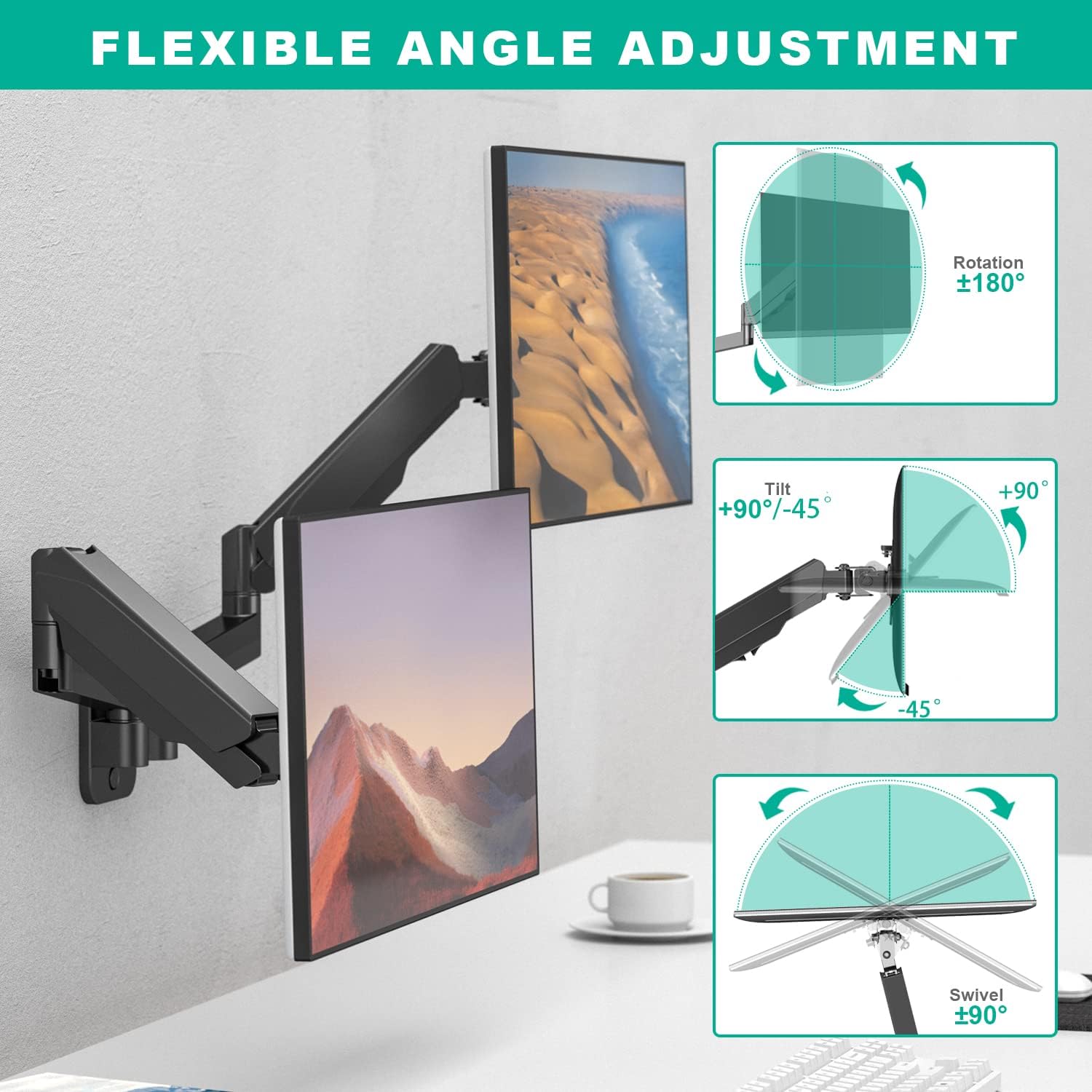
Image: The monitor mount offers flexible adjustments including ±180° rotation, +90°/-45° tilt, and ±90° swivel.
Achieve optimal viewing angles with the following adjustments:
- Tilt: Adjust vertical tilt from +35° to -35° to reduce glare and optimize viewing.
- Swivel: Rotate horizontally up to ±90° for collaborative work or viewing from different angles.
- Rotation: Rotate the monitor ±180° to switch between landscape and portrait orientations.
5.3 Minimum Distance between Monitors and Wall

Image: A table detailing the minimum distance required between the screen and the wall for different monitor sizes, ranging from 17" to 32".
The mount allows for varying distances from the wall depending on monitor size and desired configuration. Refer to the provided diagram for specific minimum distances.
6. Cable Management

Image: The monitor arm features built-in cable management channels to keep wires organized and out of sight.
The UPGRAVITY monitor arm includes built-in cable control channels. Route your monitor cables through these channels to maintain a clean and organized workspace, preventing tangles and reducing clutter.
7. Maintenance
To ensure the longevity and optimal performance of your monitor mount:
- Regularly check all screws and bolts to ensure they are tight and secure.
- Clean the mount with a soft, dry cloth. Avoid abrasive cleaners or solvents.
- Periodically re-adjust gas spring tension if monitor weight changes or if the arm's movement feels too loose or too stiff.
8. Troubleshooting
If you encounter any issues with your UPGRAVITY Dual Monitor Wall Mount, refer to the following common solutions:
- Monitor not holding position: The gas spring tension may be too low for your monitor's weight. Increase the tension using the provided Allen wrench (turn clockwise).
- Arm too stiff to move: The gas spring tension may be too high. Decrease the tension using the provided Allen wrench (turn counter-clockwise).
- Monitors not level: Check that the wall plate is installed level. Minor adjustments can often be made at the VESA plate connection point.
- Wobbling: Ensure all mounting screws and VESA plate screws are securely tightened. Verify the wall structure is adequate.
9. Specifications
| Brand | UPGRAVITY |
| Model | Dual Monitor Wall Mount |
| Screen Size Compatibility | 17-32 Inches |
| Weight Capacity | Up to 17.6 lbs per arm |
| VESA Compatibility | 75x75mm, 100x100mm |
| Mounting Type | Wall Mount |
| Movement Type | Tilt, Swivel, Rotation, Height Adjustment |
| Material | Aluminum |
| Color | Black |
10. Warranty & Support
The UPGRAVITY Dual Monitor Wall Mount is backed by a 5-YEAR WARRANTY. For any issues, questions, or support needs, please contact UPGRAVITY customer service. We are committed to providing excellent after-sales service and support.
Ask a question about this manual
Ask about setup, troubleshooting, compatibility, parts, safety, or missing instructions. Manuals+ will review the question and use this page’s manual context to help answer it.