
Introduction
This manual provides instructions for setting up, operating, maintaining, and troubleshooting your HP 650 Wireless Keyboard and Mouse Combo. Please read this manual thoroughly before using the product to ensure proper functionality and longevity.
What's in the Box
Verify that all items are present in the package:
- HP 650 Wireless Keyboard and Mouse Combo (4R013AA)
- USB Dongle (2.4GHz Receiver)
- 2 x AA Batteries (for mouse)
- 2 x AAA Batteries (for keyboard)
- Quick Start Guide
- Warranty Card
Setup
1. Battery Installation

Image: Underside of the HP 650 Keyboard and Mouse, illustrating battery compartments and the USB receiver slot.
- For the Keyboard: Locate the battery compartment on the underside of the keyboard. Open the cover and insert two AAA batteries, ensuring correct polarity (+/-). Close the compartment cover.
- For the Mouse: Locate the battery compartment on the underside of the mouse. Open the cover and insert two AA batteries, ensuring correct polarity (+/-). Close the compartment cover.
2. Connecting the USB Receiver
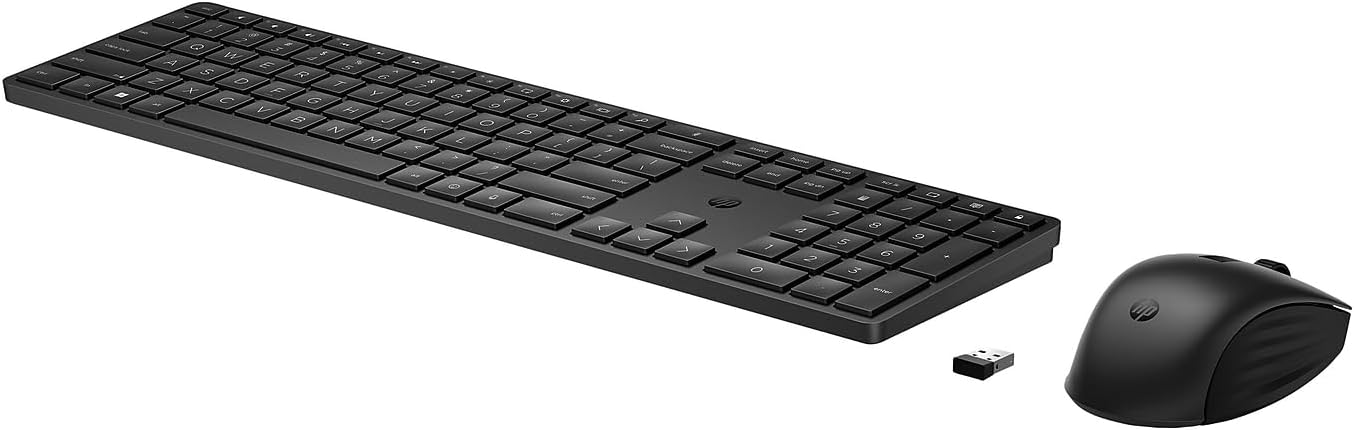
Image: The HP 650 Wireless Keyboard and Mouse, alongside the compact USB receiver.
- Locate the USB receiver (dongle) which may be stored in the mouse's battery compartment or packaged separately.
- Plug the USB receiver into an available USB-A port on your computer.
- Your computer should automatically detect and install the necessary drivers. This process may take a few moments.
3. Initial Use and Compatibility
The HP 650 Wireless Keyboard and Mouse Combo is compatible with Windows, macOS, and Chrome OS devices. Once the USB receiver is connected, the keyboard and mouse should be ready for immediate use.
For advanced customization, such as programming keys or adjusting mouse sensitivity, download and install the HP Accessory Center (HPAC) Software. HPAC is available for free download from the Microsoft Store or Apple Store.
Operating Instructions
Basic Keyboard Functions

Image: Detail of the HP 650 Keyboard, showing key layout and the HP logo.
- Standard Typing: Use the alphanumeric keys for text input.
- Numeric Keypad: The dedicated numeric keypad on the right provides efficient data entry.
- Function Keys (F1-F12): These keys perform various system functions, often requiring the 'Fn' key to be pressed simultaneously for secondary actions.
- Adjustable Legs: The keyboard features adjustable legs on the underside to set your preferred typing angle.
Basic Mouse Functions
- Left/Right Click: Standard selection and context menu functions.
- Scroll Wheel: Scroll through documents and web pages. The scroll wheel may also function as a middle click.
- Ergonomic Design: The contoured design of the mouse is suitable for both right and left-handed users.
- Multi-Surface Tracking: The mouse utilizes a power-efficient multi-surface sensor for reliable tracking on most surfaces, including marble. Note that it does not track on glass.
Customization with HP Accessory Center

Image: Illustration highlighting the programmable keys feature of the HP 650 Keyboard.
The HP Accessory Center (HPAC) software allows you to personalize your keyboard and mouse:
- Programmable Keys: Customize over 20 keys on the keyboard to create shortcuts for your most frequently used applications or functions.
- Mouse DPI Settings: Adjust the mouse's DPI (dots per inch) settings, including cursor speed and sensitivity, for enhanced precision and control.
Maintenance
Battery Replacement

Image: Battery life diagram for the HP 650 Keyboard and Mouse, indicating battery types and estimated durations.
The keyboard requires two AAA batteries, offering over 20 months of battery life. The mouse requires two AA batteries, providing over 24 months of battery life. Actual battery life may vary based on usage and environmental conditions.
Replace batteries when performance degrades or the device stops responding. Follow the battery installation steps outlined in the Setup section.
Cleaning
To maintain hygiene and functionality, the HP 650 Wireless Keyboard & Mouse Combo can be cleaned. Select household wipes can be safely used to clean the devices up to 1,000 times. Refer to the wipe manufacturer's instructions for disinfecting and the HP cleaning guide for HP-tested wipe solutions.
Troubleshooting
Device Not Responding
- Check Batteries: Ensure batteries are correctly installed and have sufficient charge. Replace if necessary.
- Check USB Receiver: Ensure the USB receiver is securely plugged into a functional USB-A port on your computer. Try a different USB port.
- Re-establish Connection: Unplug the USB receiver, wait a few seconds, and then plug it back in.
- Interference: Move the keyboard and mouse closer to the USB receiver. Avoid placing the receiver near other wireless devices or large metal objects that might cause interference.
Lag or Delayed Input
- Battery Level: Low battery can cause performance issues. Replace batteries.
- Distance/Obstructions: Ensure the devices are within optimal range of the receiver and there are no significant obstructions.
- USB Port: Try connecting the USB receiver to a different USB port, preferably a direct port on the computer rather than a hub.
- System Resources: Close unnecessary applications on your computer that might be consuming system resources.
Keys Sticking or Not Registering
- Cleaning: Dust or debris under the keys can cause sticking. Gently clean around the affected keys.
- Physical Damage: Inspect keys for any physical damage.
Specifications

Image: Dimensional overview of the HP 650 Keyboard and Mouse, including length, width, height, and weight.
| Feature | Detail |
|---|---|
| Model Number | 4R013AA |
| Connectivity | 2.4GHz Wireless (USB-A Receiver) |
| Keyboard Dimensions (L x W x H) | 16.85 x 4.54 x 0.71 inches (428.22 x 115.47 x 18.06 mm) |
| Keyboard Weight | 1.8 pounds (430 g) |
| Mouse Dimensions (L x W x H) | 4.73 x 2.75 x 1.62 inches (120.28 x 69.95 x 41.39 mm) |
| Mouse Weight | 3.1 ounces (88 g) |
| Keyboard Battery Type | 2 x AAA batteries |
| Mouse Battery Type | 2 x AA batteries |
| Compatible Operating Systems | Windows, macOS, Chrome OS |
| Special Features | 20+ Programmable Keys, DPI Adjustable Mouse, Multi-Surface Tracking (excludes glass), Ergonomic Design, Recycled Materials (60% PCR in keyboard) |
Warranty and Support
Warranty Information
This HP product is covered by a limited warranty. For detailed information regarding warranty terms, conditions, and duration, please refer to the Warranty Card included in your product packaging or visit the official HP support website.
Customer Support
For further assistance, technical support, or to download the latest drivers and software (such as the HP Accessory Center), please visit the official HP support website or contact HP customer service. Contact information can typically be found on the HP website or in your product documentation.
Product Videos
No official product videos from the seller were found in the provided data to embed in this manual.