
Pioneer SPH-DA360DAB
Pioneer SPH-DA360DAB Wireless Apple CarPlay and Android Audio Receiver User Manual
Model: SPH-DA360DAB
Introduction
This manual provides detailed instructions for the installation, operation, maintenance, and troubleshooting of your Pioneer SPH-DA360DAB Wireless Apple CarPlay and Android Audio Receiver. Please read this manual thoroughly before using the product to ensure proper and safe operation.
The Pioneer SPH-DA360DAB is a versatile 2-DIN car audio receiver featuring a 6.8-inch touch screen, designed for seamless integration with your smartphone via wireless Apple CarPlay and Android Auto. It also includes DAB/DAB+ digital radio for high-quality audio reception.
Package Contents
Before beginning installation, verify that all components are present in the package:
- Pioneer SPH-DA360DAB Stereo Unit
- Power Loom (Wiring Harness)
- Removal Keys (for unit extraction)
- Mounting Cage
- Trim Bezel
- Audio Connectors
- User Manual (this document)
- External Microphone
- GPS Antenna
- USB Extension Cable

Figure 1: Contents of the Pioneer SPH-DA360DAB package. This image displays the main head unit, mounting cage, trim, power loom, audio connectors, USB cable, external microphone, and GPS antenna.
Setup and Installation
Proper installation is crucial for optimal performance. It is recommended that installation be performed by a qualified professional.
1. Pre-Installation Checks
- Ensure the vehicle's battery is disconnected before starting any electrical work.
- Verify compatibility with your vehicle's 2-DIN slot. Additional fitting parts (fascia adapter, steering wheel control interface) may be required and are sold separately.
2. Wiring Connections
Refer to the wiring diagram provided in the separate installation guide for detailed connections. Key connections include:
- Power Loom: Connect to the vehicle's power, ground, and accessory wires.
- Speaker Outputs: Connect to your vehicle's speakers (4.0 surround sound configuration supported).
- USB Connector: Use the supplied USB extension cable for connecting compatible devices.
- GPS Antenna: Connect the GPS antenna for navigation features (required for CarPlay/Android Auto navigation).
- DAB Antenna: Connect a DAB antenna (sold separately) for digital radio reception.
- Microphone: Connect the external microphone for hands-free calling and voice commands.
- Rear View Camera Input: (Optional) Connect a compatible rear view camera.

Figure 2: Rear panel connections of the SPH-DA360DAB. Visible ports include DAB antenna input, GPS antenna input, microphone input, USB port, and the main power/speaker harness connector.

Figure 3: Dimensional drawing of the SPH-DA360DAB unit, illustrating its compact short chassis design and key measurements for installation planning.
3. Mounting the Unit
Install the mounting cage into the vehicle's dashboard opening. Secure the unit within the cage, ensuring it is flush and stable. Attach the trim bezel for a finished appearance.
Operating Instructions
1. Initial Power On and Setup
- Reconnect the vehicle's battery.
- Turn on the vehicle's ignition. The unit should power on.
- Follow the on-screen prompts for initial setup, including language selection and time/date settings.
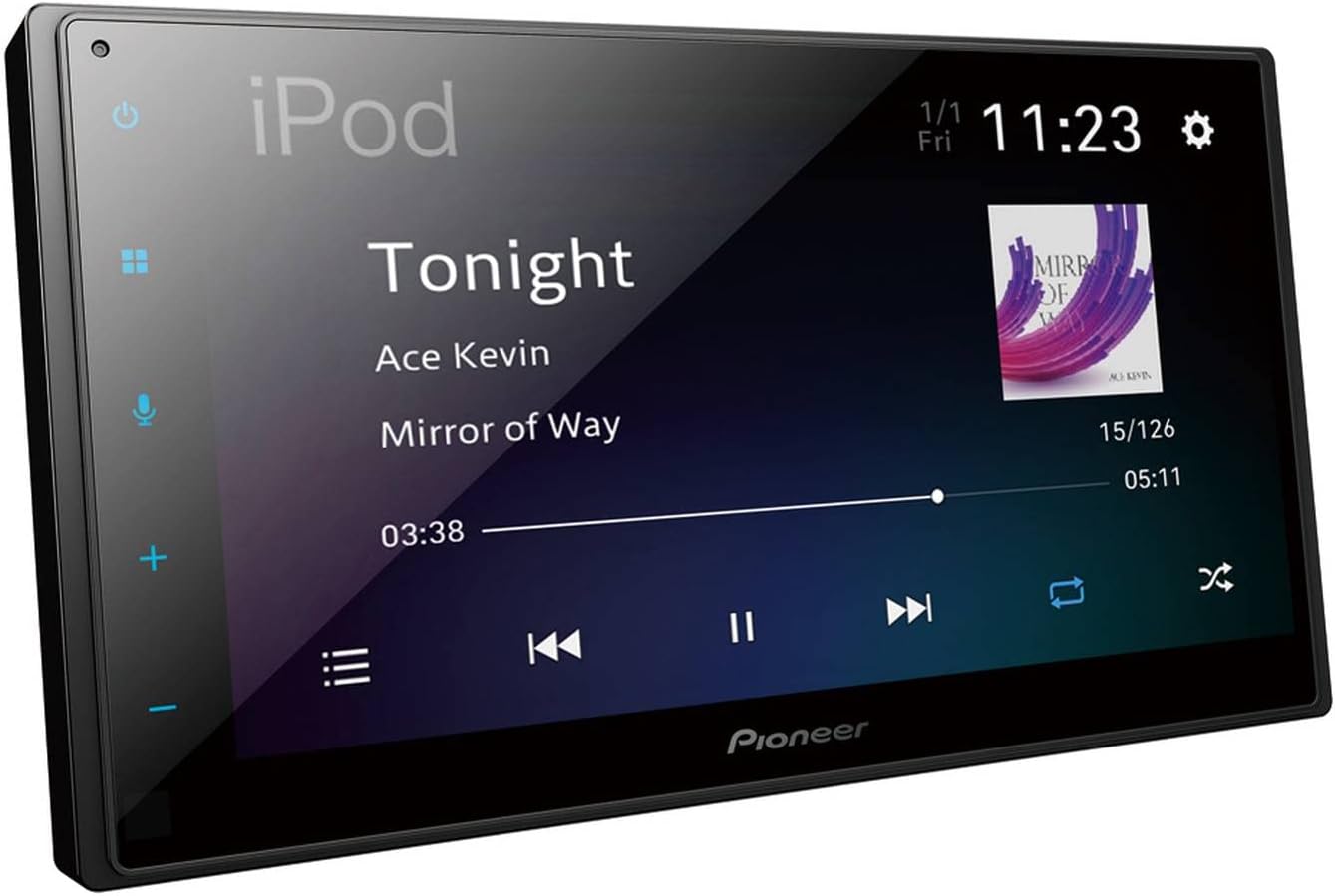
Figure 4: The SPH-DA360DAB's 6.8-inch touch screen displaying a music playback interface, indicating its clear and responsive display.
2. Wireless Apple CarPlay and Android Auto
The SPH-DA360DAB supports wireless connectivity for both Apple CarPlay and Android Auto, allowing you to access smartphone features safely while driving.
- Pairing: Enable Bluetooth on your smartphone. On the receiver, navigate to the Bluetooth settings and pair with your device.
- Connection: Once paired, the unit will prompt you to enable Apple CarPlay or Android Auto. Follow the on-screen instructions. For wireless connection, ensure Wi-Fi is also enabled on your phone.
- Features: Access navigation (e.g., Waze, Google Maps, Apple Maps), music, messages, and calls directly from the receiver's touch screen.

Figure 5: The SPH-DA360DAB screen displaying the Apple CarPlay interface, showing icons for Phone, Music, Maps, Messages, and other compatible applications.

Figure 6: The product packaging highlighting Android Auto compatibility, indicating the unit's support for Android smartphone integration.
3. DAB/DAB+ Digital Radio
To enjoy digital radio, ensure a DAB antenna is connected. Navigate to the radio source and select DAB. The unit will scan for available stations.
4. Audio Settings
The unit features DSP (Digital Signal Processor) and an equalizer for sound customization. Access the audio settings menu to adjust bass, treble, balance, fader, and subwoofer levels. You can also select preset equalizer curves or create custom ones.
Maintenance
- Screen Cleaning: Use a soft, lint-free cloth to gently wipe the touch screen. For stubborn marks, slightly dampen the cloth with water or a screen-safe cleaner. Avoid abrasive materials or harsh chemicals.
- Software Updates: Periodically check the Pioneer website for firmware updates to ensure optimal performance and compatibility. Follow the instructions provided with the update files carefully.
- General Care: Keep the unit free from dust and debris. Avoid exposing it to extreme temperatures or direct sunlight for prolonged periods.
Troubleshooting
| Problem | Possible Cause | Solution |
|---|---|---|
| Unit does not power on. | Incorrect wiring; Blown fuse; Vehicle battery disconnected. | Check power loom connections. Inspect vehicle and unit fuses. Ensure battery is connected. |
| No sound. | Speaker wires disconnected; Volume too low; Mute function active. | Verify speaker connections. Increase volume. Deactivate mute. Check audio settings. |
| Apple CarPlay/Android Auto not connecting wirelessly. | Bluetooth/Wi-Fi off on phone; Incorrect pairing; Phone software issue. | Ensure Bluetooth and Wi-Fi are enabled on your phone. Re-pair the device. Restart phone and unit. Check for phone OS updates. |
| Poor DAB/DAB+ reception. | Antenna not connected or faulty; Weak signal area. | Ensure DAB antenna is properly connected. Consider a higher quality or amplified DAB antenna. |
| Touch screen unresponsive. | Temporary software glitch; Screen calibration needed. | Restart the unit (turn vehicle ignition off and on). If issue persists, consult the full service manual for screen calibration steps or contact support. |
Specifications
| Feature | Detail |
|---|---|
| Model Number | SPH-DA360DAB |
| Display | 6.8" Capacitive Touch Screen |
| Connectivity | Wireless Apple CarPlay, Wireless Android Auto, Bluetooth, USB |
| Radio Tuner | DAB/DAB+ Digital Radio, FM/AM |
| Audio Features | DSP, Subwoofer Control, Equalizer, Advanced Audio Coding (AAC) |
| Compatible Devices | Smartphones (iOS and Android) |
| Dimensions (Product) | 31.75 x 45.21 x 25.4 cm (approximate, as per product data) |
| Weight | 1.91 kg (approximate, as per product data) |
| Video Encoding | MP4 |
| Surround-sound channel configuration | 4.0 |
Warranty and Support
For warranty information and technical support, please refer to the warranty card included with your product or visit the official Pioneer website. Keep your purchase receipt as proof of purchase for warranty claims.
Serial Number: DEJG061777EU (Found on product packaging)
For further assistance, you may contact Pioneer customer service through their official channels.
Ask a question about this manual
Ask about setup, troubleshooting, compatibility, parts, safety, or missing instructions. Manuals+ will review the question and use this page’s manual context to help answer it.