
Introduction
The MAIWO M.2 SSD Enclosure is designed for both M.2 PCIe NVMe and NGFF SATA solid state drives, supporting M Key and B&M Key SSDs in 2230, 2242, 2260, and 2280 sizes. Featuring a USB 3.1 GEN2 output interface and RTL9210B chipset, it delivers ultra-fast transmission speeds of up to 10Gbps with UASP/TRIM support. Its aluminum alloy shell and ventilation holes ensure excellent heat dissipation, protecting your drive. This tool-free enclosure supports up to 8TB capacity and offers plug-and-play functionality.

Image: The MAIWO M.2 SSD Enclosure in blue, shown with its accompanying USB-C to USB-C cable.
Package Contents
Please verify that all items listed below are included in your package:
- 1x M.2 NVMe SATA SSD Enclosure
- 1x Type-C to Type-C Data Cable
- 1 x Silicone Thermal Pad
- 1 x Aluminium Thermal Pad
- 1x User Manual

Image: Visual representation of the MAIWO M.2 SSD Enclosure and its included accessories, including the Type-C cable, thermal pads, and user manual.
Specifications
| Material | Aluminum Alloy Case + ABS Plastic Bracket |
| Item Weight | 50 Grams (1.76 ounces) |
| Memory Storage Capacity | Max 8 TB |
| Compatible Devices | Desktop/Laptop/Xbox, PS5/PS4/PS3/TV/Router, etc. |
| Hard Disk Form Factor | M.2 NVMe and NGFF SATA SSD (2230/2242/2260/2280) |
| Max Number of Supported Devices | 1 |
| Data Transfer Rate | 10000 Megabytes Per Second (10Gbps) |
| Manufacturer | MAIWO |
| Product Dimensions | 4.33 x 1.48 x 0.49 inches (11 x 3.75 x 1.25 cm) |
| Model Number | K1690 |
| Hardware Interface | USB 3.1 Type C |
| Color | Blue |
| Hardware Platform | PC |

Image: Detailed dimensions of the MAIWO M.2 SSD Enclosure and its accompanying Type-C cable.
Compatibility
This M.2 enclosure is compatible with both M.2 PCIe NVMe and NGFF SATA SSDs. It supports M Key and B&M Key SSDs in various sizes: 2230, 2242, 2260, and 2280. Please note that it does not support M.2 SATA B Key SSDs.
The enclosure is designed for broad compatibility with operating systems including Windows, macOS, iOS, and Linux. It can be used with a variety of devices such as desktops, laptops, Xbox, PS5/PS4/PS3, TVs, and routers.

Image: Diagram illustrating compatibility with M Key (NVMe/PCIe) and B&M Key (NVMe/PCIe and SATA/NGFF) M.2 SSDs, and supported sizes (2230, 2242, 2260, 2280).

Image: Visual guide showing supported M.2 key types (M Key, B&M Key for NVMe/PCIe and SATA/NGFF) and unsupported B Key SATA, along with applicable SSD sizes (2230, 2242, 2260, 2280).
Setup and Installation
The MAIWO M.2 SSD Enclosure features a tool-free design for easy installation and removal of your M.2 SSD.
- Open the Enclosure: Press the installation button on the enclosure and slide to open the bracket.
- Insert the M.2 SSD: Carefully insert your M.2 SSD into the slot on the bracket. Secure it with the provided rubber screw.
- Close the Enclosure: Slide the bracket back into the aluminum alloy shell until it clicks securely into place.
- Connect to Device: Connect the enclosure to your computer or compatible device using the supplied Type-C to Type-C data cable. The enclosure is plug-and-play.
Important Note for New Drives:
If you are using a new SSD, it may not be immediately recognized by your operating system. You will need to perform Hard Disk Initialization, Partition, and Format to make the enclosure and SSD functional. Please refer to your operating system's documentation for specific steps on disk management.

Image: Visual guide demonstrating the tool-free installation process: pressing the button to slide open, inserting the M.2 SSD with a rubber screw, and sliding the bracket back into the enclosure.

Image: A three-step visual guide for tool-free installation: 1. Press the button to slide and open the bracket. 2. Insert the M.2 SSD and fix it with the rubber screw. 3. Slide the bracket back into the enclosure and connect to your device.
Operating Instructions
Once the M.2 SSD is installed and the enclosure is connected to your device, it operates as a high-speed external storage solution. The enclosure supports USB 3.1 GEN2, providing up to 10Gbps transmission speed, enabling rapid data transfer, such as transferring a 1GB movie in approximately 1 second. It also supports UASP (USB Attached SCSI Protocol) and TRIM for optimized performance and longevity of your SSD.
A clear LED indicator on the enclosure provides status feedback. The device also features a 10-minute auto-sleep function to conserve power and extend the life of your SSD when not in active use.
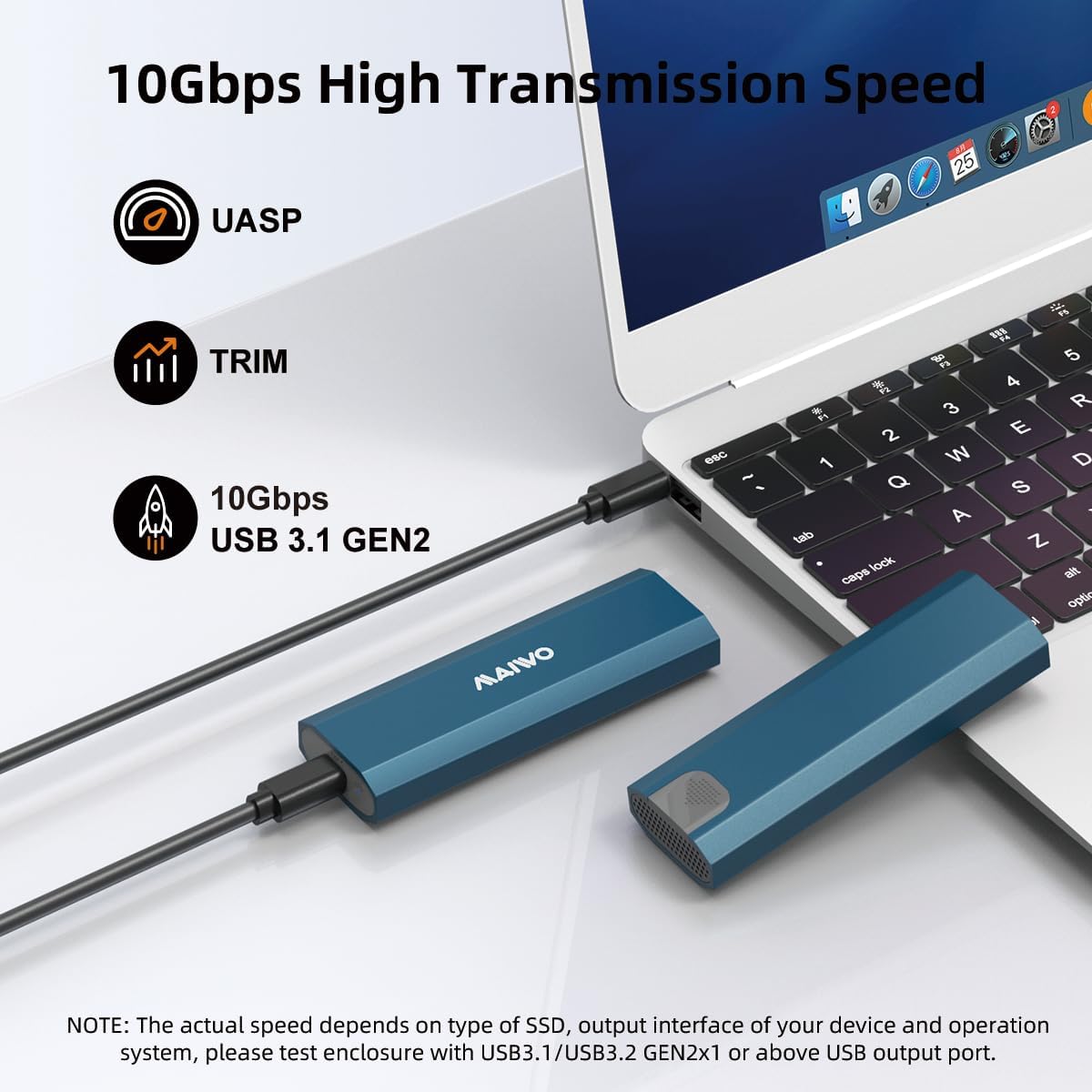
Image: The MAIWO M.2 SSD Enclosure connected to a laptop, highlighting its 10Gbps high transmission speed, UASP, and TRIM features.
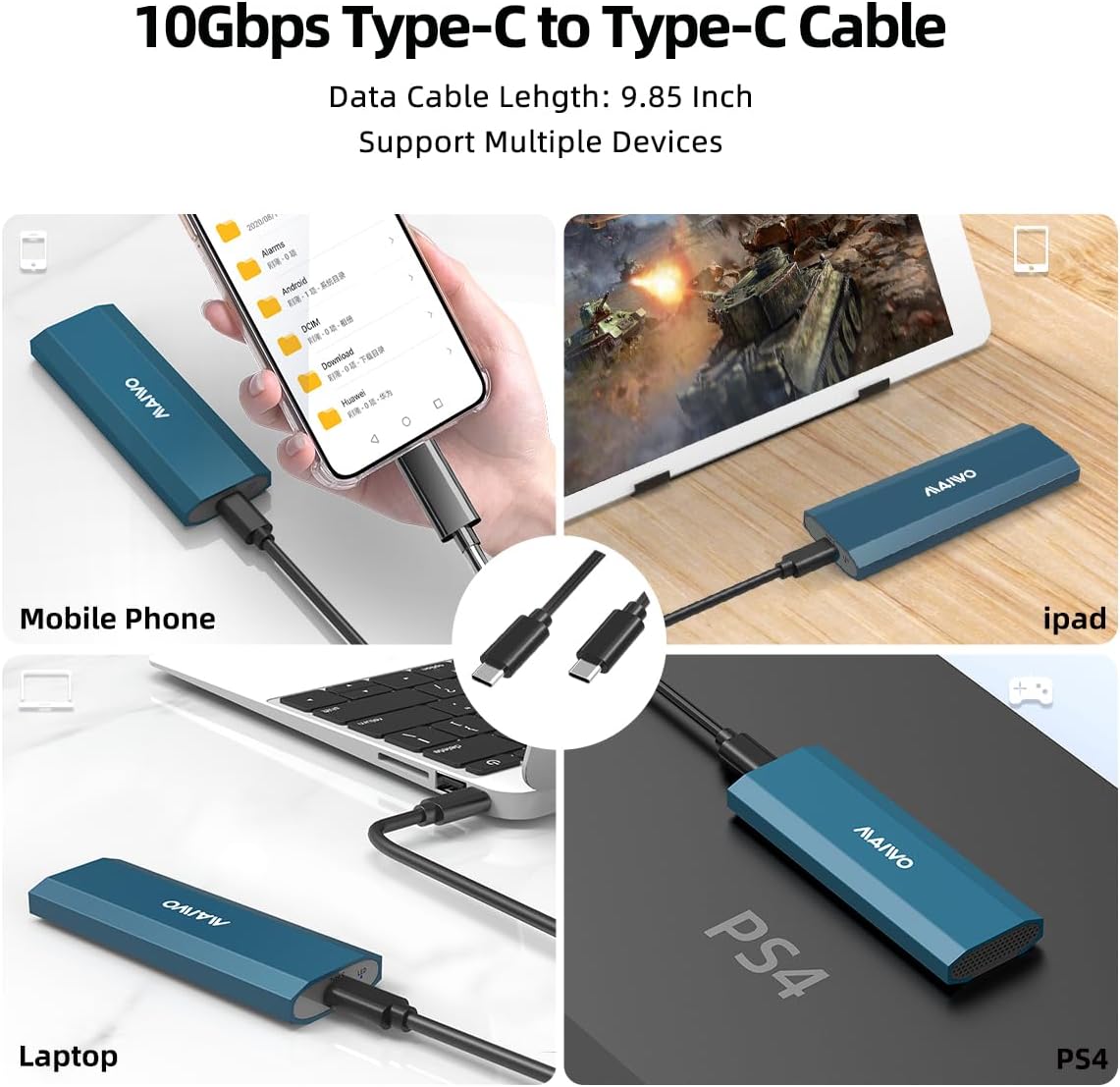
Image: The versatility of the Type-C to Type-C cable, showing the enclosure connected to a mobile phone, iPad, laptop, and PS4, demonstrating multi-device support.
Video: This video demonstrates the tool-free installation, plug-and-play functionality, high-speed data transfer capabilities (up to 10Gbps), and the slim, portable design of the MAIWO M.2 SSD Enclosure.
Heat Dissipation
The MAIWO M.2 SSD Enclosure is engineered for excellent heat dissipation to ensure stable performance and protect your SSD from overheating. It features an aluminum alloy shell, which acts as a large heatsink, along with strategically placed ventilation holes. Additionally, the package includes both a Silicone Thermal Pad and an Aluminium Thermal Pad to facilitate efficient heat transfer away from the SSD, maintaining optimal operating temperatures.

Image: An exploded view of the enclosure highlighting its heat dissipation features: the aluminum shell, chipset cooling holes, silicone heat dissipating pad, and aluminum heat dissipating sheet.
Troubleshooting
SSD Not Recognized / Not Appearing in File Explorer
- New SSD: If you are using a brand new SSD, it must be initialized, partitioned, and formatted before it can be used.
- Windows: Right-click on "This PC" or "My Computer" > "Manage" > "Disk Management". Locate your new disk, right-click to "Initialize Disk", then create a "New Simple Volume" and format it.
- macOS: Open "Disk Utility" (Applications > Utilities). Select your new disk, then click "Erase" to format it.
- Cable Connection: Ensure the USB-C cable is securely connected to both the enclosure and your device's USB-C port. Try a different USB-C port if available.
- SSD Installation: Verify that the M.2 SSD is correctly seated in the enclosure's slot and secured with the rubber screw.
- Compatibility: Double-check that your M.2 SSD is either NVMe (M Key or B&M Key) or NGFF SATA (B&M Key). This enclosure does not support M.2 SATA B Key SSDs.
- Power: Ensure your device is providing sufficient power to the enclosure. While typically bus-powered, some older or low-power USB ports might struggle with certain high-capacity SSDs.
Slow Transfer Speeds
- USB Port: Ensure you are connecting the enclosure to a USB 3.1 Gen 2 (10Gbps) compatible port on your computer. Older USB 2.0 or USB 3.0/3.1 Gen 1 (5Gbps) ports will result in lower speeds.
- SSD Performance: The actual speed depends on the performance of your M.2 SSD. Ensure your SSD is capable of 10Gbps speeds.
- UASP/TRIM: Verify that your operating system and drivers support UASP and TRIM for optimal performance.
- Cable Quality: Use the provided high-quality USB-C cable. Using a lower quality or longer cable may affect performance.
Warranty and Support
For warranty information and technical support, please refer to the official MAIWO website or contact MAIWO customer service directly. You can also find additional support resources and frequently asked questions on the product's Amazon listing page.
An official Instructions for Use (IFU) PDF document is available for download: Download User Guide (PDF)