
1. Overview
The 30-watt Yamaha THR30II Wireless amplifier delivers realistic tube-amp tones and feel to your desktop. This amplifier takes the desktop amplifier concept to new heights with new amp models for electric guitar and bass, mic models for acoustic-electrics, and flat voicings for various instruments. It offers full wireless functionality, including Bluetooth support, a Line 6 wireless receiver, a built-in rechargeable battery, and stereo line outputs for enhanced flexibility. The redesigned enclosure provides increased bass response and a refreshed aesthetic.
Key Features:
- Realistic tube-amp tones and feel with essential effects.
- 15 Guitar amps, 3 bass amps, 3 mic models for acoustic-electrics, and flat modes for other instruments.
- Bluetooth support for audio playback and editing via the THR Remote app.
- Built-in wireless receiver compatible with the optional Line 6 Relay G10T transmitter.
- Built-in rechargeable battery for portable use.
2. Product Components

Figure 2.1: Front view of the Yamaha THR30II Wireless Desktop Guitar Amplifier. This image displays the speaker grille and the overall compact design.
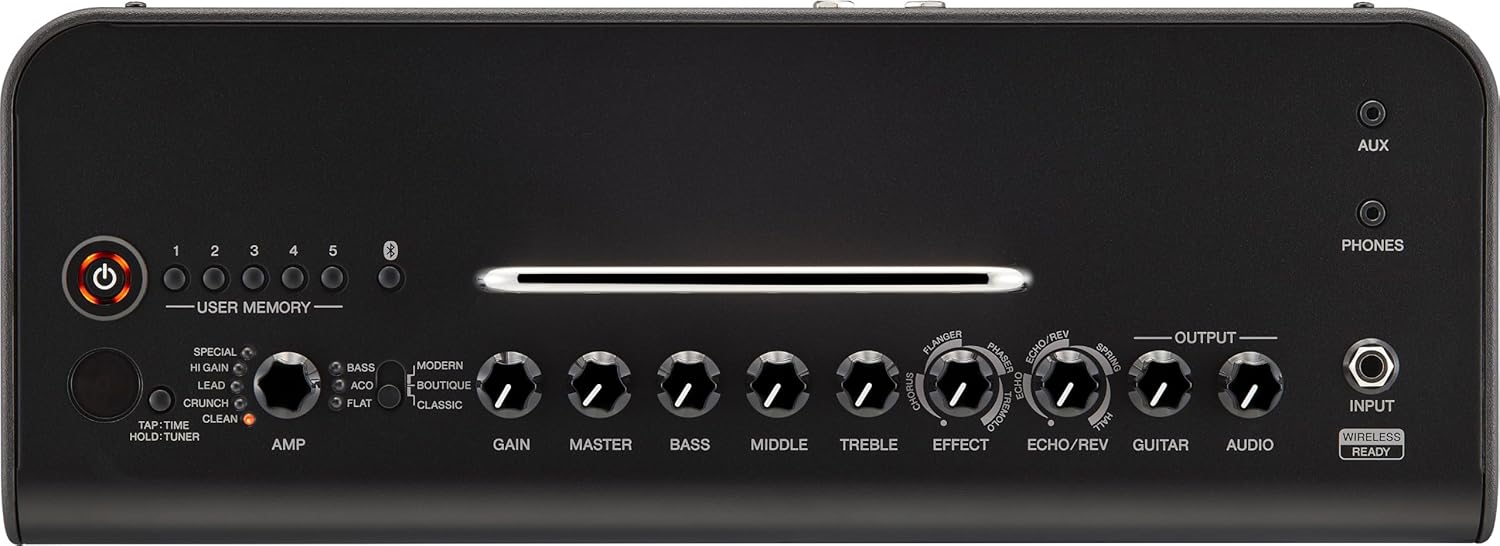
Figure 2.2: Top control panel of the Yamaha THR30II. This view highlights the various knobs and buttons for amp selection, gain, master volume, EQ, effects, and user memory presets.

Figure 2.3: Rear panel of the Yamaha THR30II. This image shows the line output jacks, USB port, and power input for the amplifier.

Figure 2.4: Dimensions of the Yamaha THR30II Wireless Desktop Guitar Amplifier. The image indicates the width, depth, and height of the unit.
3. Setup
3.1 Powering On/Off
- Connect the included AC adapter to the 15V power input on the rear panel of the THR30II.
- Plug the AC adapter into a standard wall outlet.
- Press and hold the power button on the top panel until the indicator light illuminates.
- To power off, press and hold the power button again until the light turns off.
3.2 Connecting Your Instrument
- Wired Connection: Plug your guitar or bass into the INPUT jack on the top panel using a standard 1/4-inch instrument cable.
- Wireless Connection: The THR30II features a built-in wireless receiver. Insert a compatible Line 6 Relay G10T transmitter (sold separately) into the INPUT jack. The transmitter will automatically pair and charge.
3.3 Bluetooth Audio Playback
- Activate Bluetooth on your mobile device (smartphone, tablet, etc.).
- On the THR30II, press the Bluetooth button (usually indicated by a Bluetooth icon) to enter pairing mode. The indicator will blink.
- Select "THR30II" from the list of available devices on your mobile device.
- Once paired, the Bluetooth indicator on the THR30II will glow steadily. You can now play audio from your device through the amplifier.
3.4 THR Remote App Installation
For advanced control and editing of amp models and effects, download the dedicated THR Remote app from your device's app store (iOS/Android). Connect your device via Bluetooth to access additional settings and features.
4. Operating Instructions
4.1 Front Panel Controls
The THR30II's top panel features intuitive controls for quick sound adjustments:
- AMP Knob: Selects the amplifier type (CLEAN, CRUNCH, LEAD, HI GAIN, SPECIAL, BASS, ACO, FLAT).
- AMP Mode Switch: Toggles between MODERN, BOUTIQUE, and CLASSIC modes for each amp type.
- GAIN: Adjusts the input gain and distortion level.
- MASTER: Controls the overall output volume of the amplifier.
- BASS, MIDDLE, TREBLE: 3-band equalizer for tone shaping.
- EFFECT: Selects and adjusts modulation effects (Chorus, Flanger, Phaser, Tremolo).
- ECHO/REV: Selects and adjusts delay and reverb effects (Echo, Echo/Reverb, Spring, Hall).
- GUITAR: Adjusts the volume of the connected instrument.
- AUDIO: Adjusts the volume of the Bluetooth or AUX input audio.
- USER MEMORY (1-5): Stores and recalls up to five custom settings. Press and hold to save, tap to recall.
- TAP/TIME/HOLD TUNER: Tap for tempo, hold for tuner function.
4.2 Using the Tuner
To activate the built-in tuner, press and hold the TAP/TIME/HOLD TUNER button. The display will show the note being played, and indicators will guide you to proper tuning. Press the button again to exit tuner mode.
4.3 Advanced Control with THR Remote App
The THR Remote app provides a graphical interface for deeper customization:
- Access additional amplifier models and effects.
- Fine-tune parameters not available on the physical controls.
- Manage and backup user memory presets.
- Adjust Bluetooth audio levels independently.
5. Media Integration
5.1 Official Product Video
Video 5.1: An official product video from Yamaha Musical Instruments showcasing the features and benefits of the THR II Desktop Amp series, including the THR30II Wireless model. This video highlights the portability, sound quality, and wireless capabilities of the amplifier.
6. Maintenance
6.1 Cleaning
Wipe the exterior of the amplifier with a soft, dry cloth. Avoid using abrasive cleaners, solvents, or waxes, as these can damage the finish. Do not spray liquids directly onto the unit.
6.2 Battery Care
The THR30II features a built-in rechargeable battery. For optimal battery life, avoid fully discharging the battery frequently. Recharge the unit regularly, especially if it will be stored for an extended period. Store the unit in a cool, dry place.
6.3 Software Updates
Periodically check the Yamaha website or the THR Remote app for firmware updates. Keeping your amplifier's software up-to-date ensures optimal performance and access to new features.
7. Troubleshooting
7.1 No Sound Output
- Ensure the amplifier is powered on and the power indicator is lit.
- Check that your instrument is properly connected to the INPUT jack (wired or wireless).
- Verify that the GUITAR volume knob is turned up.
- Confirm that the MASTER volume knob is turned up.
- If using headphones, ensure they are properly connected to the PHONES jack and the volume is adjusted.
- If using Bluetooth audio, ensure your device is paired and the AUDIO volume knob is turned up.
7.2 Bluetooth Connection Issues
- Ensure Bluetooth is enabled on both the THR30II and your mobile device.
- Move your mobile device closer to the amplifier to ensure a strong signal.
- Try unpairing and re-pairing the device.
- Restart both the amplifier and your mobile device.
7.3 Power Issues
- Ensure the AC adapter is securely connected to both the amplifier and a working power outlet.
- If operating on battery power, check the battery level. Recharge if necessary.
- If the unit does not power on, try a different power outlet or AC adapter (if available and compatible).
8. Specifications
| Specification | Value |
|---|---|
| Brand | Yamaha |
| Model Name | THR30II |
| Model Number | (THR30II WL BL) |
| Color | Black |
| Output Wattage | 30 Watts |
| Amplifier Type | Solid State |
| Output Channel Quantity | 2 |
| Speaker Size | 15.49 Centimeters |
| Power Source | Battery Powered |
| Connector Type | Wireless |
| Item Dimensions (D x W x H) | 6.1"D x 16.4"W x 7.68"H |
| Item Weight | 4.3 Kilograms |
| UPC | 889025141093 |
9. Warranty and Support
9.1 Manufacturer's Warranty
The Yamaha THR30II Wireless Desktop Guitar Amplifier comes with a 1-year manufacturer warranty. Yamaha Corporation of America (Yamaha) is proud of the experience and craftsmanship that goes into every product we represent. Yamaha sells its products through a network of authorized Yamaha retailers. Only these authorized retailers are equipped with sales and service support materials and training that are not readily available to non-authorized retailers. The Yamaha Limited Warranty applies only to products that have been purchased from an authorized Yamaha retailer in the fifty United States (including the District of Columbia) and used in this area. For more information, please review the Yamaha Limited Warranty for this product on our official website.
9.2 Customer Support
For further assistance, technical support, or warranty claims, please visit the official Yamaha Musical Instruments website or contact their customer service department. Keep your proof of purchase for warranty validation.