
CUSAM CS-SSRC-IRC
CUSAM Smart IR Remote Control Hub User Manual
Model: CS-SSRC-IRC
1. Product Overview
The CUSAM Smart IR Remote Control Hub transforms your smartphone into a universal remote, allowing you to control various infrared-controlled home appliances such as TVs, air conditioners, fans, DVDs, set-top boxes, lights, projectors, and speakers. It integrates all your IR (38 kHz) devices into a single, easy-to-use application, providing remote control from anywhere at any time via your iOS or Android smartphone.
This device is designed for convenience and smart home integration, offering features like a vast IR code database, voice control compatibility with popular smart assistants, scheduling, and a DIY learning function for unsupported devices. Note: This device is not compatible with Bluetooth or RF controlled devices.

Figure 1.1: The CUSAM Smart IR Remote Control Hub alongside a smartphone displaying its control interface, showing options for various home appliances like TV, Set-top Box, Air Conditioner, Fan, Light, Projector, and DVD.
2. Package Contents
Upon opening the package, please verify that all components are present and undamaged.
- CUSAM Smart IR Remote Control Hub
- USB Power Cable
- User Manual (this document)

Figure 2.1: The CUSAM Smart IR Remote Control Hub next to its retail packaging, indicating the compact size of the device and its box.
3. Specifications
| Feature | Detail |
|---|---|
| Brand | CUSAM |
| Model Number | CS-SSRC-IRC |
| Connectivity Technology | Infrared, Wi-Fi (2.4 GHz only) |
| Compatible Devices | Air Conditioner, Smartphone, Television, Electric Fan, DVD, STB, Light, Projector, Speaker |
| Max Range (IR) | 8 Meters |
| Power Input | DC 5V/1A |
| Weight | 125 Grams |
| Special Features | Easy to Use, Stable, Voice Control, Scheduling, DIY IR Learning |
| UPC | 723740560817 |
4. Setup Guide
4.1. Initial Placement
Place the CUSAM Smart IR Remote Control Hub in a central location within the room where you intend to control appliances. Ensure there are no significant obstacles between the hub and the IR-controlled devices, as infrared signals require a clear line of sight.
4.2. Power Connection
- Connect the provided USB power cable to the hub.
- Plug the other end of the USB cable into a 5V/1A USB power adapter (not included) and then into a wall outlet.
- The indicator light on the hub will illuminate, indicating it is powered on.
4.3. App Installation and Pairing
- Download the "Tuya Smart" or "Smart Life" app from your smartphone's app store (iOS or Android).
- Register or log in to your account within the app.
- Tap the "+" icon in the top right corner of the app to add a new device.
- Select "Universal Remote Control" or "IR Remote Control" from the device list.
- Follow the on-screen instructions to connect the hub to your 2.4 GHz Wi-Fi network. Note: The device does not support 5 GHz Wi-Fi.
- Once successfully paired, you can begin adding your home appliances.
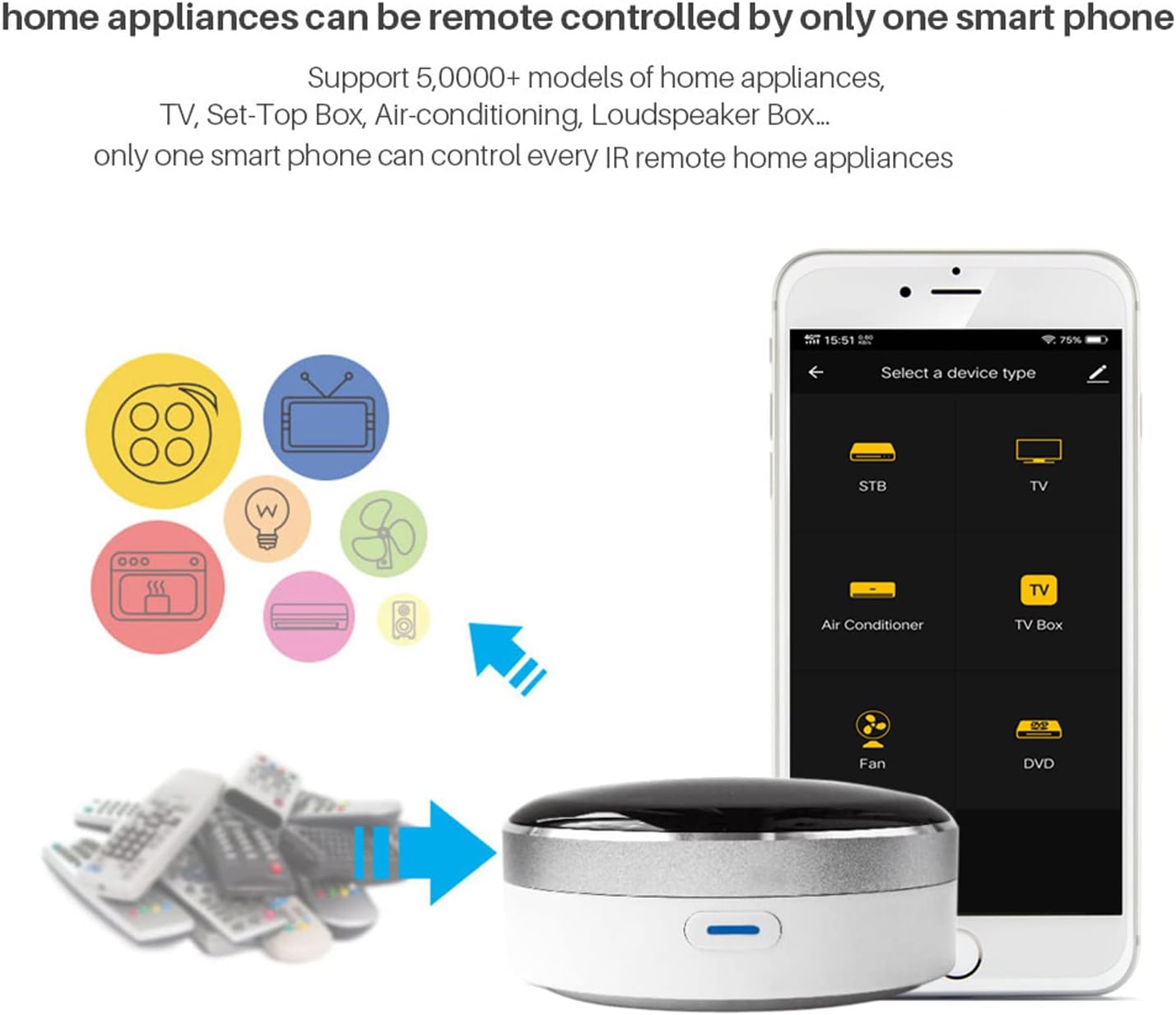
Figure 4.1: Illustration demonstrating how the CUSAM Smart IR Remote Control Hub consolidates multiple traditional remote controls into a single smartphone application, simplifying home appliance management.
5. Operating Instructions
5.1. Adding Appliances
After pairing the hub, you can add your IR-controlled appliances:
- In the Tuya Smart/Smart Life app, select the CUSAM Smart IR Remote Control Hub.
- Tap "Add Remote" or a similar option.
- Choose the type of appliance (e.g., TV, Air Conditioner, Fan).
- Select the brand from the extensive database. The app will guide you through testing pre-loaded IR codes to find the correct one for your device.
- If your brand is not listed or the codes don't work, proceed to the DIY IR Learning function.

Figure 5.1: Visual representation of the CUSAM Smart IR Remote Control Hub's ability to consolidate control for various devices such as fans, air conditioners, televisions, DVDs, set-top boxes, and projectors into a single smart remote.
5.2. App Control
Once an appliance is added, you can control it directly from the app interface, which mimics a traditional remote control.

Figure 5.2: The CUSAM Smart IR Remote Control Hub enables app-based control, allowing users to manage their TV and other devices directly from their smartphone. The system is compatible with major voice assistants.
5.3. Voice Control
The CUSAM Smart IR Remote Control Hub is compatible with Amazon Alexa, Google Assistant, and Siri (iOS 12.0 or later). To enable voice control:
- Link your Tuya Smart/Smart Life account to your Amazon Alexa or Google Home app.
- Discover devices within the Alexa/Google Home app.
- You can then use voice commands such as:
- "Alexa, turn on the TV."
- "OK Google, set the air conditioner temperature to 25 degrees."

Figure 5.3: Voice control functionality is demonstrated, showing how users can issue commands to their smart assistants (Amazon Echo, Google Home) to control appliances connected via the CUSAM Smart IR Remote Control Hub.
5.4. Scheduling and Automation
Set up schedules and automations to control your devices based on time or other conditions:
- Timer: Program specific times for devices to turn on or off (e.g., "Turn on the air conditioner at 5:00 PM," "Turn off the TV at 10:00 PM").
- Scenario (Tap-to-Run): Create a single button in the app to execute multiple actions simultaneously (e.g., "Movie Night" scenario turns on TV, adjusts lights, and sets AC).
- Automation: Set conditions for actions (e.g., "If outdoor temperature exceeds 28°C, turn on AC").

Figure 5.4: The app allows for preset air conditioner modes and timing, enabling users to schedule temperature adjustments or turn devices on/off based on their daily routines.
5.5. DIY (IR Learning Function)
If your appliance's brand or model is not found in the app's database, you can use the DIY function to teach the hub the IR signals from your original remote control.
- In the app, select the DIY option for a new remote.
- Follow the prompts to point your original remote at the CUSAM hub and press the desired buttons. The hub will learn and store these IR signals.
- You can customize buttons within the Tuya Smart app to match the functions of your original remote.

Figure 5.5: The DIY IR Learning function allows the hub to copy infrared signals from existing remote controls, extending compatibility to a wider range of appliances not pre-programmed in the app's database.
5.6. Family Sharing
You can share control of the CUSAM Smart IR Remote Control Hub and its connected devices with family members through the Tuya Smart/Smart Life app's sharing function.

Figure 5.6: The app's sharing feature allows multiple family members to control the smart devices connected to the CUSAM hub, enhancing convenience for the entire household.
6. Maintenance
The CUSAM Smart IR Remote Control Hub requires minimal maintenance.
- Cleaning: Use a soft, dry cloth to wipe the device. Do not use liquid cleaners or aerosols.
- Environment: Keep the device in a dry environment, away from direct sunlight, high temperatures, and humidity.
- Firmware Updates: Periodically check the Tuya Smart/Smart Life app for firmware updates for the hub to ensure optimal performance and access to new features.
7. Troubleshooting
| Problem | Possible Cause / Solution |
|---|---|
| Device not connecting to Wi-Fi. |
|
| Appliance not responding to commands. |
|
| Voice control not working. |
|
| Hub indicator light is off. |
|
8. Warranty and Support
The CUSAM Smart IR Remote Control Hub comes with a 1-year manufacturer's warranty.
For technical support, warranty claims, or further assistance, please contact CUSAM Smart Home customer service. Refer to the contact information provided on the product packaging or the official CUSAM website.

Figure 8.1: Product packaging displaying manufacturer contact details and compliance markings. This information can be used for support inquiries.
Recycling Information:
Packaging elements should be separated and disposed of in the appropriate recycling bin. This device, its accessories, and cords are recyclable. Please refer to local recycling guidelines or visit quefairedemesdechets.fr for collection points. Prioritize repair or donation of your device.

Figure 8.2: Recycling instructions on the product packaging, detailing how to sort packaging and dispose of the electronic device responsibly.