
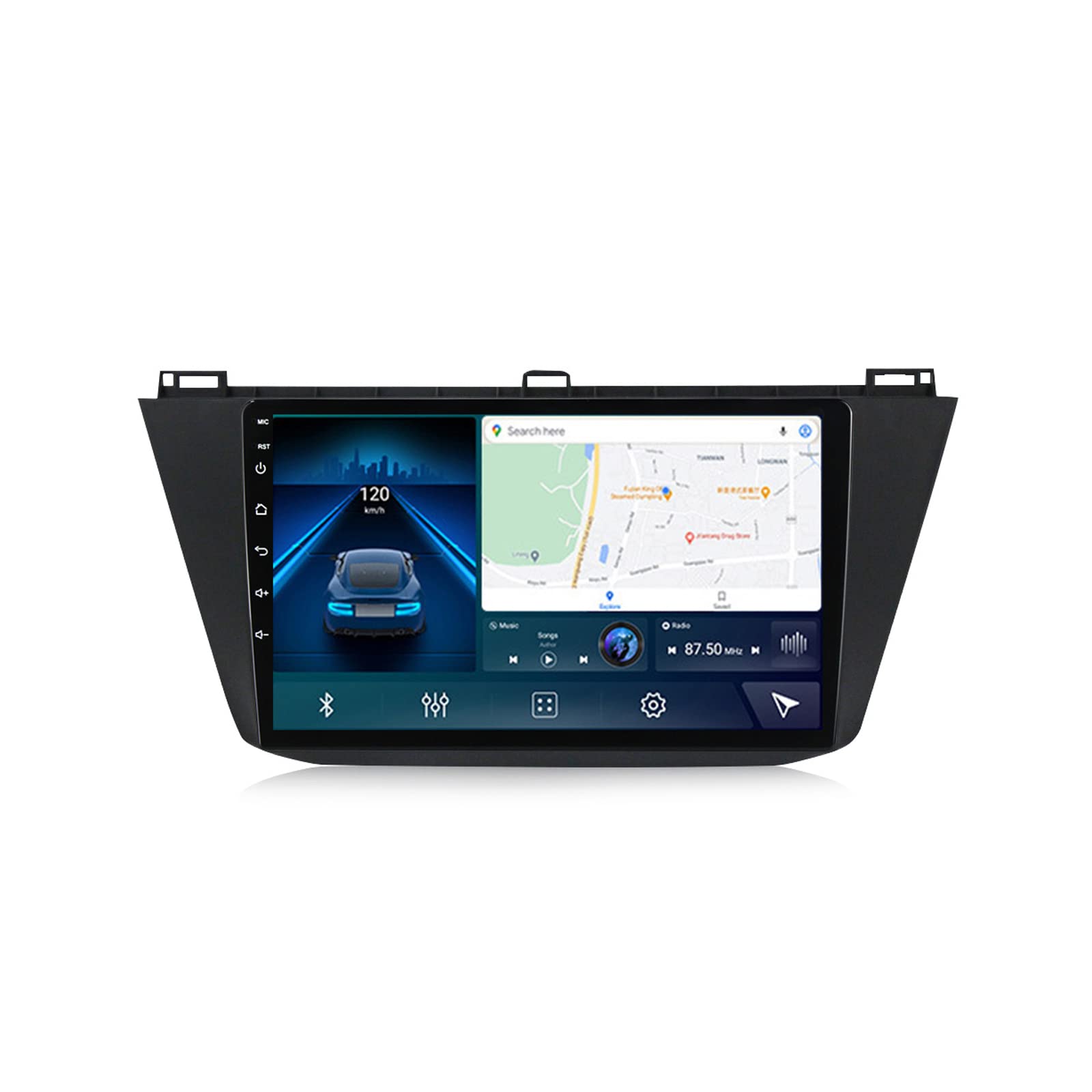
Introduction
This manual provides comprehensive instructions for the installation, operation, and maintenance of your WDXSFR Android 11 Car Radio Multimedia Player. Designed for Volkswagen Tiguan models from 2017 to 2019, this system offers advanced features including GPS navigation, multimedia playback, and smart connectivity.
For successful installation, it is recommended that individuals with DIY experience refer to this manual or online video tutorials. If you are not familiar with car electronics, professional installation by a qualified auto repair shop is strongly advised.
Should you have any questions or require assistance, please contact our customer support for satisfactory after-sales service within 24 hours.
Package Contents
Upon unpacking, please verify that all components listed below are present and in good condition:
- Car multimedia radio unit (frame + headunit) x1
- RCA cable x1
- Audio out cable x1
- Reversing camera set x1
- Microphone (MIC) x1
- GPS Antenna x1
- 4G Antenna x1
- USB cables x2

Image: Various cables and antennas included with the car multimedia player, such as RCA, audio out, reversing camera, microphone, GPS antenna, 4G antenna, and USB cables.
Specifications
The WDXSFR Android 11 Car Radio Multimedia Player features advanced hardware and software for optimal performance:
| Feature | Description |
|---|---|
| Operating System | Android 11 |
| Processor | Octa-core (7862 chip: Unisoc UIS7862, 2*Cortex A75 + 6*Cortex A55; 9863 chip: Unisoc UIS8581A, 8*Cortex A55) |
| Memory (RAM+ROM) | Available in 2GB+32GB, 3GB+32GB (current model), 4GB+64GB, 6GB+128GB, 8GB+128GB configurations |
| Display | IPS Touch Screen, 1280x720 Resolution |
| Video Playback | Supports 1080P video |
| Bluetooth | Built-in Bluetooth 5.0 (supports music playback and hands-free calling) |
| Radio | FM/RDS Radio (DAB+ optional for EU countries) |
| Smartphone Integration | Built-in Wireless CarPlay and Android Auto |
| Audio Processing | Built-in DSP function, preset EQ and user customized 16-band EQ options |
| Navigation | Supports online and offline maps (GPS, BDS, GLONASS) |
| Connectivity | 4G card slot, 5GHz WIFI (802.11 b/g/n) |
| Additional Features | Split screen function, Steering Wheel Control (SWC), Support for external devices (DVR, OBDII, TPMS) |
| Part Number | 1712980526--64000741 |

Image: A detailed table outlining the specifications for various car multimedia player models, including processor type, RAM/ROM, resolution, and supported features like CarPlay and DSP.
Setup and Installation
This section provides general guidance for the physical installation and initial setup of your car multimedia player. Due to the complexity of vehicle wiring, professional installation is highly recommended.
Physical Installation Steps
- Preparation: Ensure the vehicle's battery is disconnected before beginning installation to prevent electrical shorts.
- Remove Old Unit: Carefully remove the existing car radio unit from the dashboard. Refer to your vehicle's specific service manual for detailed instructions on trim panel removal.
- Connect Wiring Harness: Connect the provided wiring harness to the car multimedia player and then to your vehicle's factory wiring. Ensure all connections are secure.
- Connect Peripherals: Connect the GPS antenna, 4G antenna, USB cables, microphone, and reversing camera (if applicable) to their respective ports on the new unit.
- Test Functionality: Before fully reassembling the dashboard, temporarily connect the battery and power on the unit to test basic functions like power, display, and audio.
- Secure Unit: Once tested, carefully slide the new car multimedia player into the dashboard opening and secure it with the appropriate mounting brackets.
- Reassemble Dashboard: Reinstall all removed trim panels and components.

Image: The WDXSFR car multimedia player seamlessly integrated into the dashboard of a Volkswagen Tiguan, showcasing its large display and fit.

Image: An alternative perspective of the car multimedia player installed in a Volkswagen Tiguan, highlighting its position relative to the vehicle's controls.
Initial System Setup
After installation, power on the unit and follow the on-screen prompts for initial setup. Key settings include:
- Language Selection: Choose your preferred system language.
- Date and Time: Set the correct date and time, or enable automatic synchronization via GPS/network.
- Network Configuration: Connect to Wi-Fi or insert a 4G SIM card for internet access.
- Sound Settings: Adjust audio output and equalizer settings to your preference.

Image: Visual guide for initial setup, including wiring connections for the unit's rear panel and screenshots of the system settings menu for Wi-Fi, display, sound, and factory options.
Operating Instructions
This section details the various functions and features of your WDXSFR car multimedia player.
Multimedia Functions
The unit supports various multimedia formats for audio and video playback. You can play media from USB drives or stream via Bluetooth.
- Video Playback: Supports 1080P video resolution for clear viewing on the IPS touch screen.
- Audio Playback: Access your music library through the built-in music player or stream via Bluetooth.
CarPlay & Android Auto
Seamlessly integrate your smartphone for navigation, communication, and entertainment.
- Wireless CarPlay: Connect your iPhone wirelessly to access iOS apps, make calls, send messages, and use Apple Maps.
- Wired Android Auto: Connect your Android phone via USB to use Google Maps, listen to music, and interact with Google Assistant.
Image: Displays the user interface for both wireless CarPlay (iOS system) and wired Android Auto, showing connection steps and typical app layouts.
Bluetooth Functionality
Connect your mobile device via Bluetooth 5.0 for hands-free calling and audio streaming.
- Hands-Free Calling: Make or receive calls directly from the car stereo. The unit supports phonebook synchronization and call history.
- Bluetooth Music: Stream audio from your phone to the car speakers.
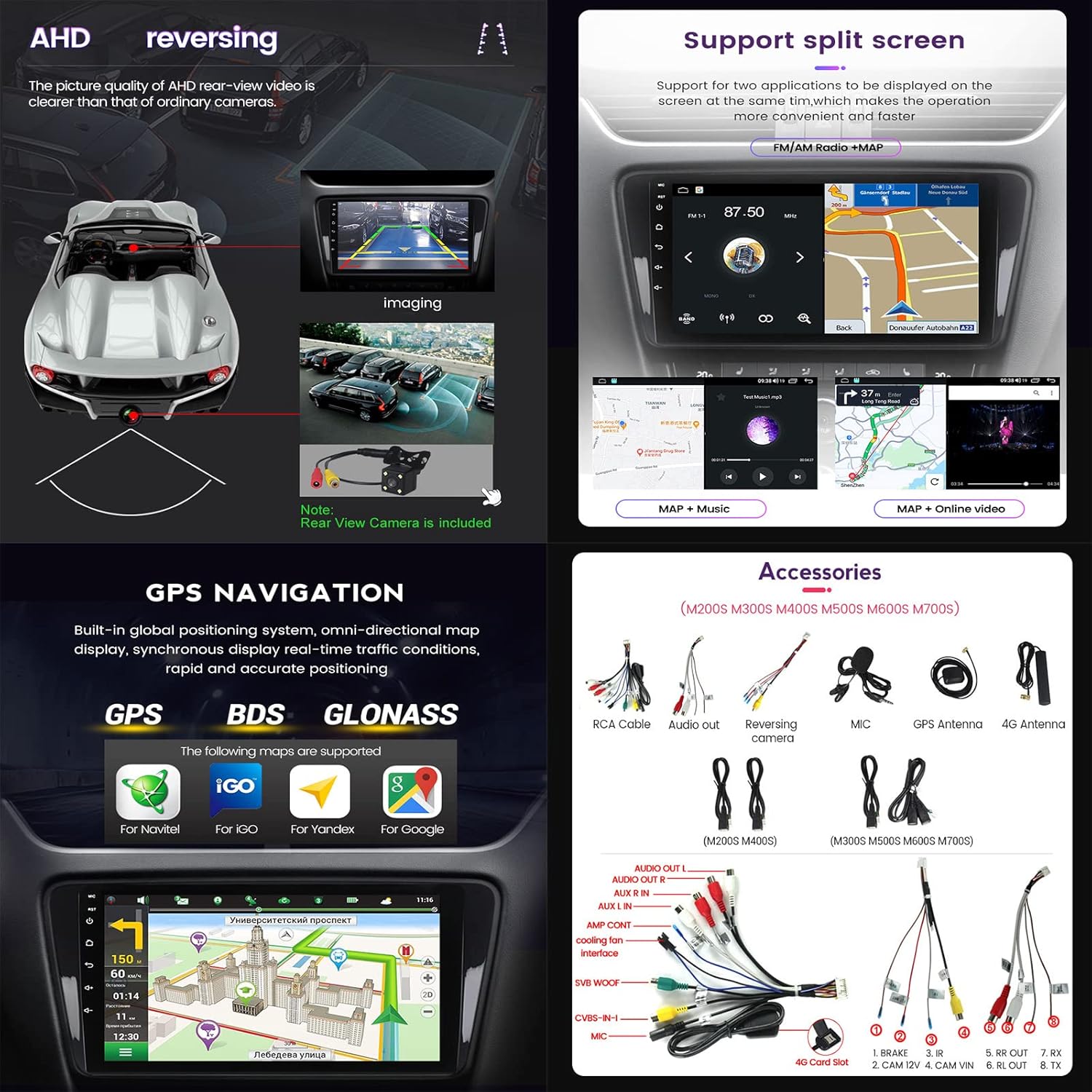
Image: Illustrates the Bluetooth interface, including options for phonebook search, incoming calls, dial pad, and music playback, emphasizing safe operation while driving.
FM/RDS Radio
Enjoy your favorite radio stations with clear reception.
- Automatic Search: The system can automatically search and store available radio stations.
- RDS Support: Radio Data System (RDS) provides additional information like station name and song title.
- DAB+ (Optional): Digital Audio Broadcasting Plus is supported in EU countries with an optional external module.
Image: Shows the FM/AM radio interface with frequency display, station list, and options for automatic search and RDS. Also depicts the optional DAB+ module.
Split Screen Function
Multitask by displaying two applications simultaneously on the screen.
- For example, you can view navigation maps on one side and control music playback on the other.
Image: A split-screen view showing a navigation map on one side and a music player interface on the other, illustrating simultaneous application usage.
GPS Navigation
The unit features a built-in global positioning system for accurate navigation.
- Supports online and offline maps.
- Compatible with various mapping applications (e.g., iGO, Navitel, Yandex, Google Maps).
- Provides real-time traffic conditions and dynamic route planning.
Image: The GPS navigation interface displaying a map with route information and supported mapping services like iGO, Navitel, Yandex, and Google.
Steering Wheel Control (SWC)
Control essential functions of the multimedia player directly from your vehicle's steering wheel buttons.
- This feature enhances safety by allowing you to manage audio, calls, and navigation without taking your hands off the wheel.
Image: A hand interacting with the steering wheel controls, demonstrating how to safely manage the car stereo's functions without distraction.
Day/Night UI Switching
The user interface automatically adjusts between day and night modes for optimal visibility and reduced glare.
Image: Side-by-side comparison of the car stereo's user interface in bright "Day interface" mode and darker "Night interface" mode for improved visibility in varying light conditions.
Reversing Camera Support
Enhance parking safety with automatic display of the rear view when the vehicle is in reverse gear.
- The included reversing camera provides a clear, wide-angle view.
- AHD (Analog High Definition) support ensures high-quality video feed.
Image: A visual representation of the reversing camera system, showing the camera's placement, the wide field of view, and how the image is displayed on the car stereo screen for safe parking.
Advanced Features
4G LTE Connectivity
Stay connected on the go with built-in 4G LTE support.
- Insert a 4G SIM card into the dedicated slot to access online music, videos, navigation, and other internet services.
Image: A graphic illustrating the 4G LTE connectivity feature, showing the SIM card slot and various online activities enabled by the connection, such as music, video, and navigation.
5GHz WiFi Support
Connect to high-speed wireless networks for faster data transfer and smoother online experiences.
- Supports 802.11 b/g/n standards for broad compatibility.
- Offers faster transmission speeds and wider coverage compared to 2.4GHz WiFi.
Image: A graphic highlighting the 5GHz WiFi support, detailing its benefits such as fast transmission, wide coverage, and stable connection.
Digital Sound Processor (DSP)
The built-in DSP function allows for precise audio tuning and customization.
- Offers a 16-band EQ with preset and user-customizable options to tailor the sound to your preference and vehicle acoustics.
- Provides crystal clear sound quality for a wide variety of music styles.
External Device Support (Optional)
The unit is compatible with several external devices to expand its functionality:
- DVR (Driving Video Recorder): Connect an optional DVR for front collision warning, lane deviation warning, and recording driving footage.
- OBDII (On-Board Diagnostics): Use an OBDII scanner (not included) to diagnose your car's status, read real-time data, and check fault codes.
- TPMS (Tire Pressure Monitoring System): Integrate an optional TPMS to monitor tire pressure and temperature in real-time, enhancing driving safety.
Image: Visual explanations of the optional ADAS DVR for anti-collision warning, the OBDII system for vehicle diagnostics, and the TPMS for real-time tire pressure monitoring.
Maintenance
Proper maintenance ensures the longevity and optimal performance of your car multimedia player.
- Screen Cleaning: Use a soft, lint-free cloth specifically designed for electronic screens to gently wipe the display. Avoid abrasive cleaners or harsh chemicals.
- Software Updates: Periodically check for software updates provided by WDXSFR to ensure the system has the latest features and bug fixes. Updates can improve performance and compatibility.
- Environmental Conditions: Avoid exposing the unit to extreme temperatures, direct sunlight for prolonged periods, or excessive moisture.
- Ventilation: Ensure the unit's ventilation openings are not blocked to prevent overheating.
Troubleshooting
This section addresses common issues you might encounter. For problems not listed here, please contact customer support.
| Problem | Possible Cause | Solution |
|---|---|---|
| No Power | Loose power connection; Blown fuse; Vehicle battery issue. | Check all power cables and connections. Inspect vehicle fuses and replace if necessary. Ensure vehicle battery is charged. |
| No Sound | Volume too low or muted; Loose speaker wires; Incorrect audio settings. | Increase volume and check mute status. Verify speaker wire connections. Check audio output settings in the system menu. |
| Touchscreen Unresponsive | System freeze; Software glitch. | Perform a soft reset (refer to manual for specific reset button location, usually a small pinhole). If issue persists, try a factory reset (data will be lost). |
| GPS Signal Lost/Inaccurate | GPS antenna obstruction or faulty connection; Outdated map data. | Ensure GPS antenna has a clear view of the sky and is securely connected. Update map data if available. |
| Bluetooth Connection Issues | Device not in pairing mode; Interference; Software issue. | Ensure Bluetooth is enabled on both devices and in pairing mode. Delete previous pairings and re-pair. Restart both devices. |
Support
For any questions, technical assistance, or after-sales service regarding your WDXSFR Android 11 Car Radio Multimedia Player, please contact our dedicated support team.
We are committed to providing satisfactory assistance within 24 hours.
Please have your product model (7862 3G+32G) and any relevant purchase information ready when contacting support to expedite the process.


