
1. Introduction and Product Overview
Thank you for choosing the Arteck 2.4G Wireless Keyboard. This ultra-slim, full-size keyboard with a numeric keypad and media hotkeys is designed for comfortable and efficient typing across various devices, including computers, desktops, PCs, laptops, Surface devices, and Smart TVs running Windows 10/8/7. It features a built-in rechargeable battery for extended use.

The keyboard utilizes a 2.4G wireless connection for stable and reliable performance, offering a seamless typing experience with its low-profile, scissors-kick keys designed for quiet and comfortable operation. Its compact and lightweight design makes it highly portable.
2. Package Contents
- Arteck 2.4G Wireless Keyboard
- Nano USB Receiver
- USB-C Charging Cable
- User Manual (Welcome Guide)
3. Setup Guide
The Arteck 2.4G Wireless Keyboard offers an easy plug-and-play setup. No additional drivers are required for most operating systems.
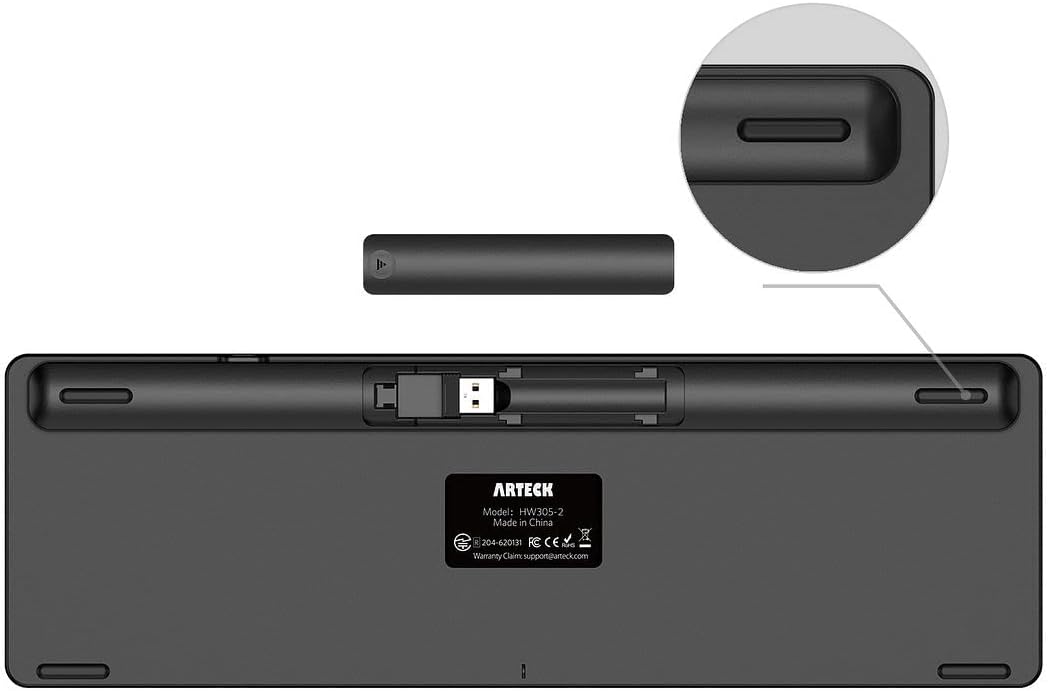
- Locate the Nano USB Receiver: The nano USB receiver is typically stored in a compartment on the back of the keyboard for convenient storage and transport.
- Connect the Receiver: Insert the nano USB receiver into an available USB port on your computer (desktop, PC, laptop, Surface, or Smart TV).
- Power On the Keyboard: Locate the ON/OFF switch on the keyboard (usually on the top right side) and slide it to the "ON" position.
- Automatic Connection: The keyboard should automatically connect to your device within a few seconds. If the connection is not established, ensure the receiver is securely plugged in and the keyboard is powered on.

4. Operating Instructions
4.1 Function Keys and Media Hotkeys
The Arteck keyboard includes a row of function keys (F1-F12) that double as media hotkeys. To use the media hotkey function, press the Fn key simultaneously with the desired F-key.
| Key Combination | Function |
|---|---|
| Fn + F1 | Mute Audio |
| Fn + F2 | Volume Down |
| Fn + F3 | Volume Up |
| Fn + F4 | Previous Track |
| Fn + F5 | Play/Pause |
| Fn + F6 | Next Track |
| Fn + F7 | Brightness Down |
| Fn + F8 | Brightness Up |
| Fn + F9 | Print Screen |
| Fn + F10 | Insert |
| Fn + F11 | Battery Status Indicator |
| Fn + F12 | Delete |
The low-profile, scissors-kick keys provide a comfortable and quiet typing experience, reducing typing fatigue during extended use.

4.2 Battery Management and Charging
The Arteck keyboard is equipped with a high-capacity rechargeable Li-polymer battery, offering up to 6 months of use on a single charge (based on 2 hours of non-stop use per day). The keyboard features a power indicator light (usually green) that will flash when the battery is low, indicating it's time to recharge.
- Charging: Connect the supplied USB-C charging cable to the keyboard's charging port and the other end to a USB power source (e.g., computer USB port, USB wall adapter).
- Charging Indicator: The power indicator light will illuminate during charging and turn off when the battery is fully charged. A full charge typically takes approximately 2 hours.
- Power Saving Mode: To conserve battery life, the keyboard will automatically enter sleep mode after a period of inactivity. Press any key to wake it up.

5. Maintenance
To ensure the longevity and optimal performance of your Arteck keyboard, follow these maintenance guidelines:
- Cleaning: Use a soft, lint-free cloth to wipe down the keyboard surface. For deeper cleaning, slightly dampen the cloth with water or a mild, non-abrasive cleaner. Avoid excessive moisture.
- Dust Removal: Use compressed air to clear dust and debris from between the keys.
- Storage: When not in use for extended periods, store the keyboard in a dry, cool place away from direct sunlight and extreme temperatures. Ensure the nano USB receiver is stored in its designated slot on the keyboard's back.
- Avoid Liquids: Keep the keyboard away from liquids to prevent damage to internal components.
- Handle with Care: Avoid dropping the keyboard or subjecting it to strong impacts.
6. Troubleshooting
If you encounter issues with your Arteck 2.4G Wireless Keyboard, refer to the following common troubleshooting steps:
- Keyboard Not Responding:
- Ensure the keyboard is powered "ON".
- Verify the nano USB receiver is securely plugged into a working USB port on your computer. Try a different USB port if available.
- Check the keyboard's battery level. If low, charge the keyboard fully.
- Restart your computer.
- Lag or Skipped Characters:
- Ensure the keyboard is within the effective operating range (up to 33 feet or 10 meters) of the USB receiver.
- Minimize interference from other 2.4GHz wireless devices.
- If you are a very fast typist, some users have reported occasional skipped characters. This is a known limitation for some high-speed typing scenarios with this specific wireless technology.
- Power Indicator Not Lighting Up:
- Ensure the keyboard is powered on.
- Connect the charging cable to check if the battery is completely depleted. Allow it to charge for a few minutes before checking the indicator again.
If you continue to experience issues, please refer to the "Warranty and Support" section for contact information.
7. Product Specifications
| Feature | Specification |
|---|---|
| Model Number | HW305-2 |
| Connectivity Technology | 2.4G Wireless (USB Wireless) |
| Keyboard Description | Wireless, Full Size with Numeric Keypad |
| Number of Keys | 97 |
| Special Features | Ergonomic, Hotkeys and Media Keys, Rechargeable |
| Battery Life | Up to 6 months on a single charge (2 hours/day non-stop use) |
| Product Dimensions | 14.3 x 4.5 x 0.24 inches (36.2 x 11.6 x 0.6 cm) |
| Item Weight | 1.15 pounds (406 g) |
| Material | Plastic |
| Compatible Devices | Laptop, Smart TV, PC (Windows 10/8/7) |

8. Warranty and Support
Arteck provides a 24-month warranty for the HW305-2 Wireless Keyboard from the date of purchase. This warranty covers manufacturing defects and ensures customer satisfaction.
For any inquiries, product support, or warranty claims, please contact Arteck customer service:
- Email: support@arteck.com
Please provide your order number and a detailed description of the issue when contacting support to facilitate a quicker resolution.