
Canon MAXIFY GX5020
Canon MAXIFY GX5020 Wireless Single Function Printer
User Manual
1. Introduction
This manual provides essential information for setting up, operating, and maintaining your Canon MAXIFY GX5020 Wireless Single Function Printer. Please read this manual thoroughly before using the printer to ensure correct and safe operation.

Image: The Canon MAXIFY GX5020 printer shown with its accompanying set of GI-26 ink bottles (Black, Cyan, Magenta, Yellow).
2. Setup
2.1 Unpacking and Contents Verification
Carefully remove all components from the packaging. Ensure all items listed below are present.

Image: A visual representation of the box contents, including the MAXIFY GX5020 printer, documentation, ink bottles, and power cord.
- MAXIFY GX5020 Wireless MegaTank Small Office Printer
- Documentation (User Manual, Setup Guide)
- Set of Ink Bottles (GI-26: Black, Cyan, Magenta, Yellow)
- Print Head
- Power Cord
2.2 Initial Ink Filling
- Open the ink tank covers on the printer.
- Uncap the corresponding ink bottle (Black, Cyan, Magenta, Yellow).
- Align the keyed nozzle of the ink bottle with the ink tank opening and gently insert it. The ink will automatically flow into the tank.
- Once the tank is full, remove the bottle and securely close the ink tank cover. Repeat for all colors.
2.3 Power Connection
Connect the power cord to the printer and then to a wall outlet. Press the power button to turn on the printer.
2.4 Software and Driver Installation
Insert the setup CD-ROM (if included) into your computer or visit the official Canon support website to download the latest drivers and software for your operating system. Follow the on-screen instructions for installation.
2.5 Network Connection
The MAXIFY GX5020 supports Wi-Fi, Ethernet, and USB connectivity.
- Wi-Fi Setup: Use the printer's control panel to navigate to the Wi-Fi setup menu. Select your network and enter the password.
- Ethernet Connection: Connect an Ethernet cable from your router to the printer's Ethernet port.
- USB Connection: Connect a USB cable from your computer to the printer's USB port.
3. Operating the Printer
3.1 Basic Printing
Load paper into the printer's paper trays. From your computer or mobile device, select the Canon MAXIFY GX5020 as your printer and choose your desired print settings. The printer supports automatic two-sided printing (auto-duplex) to save paper.

Image: A user retrieving a document printed using the auto-duplex feature, demonstrating paper saving.
3.2 Mobile Printing
The printer supports various mobile printing solutions:
- Canon PRINT app: Download the Canon PRINT app to print directly from your smartphone or tablet.
- Apple AirPrint: For Apple iOS devices, print wirelessly without installing additional drivers.
- Mopria Print Service: For Android devices, print wirelessly using the Mopria Print Service.

Image: A smartphone screen showing the Canon PRINT app interface, ready to send a document to the printer, highlighting easy mobile printing capabilities.
3.3 Media Types and Sizes
The MAXIFY GX5020 can print on a wide variety of media, including plain paper, glossy photo paper, high-resolution paper, envelopes, labels, and banner paper. It supports sheet sizes such as 4 x 6 inches, 8.5 x 11 inches, and 8.5 x 14 inches, with a maximum media size of 8.5 x 47 inches.

Image: The printer demonstrating its versatility by printing on different media, including an envelope and labels, showcasing its broad media support.
3.4 Paper Loading
The printer features a 250-sheet bottom cassette and a 100-sheet rear tray, providing a total input capacity of 350 sheets.
- Bottom Cassette: Primarily for plain paper. Pull out the cassette, load paper, and push it back in.
- Rear Tray: Suitable for various media types, including photo paper and envelopes. Extend the paper support, load paper, and adjust the paper guides.

Image: A hand inserting a stack of plain paper into the printer's bottom paper cassette, illustrating the large paper capacity.
4. Maintenance
4.1 Ink Refilling
The MegaTank system allows for easy and mess-free ink refilling. Monitor ink levels through the transparent ink tanks on the front of the printer. When an ink tank is low, use the corresponding GI-26 ink bottle to refill it.

Image: A hand carefully pouring yellow ink from a GI-26 bottle into the printer's yellow ink tank, demonstrating the easy refill process.
4.2 Print Head and Maintenance Cartridge Replacement
Both the print head and maintenance cartridge in the MAXIFY GX5020 are designed for user-friendly replacement. If a replacement is needed, the printer's display will guide you through the process. Refer to the detailed instructions in the full user manual for specific steps.

Image: A close-up of a hand inserting a new maintenance cartridge into the printer, illustrating the ease of user-replaceable components.
4.3 Cleaning
Regularly clean the exterior of the printer with a soft, damp cloth. For internal cleaning or print quality issues, use the cleaning functions available through the printer's control panel or the printer driver software.
5. Troubleshooting
This section addresses common issues you might encounter with your MAXIFY GX5020 printer.
- Printer Not Responding: Check power connections, USB/Ethernet cables, and Wi-Fi status. Restart both the printer and your computer/device.
- Poor Print Quality: Perform a nozzle check and print head cleaning from the printer's maintenance menu. Ensure ink tanks are adequately filled.
- Paper Jams: Follow the on-screen instructions on the printer's LCD to clear any jammed paper. Always pull paper gently in the direction indicated.
- Network Connection Issues: Verify your Wi-Fi password and router settings. Try reconnecting the printer to the network. For Ethernet, ensure the cable is securely connected.
- Error Codes: If an error code appears on the LCD, refer to the full user manual or Canon's support website for specific solutions.
6. Specifications
Below are the key technical specifications for the Canon MAXIFY GX5020 printer.
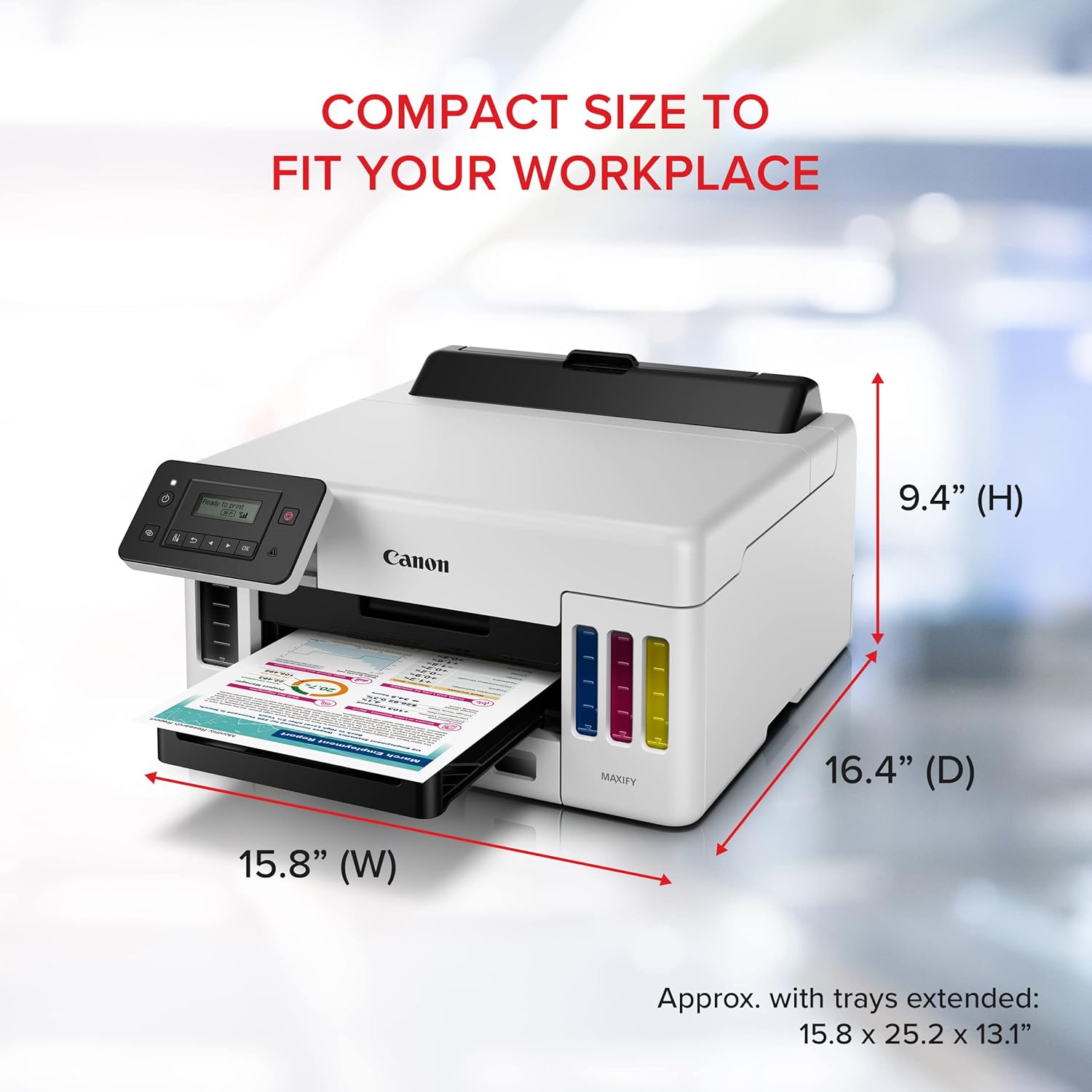
Image: The Canon MAXIFY GX5020 printer with its dimensions clearly labeled: 15.8" (W), 16.4" (D), and 9.4" (H).
| Feature | Detail |
|---|---|
| Product Dimensions | 15.8"D x 16.4"W x 9.4"H |
| Item Weight | 19.8 pounds |
| Printing Technology | Inkjet (Pigment-based) |
| Printer Output | Color |
| Max Print Speed (Monochrome) | 24 ppm |
| Max Print Speed (Color) | 15.5 ppm |
| Max Print Resolution (B&W/Color) | 600 x 1200 dpi |
| Connectivity Technology | Ethernet, USB, Wi-Fi |
| Max Input Sheet Capacity | 350 (250-sheet bottom cassette, 100-sheet rear tray) |
| Duplex Printing | Automatic |
| Included Components | Printer, Documentation, Set of Ink Bottles (GI-26: BK, C, M, Y), Print Head, Power Cord |
7. Warranty Information
The Canon MAXIFY GX5020 printer comes with an Industry Leading 3-Year or 80,000 Page* Limited Warranty. This warranty covers defects in materials and workmanship under normal use. For full terms and conditions, please refer to the warranty documentation included with your product or visit the official Canon website.

Image: A user loading paper into the printer, visually associated with the 3-Year or 80,000 Page warranty promise.
8. Customer Support
For further assistance, technical support, or to download the latest drivers and software, please visit the official Canon support website or contact Canon customer service.
Canon Support Website: www.usa.canon.com/support