Introduction
Thank you for choosing the CIMELR Kids Digital Camera. This camera is designed to provide a fun and engaging way for children aged 3-12 to explore photography and video recording. With its durable design and multiple creative features, it's perfect for capturing memorable moments.
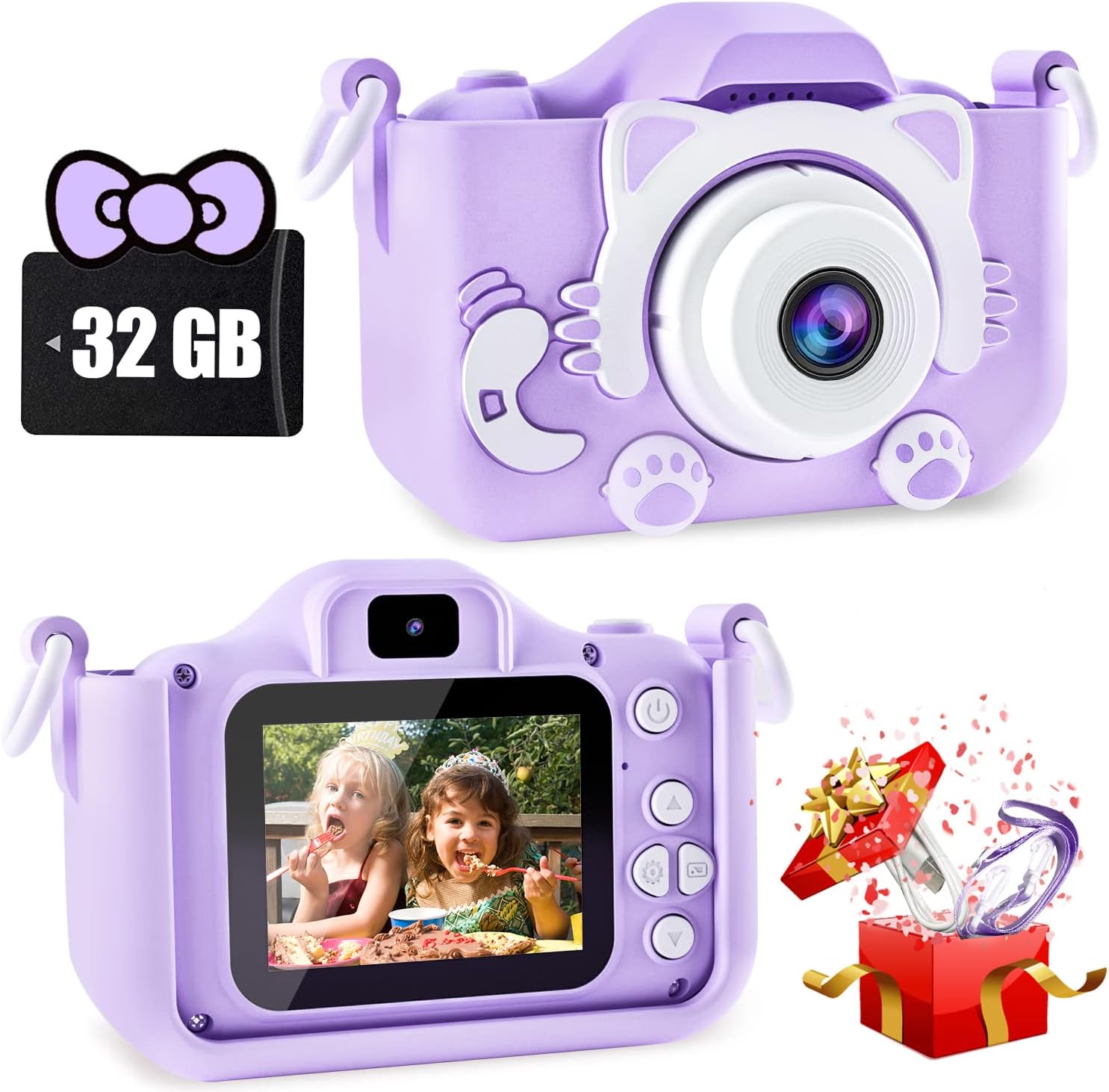
Figure 1: CIMELR Kids Digital Camera (Purple-cat model) with included 32GB TF card and gift packaging.
Package Contents
Please check the package contents to ensure all items are present:
- 1 x CIMELR Kids Digital Camera (Model: X5-Purple)
- 1 x USB Charging Cable
- 1 x Cartoon Protective Silicone Case
- 1 x 32GB TF Memory Card
- 1 x Lanyard
- 1 x User Manual (this document)
Product Features
- Durable Design: Environmentally friendly, non-toxic, shock-resistant silicone casing for protection against drops and bumps.
- Dual HD Lenses: Front and rear HD lenses for capturing photos and videos.
- Eye Protection Screen: HD IPS screen designed to protect your child's vision.
- Multiple Functions: Includes photo shooting, video recording, playback, recording, selfie mode, and puzzle games.
- Creative Filters & Frames: 28 cartoon sticker photo frames and 6 different filters to enhance creativity.
- Rechargeable Battery: Built-in large capacity lithium battery provides up to 2 hours of continuous use.
- Expandable Storage: Comes with a 32GB TF card, supporting thousands of photos.
- Portable: Includes a durable lanyard for easy carrying.

Figure 2: The included silicone case provides enhanced protection against drops and impacts.

Figure 3: Overview of the camera's multifunction capabilities, including games, selfie mode, and dual HD lenses.
Setup Guide
- Charging the Camera:
Connect the camera to a computer or a power adapter (lower than 5.2V) using the provided USB charging cable. Do not use fast charging adapters, as this may damage the charging port. The charging indicator light will show the charging status.
- Inserting the TF Card:
Locate the TF card slot on the side of the camera. Gently insert the included 32GB TF card into the slot until it clicks into place. Ensure the card is inserted in the correct orientation.
- Attaching the Protective Case and Lanyard:
Carefully place the camera into the cartoon protective silicone case. Attach the lanyard to the designated loops on the case for easy and secure carrying around the neck.
- Removing Screen Protector:
Before first use, gently peel off the transparent screen protector film from the display for optimal viewing clarity.

Figure 4: Key components and button functions of the camera, including the USB port and SD card slot.
Operating Instructions
Basic Operations
- Power On/Off: Press and hold the Power button to turn the camera on or off.
- Navigation: Use the Up, Down, Left, and Right buttons to navigate through menus and options.
- Confirm/Shutter: Press the Photo/Video button to confirm selections or to take a photo/start/stop video recording.
Photo Mode
- From the main menu, select the Photo icon.
- Frame your shot using the display screen.
- Press the Photo/Video button to capture a photo.
- To switch between front and rear cameras, use the dedicated button (refer to Figure 4).
- Applying Filters and Frames: In Photo mode, navigate to the filter/frame options using the navigation buttons and select your desired effect.

Figure 5: Explore creativity with 28 fun photo frames and 6 unique filters.
Video Mode
- From the main menu, select the Video icon.
- Press the Photo/Video button to start recording. A timer will appear on the screen.
- Press the Photo/Video button again to stop recording.

Figure 6: The camera supports video recording, allowing children to capture moving memories.
Playback Mode
- From the main menu, select the Playback icon to view your captured photos and videos.
- Use the Left and Right navigation buttons to browse through files.
- Press the Photo/Video button to play a video.
Games
- The camera includes built-in puzzle games for entertainment.
- From the main menu, select the Games icon and choose a game to play.
Maintenance and Care
- Cleaning: Use a soft, dry cloth to clean the camera body and screen. Do not use liquid cleaners or abrasive materials.
- Storage: When not in use for extended periods, store the camera in a cool, dry place away from direct sunlight and extreme temperatures.
- Battery Care: To prolong battery life, avoid fully discharging the battery frequently. Charge the camera regularly, even if not in active use.
- Silicone Case: The silicone case can be removed and cleaned with mild soap and water if it gets dirty. Ensure it is completely dry before reattaching it to the camera.
- Data Transfer: Connect the camera to a computer via the USB cable to transfer photos and videos. This helps free up space on the TF card.
Troubleshooting
| Problem | Possible Cause | Solution |
|---|---|---|
| Camera does not turn on. | Battery is low or depleted. | Charge the camera using the provided USB cable and a compatible power source (adapter < 5.2V). |
| Screen is blank or frozen. | System error or temporary glitch. | Press and hold the Power button for 10 seconds to force a restart. If problem persists, ensure battery is charged. |
| Cannot take photos/videos. | TF card is full or not inserted correctly. | Check TF card insertion. Transfer files to a computer to free up space or replace the TF card. |
| Poor image/video quality. | Lens is dirty or lighting conditions are poor. | Clean the camera lens with a soft cloth. Ensure adequate lighting when taking photos or videos. |
| Camera not recognized by computer. | Faulty USB cable or driver issue. | Try a different USB port or cable. Ensure the camera is powered on when connected. |
Specifications
| Feature | Detail |
|---|---|
| Model Name | Kids camera |
| Item Model Number | X5-Purple |
| Brand | CIMELR |
| Package Dimensions | 5.2 x 4.69 x 2.4 inches |
| Item Weight | 0.282 ounces |
| Batteries | 1 Lithium Ion battery (included) |
| Supported File Format | JPEG |
| Image Stabilization | Digital |
| Optical Zoom | 4x |
| Aspect Ratio | 16:9 |
Support
For any questions, concerns, or assistance with your CIMELR Kids Digital Camera, please contact our customer support team. We are committed to providing 100% satisfaction and will offer proper solutions to any issues you may encounter.
Please refer to the contact information provided on the product packaging or the official CIMELR website for the most up-to-date support details.


