
1. Introduction
Thank you for choosing the Ant Esports Graffiti Mid-Tower Computer Case. This manual provides essential information for the proper installation, operation, and maintenance of your new computer chassis. Please read this manual thoroughly before beginning assembly to ensure a smooth and correct setup. This case is designed to accommodate ATX, Micro-ATX, and Mini-ITX motherboards, offering flexibility for various PC builds.
2. Safety Information
Observe the following safety precautions during installation and operation:
- Always disconnect the power supply from the wall outlet before installing or removing any components to prevent electric shock.
- Handle all components with care to avoid damage. Static electricity can harm electronic components; consider using an anti-static wrist strap.
- Keep the case away from water, moisture, and extreme temperatures.
- Ensure proper ventilation around the case to prevent overheating.
- Do not open the power supply unit as it contains high voltage components.
- Keep small parts and screws away from children.
3. Package Contents
The Ant Esports Graffiti Mid-Tower Computer Case package includes:
- 1 x Ant Esports Graffiti Computer Case
- 1 x User Manual
- Accessory box (containing screws, standoffs, cable ties, etc.)
4. Product Overview
The Ant Esports Graffiti is a mid-tower computer case designed for gaming and high-performance builds. It features a tempered glass side panel for showcasing internal components and supports various motherboard form factors.
Key Features:
- Form Factor: Mid-Tower chassis, dimensions 410 x 210 x 480 mm.
- Motherboard Support: Compatible with ATX, Micro-ATX, and Mini-ITX motherboards.
- Side Panel: Tempered glass side panel for clear internal view.
- Drive Bays: 2 x 3.5" drive bays and 3 x 2.5" drive bays for storage.
- Cooling: Pre-installed 1 x 120mm rear fan. Supports up to 3 x 120/140mm fans at the front, 2 x 120/140mm at the top, and 1 x 120mm at the rear.
- Liquid Cooling Support: Front support up to 360mm, Top support up to 240mm.
- I/O Panel: Includes 2 x USB 2.0, 1 x USB 3.0, 1 x Audio In, 1 x Mic, and an LED button.
- Expansion Slots: 7 expansion slots.
- Component Clearance: VGA card length up to 360mm, CPU cooler height up to 160mm.
- Dust Filter: Magnetic dust filter on top for easy cleaning.

Figure 4.1: Front-left view of the Ant Esports Graffiti Mid-Tower Computer Case, showcasing the tempered glass side panel.

Figure 4.2: Front view of the Ant Esports Graffiti case, highlighting the clean front panel design.

Figure 4.3: Top-front view showing the top ventilation and front I/O panel.

Figure 4.4: Rear view of the chassis, showing expansion slots and rear fan mount.
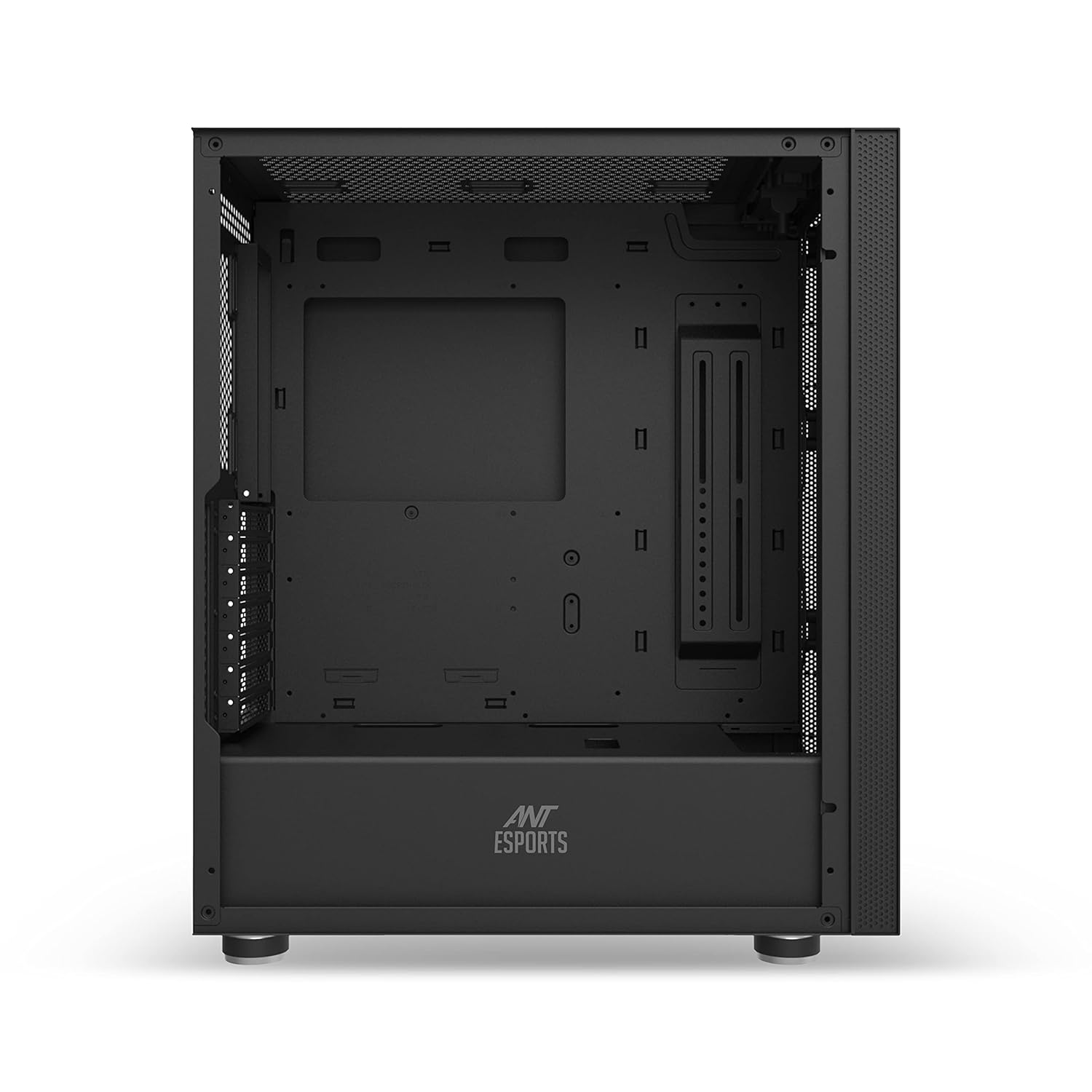
Figure 4.5: Interior view of the case, illustrating the spacious layout for component installation.

Figure 4.6: Illustration of the tempered glass side panel being removed for access to the interior.

Figure 4.7: Diagram showing compatibility for ITX, M-ATX, and ATX motherboards within the chassis.

Figure 4.8: Illustration of the dedicated mounting points for 3.5-inch HDDs and 2.5-inch SSDs.

Figure 4.9: Diagram detailing fan mounting options: 3x 120/140mm front, 2x 120/140mm top, 1x 120mm rear.

Figure 4.10: Illustration of liquid cooling radiator support: up to 360mm at the front and 240mm at the top.

Figure 4.11: Detailed view of the top I/O panel, indicating Power, Reset, LED Button, USB 3.0, USB 2.0, Headphone, and Microphone ports.

Figure 4.12: Dimensional drawing of the Ant Esports Graffiti case, showing height, width, and depth.

Figure 4.13: View of the removable magnetic dust filter located on the top panel of the case.
5. Setup and Installation
Follow these steps to install your components into the Ant Esports Graffiti case. Ensure the power supply is disconnected before starting.
5.1 Removing Side Panels
- Carefully lay the case on its side.
- Unscrew the thumbscrews securing the tempered glass side panel.
- Gently pull the panel away from the chassis and set it aside on a soft, flat surface to prevent scratches.
- Repeat for the steel side panel if necessary.
5.2 Motherboard Installation
- Identify the correct standoff locations for your ATX, Micro-ATX, or Mini-ITX motherboard. The case may have pre-installed standoffs for ATX.
- Install any additional standoffs required for your motherboard form factor using the provided tool.
- Install the I/O shield into the rear opening of the case.
- Carefully place your motherboard onto the standoffs, aligning the screw holes.
- Secure the motherboard with the provided screws. Do not overtighten.
5.3 Power Supply Installation
- Locate the power supply mounting area at the bottom rear of the case.
- Slide the power supply into its designated bay from the rear of the case.
- Align the screw holes and secure the power supply with the provided screws.
5.4 Storage Drive Installation (HDD/SSD)
The case supports 2 x 3.5" HDDs and 3 x 2.5" SSDs.
5.4.1 3.5" HDD Installation
- Locate the 3.5" drive cage.
- Slide the HDD into the drive tray until it clicks into place or secure with screws if trays are screw-mounted.
5.4.2 2.5" SSD Installation
- Locate the 2.5" SSD mounting brackets behind the motherboard tray or on the PSU shroud.
- Secure the SSD to the bracket using screws.
- Attach the bracket with the SSD back to the case.
5.5 Expansion Card Installation (VGA Card)
- Remove the necessary expansion slot covers from the rear of the case.
- Insert your VGA card or other expansion card into the appropriate PCIe slot on your motherboard.
- Secure the card with the provided screw or retention clip.
5.6 Fan and Liquid Cooling Installation
The case supports various fan configurations and liquid cooling radiators.
- Front: Up to 3 x 120mm or 3 x 140mm fans / up to 360mm radiator.
- Top: Up to 2 x 120mm or 2 x 140mm fans / up to 240mm radiator.
- Rear: 1 x 120mm fan (pre-installed).
Mount fans or radiators using the appropriate screws, ensuring correct airflow direction.
5.7 Cable Management
Utilize the cable routing cutouts and tie-down points behind the motherboard tray to manage cables. This improves airflow and aesthetics.
5.8 Connecting Front I/O Cables
Connect the front panel cables (USB 2.0, USB 3.0, HD Audio, Power Switch, Reset Switch, Power LED, HDD LED, LED Button) to the corresponding headers on your motherboard. Refer to your motherboard manual for exact header locations.
6. Operating Instructions
Once all components are installed and connected, replace the side panels and connect the power cable to the power supply and a wall outlet. Press the power button on the top I/O panel to start your system.
6.1 Front I/O Panel Functions
- Power Button: Turns the computer on or off.
- Reset Button: Restarts the computer.
- LED Button: Controls the lighting effects of compatible RGB fans or LED strips connected to the case's integrated controller (if applicable).
- USB 3.0 Ports (x1): For high-speed data transfer with compatible USB 3.0 devices.
- USB 2.0 Ports (x2): For standard USB devices.
- Headphone Jack: Connect headphones or speakers.
- Microphone Jack: Connect a microphone.
7. Maintenance
Regular maintenance helps ensure optimal performance and longevity of your computer components.
7.1 Dust Filter Cleaning
- The Ant Esports Graffiti case features a magnetic dust filter on the top panel.
- Gently lift the magnetic dust filter from the top of the case.
- Clean the filter using compressed air or by rinsing it with water. Ensure it is completely dry before reattaching.
- Regularly check and clean other mesh areas for dust accumulation.
7.2 General Cleaning
- Use a soft, damp cloth to wipe down the exterior surfaces of the case. Avoid abrasive cleaners.
- For the tempered glass panel, use a glass cleaner and a microfiber cloth to avoid streaks.
- Periodically use compressed air to clear dust from internal components and fan blades.
8. Troubleshooting
If you encounter issues, refer to the following common troubleshooting steps:
- No Power:
- Ensure the power cable is securely connected to both the power supply and the wall outlet.
- Check if the power supply switch is in the "ON" position.
- Verify that the front panel power switch cable is correctly connected to the motherboard header.
- Fans Not Spinning:
- Check if fan power cables are securely connected to the motherboard or fan controller.
- Ensure fan headers are enabled in the BIOS/UEFI settings.
- USB Ports Not Working:
- Verify that the USB 2.0 and USB 3.0 front panel cables are correctly connected to the motherboard headers.
- Check device drivers in your operating system.
- Audio Jacks Not Working:
- Ensure the HD Audio front panel cable is correctly connected to the motherboard's audio header.
- Check audio settings and drivers in your operating system.
- LED Lights Not Functioning:
- Verify that any RGB/LED cables are properly connected to the motherboard or a dedicated RGB controller.
- Use the LED button on the I/O panel to cycle through modes or turn lights on/off.
For more complex issues, consult your motherboard manual or contact Ant Esports support.
9. Specifications
Detailed specifications for the Ant Esports Graffiti Mid-Tower Computer Case:

Figure 9.1: Official specifications table for the Ant Esports Graffiti case.
| Feature | Detail |
|---|---|
| Brand | Ant Esports |
| Model Name | Graffiti |
| Case Type | Mid Tower |
| Chassis Dimensions (L x W x H) | 410 x 210 x 480 mm |
| Motherboard Compatibility | ATX, Micro-ATX, Mini-ITX |
| Side Panel | Tempered Glass |
| 3.5" Drive Bays | 2 |
| 2.5" Drive Bays | 3 |
| Expansion Slots | 7 |
| Front Fan Support | 3 x 120mm / 3 x 140mm |
| Top Fan Support | 2 x 120mm / 2 x 140mm |
| Rear Fan Support | 1 x 120mm (Pre-installed) |
| Front Liquid Cooling Support | Up to 360mm |
| Top Liquid Cooling Support | Up to 240mm |
| VGA Card Length (Max) | 360 mm |
| CPU Cooler Height (Max) | 160 mm |
| I/O Panel | 2 x USB 2.0, 1 x USB 3.0, 1 x Audio In, 1 x Mic, LED Button |
| Power Supply Mounting Type | Bottom Mount |
| Item Weight | 6.7 Kilograms |
| Enclosure Material | Glass (Side Panel) |
| Country of Origin | China |
10. Warranty and Support
10.1 Warranty Information
The Ant Esports Graffiti Mid-Tower Computer Case comes with a 1-year manufacturer warranty. This warranty covers defects in materials and workmanship under normal use. It does not cover damage caused by improper installation, accident, abuse, misuse, natural disaster, or unauthorized modification.
Please retain your proof of purchase for warranty claims.
10.2 Technical Support
For technical assistance, troubleshooting, or warranty inquiries, please contact Ant Esports customer support. You can typically find contact information on the official Ant Esports website or through your retailer.
Before contacting support, please have your product model name (Graffiti) and proof of purchase ready.
11. Video Resources
While no specific instructional videos are provided in the product data, Ant Esports may offer official video guides for installation or features on their website or official channels. Please check their resources for visual assistance.