
Introduction
The RAZEAK Syww 8 is an ultra-customizable wireless gaming mouse designed for high-performance gaming. Featuring a Pixart 3395 optical sensor with up to 26000 DPI, triple-mode connectivity (Wired, 2.4G Wireless, Bluetooth 5.0), and software-programmable functions, this mouse offers versatility and precision. Its unique design allows for replaceable mouse shells, click switches, and click spacers, enabling personalized aesthetics and feel.
Package Contents
- RAZEAK Syww 8 Wireless Gaming Mouse
- USB-C to USB-A Paracord Cable
- 2.4 GHz USB Receiver
- User Manual
Product Overview
Familiarize yourself with the key components and features of your RAZEAK Syww 8 gaming mouse.

Figure 1: Mouse layout with connection mode switch and pairing buttons. (1) Left Click, (2) Right Click, (3) Scroll Wheel/Middle Click, (9) 2.4G/BT Switch.

Figure 2: The customizable design of the RAZEAK Syww 8, showcasing its replaceable top shell.
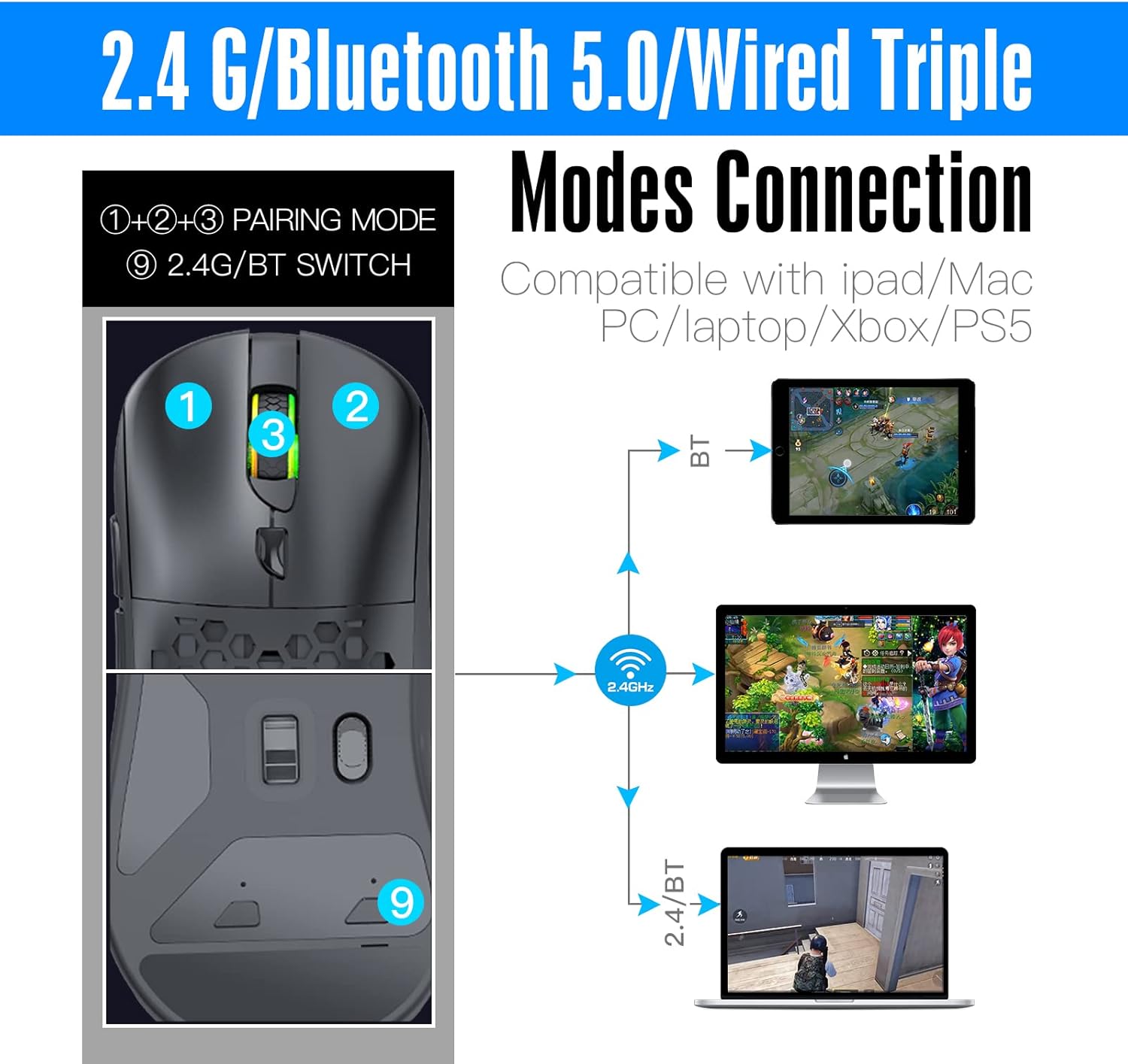
Figure 3: Detailed view of the Pixart 3395 advanced optical sensor, providing high precision tracking.

Figure 4: The light, flexible, and durable USB-C paracord cable for wired connection and charging.

Figure 5: The ergonomic and lightweight design (86g) of the mouse, suitable for various grip styles.
Setup
Charging the Mouse
Connect the supplied USB-C paracord cable to the front port of the mouse and the other end to a USB-A port on your computer or a USB power adapter. The mouse will charge automatically. A full charge provides approximately 70 hours of continuous use with the backlight off.
Connecting the Mouse
The RAZEAK Syww 8 supports three connection modes: Wired, 2.4G Wireless, and Bluetooth 5.0. Use the switch on the bottom of the mouse (labeled '9' in Figure 1) to select your desired mode.
1. Wired Mode
- Ensure the mouse is connected to your computer via the USB-C paracord cable.
- The mouse will automatically function in wired mode.
2. 2.4G Wireless Mode
- Insert the 2.4 GHz USB receiver into an available USB-A port on your computer.
- Slide the switch on the bottom of the mouse to the '2.4G' position.
- The mouse should connect automatically. If not, press the pairing button (if available, refer to specific instructions in the full manual) to initiate pairing.
3. Bluetooth 5.0 Mode
- Slide the switch on the bottom of the mouse to the 'BT' position.
- On your computer or device, navigate to Bluetooth settings and enable Bluetooth.
- The mouse should appear as 'RAZEAK Syww 8' or similar in the list of discoverable devices. Select it to pair.
- If prompted, confirm the pairing code.
Operating Instructions
DPI Adjustment
The mouse features a Pixart 3395 sensor with adjustable DPI up to 26000. Use the dedicated DPI button (usually located behind the scroll wheel) to cycle through preset DPI levels. The current DPI level may be indicated by an LED color change or through the software.
Software Customization
For advanced customization, download the official RAZEAK software from the manufacturer's website. The software allows you to:
- Program button functions (6 programmable buttons).
- Adjust DPI settings and create custom profiles.
- Configure backlight modes and colors.
- Set up macros for complex commands.
Customizing Mouse Shells and Switches
The Syww 8 is designed for ultra-customization. You can replace the mouse's back cover, click switches, and click spacers to personalize its appearance and tactile feedback. Refer to the full manual or online guides for detailed instructions on how to safely replace these components.
Maintenance
Cleaning
To clean your mouse, use a soft, dry cloth. For stubborn dirt, lightly dampen the cloth with water. Avoid using harsh chemicals or abrasive materials, as these can damage the mouse's surface or internal components.
Battery Care
To prolong battery life, avoid fully discharging the mouse frequently. Store the mouse in a cool, dry place when not in use for extended periods. The integrated 580mAh lithium battery is not user-replaceable.
Troubleshooting
- Mouse not responding: Ensure the mouse is charged. Check the connection mode switch (Wired, 2.4G, BT) is set correctly. For 2.4G, ensure the USB receiver is properly inserted. For Bluetooth, verify pairing in your device's settings. Try connecting via the USB cable to rule out wireless issues.
- Lag or intermittent connection (Wireless): Ensure the USB receiver (for 2.4G) is not obstructed and is close to the mouse. Avoid interference from other wireless devices. For Bluetooth, ensure your device's Bluetooth drivers are up to date.
- Software not detecting mouse: Ensure the mouse is connected and powered on. Download the latest software version from the official RAZEAK website. Temporarily disable any firewall or antivirus software that might be blocking the application.
- DPI or button settings not saving: Ensure the software is running with administrator privileges. Save your profiles within the software after making changes.
Specifications
| Feature | Detail |
|---|---|
| Model Name | Syww 8 |
| Model Number | RM-X08 |
| Connectivity | Wired (USB-C), 2.4G Wireless, Bluetooth 5.0 |
| Sensor | Pixart 3395 Optical |
| DPI | Up to 26000 CPI (adjustable) |
| Tracking Speed | 650 IPS |
| Acceleration | 50G |
| Buttons | 6 (programmable) |
| Battery | 580mAh Lithium Polymer |
| Battery Life | Approx. 70 hours (backlight off) |
| Weight | 86 Grams |
| Operating System | Compatible with PC (Windows), Mac, iPad, Xbox, PS5 |
| Range | 10 Meters |
Product Video
Video 1: A short demonstration showcasing the RGB lighting effects of the RAZEAK Syww 8 gaming mouse.
Warranty and Support
RAZEAK offers a 2-year warranty for the Syww 8 Wireless Gaming Mouse. If you encounter any product-related questions or issues, please contact RAZEAK customer service directly for assistance. Refer to the official RAZEAK website for contact information and further support resources.


