
1. Introduction
This manual provides detailed instructions for the operation and maintenance of your Wevoor V52 64GB Digital Voice Recorder. Please read this manual thoroughly before using the device to ensure proper function and to prevent damage.

Figure 1.1: Front view of the Wevoor V52 Digital Voice Recorder, showing the display screen and control buttons.
2. Product Overview
2.1 Package Contents
- Wevoor V52 Digital Voice Recorder
- USB Charging Cable
- User Manual
- Lanyard (optional)
2.2 Physical Characteristics
The Wevoor V52 features a lightweight yet durable zinc alloy case. Its compact design allows for easy portability.
- Dimensions: 0.39 x 1.5 x 3.7 inches (1.5"D x 0.4"W x 3.7"H)
- Weight: 2.82 ounces (80 grams)

Figure 2.1: The Wevoor V52 recorder demonstrating its compact size and portability, weighing 80g (2.8oz).

Figure 2.2: Dimensions of the Wevoor V52 recorder and icons representing features such as voice activation, recording monitoring, hard metal housing, dual speaker holes, password protection, variable speed playback, timer recording, and A-B repeat.
3. Getting Started (Setup)
3.1 Charging the Device
The device is equipped with a built-in Lithium Ion battery. Before first use, fully charge the recorder using the provided USB cable connected to a computer or a compatible USB power adapter.
- Connect the small end of the USB cable to the recorder's charging port.
- Connect the other end to a USB power source.
- The battery indicator on the screen will show charging status.
- A full charge typically provides up to 30 hours of continuous recording at 1536KB bit rate.
3.2 Powering On/Off
To power on the device, press and hold the Power button (usually located on the side or top) until the screen illuminates. To power off, press and hold the Power button again until the screen turns off.
3.3 Setting Date and Time
Upon first use or after a factory reset, you may need to set the correct date and time. Refer to the on-screen menu options for 'Settings' or 'System' to adjust these parameters. Accurate date and time stamps are important for file organization.
3.4 Setting a Password
The device supports password protection to secure your recordings.
- Navigate to the 'Settings' menu.
- Select 'Password Protection' or 'Security'.
- Follow the on-screen prompts to set a 4-digit password.
- Confirm your password.
Once set, the device will require this password upon power-on to prevent unauthorized access to your files.

Figure 3.1: Visual guide for setting up password protection on the device.
4. Basic Operation
4.1 One-Click Recording and Saving
The Wevoor V52 features a dedicated slide switch for quick recording and saving.
- To start recording, slide the 'REC/SAVE' button (typically on the right side) upwards. The device will power on and begin recording automatically.
- To save the recording, slide the 'REC/SAVE' button downwards. The file will be saved with a date and time stamp.
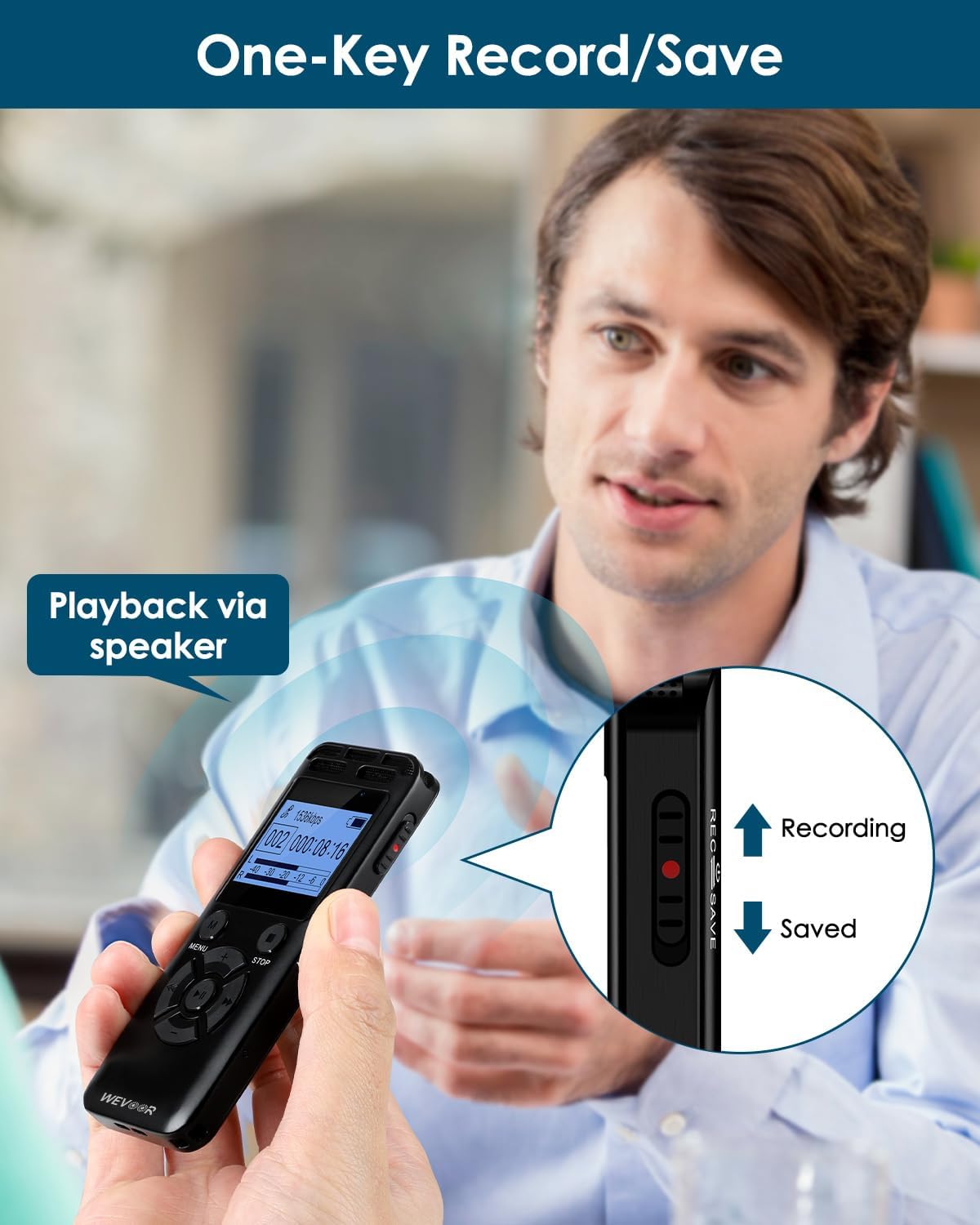
Figure 4.1: Illustration of the one-key record/save slide switch. Sliding up initiates recording, sliding down saves the current recording.
4.2 Voice Activated Recording (VOR)
The device can be set to record only when sound is detected, conserving memory and battery life.
- Access the 'Settings' menu.
- Locate 'Voice Activation' or 'VOR' settings.
- Choose from 7 levels of sensitivity to adjust when recording should start based on ambient sound.
4.3 Playback Functions
Recordings can be played back directly on the device via its built-in speaker or connected headphones.
- Normal Playback: Select a file from the 'Recordings' menu and press the Play button.
- Variable Speed Playback: Adjust playback speed in the playback options menu. This is useful for reviewing content quickly or for language learning.
- A-B Repeat: During playback, mark a start point (A) and an end point (B) to repeatedly play a specific segment.

Figure 4.2: The Wevoor V52 recorder in use during a meeting, lecture, interview, and class, demonstrating its versatility.
4.4 Connecting to a Computer (Transferring Files)
To transfer recordings to a computer:
- Connect the recorder to your computer using the provided USB cable.
- The recorder should appear as a removable disk drive on your computer.
- Open the drive to access your recorded files (typically in WAV or MP3 format).
- Copy and paste files to your computer as needed.
Note: If the device does not connect, ensure you are using the correct cable and that your computer's USB ports are functioning correctly. Some users have reported needing a different USB cable for data transfer compared to charging.
4.5 Line-In Recording
The device supports line-in recording, allowing you to record audio directly from external sources.
- Plug a 3.5mm audio cable (not included) into the recorder's 3.5mm jack (located on the left side).
- Connect the other end of the cable to the audio output of your external device (e.g., smartphone, MP3 player, computer).
- Initiate recording as usual. The device will capture audio from the connected source.

Figure 4.3: The recorder connected to a smartphone for direct audio input, enabling line-in recording.
4.6 Timer Recording
Schedule recordings to start automatically at specific times.
- Access the 'Settings' menu.
- Select 'Timer Recording'.
- Configure daily, weekly, or weekday recording schedules.
5. Advanced Features
5.1 DSP Intelligent Noise Reduction
The Wevoor V52 is equipped with a professional audio chip and two dynamic noise reduction microphones. This system identifies and filters out over 95% of ambient noise, providing clear and realistic sound capture in 360°.

Figure 5.1: Visual representation of the stereo microphone system and DSP noise reduction capabilities, indicating high sound quality recording options up to 3072kbps.
5.2 Recording Monitoring
Some models allow real-time monitoring of the audio being recorded through connected headphones. Check your device's settings for a 'Monitoring' option.
6. Maintenance
6.1 Battery Information
The device uses a 560mAh Lithium Ion battery. Battery life varies depending on recording quality (bit rate) and usage patterns.
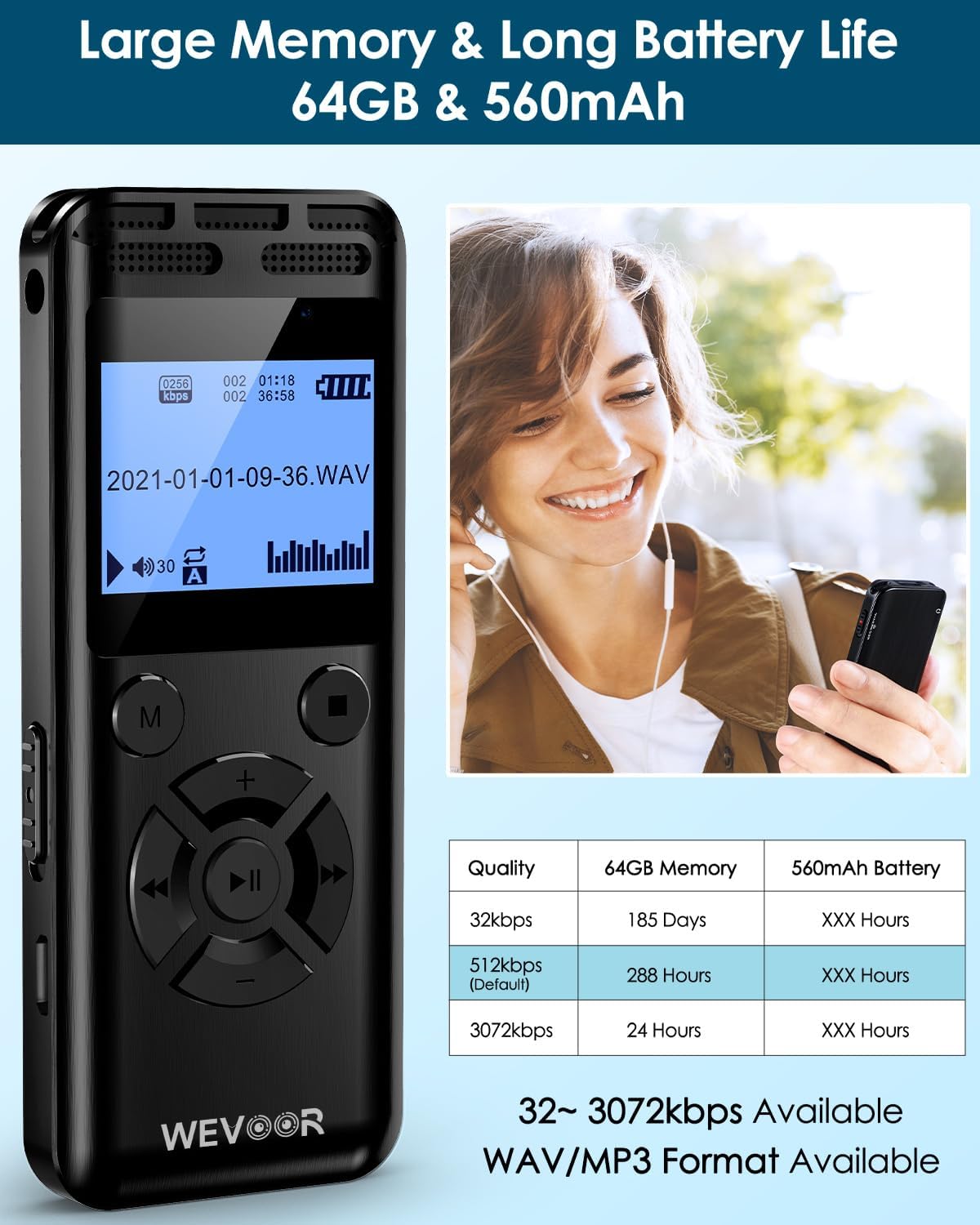
Figure 6.1: Table illustrating recording duration based on 64GB memory and 560mAh battery, with various quality settings (e.g., 1536kbps for 30 hours).
6.2 Care and Cleaning
- Keep the device dry. Avoid exposure to moisture or liquids.
- Clean the device with a soft, dry cloth. Do not use abrasive cleaners or solvents.
- Avoid dropping the device or subjecting it to strong impacts.
- Store the device in a cool, dry place away from direct sunlight and extreme temperatures.
7. Troubleshooting
7.1 Common Issues and Solutions
| Issue | Possible Cause | Solution |
|---|---|---|
| Device does not power on | Low battery; device frozen | Charge the device; press and hold the Power button for 10-15 seconds to force restart. |
| Cannot transfer files to computer | Faulty USB cable; incorrect connection mode; driver issue | Try a different USB cable (ensure it supports data transfer); ensure the recorder is in data transfer mode (if applicable); try a different USB port on your computer. |
| Poor recording quality | High ambient noise; incorrect microphone placement; low recording bit rate setting | Ensure noise reduction is enabled; place the recorder closer to the sound source; increase the recording bit rate in settings. |
| Password forgotten | User error | Refer to the device's reset instructions (often involves a factory reset, which may erase data). Contact customer support if unable to resolve. |
8. Specifications
| Feature | Detail |
|---|---|
| Model Number | V52 |
| Memory Storage Capacity | 64 GB |
| Product Dimensions | 0.39 x 1.5 x 3.7 inches (1.5"D x 0.4"W x 3.7"H) |
| Item Weight | 2.82 ounces (80 Grams) |
| Batteries | 1 Lithium Ion battery (included) |
| Microphone Form Factor | Built-In |
| Audio Format | MP3 Audio, WAV |
| Headphones Jack | 3.5 millimeters |
| Hardware Interface | Micro USB 2.0 Type B |
| Compatible Devices | Laptop, Mac OS, Personal Computer |
| Manufacturer | Wevoor |
9. Support
9.1 Customer Service
For any questions or technical assistance regarding your Wevoor V52 Digital Voice Recorder, please contact Wevoor customer service. Support is typically available with a response within 24 hours on weekdays.
Refer to the product packaging or the official Wevoor website for specific contact details.


