
Voacle RG503
RG503 Handheld Game Console User Manual
Model: RG503 | Brand: Voacle
1. Introduction
This manual provides comprehensive instructions for the setup, operation, maintenance, and troubleshooting of your new Voacle RG503 Handheld Game Console. Please read this manual thoroughly before using the device to ensure optimal performance and longevity.
2. Product Overview
The RG503 is a high-performance handheld game console designed for an immersive gaming experience. It features a vibrant OLED screen and a powerful RK3566 Quad-Core processor.
Key Features:
- Samsung 4.95 inches OLED full view screen (960*544 resolution) for smooth and vivid game visuals.
- RK3566 Quad-Core 64 bit Cortex-A55 CPU with main frequency up to 1.8GHz for enhanced game performance.
- Built-in 64GB SD Card with 4193 pre-loaded games, supporting 20 kinds of game formats.
- 2.4/5G WiFi (802.11a/b/g/n/ac) and Bluetooth 4.2 connectivity, enabling online multiplayer and gamepad/headset connections.
- Li-polymer 3500 mAh battery providing up to 6 hours of game time, with fast charging via USB Type-C.
- Open source Linux system.
- Support for TF card expansion up to 256GB.
- HDMI output for connecting to external displays.
- High quality double horn stereo speaker for immersive audio.
- Ergonomic design for comfortable handling.
Product Components:

Front view of the RG503 Handheld Game Console, highlighting the RK3566 processor.
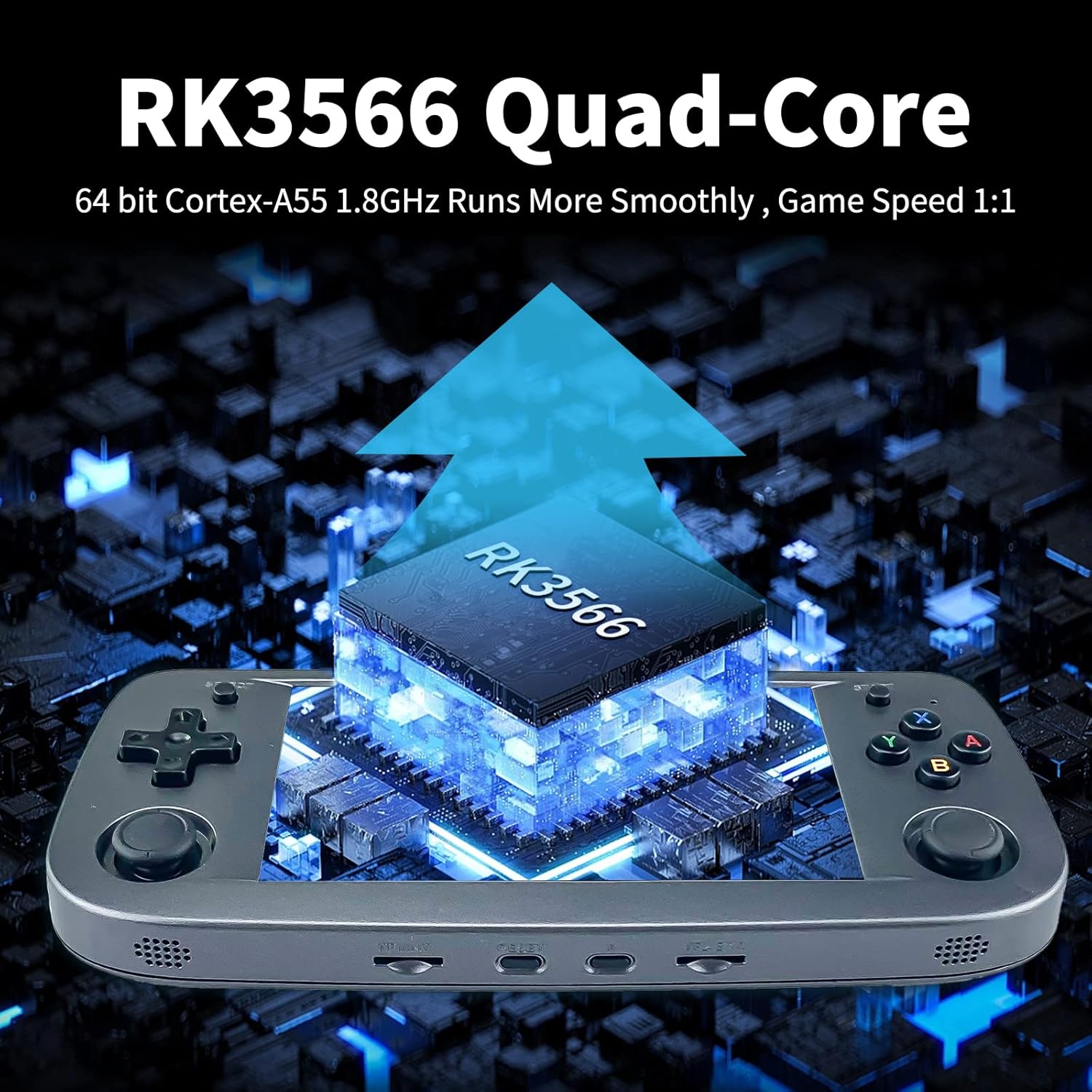
Detailed view of the RK3566 Quad-Core processor, emphasizing its speed and performance.
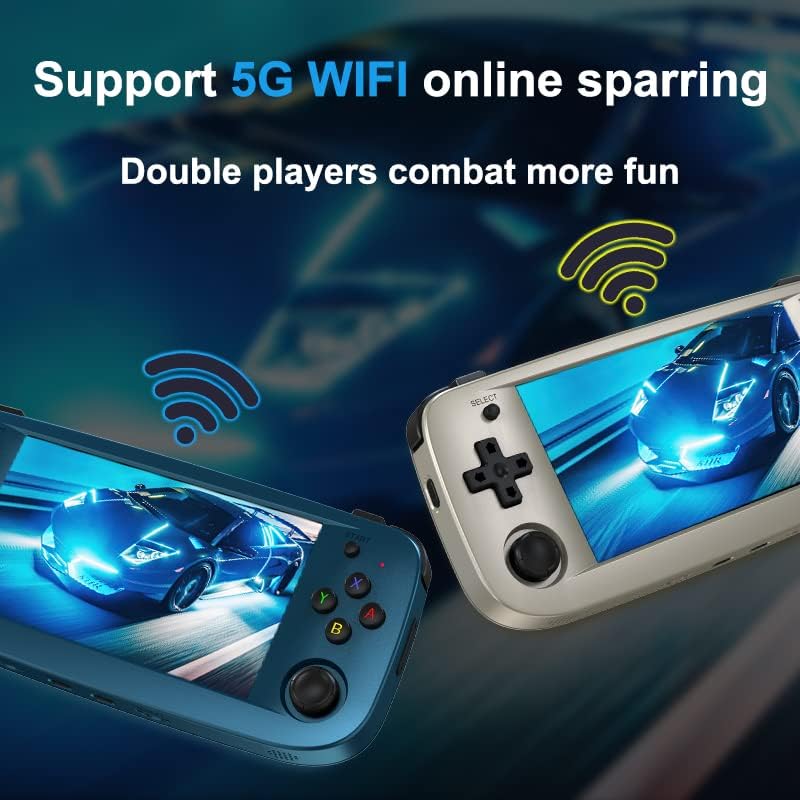
Illustration of two RG503 consoles connected via 5G WiFi for online multiplayer gaming.
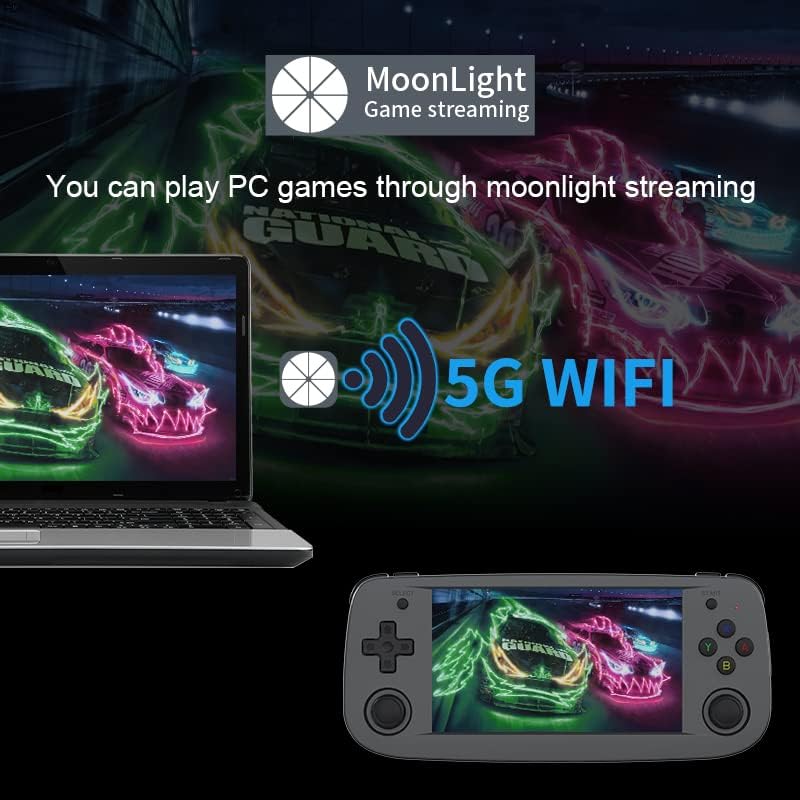
The RG503 console demonstrating PC game streaming capability via Moonlight over 5G WiFi.
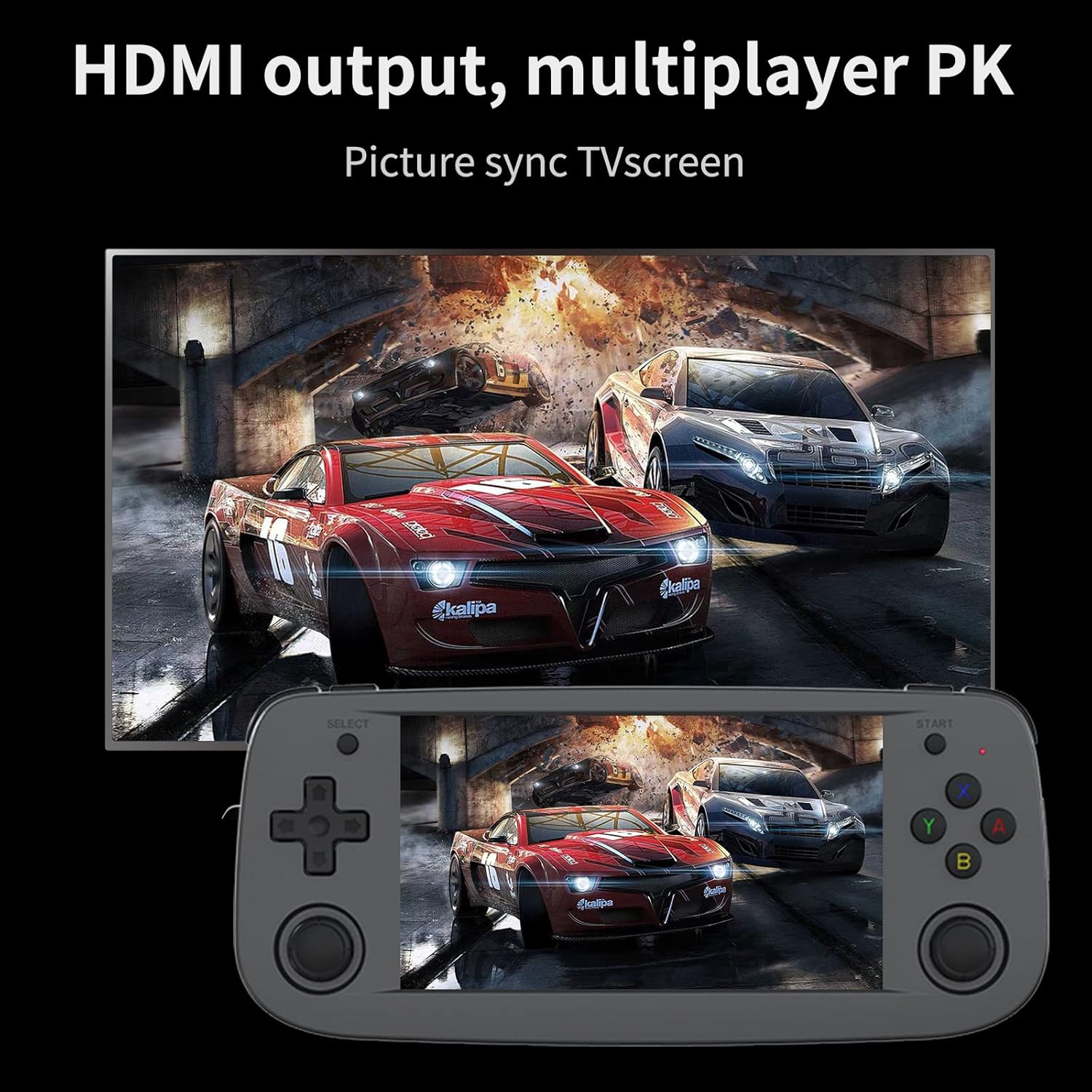
The RG503 console connected to a television, showcasing its HDMI output for a larger display.
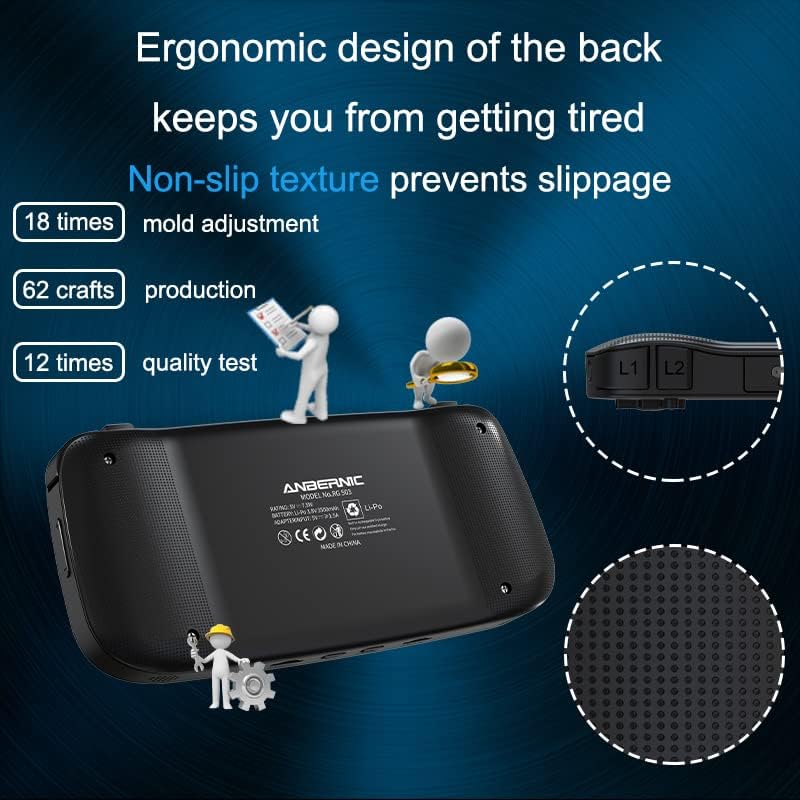
Rear view of the RG503, highlighting its ergonomic design and non-slip texture for comfortable grip.

Visual representation of the RG503's 3500 mAh Li-polymer battery, offering up to 6 hours of gameplay.
Official Product Videos:
Video: Anbernic RG503 Support 5G WIFI & 4.2 Bluetooth
This video demonstrates the 5G WiFi and Bluetooth 4.2 capabilities of the Anbernic RG503, highlighting its connectivity features for online play and peripheral connections.
3. Setup
Follow these steps to set up your RG503 Handheld Game Console for the first time:
- Unboxing: Carefully remove the console and all accessories from the packaging. Verify that all items listed in the "What's in the Box" section are present.
- Initial Charge: Connect the provided USB Charging Cable to the console's charging port and a compatible USB power adapter (not included). Allow the device to fully charge before first use. A full charge typically takes about 4 hours.
- Insert TF Card: If not pre-installed, insert the included 64GB SD card into the designated TF1/INT. slot. For additional storage, you can insert another TF card (up to 256GB) into the TF2/EXT. slot.
- Power On: Press and hold the Power button until the screen illuminates.
4. Operating Instructions
This section details the basic operation of your RG503 console.
Basic Controls:
| Control | Function |
|---|---|
| D-Pad | Navigation in menus and gameplay. |
| Joystick (L3/R3) | Analog movement and additional control options. |
| Game Keys (A, B, X, Y) | Primary action buttons for gameplay. |
| SELECT Button | Used for various in-game functions or menu selections. |
| START Button | Used to start games, pause, or confirm selections. |
| Shoulder Buttons (L1, L2, R1, R2) | Additional action buttons, often used for triggers or special moves. |
| Volume Buttons (+/-) | Adjust the audio volume. |
| Power Button | Press and hold to power on/off. Short press to put in sleep mode. |
| Reset Button | Used to restart the console if it becomes unresponsive. |
Navigating the System:
The RG503 runs on an open-source Linux system. Use the D-Pad or joysticks to navigate through the game library and system settings. Press the 'A' button to select an option and 'B' button to go back.
Playing Games:
- From the main menu, select the desired game system or "All Games".
- Browse through the list of available games.
- Press the 'A' button to launch a game.
- During gameplay, refer to the specific game's controls.
Connecting to WiFi and Bluetooth:
Access the "Function Settings" menu to configure WiFi and Bluetooth connections. This allows for online multiplayer, game streaming, and connecting external devices like gamepads or headphones.
- WiFi: Select the WiFi option, choose your network, and enter the password.
- Bluetooth: Enable Bluetooth and pair with compatible devices.
5. Maintenance
Proper maintenance ensures the longevity and optimal performance of your RG503 console.
- Cleaning: Use a soft, dry cloth to wipe the console's exterior. Do not use liquid cleaners or abrasive materials.
- Screen Care: The OLED screen is delicate. Use the provided screen protector and avoid pressing on the screen with sharp objects. Clean with a microfiber cloth.
- Storage: Store the console in a cool, dry place away from direct sunlight and extreme temperatures.
- Battery Care: To preserve battery life, avoid fully discharging the battery frequently. Charge the device regularly, even if not in use for extended periods.
- Software Updates: Periodically check for official software updates to improve performance and add new features. Refer to the manufacturer's website for update instructions.
6. Troubleshooting
This section addresses common issues you might encounter with your RG503 console.
| Problem | Possible Solution |
|---|---|
| Console does not power on. | Ensure the battery is charged. Connect the charging cable and wait a few minutes before attempting to power on again. If unresponsive, press the Reset button. |
| Games run slowly or freeze. | Restart the console. Ensure the TF card is properly inserted. Some high-end games may require specific settings adjustments or may not run optimally due to hardware limitations. |
| No sound from speakers. | Check the volume level using the volume buttons. Ensure no headphones are plugged into the 3.5mm jack if you intend to use speakers. |
| Cannot connect to WiFi/Bluetooth. | Ensure WiFi/Bluetooth is enabled in settings. Verify network password. Move closer to the WiFi router. Restart the console and try again. |
| Screen issues (flickering, no display). | Restart the console. If the issue persists, contact customer support. |
7. Specifications
| Feature | Detail |
|---|---|
| Model | RG503 |
| Screen | Samsung 4.95 inches OLED full view screen (960*544) |
| CPU | RK3566 Quad-Core 64 bit Cortex-A55, up to 1.8GHz |
| RAM | LPDDR4 1GB |
| Internal Memory | 16GB (System) |
| Included SD Card | 64GB (for games) |
| System | Open source Linux system |
| WiFi / Bluetooth | 2.4/5G WIFI 802.11a/b/g/n/ac, Bluetooth 4.2 |
| Battery | Li-polymer 3500 mAh |
| Battery Life | Up to 6 hours |
| Charging | 1.3A charging / max load 2A / USB charging cable / 4 hours full charge |
| TF Card Support | Max 256GB |
| Other Functions | WIFI online fighting, streaming, HDMI, 3.5mm stereo earphones, energy saving settings, display brightness settings. |
| Console Dimensions (L x W x H) | 19cm x 8.4cm x 2.1cm (7.48 x 3.31 x 0.83 inches) |
| Console Weight | 0.23kg (10.6 ounces) |
| Material | Aluminum |
8. What's in the Box
- 1 x RG503 Game Console
- 1 x USB Charging Cable
- 1 x User Manual
- 1 x Screen Protector
9. Warranty and Support
Voacle provides a standard limited warranty for the RG503 Handheld Game Console. For detailed warranty terms and conditions, please refer to the official Voacle website or contact customer support.
For technical support, troubleshooting assistance, or any inquiries regarding your product, please visit the Voacle Store on Amazon or contact their customer service directly.
Ask a question about this manual
Ask about setup, troubleshooting, compatibility, parts, safety, or missing instructions. Manuals+ will review the question and use this page’s manual context to help answer it.