
Kintion DS302
Kintion Alarm Clock Night Light User Manual
Model: DS302
Product Overview
The Kintion Alarm Clock Night Light is a versatile and portable device designed to provide both timekeeping and ambient lighting. Its dimmable warm white light and integrated alarm function make it suitable for various settings, including bedrooms, living rooms, and as a portable light source.

Figure 1: Kintion Alarm Clock Night Light in use, demonstrating touch control for lighting.
Key Features:
- Portable Design: Lightweight and compact for easy transport.
- Dimmable Warm White Light: Adjustable brightness (3200K) for various needs, from reading to gentle illumination.
- Long Battery Life: Equipped with a 1200 mAh lithium-ion battery for extended cordless operation.
- Integrated Alarm Clock: Features a built-in alarm for gentle morning wake-ups.
- Versatile Usage: Ideal for bedside tables, desks, children's rooms, and general indoor lighting.

Figure 2: Overview of the Kintion Night Light Clock's primary functions.
Setup
Initial Charging:
Before first use, fully charge the Kintion Alarm Clock Night Light. Connect the provided USB cable to the charging port on the back of the device and to a compatible USB power source. A red indicator light will illuminate during charging and turn off when fully charged. Full charge typically takes approximately 3 hours.

Figure 3: Rear view of the device, highlighting the charging port and control buttons.
Power On/Off:
Locate the ON/OFF switch on the back panel of the device. Slide the switch to the "ON" position to power on the unit. Slide it to "OFF" to power down.
Operating Instructions
Setting Time and Date:
- Press and hold the SET button for 2 seconds to enter the date and time setting mode.
- Use the UP and DOWN buttons to adjust the values (Year, Month, Day, Hour, Minute).
- Short press the SET button to move to the next setting.
- After setting the minutes, short press the SET button again to exit the setting mode and return to the main interface.

Figure 4: Step-by-step guide for setting the alarm and time.
Setting Alarms:
- Short press the SET button to enter the alarm function setting. The display will show "--A1" for Alarm 1.
- Short press the UP button to turn on the alarm (display shows "ONA1").
- Press and hold SET to set the alarm time (hours and minutes) using UP and DOWN buttons. Short press SET to confirm each part.
- Repeat for Alarm 2 and Alarm 3 if desired.
When an alarm is turned on, an alarm symbol will appear on the display (a small dot from the upper left). The alarm will sound for 1 minute. To stop the alarm, press any button or simply tap the top of the device.

Figure 5: Tapping the top of the device to easily turn off the alarm.
Night Light Operation:
To turn the night light on or off, simply tap the top surface of the device. This touch-sensitive control allows for quick and convenient illumination.
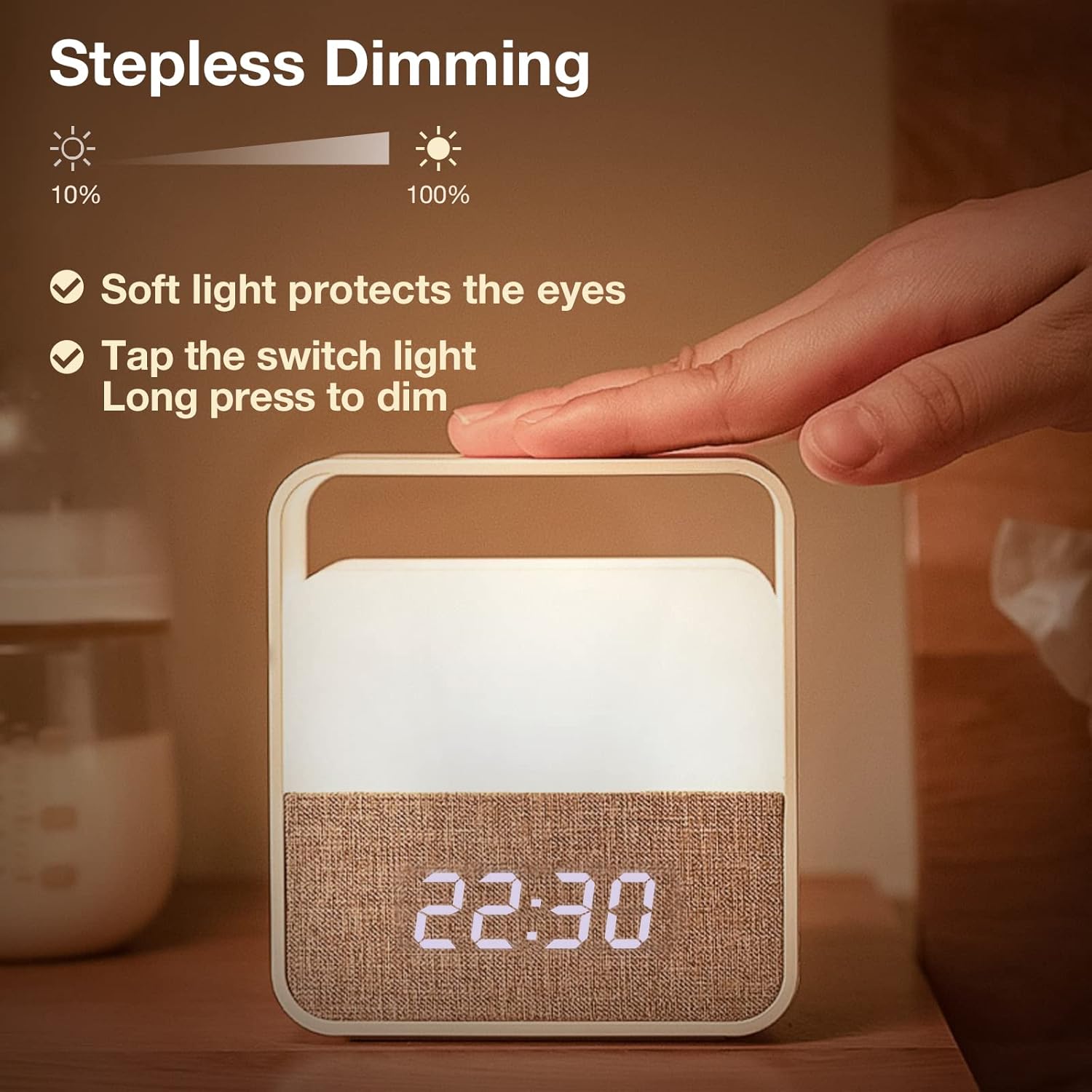
Figure 6: Adjusting the brightness of the night light using stepless dimming.
Stepless Dimming:
To adjust the brightness of the night light, press and hold the top surface of the device. The light will gradually dim or brighten. Release your hand when the desired brightness level is reached. This feature allows for soft light that protects the eyes.

Figure 7: Visual representation of the dimming capabilities of the night light.
Video Demonstrations:
Video 1: An overview of the Kintion Clock Night Light, demonstrating its design and basic functions.
Video 2: Demonstration of the warm white night light function, specifically for the orange color variant.
Maintenance
Cleaning:
To clean the device, use a soft, dry cloth. Do not use abrasive cleaners or solvents, as these may damage the surface. Ensure the device is powered off and unplugged before cleaning.
Battery Care:
To prolong battery life, avoid fully discharging the battery frequently. Recharge the device when the battery indicator is low. If storing the device for an extended period, charge it to approximately 50% and recharge every few months to prevent deep discharge.
Troubleshooting
| Problem | Possible Cause | Solution |
|---|---|---|
| Device does not power on. | Battery is depleted. | Charge the device fully. |
| Light does not turn on/off with touch. | Device is off or touch sensor is obstructed. | Ensure the ON/OFF switch is in the "ON" position. Clear any obstructions from the top surface. |
| Alarm does not sound. | Alarm is not set or volume is too low. | Verify alarm settings and ensure the alarm is activated. (Note: Volume adjustment is not explicitly mentioned in provided data, but common for alarms. If no volume control, user should ensure alarm is ON). |
| Time display is incorrect. | Time needs to be reset. | Follow the "Setting Time and Date" instructions to correct the time. |
Specifications
| Attribute | Value |
|---|---|
| Brand | Kintion |
| Model | DS302 (Inferred from video caption) |
| Lamp Type | Night Light |
| Light Source Type | LED |
| Color Temperature | 3200K (Warm White) |
| Power Source | Battery Powered (1200 mAh Lithium Ion, included) |
| Charging Port | USB (Micro-USB, inferred from video) |
| Control Method | Touch |
| Product Dimensions | 4.02 x 0.01 x 4.37 inches |
| Item Weight | 8.8 ounces |
| Indoor/Outdoor Usage | Indoor |
| Waterproof | No |
| Connectivity Protocol | Wi-Fi (as per product data, though not explicitly used in features) |
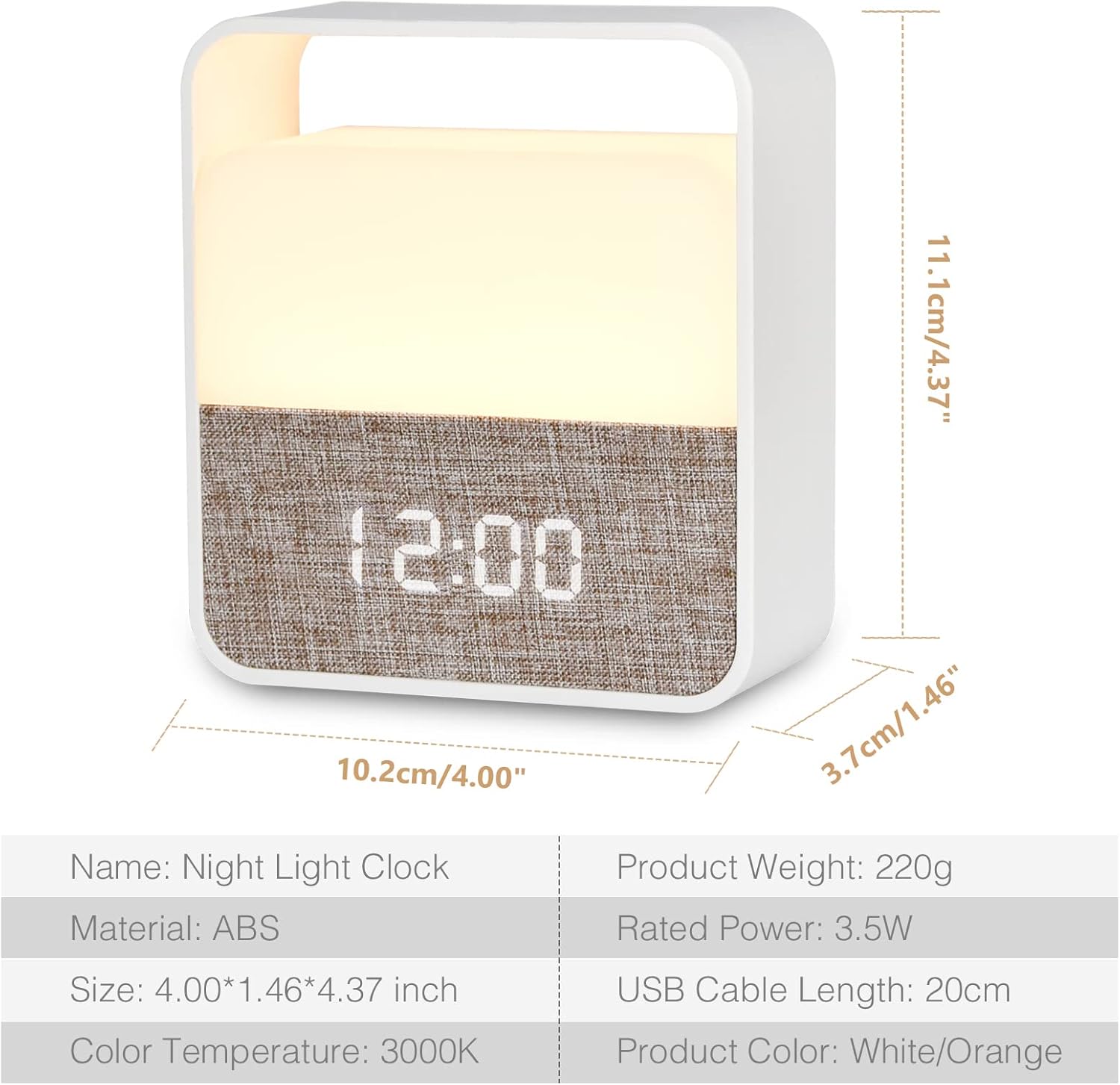
Figure 8: Detailed product dimensions and specifications.
Warranty and Support
Kintion offers a 24-month warranty for this product. For any inquiries, technical assistance, or warranty claims, please contact Kintion customer support. Email service is available 24 hours a day.
For further assistance, please visit the official Kintion store on Amazon: Kintion Store.

Figure 9: Kintion's commitment to customer support and product warranty.
Ask a question about this manual
Ask about setup, troubleshooting, compatibility, parts, safety, or missing instructions. Manuals+ will review the question and use this page’s manual context to help answer it.