
1. Introduction
The PUSOKEI 100X Phone Microscope is a compact and portable camera lens attachment designed to transform your smartphone into a powerful microscope. It allows for 100X magnification, enabling detailed observation and real-time recording of microscopic objects. This device is suitable for students, collectors, engineers, testers, and anyone interested in exploring the microscopic world.
Key Features:
- 100X Magnification: Explore objects in fine detail.
- Universal Clip Design: Compatible with most smartphones, including iOS and Android devices.
- Built-in LED Lighting: 6 LEDs provide clear illumination for enhanced image quality, even in low-light conditions.
- Easy Installation: No complex steps or additional apps required; use directly with your phone's camera.
- Rechargeable Battery: Built-in battery provides approximately 2 hours of working time on a full charge via USB.

Image 1.1: The PUSOKEI 100X Phone Microscope attached to a smartphone, illustrating its key features such as 100x magnification, real-time sharing capabilities, ease of use without an app, and universal compatibility with various phone models.
2. Setup and Installation
Follow these steps to properly install and set up your PUSOKEI 100X Phone Microscope:
- Charge the Microscope: Before first use, ensure the microscope is fully charged using the provided USB cable. The charging port is located on the side of the device.
- Attach to Smartphone: Position the universal clip over your smartphone's main camera lens. Ensure the microscope lens is centered over your phone's primary camera. The clip has a maximum opening width of 2cm (0.8in) and the maximum distance from the top of the clip to the lens center is 4cm (1.6in), making it compatible with most smartphones. If your phone has a convex lens, it is recommended to use it with your phone case for better stability.
- Activate LED Lights: Slide the lens cover to the bottom to automatically turn on the built-in LED lights.
- Open Camera App: Launch your smartphone's native camera application. No special app is required.

Image 2.1: The microscope attached to different smartphone models, illustrating its universal compatibility with iOS and Android devices.

Image 2.2: Detailed view of the microscope's components, including the 100x lens, LED lighting, and protective cover, emphasizing its user-friendly design.
Video 2.1: A demonstration of the PUSOKEI 100X Phone Microscope, showing its attachment to a smartphone, activation of LED lights, and real-time microscopic viewing. This video highlights the ease of installation and immediate use without requiring a dedicated application.
3. Operating Instructions
Once the microscope is attached and the LED lights are on, you can begin observing:
- Positioning: Place the microscope directly over the object you wish to observe.
- Focusing: The optimal working distance from the object is approximately 3.6mm to 5mm (0.1in to 0.2in). Adjust the distance slightly to achieve the clearest image. The magnifying times will appear shorter as the distance increases.
- Capture Images/Videos: Use your smartphone's camera app functions to take photos or record videos of your microscopic observations.

Image 3.1: A smartphone displaying a magnified view of a leaf through the attached microscope, illustrating its use for exploring the micro world.

Image 3.2: The microscope's LED lighting ring illuminating a subject, ensuring clear and three-dimensional images even in dark environments.
Applications:
The PUSOKEI 100X Phone Microscope can be used for a variety of purposes:
- Biology Study (e.g., observing plant cells, insects)
- Jewelry Inspection (e.g., examining diamond codes, gemstone details)
- Fabric Color Correction and Textile Analysis
- PCB Inspection and Repair
- Currency Verification (e.g., checking security features on banknotes)
- Child Exploration and Education
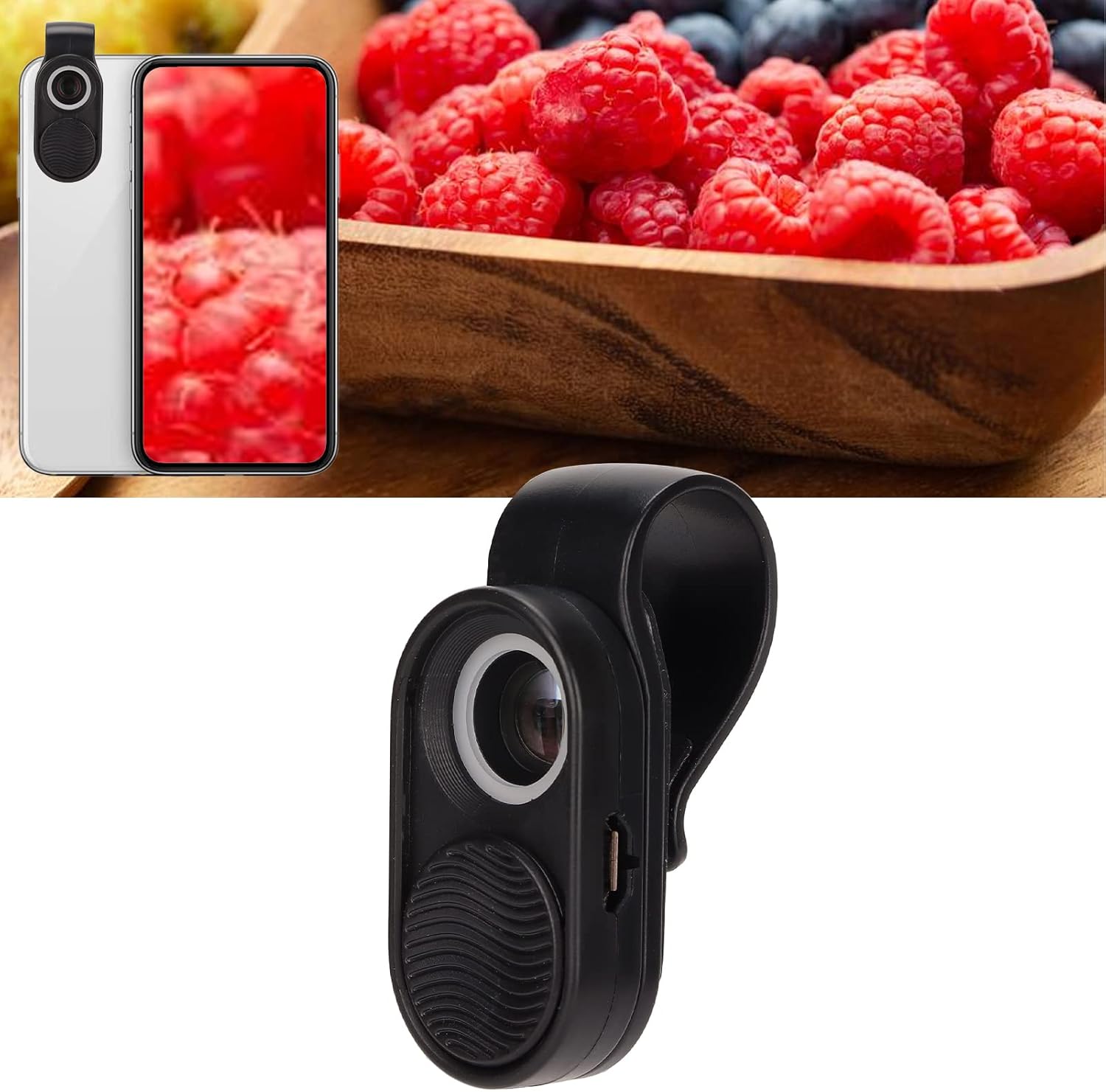
Image 3.3: Examples of diverse applications for the 100X Phone Microscope, from biological studies to industrial inspections.
4. Maintenance
Cleaning:
To maintain optimal performance, keep the microscope lens clean. Use a soft, lint-free cloth specifically designed for optical lenses. Do not use abrasive cleaners or solvents, as these can damage the lens coating.
Charging:
The microscope features a built-in rechargeable battery. When the LED lights dim or do not turn on, recharge the device using the provided USB cable. A full charge provides approximately 2 hours of continuous use. The USB charging port is located on the side of the microscope.

Image 4.1: The USB charging port of the microscope, highlighting its rechargeable battery and working duration.
5. Troubleshooting
- LED Lights Not Turning On:
Solution: Ensure the lens cover is fully slid to the bottom. If the lights still do not turn on, the battery may be depleted. Recharge the microscope using the USB cable. - Image is Blurry or Unclear:
Solution: Adjust the distance between the microscope lens and the object. The optimal working range is 3.6mm to 5mm. Ensure the microscope is centered over your phone's main camera lens. Clean the microscope lens and your phone's camera lens if smudges are present. - Microscope Does Not Fit My Phone:
Solution: The universal clip is designed to fit most smartphones. Ensure the maximum opening width of the clip (2cm / 0.8in) and the distance from the top of the clip to the lens center (4cm / 1.6in) are compatible with your phone's dimensions. If your phone has a convex camera lens, using a phone case might provide better stability and alignment.
6. Product Specifications
| Specification | Value |
|---|---|
| Brand | PUSOKEI |
| Model Number | PUSOKEIbad9hufp531211 |
| Magnification Maximum | 100 x |
| Objective Lens Description | 100x |
| Light Source Type | LED |
| Power Source | Battery Powered |
| Voltage | 5 Volts |
| Material | Plastic |
| Color | Black |
| Item Weight | 0.04 Kilograms |
| Compatible Devices | Smartphone |
| Real Angle of View | 45 Degrees |

Image 6.1: Detailed dimensions and key measurements of the PUSOKEI 100X Phone Microscope.
7. Warranty and Support
This PUSOKEI product is covered by a standard manufacturer's warranty. For specific warranty details, please refer to the product packaging or contact PUSOKEI customer support. If you encounter any issues or require assistance with your 100X Phone Microscope, please reach out to our customer service team for prompt support.