
Samsung QN65Q80BAFXZA
SAMSUNG 65-Inch Class QLED Q80B Series 4K UHD Smart TV Instruction Manual
Model: QN65Q80BAFXZA
1. Introduction
This manual provides essential information for the safe and efficient use of your SAMSUNG 65-Inch Class QLED Q80B Series 4K UHD Smart TV. Please read this manual thoroughly before operating your television and retain it for future reference. It covers setup, operation, maintenance, and troubleshooting to ensure you get the most out of your new display.

Figure 1.1: SAMSUNG 65-Inch Class QLED Q80B Series TV
This image shows the front of the Samsung 65-inch QLED Q80B Series TV, highlighting its slim bezels and vibrant display capabilities. The screen is showcasing a colorful, abstract image.
2. What's in the Box
Before proceeding with the setup, please ensure all components are present:
- SAMSUNG 65-Inch Class QLED Q80B Series TV
- Remote Controller (Samsung Smart Control)
- Power Cable
- User Manual (Printed)
- E-Manual (Pre-loaded on TV)

Figure 2.1: Package Contents and TV Dimensions
This diagram illustrates the physical dimensions of the 65-inch TV, both with and without its stand. It also lists the main items included in the box: the power cable, user manual, and the SolarCell Remote (TM2280E), which is pictured separately.
3. Setup
3.1. Unpacking and Placement
- Carefully remove the TV from its packaging. It is recommended to have two people for this step due to the size and weight of the unit.
- Place the TV on a stable, flat surface or mount it on a wall using a compatible VESA mount (sold separately). Ensure adequate ventilation around the TV.
3.2. Connecting the Power Cable
Connect the power cable to the TV's power input and then to a wall outlet. Ensure the power outlet is easily accessible.
3.3. Connecting External Devices
Your TV offers various connectivity options for external devices. Refer to the image below for port locations.

Figure 3.1: TV Connectivity Ports
This image displays the rear panel of the Samsung QLED TV, detailing the arrangement of its input and output ports. These include multiple HDMI ports (one with eARC), USB ports, a LAN port for wired internet, and an antenna input.
- HDMI: Connect Blu-ray players, game consoles, and other HDMI-enabled devices.
- USB: Connect USB storage devices for media playback.
- LAN: For wired internet connection.
- Antenna: Connect an antenna for over-the-air broadcasts.
- Bluetooth: For wireless audio devices and other compatible accessories.
- Wi-Fi: For wireless internet connection.
3.4. Initial Setup Wizard
Upon first power-on, the TV will guide you through an initial setup process. Follow the on-screen instructions to:
- Select your language.
- Connect to your Wi-Fi network.
- Agree to terms and conditions.
- Sign in to your Samsung account or create a new one.
- Scan for channels (if using an antenna).
4. Operating Your TV
4.1. Samsung Smart Control Remote
The included Samsung Smart Control remote is designed for intuitive navigation. It features a minimalist design and can be charged via solar power or USB-C.
4.2. Smart Hub Navigation
The Smart Hub is your central access point for apps, streaming services, and connected devices. Press the Home button on your remote to access it.

Figure 4.1: Samsung Smart Hub Interface
This image displays the Samsung Smart Hub, which serves as the main user interface for accessing applications and content. It shows a row of popular streaming service icons like Netflix, Prime Video, Disney+, Hulu, and Apple TV, along with sections for recently viewed content and on-now recommendations.
4.3. Key Features
- Direct Full Array: Experience enhanced contrast with precisely controlled backlighting.
- Quantum Processor with 4K Upscaling: Intelligent processing optimizes picture and sound, upscaling content to 4K resolution.
- Quantum HDR 12x: Delivers a wide range of colors and deep contrast for a lifelike viewing experience.
- Dolby Atmos and Object Tracking Sound: Immersive audio that moves with the action on screen.
- Real Depth Enhancer: Adds depth and dimension to on-screen images.

Figure 4.2: Direct Full Array Technology
This image visually explains the Direct Full Array technology, showing how individual LED zones behind the screen can be precisely controlled to deliver deep blacks and bright whites, enhancing overall picture contrast.

Figure 4.3: Quantum Processor 4K
A detailed view of the Quantum Processor 4K chip, emphasizing its advanced capabilities in optimizing both picture quality through 4K upscaling and sound performance for an enhanced viewing experience.
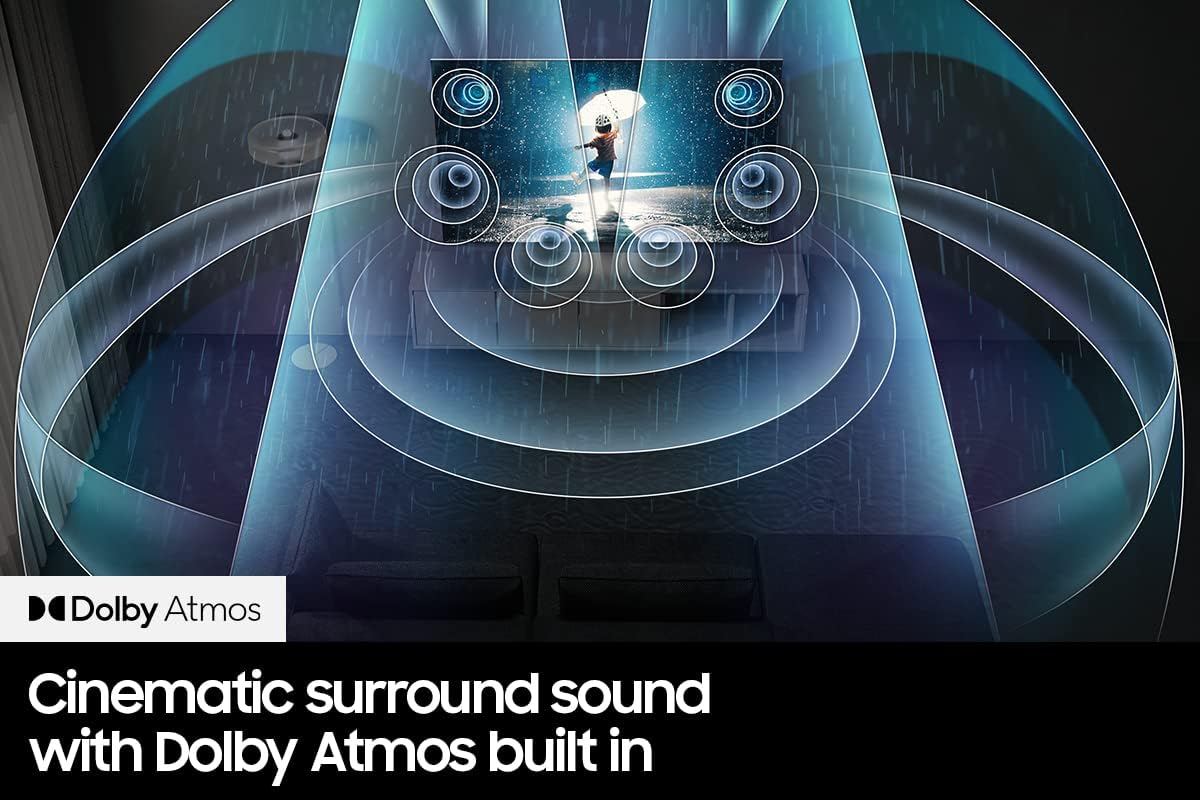
Figure 4.4: Dolby Atmos and Object Tracking Sound
This graphic depicts the immersive audio experience provided by Dolby Atmos and Object Tracking Sound. It shows sound originating from the TV and dynamically moving across the room, creating a three-dimensional audio environment that follows the on-screen action.
5. Maintenance
5.1. Cleaning the TV
- Always unplug the TV before cleaning.
- Use a soft, dry microfiber cloth to gently wipe the screen and frame.
- For stubborn marks, lightly dampen the cloth with water or a specialized screen cleaner (avoid harsh chemicals).
5.2. Remote Control Care
The SolarCell Remote charges via ambient light. To ensure optimal charging, place the remote with its solar panel facing upwards in a well-lit area when not in use. It can also be charged via a USB-C cable.
6. Troubleshooting
| Problem | Possible Solution |
|---|---|
| No power | Ensure the power cable is securely connected to both the TV and the wall outlet. Check if the outlet is functioning. |
| No picture, but sound is present | Check the input source. Ensure external devices are powered on and connected correctly. |
| Remote control not working | Ensure the remote is charged (solar or USB-C). Point the remote directly at the TV. Re-pair the remote if necessary (refer to E-Manual). |
| Poor picture quality | Check cable connections. Adjust picture settings (Brightness, Contrast, Sharpness). Ensure the content source is high quality. |
| Smart Hub apps not loading | Check your internet connection. Restart the TV. Update TV software (Settings > Support > Software Update). |
For more detailed troubleshooting, please consult the E-Manual accessible directly from your TV's Smart Hub.
7. Specifications
| Feature | Detail |
|---|---|
| Brand | Samsung |
| Model Name | QN65Q80BAFXZA |
| Screen Size | 65 Inches |
| Display Technology | QLED |
| Resolution | 4K UHD |
| Aspect Ratio | 16:9 |
| Connectivity Technology | Bluetooth, Ethernet, HDMI, USB, Wi-Fi |
| Supported Internet Services | Amazon Instant Video, Browser, Netflix, YouTube (and others via Smart Hub) |
| Product Dimensions (W x H x D) | 56.9 x 35.7 x 11.4 inches (with stand) |
| Item Weight | 61.3 Pounds |
| Voltage | 120 Volts |
| Wattage | 265 watts |
| Included Components | E-Manual, Power Cable, Remote Controller, Samsung Smart Control, User Manual |
8. Warranty and Support
For warranty information, please refer to the documentation included with your product or visit the official Samsung support website. For technical assistance, software updates, or service requests, please contact Samsung Customer Service.
This product may be part of the Amazon Renewed program. For details regarding the Amazon Renewed Guarantee, please refer to the Amazon Renewed product page or Amazon's customer service resources.
Related Documents - QN65Q80BAFXZA
 |
Samsung QLED Q80B Series 4K UHD Smart TV User Manual User manual for the Samsung QLED Q80B Series 4K UHD Smart TV (QN65Q80BAFXZA, 2022 Model). Learn about setup, features, connections, troubleshooting, and more. |
 |
Guide de l'utilisateur Samsung Ce guide complet de l'utilisateur Samsung fournit des instructions détaillées pour configurer, utiliser et dépanner votre téléviseur Samsung. Découvrez toutes les fonctionnalités pour une expérience optimale. |
 |
Samsung TV User Guide: Features, Setup, and Troubleshooting Comprehensive user guide for Samsung TVs, covering setup, connectivity, smart features, picture and sound optimization, troubleshooting, and accessibility options. |
 |
Samsung Q80B Series 50-Inch QLED 4K Smart TV Quick Setup Guide A concise guide for setting up your Samsung 50-inch QLED 4K Smart TV, model Q80B series. Includes instructions for unboxing, stand assembly, and wall mounting. |
 |
Samsung TV User Guide: Features, Setup, and Troubleshooting Comprehensive user guide for Samsung TVs, covering setup, features like Smart Hub, connectivity, picture and sound settings, troubleshooting, and accessibility options. |
 |
Samsung QLED TV Quick Setup Guide: Installation and Setup Instructions Comprehensive quick setup guide for Samsung QLED TVs (Q6*B/QB6* series, 43-85 inch). Learn how to assemble the stand, connect cables, and prepare your TV for use. |