
1. Introduction
This manual provides instructions for the operation and maintenance of your Carpower Mini Sticker Printer, Model C9. This portable thermal printer is designed for inkless printing of notes, pictures, labels, and memos, compatible with both iOS and Android devices via Bluetooth.

Image 1.1: The Carpower Mini Sticker Printer shown with included paper rolls, USB charging cable, and color markers. A smartphone displaying an image is also depicted, illustrating the printer's connectivity.
2. Package Contents
Please verify that all items listed below are included in your package:
- Carpower Mini Sticker Printer (Model C9)
- 7 Rolls of Thermal Paper
- USB Charging Cable
- Instruction Manual
3. Setup
3.1 Charging the Printer
Before initial use, fully charge the printer using the provided USB cable. Connect the small end of the USB cable to the printer's charging port and the larger end to a standard USB power adapter (not included) or a computer's USB port. The charging indicator light will provide status feedback.
3.2 Loading Thermal Paper
Follow these steps to correctly load the thermal paper into your printer:
- Press the left and right buttons simultaneously to open the printer lid.
- Insert a roll of thermal paper into the paper compartment, ensuring the paper feeds out from the top of the roll and is positioned correctly.
- Pull out a small length of paper, ensuring it is aligned straight.
- Close the printer lid firmly until it clicks into place.

Image 3.1: A visual guide demonstrating the four steps for loading thermal paper into the Carpower Mini Sticker Printer. This includes opening the lid, inserting the paper roll, pulling out the paper, and closing the lid before connecting via Bluetooth.
4. App Installation and Bluetooth Connection
4.1 Downloading the App
The Carpower Mini Sticker Printer operates via a dedicated mobile application. Search for "Fun Print" in your device's app store:
Download and install the "Fun Print" application on your smartphone or tablet.
4.2 Connecting via Bluetooth
- Ensure your printer is powered on and within close proximity to your mobile device.
- Enable Bluetooth on your mobile device.
- Open the "Fun Print" application.
- Within the app, navigate to the device connection settings and select your printer (e.g., "C9" or similar identifier) from the list of available Bluetooth devices.
- Once connected, the app will indicate a successful connection, and you can begin printing.

Image 4.1: The Carpower Mini Sticker Printer shown wirelessly connected to a smartphone via Bluetooth, with the "Fun Print" app interface visible. Icons for Google Play and the App Store are also displayed, indicating where to download the application.
5. Operating Instructions
The "Fun Print" app offers various functions for printing. Below are common uses:
5.1 Printing Photos and Images
Select the "Picture Print" option in the app. Choose an image from your gallery or take a new photo. Adjust settings such as contrast or size if available, then initiate printing. The printer will produce a black and white thermal print.
5.2 Creating Notes and Memos
Utilize the "Sticky Note" or "Memo" functions within the app to type text, create lists, or draw simple diagrams. These can then be printed for quick reminders or organizational purposes.
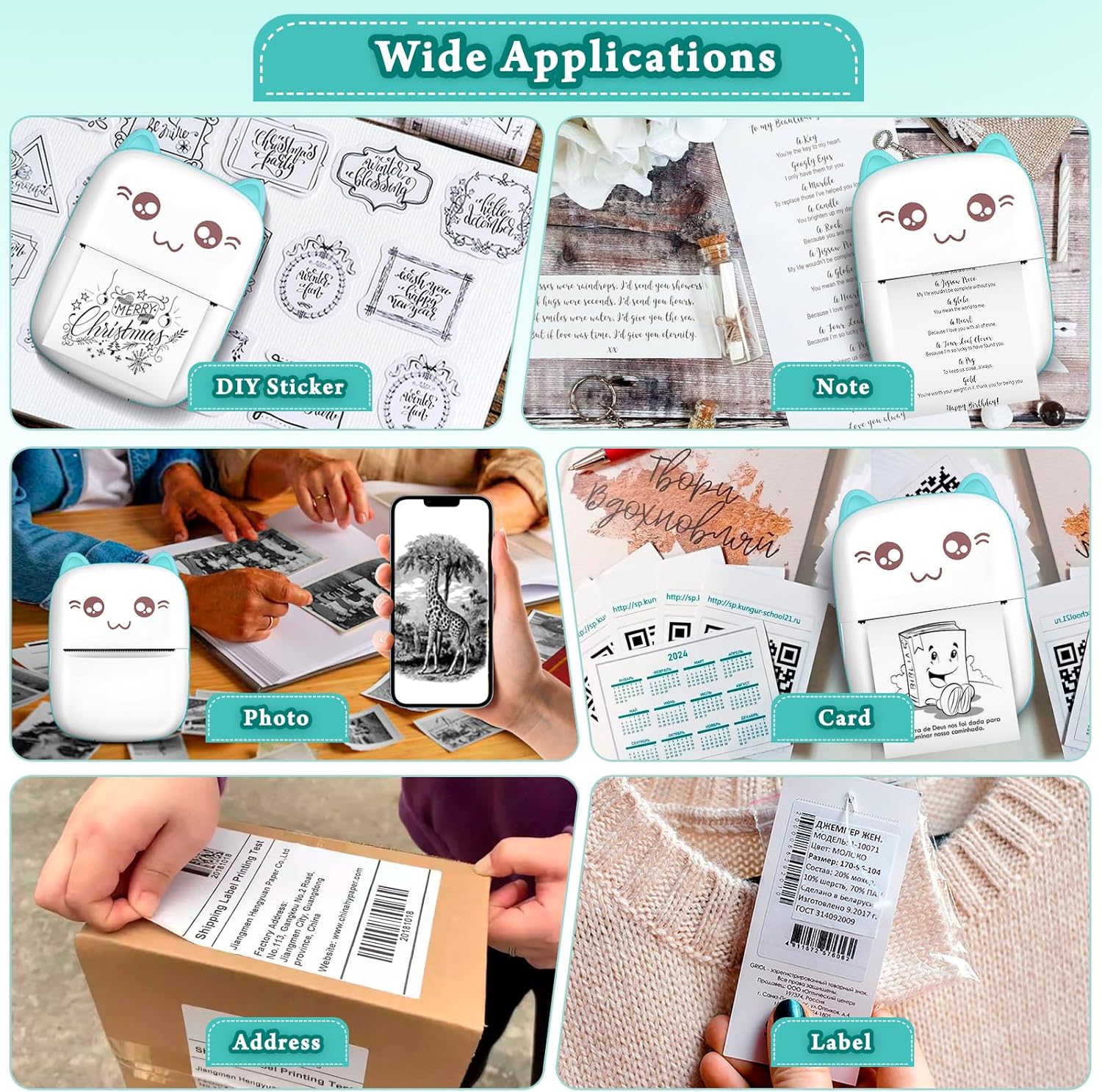
Image 5.1: A collage illustrating diverse applications of the Carpower Mini Sticker Printer, including printing DIY stickers, notes, photos, cards, address labels, and product labels.
5.3 Printing Labels and QR Codes
The app supports generating and printing various types of labels, including storage labels and QR codes. This feature is useful for organization and quick information sharing.
5.4 Educational Use
The printer can be used to print study notes, wrong questions, or coloring pages, assisting in learning and creative activities.

Image 5.2: A child engaged in coloring a printout produced by the Carpower Mini Sticker Printer, demonstrating its use in educational and creative activities. A smartphone in the foreground displays an image, indicating the source of the print.
6. Maintenance
6.1 Cleaning the Print Head
To ensure optimal print quality, periodically clean the thermal print head. Use a soft, lint-free cloth lightly dampened with isopropyl alcohol. Gently wipe the print head surface. Ensure the printer is turned off and completely dry before use.
6.2 Paper Storage
Store thermal paper in a cool, dry place away from direct sunlight and heat. Exposure to these elements can degrade the paper's thermal coating, leading to faded or unreadable prints.
6.3 Battery Care
To prolong battery life, avoid fully discharging the printer frequently. Charge the printer regularly, even if not in constant use. If storing for an extended period, charge it to approximately 50% capacity.
7. Troubleshooting
- Printer not turning on: Ensure the printer is charged. Connect it to a power source using the USB cable and allow it to charge for at least 30 minutes before attempting to power it on again.
- Cannot connect via Bluetooth:
- Verify Bluetooth is enabled on your mobile device.
- Ensure the printer is powered on and within range.
- Restart both the printer and your mobile device.
- Forget the device in your phone's Bluetooth settings and try pairing again through the "Fun Print" app.
- Prints are blank or faded:
- Check if the thermal paper is loaded correctly. Thermal paper has a specific side that reacts to heat; ensure it is facing the print head.
- The paper might be old or improperly stored. Try a new roll of thermal paper.
- Clean the print head as described in the Maintenance section.
- Ensure the printer battery is not critically low.
- Paper jam: Turn off the printer. Carefully open the lid and remove any jammed paper. Ensure the paper path is clear before reloading and closing the lid.
- Poor print quality (streaks, unclear images):
- Clean the print head.
- Ensure the thermal paper is of good quality.
- Check the image resolution in the app; lower resolution images may appear less clear.
8. Specifications
| Brand | Carpower |
| Model Name | C9 |
| Printing Technology | Thermal |
| Connectivity Technology | Bluetooth, USB |
| Printer Output | Monochrome (Black and White) |
| Maximum Black and White Print Resolution | 200 dpi |
| Max Print Speed Monochrome | 10 ppm |
| Compatible Devices | Smartphones (iOS & Android) |
| Control Method | App ("Fun Print") |
| Product Dimensions | 3.15"D x 4.33"W x 1.38"H (approx. 11 x 8 x 3.5 cm) |
| Item Weight | 12.3 ounces (approx. 0.35 kg) |
| Batteries | 1 Lithium Ion battery (included) |
| Special Feature | Wireless, Inkless |
| Maximum Media Size | Receipt paper (4.3 x 3.1 inches) |

Image 8.1: A diagram illustrating the physical dimensions of the Carpower Mini Sticker Printer, showing its height (11cm / 4.3 inches), width (8cm / 3.15 inches), and depth (3.5cm / 1.38 inches).
9. Warranty and Support
This product comes with a limited warranty. For specific details regarding warranty coverage, duration, and claims, please refer to the warranty information provided with your purchase documentation or contact Carpower customer support.
For technical assistance or further inquiries, please visit the official Carpower website or contact their customer service department.