
1. Introduction
The Heayzoki KC5M01 is a versatile USB book and document camera scanner designed for efficient scanning of various materials, including files, notes, and pictures. This device features 8 million pixels for high-definition imaging, automatic focusing, and a foldable, portable design. It integrates advanced functions such as one-click automatic correction, powerful OCR text recognition, and real-time video recording and projection capabilities.

Image 1.1: The Heayzoki KC5M01 scanner in a typical desktop setup, highlighting its compact and portable design, real-time projection, and auto-focusing capabilities.

Image 1.2: Overview of the Heayzoki KC5M01's key features, including automatic correction, CMOS sensor, and OCR text recognition.
2. Setup Guide
2.1 Package Contents
- Heayzoki KC5M01 Document Camera Scanner
- USB Cable
- Scanning Mat (Manuscript Cushion)
- Software Installation Guide (or link to download)
2.2 System Requirements
Ensure your computer meets the following minimum requirements:
- Supported Operating Systems: Windows 2003, Windows XP, Windows Vista SP1, Windows 7, Windows 8. Note: This device is not compatible with macOS.
- Connectivity: Available USB 2.0 port.
2.3 Hardware Installation
- Unfold the Scanner: Gently unfold the scanner arm until it is in the upright position. The device is designed to be foldable for portability.
- Position the Scanning Mat: Place the provided scanning mat (manuscript cushion) on a flat, stable surface. Ensure the mat is positioned correctly under the scanner's camera.
- Connect to Computer: Connect the scanner to your computer using the supplied USB cable. Insert one end into the USB port on the scanner base and the other end into an available USB 2.0 port on your computer.

Image 2.1: The Heayzoki KC5M01 scanner fully unfolded and positioned on its scanning mat.
2.4 Software Installation
After connecting the scanner, you will need to install the accompanying software to enable full functionality.
- Obtain Software: Refer to the included software installation guide for instructions on where to download the latest driver and scanning software. Typically, this involves visiting the manufacturer's website or using a provided installation disc.
- Run Installer: Locate the downloaded installer file (e.g., an .exe file) and double-click to begin the installation process.
- Follow On-Screen Prompts: Follow the instructions provided by the installation wizard. This may include accepting license agreements, choosing installation directories, and installing necessary drivers.
- Restart Computer: After the installation is complete, it is recommended to restart your computer to ensure all drivers and software components are properly initialized.
3. Operating Instructions
3.1 Powering On and Initializing
Once the software is installed and your computer has restarted, launch the scanning application. The scanner should be automatically detected and initialized.
3.2 Adjusting the Light Source
The scanner features built-in LED lights to illuminate your documents. To activate or adjust the light:
- Locate the light button on the base of the scanner.
- Press the button to turn the LED lights on or off.

Image 3.1: The light control button located on the scanner's base.

Image 3.2: The integrated LED lights providing illumination for scanning.
3.3 Document and Book Scanning
- Place Document: Position the document or book flat on the scanning mat, ensuring it is within the camera's view. The mat often has alignment guides for standard paper sizes (e.g., A4).
- Auto Focusing: The scanner features auto-focusing to ensure clear images. The software will typically display a live preview.
- Initiate Scan: Within the scanning software, click the 'Scan' or 'Capture' button. The scanner will automatically correct skewed images and form the picture within one second.
- Batch Scanning: For multiple pages, manually turn each page. The software supports continuous batch scanning, improving efficiency.

Image 3.3: Scanning a document using the Heayzoki KC5M01.

Image 3.4: Scanning an open book with the Heayzoki KC5M01.

Image 3.5: Examples of advanced image processing features available through the scanning software.
3.4 OCR Text Recognition
The scanner's software includes powerful Optical Character Recognition (OCR) technology:
- After scanning a document, use the OCR function within the software to convert the image into editable text.
- The recognition rate is typically over 98% and supports multilingual, sign, and number recognition.
- Export recognized text to various editable file formats such as PDF, Word, Excel, or TXT.
3.5 Video Recording and Real-time Projection
The Heayzoki KC5M01 can also function as a real-time projector and video recorder:
- Use the software to display live images from the scanner onto your computer screen or a connected projector.
- Initiate video recording through the software for capturing presentations, demonstrations, or educational content.
- This feature is suitable for distance learning, online teaching, and business presentations.

Image 3.6: The scanner used for real-time projection in a professional setting.
4. Maintenance
4.1 Cleaning the Scanner
- Exterior: Use a soft, dry, lint-free cloth to wipe the exterior of the scanner. For stubborn marks, slightly dampen the cloth with water. Avoid abrasive cleaners or solvents.
- Camera Lens: Gently clean the camera lens with a lens cleaning cloth or a soft brush designed for optical surfaces. Do not use harsh chemicals.
4.2 Storage
When not in use, fold the scanner to its compact form for easy storage. Store it in a cool, dry place away from direct sunlight and extreme temperatures.
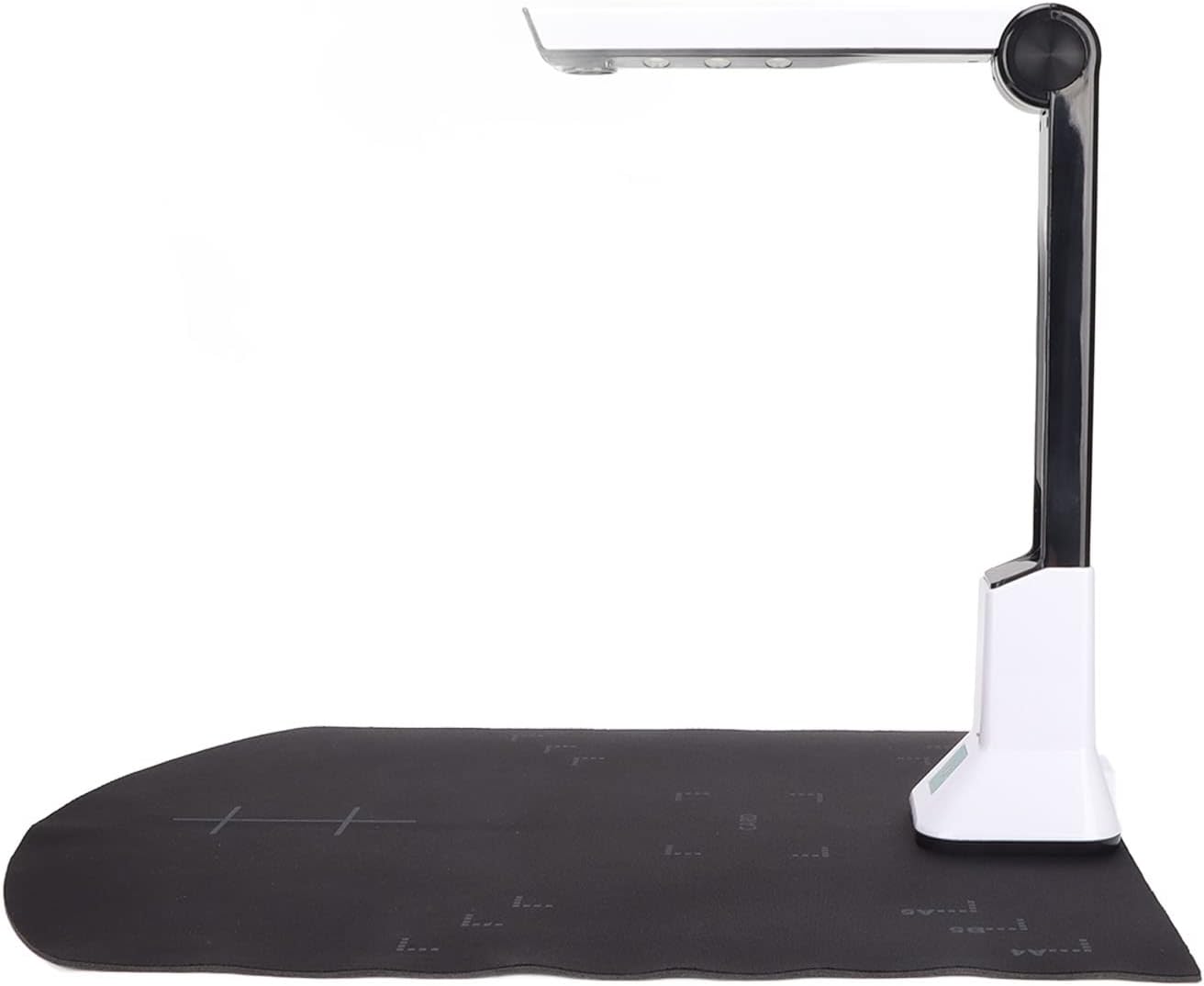
Image 4.1: The Heayzoki KC5M01 in its folded position for compact storage.
5. Troubleshooting
- Scanner Not Detected:
- Ensure the USB cable is securely connected to both the scanner and the computer.
- Try connecting to a different USB port.
- Verify that the scanner software and drivers are correctly installed. Reinstall if necessary.
- Restart your computer.
- Software Installation Issues:
- Ensure your operating system is compatible (Windows 2003, XP, Vista SP1, Win 7, Win 8). The scanner is not compatible with macOS.
- Temporarily disable antivirus software during installation if it interferes.
- Download the latest software from the official Heayzoki support website.
- Poor Image Quality:
- Ensure the document is placed flat and within the scanning area.
- Check that the LED lights are on and providing sufficient illumination.
- Clean the camera lens if it appears dirty.
- Verify that the auto-focus function is working correctly.
- OCR Not Working or Inaccurate:
- Ensure the scanned document is clear and well-lit.
- Check the language settings in the OCR software to match the document's language.
- For handwritten text, OCR accuracy may vary.
6. Specifications
| Feature | Specification |
|---|---|
| Model Name | KC5M01 |
| Brand | Heayzoki |
| Scanner Type | Document, Book Camera Scanner |
| Resolution | 8 Megapixels |
| Optical Sensor Technology | CMOS |
| Connectivity Technology | USB 2.0 |
| Maximum Media Size | A4 |
| Media Type | Paper, Photo |
| Color Depth | 24 bits |
| Light Source Type | LED |
| Item Weight | 0.71 Kilograms |
| Supported Operating Systems | Windows 2003, XP, Vista SP1, Win 7, Win 8 |
| Material | ABS body (also mentioned as Aluminum alloy + PC high strength in A+ content) |
| Country of Origin | China |
7. Warranty and Support
For warranty information, please refer to the documentation included with your purchase or contact the seller directly. If you require technical support or have questions regarding the operation of your Heayzoki KC5M01 scanner, please reach out to the manufacturer's customer service or the retailer from whom you purchased the product.
Always ensure you have your product model number (KC5M01) and purchase details available when seeking support.