1. Introduction
This manual provides essential information for setting up, operating, maintaining, and troubleshooting your Samsung Galaxy S22 Ultra 5G smartphone. The S22 Ultra combines the strengths of the S-series and the legacy of the Note lineage by including a built-in S Pen with ultra-low latency. This device is designed to be a powerful productivity and creativity tool.
It features a massive 6.8-inch Dynamic AMOLED 2X display with HDR10+, an adaptive 1-120Hz refresh rate, and up to 1,750 nits peak brightness, delivering extraordinary brightness, vibrant colors, deep contrast, and a smooth viewing experience visible even under bright sunlight. The rear quad-camera system is extremely versatile, featuring a 108MP main sensor for ultra-detailed photos, dual telephoto lenses (with up to 10x optical zoom and 100x “Space Zoom”) for distant shots, plus ultra-wide and strong low-light performance. Powered by a modern 4nm chipset, it ensures powerful performance for gaming, multitasking, and demanding applications. The S22 Ultra is among the longest-supported Android phones, promising up to four years of major OS updates, combined with premium build quality, stereo speakers, and advanced connectivity (5G, Wi-Fi 6E, eSIM, UWB).
2. Setup
2.1 Unboxing and Initial Inspection
Carefully remove your Samsung Galaxy S22 Ultra 5G from its packaging. Inspect the device for any physical damage. The package typically includes the smartphone and a USB Cable.

Figure 1: Front view of the Samsung Galaxy S22 Ultra 5G with S Pen.
2.2 SIM Card Installation
- Locate the SIM card tray on the bottom edge of the device.
- Insert the SIM ejection tool into the small hole next to the tray and push gently until the tray ejects.
- Place your Nano-SIM card(s) into the tray with the gold contacts facing down.
- Carefully reinsert the tray into the device.
2.3 Powering On and Initial Configuration
- Press and hold the Power/Side key until the Samsung logo appears.
- Follow the on-screen prompts to select your language, connect to a Wi-Fi network, and set up your Google account.
- You may be prompted to transfer data from a previous device. Follow the instructions if desired.
3. Operating the Device
3.1 Display Features
The Samsung Galaxy S22 Ultra 5G features a 6.8-inch Dynamic AMOLED 2X display with a resolution of 1440x3088 pixels. It supports an adaptive refresh rate of 120Hz for smooth scrolling and responsiveness, and HDR10+ for enhanced color and contrast. The display can reach a peak brightness of 1,750 nits, ensuring excellent visibility even in bright sunlight.
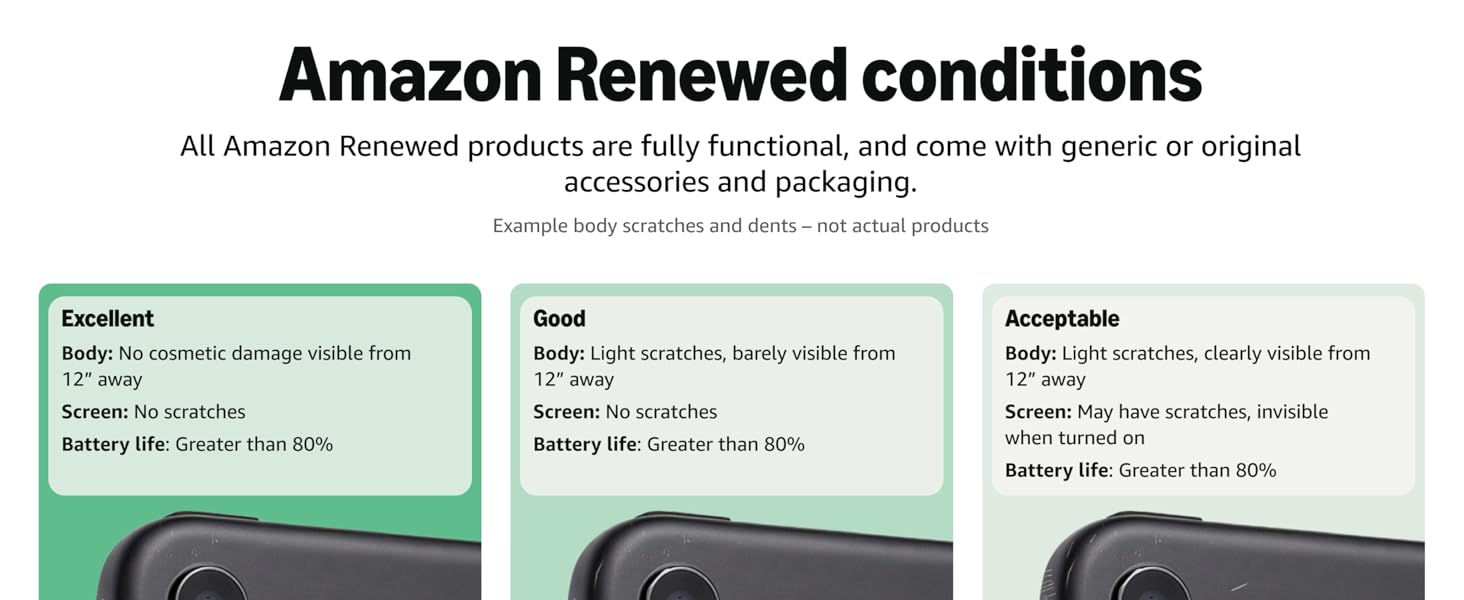
Figure 2: Key features of the Samsung Galaxy S22 Ultra 5G display.
3.2 S Pen Functionality
The S22 Ultra integrates a built-in S Pen stylus, a hallmark of the Galaxy Note series. This allows for precise input, making it ideal for note-taking, drawing, annotating PDFs, and navigating the interface. The S Pen boasts an ultra-low latency for a natural writing experience.
Video 1: Overview of Samsung Galaxy S22 Ultra features, including S Pen functionality.
3.3 Performance
Powered by a Qualcomm Snapdragon processor (4nm chipset) and up to 12 GB of RAM, the S22 Ultra delivers powerful performance for demanding applications, gaming, and multitasking. The CPU speed is 3 GHz, ensuring a smooth and responsive user experience.
3.4 Camera System
The device features a versatile quad-camera system on the rear, including a 108MP main sensor, dual telephoto lenses offering up to 10x optical zoom and 100x Space Zoom, and an ultra-wide lens. It also has a 40MP front-facing camera. The camera system excels in various lighting conditions, including low-light environments, and supports 8K video recording.
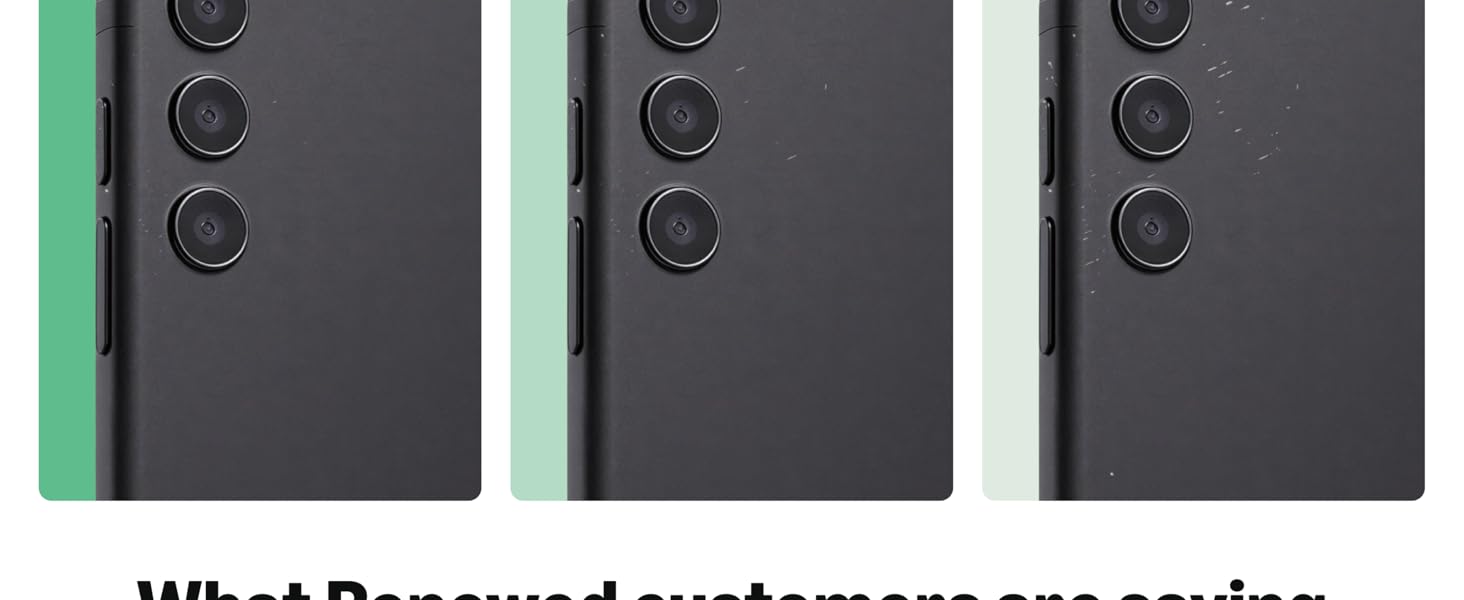
Figure 3: Detailed view of the Samsung Galaxy S22 Ultra 5G camera system.
Video 2: Demonstration of the Samsung Galaxy S22 Ultra 5G camera features.
4. Maintenance
4.1 Software Updates
Ensure your device is always running the latest software version. Regular updates provide security enhancements, bug fixes, and new features. To check for updates, go to Settings > Software update > Download and install.
4.2 Battery Care
The device is equipped with a 5000 Milliamp Hours battery. To maximize battery life, avoid extreme temperatures, use adaptive brightness, and close unused applications. The phone supports fast charging and wireless charging.
4.3 Cleaning Your Device
Use a soft, lint-free cloth to clean the screen and body of your phone. Avoid harsh chemicals or abrasive materials that could damage the display or finish.
5. Troubleshooting
5.1 Common Issues
- Device not responding: Press and hold the Power/Side key and Volume Down key simultaneously for more than 7 seconds to restart the device.
- Network connectivity issues: Ensure your SIM card is correctly inserted and that you have network coverage. Try restarting the device or resetting network settings (Settings > General management > Reset > Reset network settings).
- Battery draining quickly: Check for background apps consuming excessive power. Adjust display brightness and refresh rate.
5.2 Factory Reset
If you experience persistent issues, a factory reset may resolve them. Warning: This will erase all data from your device. Back up important data before proceeding. Go to Settings > General management > Reset > Factory data reset.
6. Specifications
| Feature | Specification |
|---|---|
| Model Name | Galaxy S22 Ultra 5G |
| Product Dimensions | 6.43 x 3.07 x 0.35 inches |
| Item Weight | 8 ounces |
| OS | Android |
| RAM | 12 GB |
| Memory Storage Capacity | 512 GB |
| Screen Size | 6.8 Inches |
| Resolution | 1440x3088 |
| Refresh Rate | 120 Hz |
| CPU Model | Snapdragon |
| CPU Speed | 3 GHz |
| Battery Capacity | 5000 Milliamp Hours |
| Phone Talk Time | 22 Hours |
| Color | Burgundy |
| Connectivity Technologies | Wireless, Cellular |
| Audio Jack | No headphone jack |
7. Warranty and Support
7.1 Amazon Renewed Guarantee
This product is part of the Amazon Renewed program. If not satisfied with the purchase, renewed products are eligible for replacement or refund under the Amazon Renewed Guarantee. The return policy allows for returns within 90 days.
7.2 Manufacturer Support
For further assistance, technical support, or warranty claims, please refer to the official Samsung support channels. Visit the Samsung website or contact their customer service for detailed information.


