
Allweviee CQ1
Allweviee Solar Security Camera User Manual
Model: CQ1 | Brand: Allweviee
Introduction
Thank you for choosing the Allweviee Solar Security Camera. This wireless outdoor camera is designed to provide comprehensive surveillance with its solar-powered operation, high-resolution video, and smart detection features. This manual will guide you through the setup, operation, and maintenance of your new security camera to ensure optimal performance and peace of mind.
What's in the Box

Image: All components included in the product packaging.
- Camera (1)
- Bracket (1)
- Mounting kit (1)
- Solar Panel (1)
- USB Charging Cable (1)
- Instruction Manual (1)
Key Features
Solar Powered and Full 355° Coverage

Image: The solar panel continuously charges the camera's high-capacity battery, ensuring uninterrupted operation.
The camera features a high-capacity rechargeable battery that can be fully charged via the included solar panel or a USB cable, providing 100% wireless and uninterrupted power. This eliminates the need for frequent battery replacements or manual recharging. The camera also offers extensive coverage with its pan (355° horizontal) and tilt (90° vertical) capabilities, controllable via the mobile application, ensuring no blind spots and 365 days of continuous protection.

Image: Visual representation of the camera's pan and tilt functionality for 360-degree viewing.
2K 3MP and Color Night Vision

Image: Demonstrates the clarity of 2K 3MP resolution and the effectiveness of color night vision compared to standard night vision.
Equipped with an advanced 1/3CMOS color sensor and a 2K 3MP optical lens, the camera delivers detailed and clear graphics and video even in low-light conditions. The upgraded high-power white light and built-in infrared LED array enable color night vision with a range of 7-10 meters, allowing you to capture more details in the dark and monitor any desired area effectively.
IP65 Waterproof and Enhanced WiFi Antenna

Image: Highlights the camera's IP65 weather resistance and the stable signal provided by its enhanced WiFi antenna.
The camera is constructed with enhanced IP65 material, ensuring safe operation in various weather conditions, including rain, sunlight, high temperatures, and severe cold. It features a high-gain 4dBi WiFi antenna and 2.4G WiFi transmission, providing a wider reception range, good wall penetration, and strong anti-interference ability for reliable year-round security.
PIR Sensing and Two-Way Talk

Image: Examples of intelligent notifications for various detected activities, enhancing security awareness.
Utilizing advanced PIR sensing technology, the camera intelligently distinguishes between people, cars, pets, and other movements, pushing real-time alerts to the Vicohome APP. You can also define customized monitoring areas. The built-in microphone and speaker enable two-way communication, allowing for remote warnings in emergencies or real-time conversations with visitors.
Smart Sharing and Privacy Protection
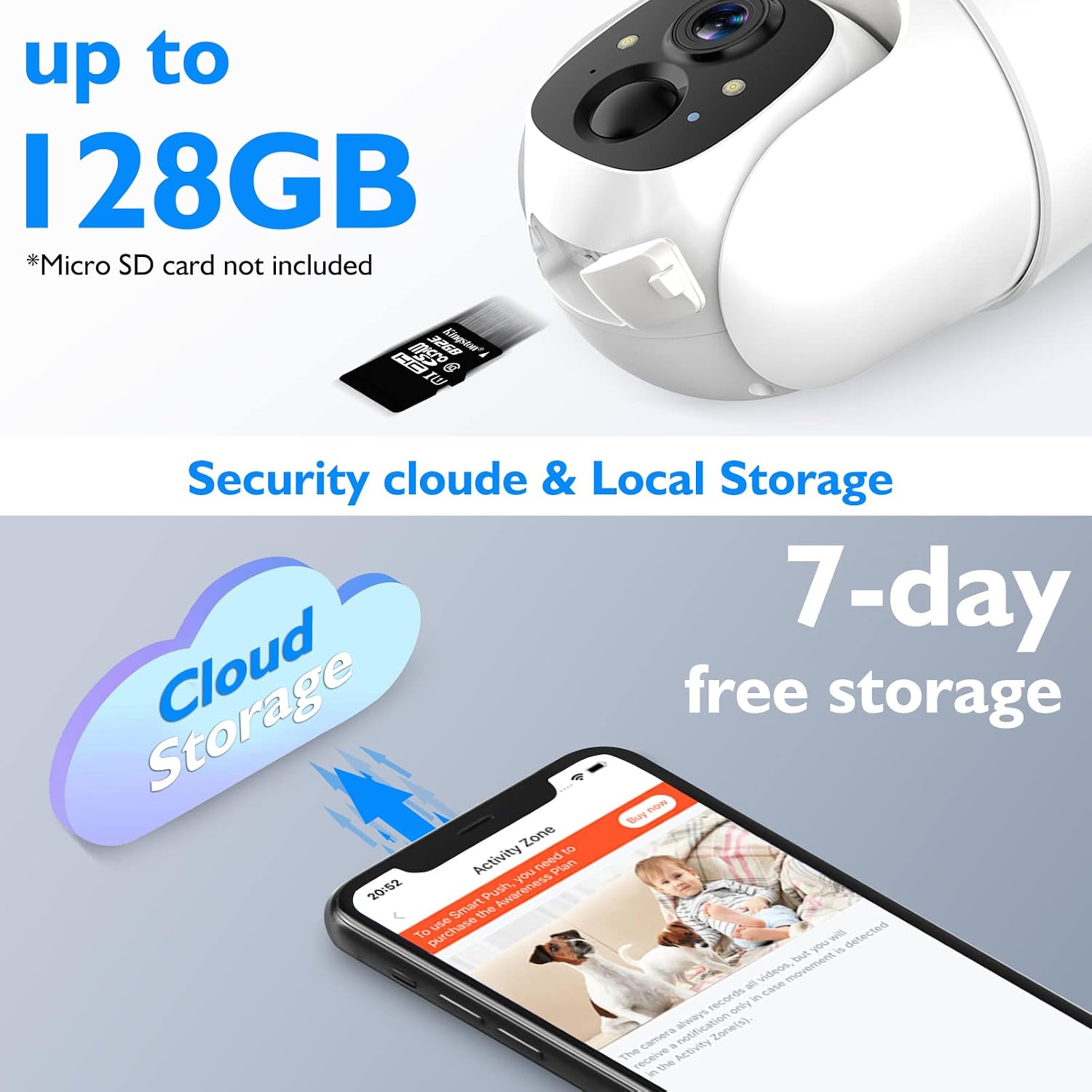
Image: Illustrates the dual storage options: cloud storage and local micro SD card (up to 128GB, not included).
The camera supports multi-user connectivity and device sharing, allowing family members to access the camera by scanning a code. It offers flexible storage options with support for 8-128GB micro SD cards (not included) and cloud storage. All recorded images are encrypted to ensure customer security and privacy, preventing unauthorized access.
Setup Guide
1. Initial Charging
Before first use, fully charge the camera using the provided USB cable. Connect the USB cable to the camera's Micro USB port and a standard 5V/2A USB power adapter (not included). The indicator light will show charging status.
2. Download the Vicohome App
Search for "Vicohome" in your smartphone's app store (App Store for iOS or Google Play Store for Android) and download the application. Register for an account or log in if you already have one.
3. Add Device
Open the Vicohome app, tap the "+" icon to add a new device. Follow the on-screen instructions to connect your camera to your 2.4GHz Wi-Fi network. Ensure your Wi-Fi authentication method is WPA2-PSK or a lower security method, and a password is required.
4. Mounting the Camera
Choose a suitable outdoor location for mounting, ensuring the solar panel receives adequate sunlight throughout the day. Use the provided mounting kit and bracket to securely install the camera. The camera can be wall-mounted, ceiling-mounted, or placed on a desktop.
For detailed installation instructions, please refer to the Installation Manual (PDF).
Operation
Live View and Playback
Access the live feed of your camera through the Vicohome app. You can pan and tilt the camera remotely to adjust the viewing angle. Recorded events are stored in the cloud or on a local SD card (if installed) and can be accessed for playback through the app's library.
Two-Way Audio
Use the two-way talk feature to communicate with individuals near the camera. Tap the microphone icon in the live view interface to speak, and listen through the camera's built-in speaker.
Motion Detection and Alerts
The camera's PIR sensor detects motion and sends real-time notifications to your smartphone. You can customize activity zones within the app to focus on specific areas and reduce false alerts. The camera can distinguish between humans, vehicles, and pets.
Night Vision Modes
The camera automatically switches to night vision in low-light conditions. You can toggle between full-color night vision (using white light) and infrared (black and white) night vision through the app settings.
For more detailed operational instructions, please refer to the User Manual (PDF).
Maintenance
Cleaning
Regularly clean the camera lens and solar panel with a soft, damp cloth to ensure clear image quality and efficient solar charging. Avoid using harsh chemicals or abrasive materials.
Battery Management
While solar-powered, ensure the solar panel is positioned to receive maximum sunlight, especially during winter months or prolonged cloudy periods, to maintain optimal battery levels. If the battery level drops significantly, you may need to manually charge the camera via USB.
Firmware Updates
Keep your camera's firmware updated through the Vicohome app to ensure the latest features, security enhancements, and bug fixes. The app will usually notify you when an update is available.
Troubleshooting
No Wi-Fi Connection
- Ensure the camera is within range of your 2.4GHz Wi-Fi network.
- Check your Wi-Fi password and network settings.
- Restart your Wi-Fi router and the camera.
Poor Image Quality
- Clean the camera lens.
- Ensure adequate lighting, especially for color night vision.
- Check your internet connection speed.
Battery Draining Quickly
- Ensure the solar panel is clean and receiving direct sunlight for several hours daily.
- Reduce the frequency of motion detection alerts or live view sessions.
- Check for excessive activity in the camera's field of view.
For more comprehensive troubleshooting steps, please refer to the Troubleshooting Guide (PDF).
Specifications
| Feature | Specification |
|---|---|
| Model Name | CQ1 |
| Indoor/Outdoor Usage | Outdoor |
| Power Source | Solar Powered or Battery Powered |
| Connectivity Protocol | Wi-Fi (2.4GHz) |
| Video Capture Resolution | 1440p (2K 3MP) |
| Effective Video Resolution | 1080 Pixels |
| Viewing Angle | 355 Degrees (Horizontal) |
| Night Vision Range | 33.5 Feet (approx. 10 meters) |
| Frame Rate | 15FPS |
| International Protection Rating | IP65 |
| Battery Power | 5000 Milliamp Hours |
| Control Method | App (Vicohome) |
| Product Dimensions | 8 x 6 x 5 inches |
| Item Weight | 2.31 pounds |
Warranty and Support
Allweviee products are designed for reliability and performance. For any technical assistance, warranty claims, or product inquiries, please contact Allweviee customer support through the contact information provided on the product packaging or the official brand website. Please retain your proof of purchase for warranty purposes.
Additional resources, including the Installation Manual, User Manual, and Troubleshooting Guide, are available in PDF format for your convenience.
Ask a question about this manual
Ask about setup, troubleshooting, compatibility, parts, safety, or missing instructions. Manuals+ will review the question and use this page’s manual context to help answer it.