
1. Introduction
The TP-Link Deco X55 AX3000 WiFi 6 Mesh System is designed to provide seamless, high-performance wireless coverage throughout your home. This system replaces traditional wireless routers and extenders, eliminating weak Wi-Fi signals and dead zones. It is ideal for users with internet service speeds up to 1 Gigabit, offering enhanced connectivity for numerous devices.
Key features include:
- Wi-Fi 6 Mesh Wi-Fi: Next-generation AX3000 speeds (2x2/HE160 2402 Mbps plus 2x2 574 Mbps) for superior performance.
- Whole Home Coverage: Covers up to 4500 square feet, ensuring strong and reliable Wi-Fi throughout your living space.
- Connect More Devices: Capable of connecting up to 150 devices simultaneously with stable Wi-Fi.
- More Gigabit Ports: Each Deco X55 unit features 3 Gigabit Ethernet ports (6 in total for a 2-pack) supporting Wired Ethernet Backhaul for faster connections.
- AI-Driven Mesh: Intelligently learns and optimizes the network environment for ideal Wi-Fi performance unique to your home layout.
- TP-Link HomeShield: Includes premium security services for network safety, parental controls, and Quality of Service (QoS).

Figure 1: Two TP-Link Deco X55 units, showcasing their compact and modern design.
2. Setup
2.1 Initial Setup
Setting up your TP-Link Deco X55 system is a straightforward process guided by the Deco app. Before you begin, ensure you have the following components:
- 2 x Deco X55 units
- 1 x RJ45 Ethernet cable
- 2 x Power adapters
- A working internet connection with a modem (if required by your ISP)
- Connect the Main Deco: Connect one Deco X55 unit to your modem using the provided Ethernet cable. Plug the power adapter into the Deco unit and an electrical outlet. Wait for the LED light on the Deco unit to turn solid blue (or pulsing blue, depending on the model's initial boot sequence).
- Download the Deco App: Search for "TP-Link Deco" in your mobile device's app store (App Store for iOS or Google Play Store for Android) and download the application.
- Launch and Follow Instructions: Open the Deco app and sign in or create a TP-Link ID. The app will automatically detect your Deco unit and guide you through the remaining setup steps, including creating your Wi-Fi network name (SSID) and password.
- Place Additional Deco Units: Once the main Deco is set up, place the second Deco unit in a central location within your home to maximize coverage. Plug it into a power outlet. The units will automatically connect to each other.

Figure 2: Visual guide for quick setup using the TP-Link Deco app.
3. Operating the Deco System
3.1 Network Coverage and Performance
The Deco X55 system provides robust Wi-Fi 6 coverage, designed to eliminate dead zones and buffering. Its dual-band AX3000 speeds ensure high-speed connectivity for all your devices, from streaming 4K video to online gaming.

Figure 3: Overview of Deco X55's Wi-Fi 6 capabilities and coverage.
3.2 AI-Driven Mesh Technology
The AI-Driven Mesh technology intelligently learns your network environment and optimizes Wi-Fi performance based on the placement of your Deco units and your usage patterns. This ensures that your devices always connect to the Deco unit with the strongest signal, providing a seamless roaming experience as you move throughout your home.
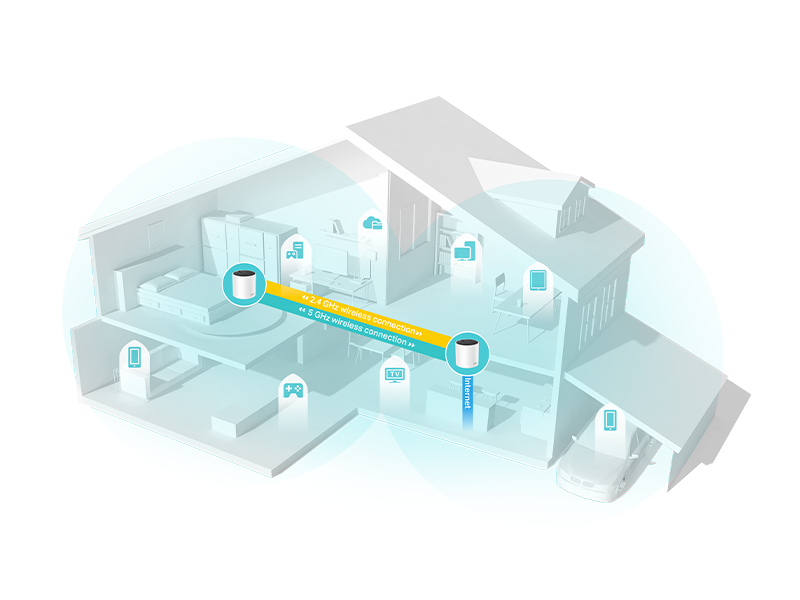
Figure 4: How AI-Driven Mesh optimizes your home network.
3.3 Gigabit Ethernet Ports
Each Deco X55 unit is equipped with three Gigabit Ethernet ports. These ports allow you to connect wired devices such as computers, gaming consoles, or smart TVs directly to the Deco unit for maximum speed and stability. The system also supports Ethernet Backhaul, enabling Deco units to communicate with each other via wired connections for even faster and more reliable mesh performance.

Figure 5: Rear view of a Deco X55 unit highlighting its Gigabit Ethernet ports.
3.4 TP-Link HomeShield
TP-Link HomeShield provides a suite of security and management features to protect your home network and connected devices. This service includes:
- Basic Network Security: Protects against malicious websites and cyber threats.
- Quality of Service (QoS): Prioritizes network traffic for specific devices or applications, ensuring smooth performance for critical tasks.
- Parental Controls: Manage internet access for children, including content filtering and time limits.
- Additional premium features (available with HomeShield Pro subscription) include DDoS Attack Prevention, IoT Device Protection, and advanced parental controls.
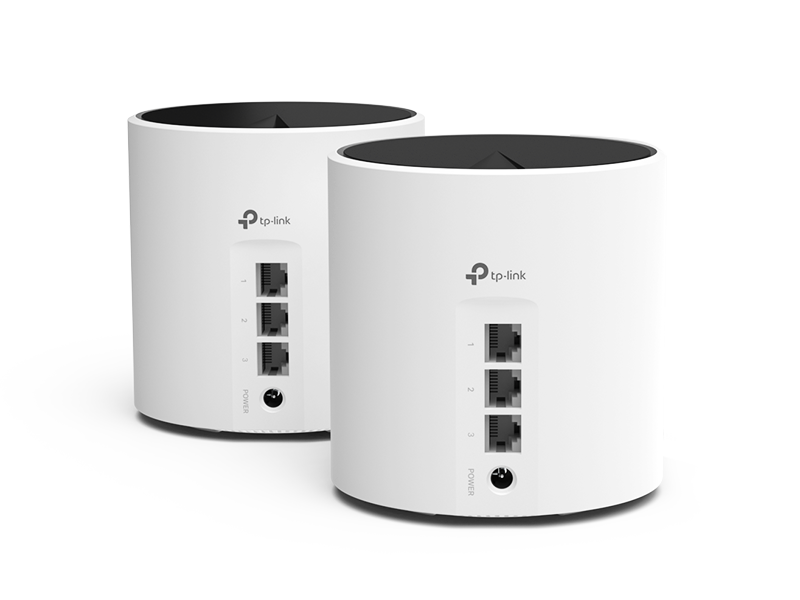
Figure 6: TP-Link HomeShield features for network security and management.
4. Maintenance
Regular maintenance ensures the optimal performance and longevity of your Deco X55 system.
4.1 General Care
- Keep Deco units in well-ventilated areas to prevent overheating.
- Avoid placing units near sources of strong electromagnetic interference (e.g., microwaves, cordless phones).
- Clean the exterior of the units with a soft, dry cloth. Do not use liquid cleaners or aerosols.
4.2 Firmware Updates
TP-Link regularly releases firmware updates to improve performance, add new features, and enhance security. It is recommended to keep your Deco system's firmware up to date. You can check for and install updates directly through the Deco app.
5. Troubleshooting
If you encounter issues with your Deco X55 system, refer to the following common troubleshooting steps:
5.1 LED Indicator Status
| LED Color/Pattern | Status | Action |
|---|---|---|
| Solid Green | Deco is working normally. | No action required. |
| Pulsing Blue | Deco is ready for setup. | Follow Deco app instructions to set up. |
| Solid Red | No internet connection. | Check modem/router connection, restart Deco unit. |
| Pulsing Red | Deco is disconnected from the main Deco. | Move closer to the main Deco, check power. |
5.2 Common Issues
- Weak Wi-Fi Signal: Ensure Deco units are optimally placed, avoiding obstructions and interference. Consider adding more Deco units for larger areas.
- Frequent Disconnections: Check for firmware updates. Ensure no other routers are creating interference on the same channels. Restart the main Deco unit and then the satellite units.
- Slow Speeds: Verify your internet service provider's speed. Check for high network traffic or too many connected devices. Utilize QoS settings in the Deco app to prioritize important devices.
6. Specifications
| Feature | Detail |
|---|---|
| Model Name | Deco X55 |
| Wireless Standard | 802.11ax (Wi-Fi 6) |
| Wi-Fi Speeds | AX3000 (2402 Mbps on 5 GHz, 574 Mbps on 2.4 GHz) |
| Coverage Area | Up to 4500 sq.ft (2-pack) |
| Ethernet Ports | 3 Gigabit ports per unit |
| Dimensions | 4.33 x 4.33 x 4.49 inches |
| Item Weight | 4 pounds |
| Compatible Devices | Smartphone, PC, Gaming Console, Laptop, Smart TV, Security Camera, Printer, Tablet, Smart Thermostat |
| Special Features | QoS, Internet Security, Parental Control, Alexa Compatible, WPS, Remote Access, LED Indicator, Guest Mode, Beamforming, Access Point Mode |
7. Warranty and Support
TP-Link offers comprehensive support for its products. The Deco X55 system typically comes with a 2-year warranty, exceeding the standard for many networking brands.
For technical assistance, you can contact TP-Link's 24/7 technical support. Additional resources, including user guides and FAQs, are available on the official TP-Link website.
- User Guide (PDF): Download User Guide
- User Manual (PDF): Download User Manual
- Official TP-Link Store: Visit Store


