
1. Introduction
Thank you for purchasing the Nikkei NF3235ANDROID 32-inch Full HD Android Smart TV. This television offers a Full HD (1920 x 1080p) display, integrated Android TV with access to the Google Play Store, and various connectivity options including Bluetooth, HDMI, and USB. This manual provides essential information for setting up, operating, and maintaining your new television.
Package Contents
- Nikkei NF3235ANDROID 32-inch Full HD Android Smart TV
- Remote Control
- AAA Batteries (2x)
- User Manual (this document)
- TV Stand Components
- Power Cable
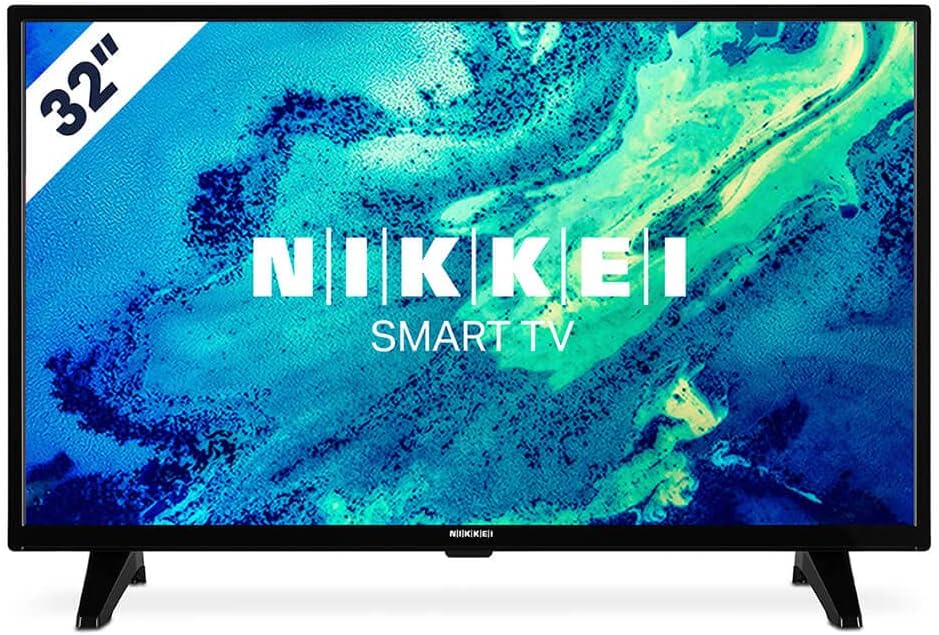
This image shows the front of the Nikkei NF3235ANDROID television, highlighting its slim bezel and the NIKKEI SMART TV branding on the screen.
2. Safety Information
Please read all safety instructions carefully before using the television. Keep this manual for future reference.
- Power Supply: Ensure the power voltage matches the rating label on the TV. Do not overload power outlets.
- Ventilation: Do not block ventilation openings. Allow adequate space around the TV for proper airflow to prevent overheating.
- Placement: Place the TV on a stable, level surface. Avoid placing it in direct sunlight, near heat sources, or in environments with high humidity or dust.
- Water and Moisture: Do not expose the TV to rain or moisture. Do not place objects filled with liquids, such as vases, on the TV.
- Cleaning: Unplug the TV before cleaning. Use a soft, dry cloth. Do not use liquid cleaners or aerosol sprays.
- Batteries: Dispose of used batteries responsibly. Do not mix old and new batteries or different types of batteries.
3. Setup
3.1 Unpacking
Carefully remove the television and all accessories from the packaging. Retain the packaging materials for future transport or storage.
3.2 Stand Installation
To attach the TV stand:
- Place the TV face down on a soft, clean surface to prevent screen damage.
- Align the stand legs with the corresponding slots on the bottom of the TV.
- Secure the legs with the provided screws. Ensure they are tightened firmly.

An angled view of the television, illustrating its profile and the two-leg stand design for stable placement.
3.3 Wall Mounting (Optional)
The TV is VESA compatible for wall mounting. Refer to the wall mount kit instructions for proper installation. Ensure the wall mount is suitable for the TV's size and weight.
3.4 Connecting Peripherals
Connect your external devices to the TV using the available ports.
- HDMI: Connect Blu-ray players, game consoles, or set-top boxes to the HDMI ports (3 available).
- USB: Connect USB storage devices for media playback (2 available).
- VGA: Connect a computer for use as a monitor.
- Antenna/Cable: Connect your antenna or cable TV signal to the RF input.
- Power: Connect the power cable to the TV and then to a wall outlet.

This image displays the side panel of the TV, revealing accessible ports such as USB and HDMI for connecting external devices.

The back of the television is shown, detailing the arrangement of various input/output ports including HDMI, USB, VGA, and antenna connections, along with VESA mounting points.
3.5 Initial Power On and Setup Wizard
After connecting the power, press the power button on the remote control or TV. The TV will guide you through the initial setup process, which includes:
- Language selection
- Network connection (Wi-Fi or Ethernet)
- Google account sign-in (optional, for full Android TV features)
- Channel scanning (DVB-T/T2, DVB-C)
4. Operating Instructions
4.1 Remote Control Overview
Insert the two AAA batteries into the remote control, ensuring correct polarity.

The remote control for the Nikkei Smart TV, featuring dedicated buttons for power, volume, channel, input selection, and quick access to streaming services like Netflix and YouTube.
4.2 Basic Functions
- Power: Press the Power button to turn the TV on or off.
- Volume: Use the VOL +/- buttons to adjust the volume.
- Channel: Use the CH +/- buttons to change channels.
- Input Source: Press the SOURCE button to select input sources (HDMI 1/2/3, USB, VGA, TV).
- Navigation: Use the directional arrows and OK button to navigate menus.
- Menu: Press the MENU button to access the main settings menu.
4.3 Smart TV Features
Your Nikkei NF3235ANDROID TV runs on Android TV, providing access to a wide range of smart features:
- Google Play Store: Download and install your favorite apps like Netflix, YouTube, Spotify, HBO, and Prime Video.
- Chromecast Built-in: Cast content (movies, photos, music) from your smartphone, tablet, or computer directly to the TV.
- Voice Control: Use the remote's microphone (if available) for voice commands (requires Google Assistant setup).
- Bluetooth: Connect Bluetooth-enabled devices such as headphones or game controllers.
4.4 Media Playback
The TV supports playback of various multimedia formats from USB storage devices, including MP3, MKV, MOV, ASF, PNG, JPG, BMP, and AVI.
5. Maintenance
5.1 Cleaning the TV
- Screen: Gently wipe the screen with a soft, lint-free cloth. For stubborn marks, slightly dampen the cloth with water or a specialized screen cleaner (do not spray directly on the screen).
- Body: Wipe the TV body with a soft, dry cloth. Avoid using abrasive cleaners or solvents.
5.2 Software Updates
The TV may receive software updates to improve performance and add new features. Ensure your TV is connected to the internet to receive these updates. You can usually check for updates in the TV's settings menu.
6. Troubleshooting
If you encounter issues with your TV, refer to the following common problems and solutions:
| Problem | Possible Solution |
|---|---|
| No power | Check if the power cable is securely connected to the TV and the wall outlet. Ensure the outlet has power. Try a different outlet. |
| No picture, but sound is present | Check the input source. Ensure external devices are powered on and connected correctly. |
| No sound, but picture is present | Check the volume level. Ensure mute is not activated. Check audio cables for external devices. |
| Remote control not working | Replace the batteries. Ensure there are no obstructions between the remote and the TV's IR sensor. |
| Cannot connect to Wi-Fi | Ensure your Wi-Fi router is on and working. Re-enter the Wi-Fi password. Try restarting the TV and router. |
| Apps are slow or crashing | Close unused apps. Clear app cache in settings. Restart the TV. Ensure sufficient internet speed. |
7. Specifications
Key technical specifications for the Nikkei NF3235ANDROID TV:
| Feature | Specification |
|---|---|
| Model Number | NF3235ANDROID |
| Brand | NIKKEI |
| Screen Size | 32 Inches (81 cm) |
| Display Technology | LED |
| Resolution | 1920 x 1080p (Full HD) |
| Refresh Rate | 50 Hz |
| HDR Support | HDR10 |
| Operating System | Android TV |
| Audio Output Power | 12 Watts |
| HDMI Ports | 3 |
| USB Ports | 2 (1x USB 3.0) |
| Other Connectivity | VGA, Bluetooth, Wi-Fi, Ethernet |
| Digital Tuner | DVB-T, DVB-T2, DVB-C |
| VESA Compatibility | Yes |
| Power Consumption (SDR) | 32 kWh/1000h |
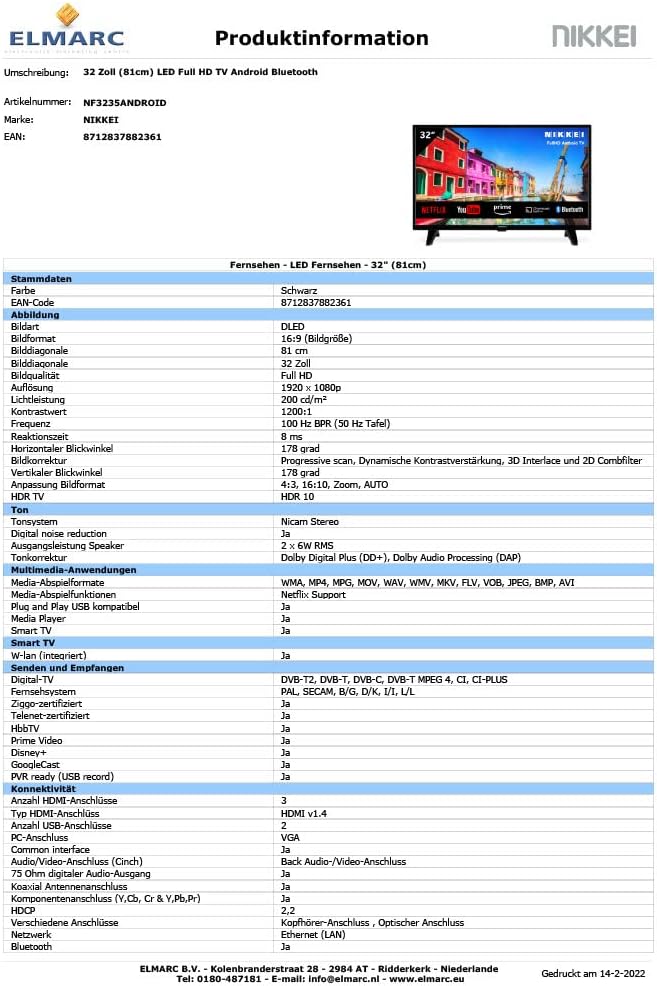
A detailed product information sheet outlining the technical specifications and features of the Nikkei NF3235ANDROID television.

The EU energy efficiency label for the Nikkei NF3235ANDROID TV, indicating its energy consumption and efficiency class. For more details, visit the EPREL database (QR code: 50625937).
8. Warranty and Support
8.1 Warranty Information
This product comes with an extended warranty. Please refer to your purchase documentation or contact your retailer for specific warranty terms and conditions.
8.2 Customer Support
If you require further assistance or have questions not covered in this manual, please contact Nikkei customer support or your authorized dealer. Have your model number (NF3235ANDROID) and purchase details ready when contacting support.