1. Introduction
This manual provides comprehensive instructions for the installation, operation, and maintenance of your new Rimoody 9-Inch Single DIN Touchscreen Car Stereo. This multimedia player features built-in Carplay and Android Auto, Bluetooth connectivity, FM/AM radio, Mirror Link functionality, and supports a backup camera input. Please read this manual thoroughly before use to ensure proper installation and optimal performance.
2. Key Features
- Built-in Carplay & Android Auto: Seamless integration with iOS and Android smartphones for navigation, music, calls, and more via USB connection.
- Mirror Link Functionality: Synchronize your smartphone screen and audio directly to the car stereo display.
- Bluetooth Connectivity: Hands-free calling and wireless music streaming.
- FM/AM Radio: Access to a wide range of radio stations with 18 preset FM stations for news, traffic, and entertainment.
- Backup Camera Input: Automatic display of reverse image for safer parking and maneuvering (backup camera included).
- Steering Wheel Control Support: Conveniently control functions directly from your vehicle's steering wheel.
- EQ System Setting: Customizable audio equalizer for enhanced sound quality, including bass amplification and noise reduction.
- Multiple Input Modes: Supports USB for audio/video playback and charging.
- 9-Inch Touchscreen Display: Large, responsive display for intuitive control.
3. Package Contents
Please verify that all items are present in your package:
- Rimoody 9-Inch Single DIN Car Stereo Unit
- Backup Camera
- External Microphone
- Power Cable (ISO Power Cable Interface)
- Speaker Cable
- USB Cable
- User Manual (this document)
- Mounting Hardware (brackets, screws)
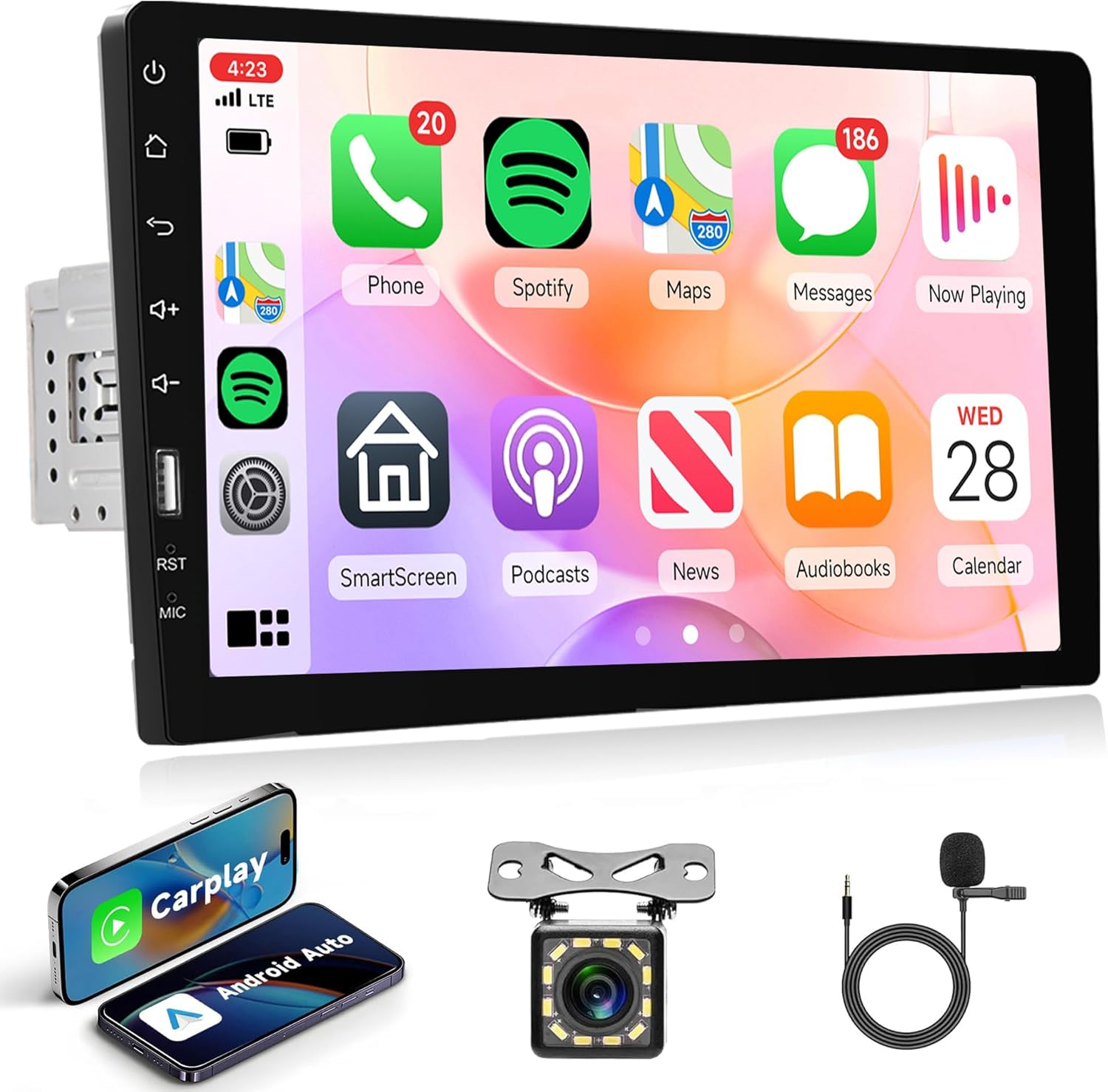
Figure 3.1: Main product unit and included accessories.
4. Installation Guide
The installation size of this car audio receiver is 178mm (7.01") L x 100mm (3.93") H x 50mm (1.96") W. Professional installation is recommended. Ensure the vehicle's battery is disconnected before beginning installation.
4.1 Wiring Diagram
Carefully follow the wiring diagram below to connect the car stereo to your vehicle's electrical system. Incorrect wiring can cause damage to the unit or vehicle.
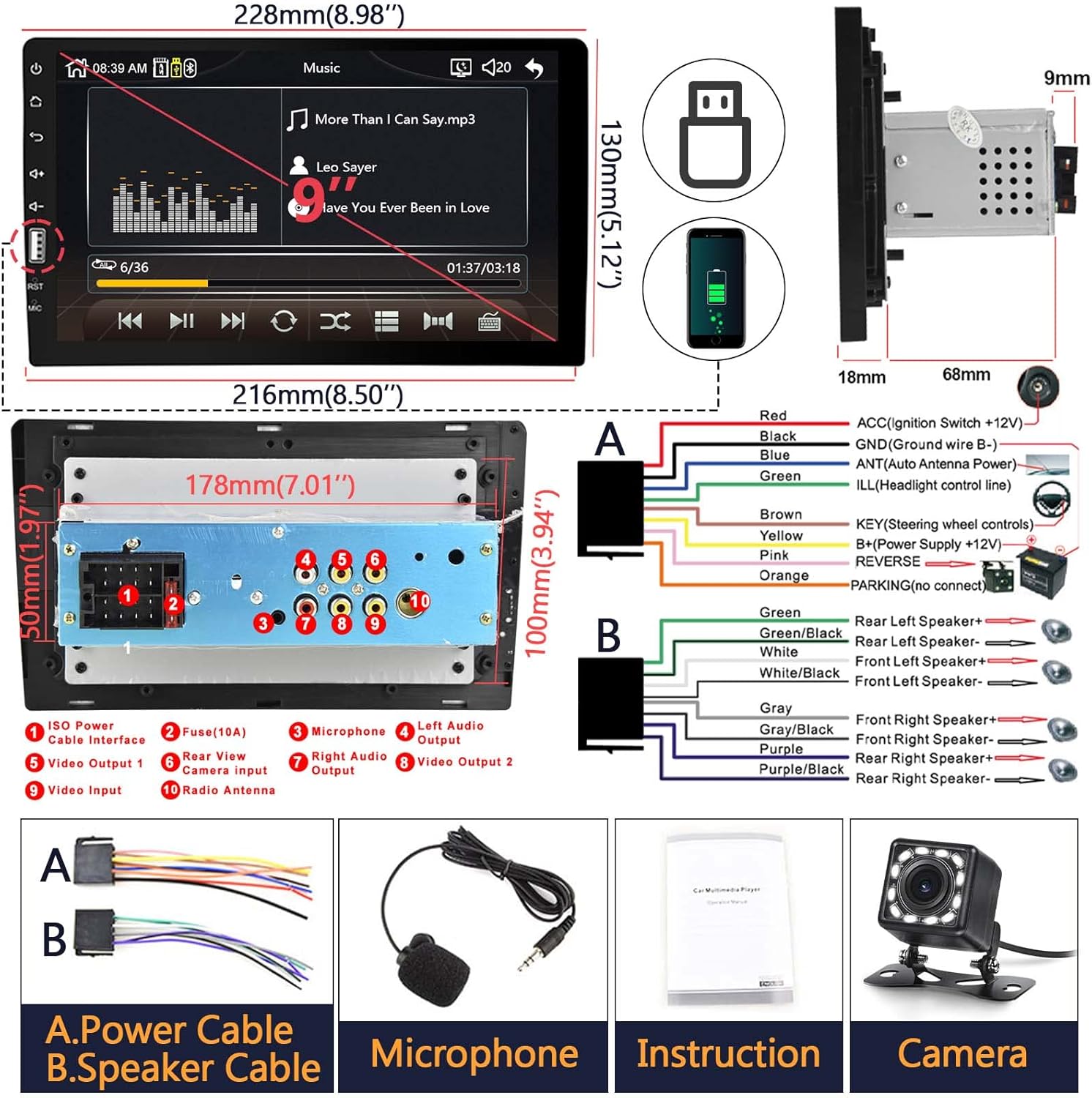
Figure 4.1: Wiring connections and dimensions for the car stereo.
- A. Power Cable: Connects to vehicle's power supply (ACC, GND, B+).
- B. Speaker Cable: Connects to vehicle's speakers (Front Left/Right, Rear Left/Right).
- Microphone: For hands-free calling.
- Rear View Camera Input: For connecting the included backup camera.
- Video Input/Output: For external video sources or displays.
- Radio Antenna: For FM/AM reception.
- Steering Wheel Control: Connect to vehicle's steering wheel control wires for remote operation.
5. Initial Setup and Connections
5.1 CarPlay and Android Auto Connection
Connect your iOS or Android smartphone to the car stereo via a USB cable to activate CarPlay or Android Auto. This allows access to navigation, music, messages, and voice control directly from the stereo's touchscreen.

Figure 5.1: CarPlay and Android Auto interfaces.
Video 5.1: Demonstrates the steps for connecting and using CarPlay, Android Auto, and Mirror Link.
5.2 Bluetooth Pairing
To pair your phone via Bluetooth for hands-free calls and audio streaming:
- Turn on Bluetooth on your mobile phone.
- On the car stereo, navigate to the Bluetooth menu.
- Search for available devices on your phone and select "CAR-BT(47D)" or similar from the list.
- Confirm the pairing on both devices if prompted.
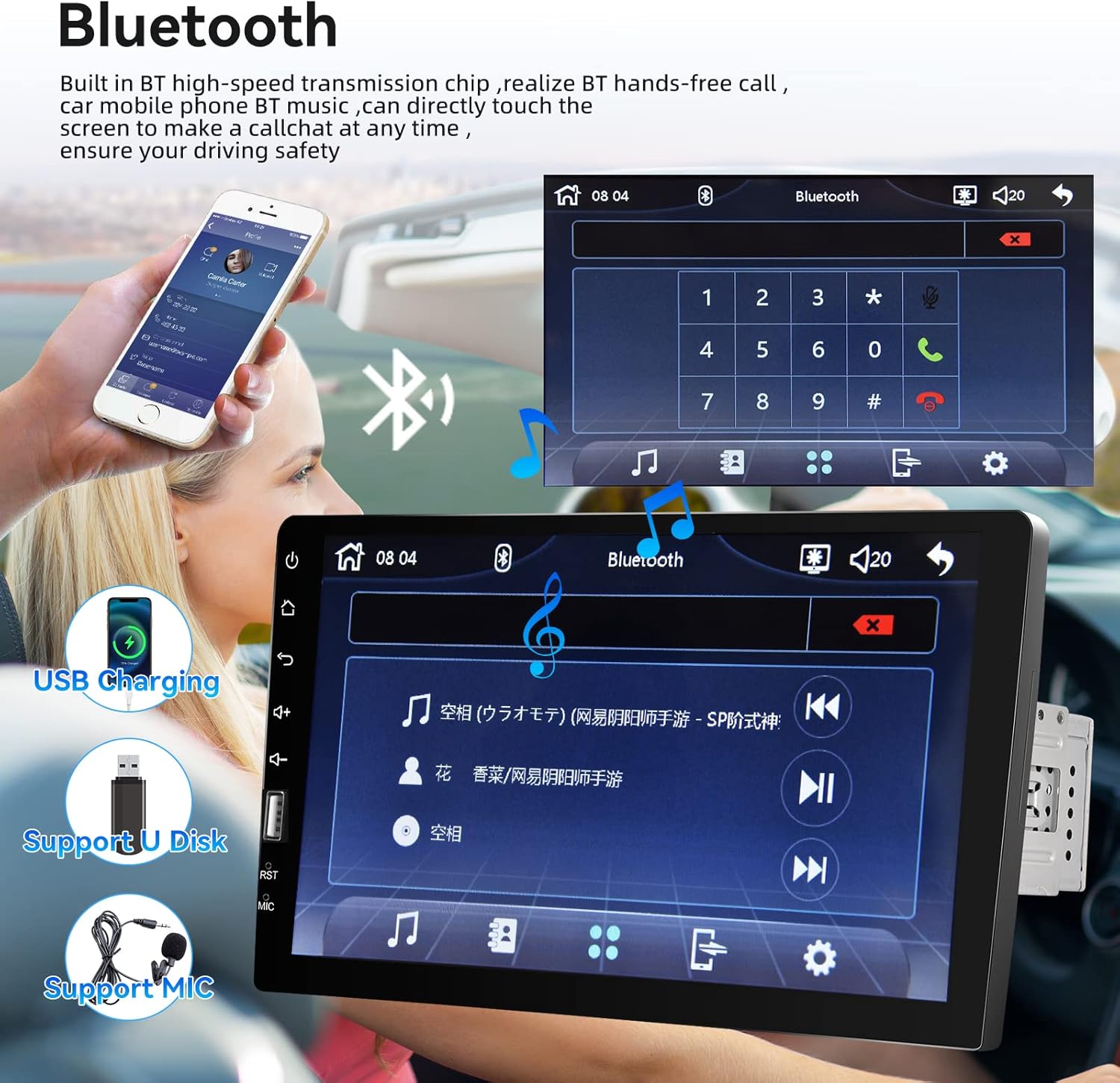
Figure 5.2: Bluetooth connection screen.
5.3 FM/AM Radio Setup
Access the Radio function from the main menu. You can manually tune to frequencies or use the scan function to find available stations. Save your favorite stations to the preset buttons for quick access.

Figure 5.3: FM Radio and EQ settings interface.
6. Operating Instructions
6.1 Mirror Link Operation
Mirror Link allows you to display your phone's screen directly on the car stereo. Connect your phone via USB and follow the on-screen prompts to enable screen mirroring. Ensure USB debugging is enabled on Android devices.

Figure 6.1: Mirror Link in action.
6.2 USB Media Playback
Insert a USB drive into the designated USB port. The system will automatically detect and allow you to browse and play audio or video files. The USB port also supports charging for your devices.
6.3 EQ System Adjustment
Navigate to the EQ settings to customize your audio experience. Adjust bass, treble, and other sound parameters to suit your preferences. The system offers excellent noise reduction and bass enhanced amplification.
6.4 Backup Camera Display
When the included backup camera is properly installed and connected to the reverse gear, the car stereo screen will automatically switch to display the reverse image when the vehicle shifts into reverse, providing a clear view for safer backing up.

Figure 6.2: Automatic backup camera display.
7. Maintenance
To ensure the longevity and optimal performance of your Rimoody car stereo, follow these maintenance guidelines:
- Screen Cleaning: Use a soft, lint-free cloth to gently wipe the touchscreen. For stubborn smudges, slightly dampen the cloth with water or a screen-safe cleaner. Avoid abrasive materials or harsh chemicals.
- General Cleaning: Keep the unit free from dust and debris. Use a soft brush or compressed air to clean vents and button areas.
- Avoid Extreme Temperatures: Do not expose the unit to prolonged direct sunlight or extreme cold, as this can affect performance and lifespan.
- Secure Connections: Periodically check all wiring connections to ensure they are secure and free from corrosion.
8. Troubleshooting
If you encounter issues with your car stereo, refer to the following common problems and solutions:
| Problem | Possible Cause | Solution |
|---|---|---|
| No Power | Loose power connection; Blown fuse; Vehicle battery issue. | Check all power cables and connections. Inspect the fuse (10A) on the power cable. Ensure vehicle battery is charged. |
| No Sound | Volume too low; Mute activated; Loose speaker connections; Incorrect audio source. | Increase volume. Check if mute is active. Verify speaker wiring. Select correct audio source (FM, Bluetooth, USB). |
| Bluetooth Disconnection/Cannot Pair | Phone too far; Interference; Bluetooth on stereo off; Phone's Bluetooth issue. | Ensure phone is within range. Restart both phone and stereo's Bluetooth. Delete previous pairings and re-pair. |
| CarPlay/Android Auto Not Working | Faulty USB cable; Phone software issue; USB debugging not enabled (Android). | Use a high-quality, original USB cable. Restart your phone. For Android, enable USB debugging in developer options. |
| Backup Camera No Display | Incorrect wiring for camera or reverse trigger; Faulty camera. | Check camera power and video input connections. Ensure the reverse trigger wire is correctly connected. |
If the problem persists after trying these solutions, please contact Rimoody customer service for further assistance.
9. Product Specifications
| Feature | Detail |
|---|---|
| Product Dimensions | 1.97 x 7.01 x 3.94 inches (50 x 178 x 100 mm) |
| Item Weight | 2.59 pounds |
| Model Number | Rimoody Car Radio |
| Brand | Rimoody |
| Connectivity Technology | Bluetooth, USB |
| Controller Type | iOS, Android |
| Special Feature | Touchscreen |
| Compatible Devices | Smartphone, Speaker |
| Audio Output Mode | Stereo |
| Surround Sound Channel Configuration | 2.0 |
| Video Encoding | AVI |
| Color | Black |
10. Warranty and Customer Support
Rimoody is committed to providing high-quality products and excellent customer service. Your Rimoody Car Stereo comes with the following support:
- 30-Day Money-Back Guarantee: If you are not satisfied with your purchase, you may return it within 30 days for a full refund.
- 12-Month Replacement Warranty: The product is covered by a 12-month replacement warranty for manufacturing defects.
- Lifetime Technical Support: Rimoody offers lifetime technical support to assist with any installation or usage questions.
For any inquiries, technical assistance, or warranty claims, please contact the Rimoody technical team. We aim to respond to all queries within 24 hours.


