
Introduction
This manual provides detailed instructions for the Rytaki Pro USB C XD Picture Card Reader, Model CR304-C-F. This device is designed to facilitate high-speed data transfer from various memory card types to your USB-C enabled devices. Please read this manual thoroughly before use to ensure proper operation and longevity of your device.
Key Features
- Multi-Card Compatibility: Supports TF, SD, MS, M2, XD, and CF card types.
- Simultaneous Read/Write: Capable of reading and writing to five different cards concurrently.
- High-Speed Data Transfer: USB 3.1 Type C interface provides data transfer speeds up to 5Gbps.
- Plug and Play: No additional drivers or external power supply required.
- Durable Design: Constructed with an aluminum alloy cover for enhanced durability and heat dissipation.
- LED Indicator: Features separate LED indicators for each card slot to show working status.
Setup Instructions
- Connect the Card Reader: Insert the USB-C connector of the Rytaki Pro card reader into an available USB-C port on your computer, laptop, tablet, or smartphone.

Image: The Rytaki Pro USB C Card Reader connected to a laptop via its integrated USB-C cable, demonstrating a typical setup.
- System Recognition: Your operating system (Windows, macOS, Linux, Chrome OS) should automatically detect and install the necessary drivers. No manual driver installation is typically required.

Image: Icons representing compatibility with Windows XP, Windows 10, Windows 7, Windows 8, Windows Vista, Linux, and Mac OS, indicating broad operating system support.
- LED Indicator: Once connected, the LED indicators on the card reader will illuminate, signifying that the device is powered and ready for use.

Image: A detailed view of the USB-C 3.1 Multi-Card Reader, highlighting the LED indicators next to each card slot (TF, SD, MS, M2, XD, CF) and showing various memory cards.
Operating Instructions
- Insert Memory Cards: Carefully insert your memory cards into the corresponding slots. The card reader supports TF (Micro SD), SD, MS, M2, XD, and CF cards. Note that M2 and TF cards share the same slot.
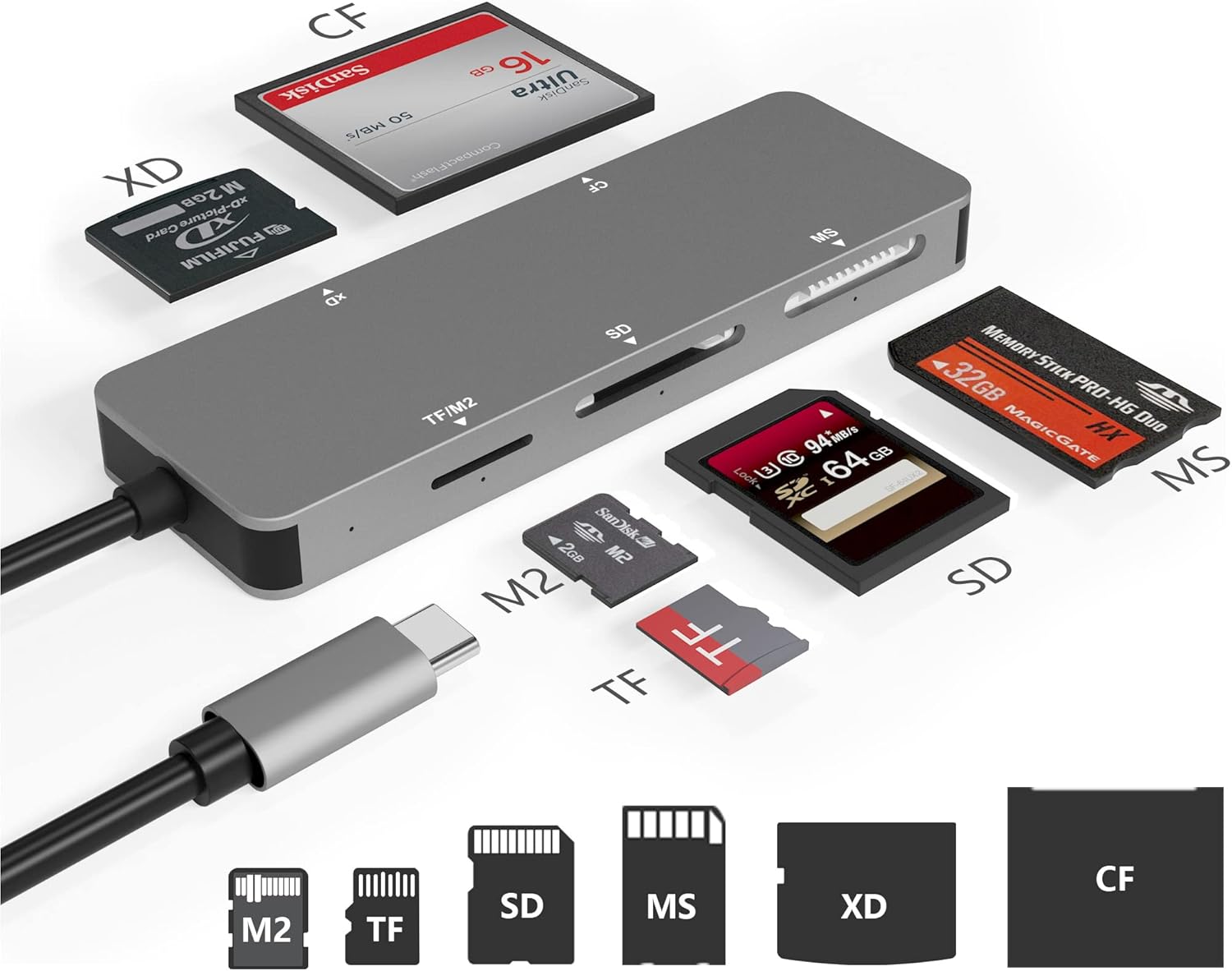
Image: The Rytaki Pro USB C Card Reader with different types of memory cards (CF, XD, MS, SD, M2, TF) positioned around it, illustrating the variety of supported formats.
- Accessing Data: Once a card is inserted, it will appear as a removable drive in your computer's file explorer or desktop. You can then drag and drop files, copy, paste, or perform other file management operations.
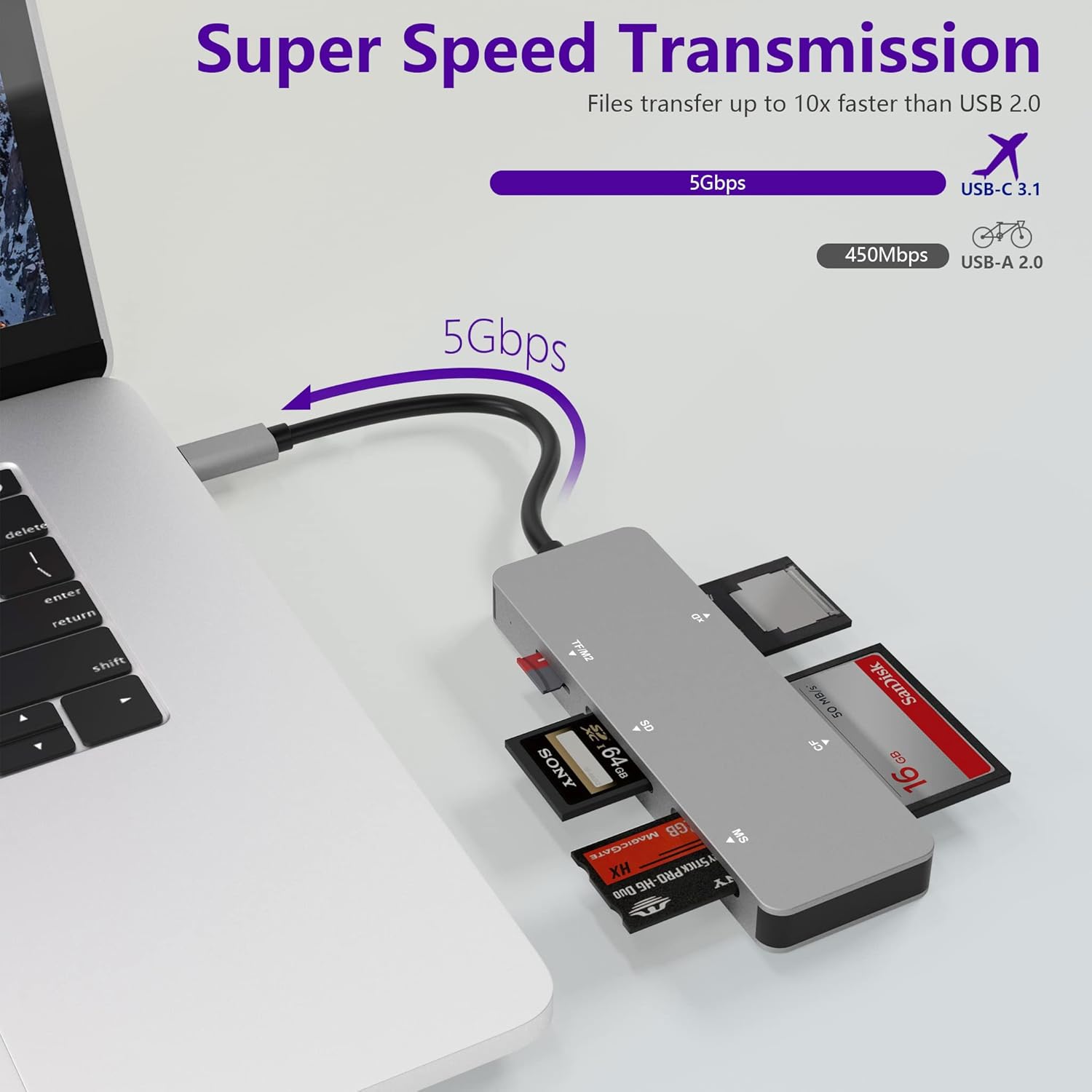
Image: The Rytaki Pro USB C Card Reader connected to a laptop, with several memory cards (SD, MS, CF) inserted into their respective slots, demonstrating simultaneous card usage.
- Simultaneous Operation: The card reader supports simultaneous reading and writing across multiple card slots. This allows for efficient data transfer between different card types or to your host device.
- Data Transfer Speed: The device utilizes USB 3.1 (5Gbps) for high-speed data transfer. For optimal performance, ensure your host device also supports USB 3.1 or higher.

Image: A person using the Rytaki Pro USB C Card Reader connected to a laptop, with text highlighting "SUPER SPEED USB-C 3.1 Data transfer speed up to 5Gbps" and a comparison to USB 2.0.
- Safe Removal: Always safely eject the memory card or the card reader from your operating system before physically removing it to prevent data corruption.
Maintenance
- Cleaning: Use a soft, dry cloth to clean the exterior of the card reader. Avoid using liquid cleaners or solvents.
- Storage: Store the card reader in a cool, dry place away from direct sunlight and extreme temperatures.
- Handling: Avoid dropping the device or subjecting it to strong impacts. Do not force memory cards into slots.
- Connector Care: Keep the USB-C connector free from dust and debris.
Troubleshooting
- Issue: Card reader not recognized by the computer.
- Ensure the USB-C cable is securely connected to both the card reader and your computer's USB-C port.
- Try connecting the card reader to a different USB-C port on your computer.
- Test the card reader on another computer to rule out a port issue on your primary device.
- Restart your computer.
- Issue: Memory card not detected.
- Ensure the memory card is inserted correctly and fully into its designated slot.
- Check if the memory card is damaged or corrupted. Try another known working memory card.
- Verify that the memory card type is supported by the reader (TF, SD, MS, M2, XD, CF).
- Issue: Slow data transfer speeds.
- Ensure the card reader is connected to a USB 3.1 (or higher) compatible port on your computer. Connecting to a USB 2.0 port will result in slower speeds.
- The actual transfer speed can be affected by the speed class of your memory card.
- Avoid running multiple high-bandwidth applications during large data transfers.
- Issue: Card reader disconnects intermittently.
- Ensure the USB-C connection is stable and not loose.
- Check for any physical damage to the cable or the card reader's port.
- Update your computer's USB drivers.
Specifications
| Brand | Rytaki Pro |
| Model Number | CR304-C-F |
| Connectivity Technology | USB Type C (USB 3.1 Gen 1) |
| Data Transfer Speed | Up to 5Gbps |
| Supported Media Types | CompactFlash (CF), SD Card (SD, SDHC, SDXC, UHS-I), MicroSD (TF, Micro SDHC, Micro SDXC), Memory Stick (MS), Memory Stick Micro (M2), xD-Picture Card (XD) |
| Operating System Compatibility | Windows XP/Vista/7/8/8.1/10, Mac OS, Linux, Chrome OS |
| Dimensions (LxWxH) | 4.33 x 1.42 x 0.43 inches (11 x 3.6 x 1.1 cm) |
| Item Weight | 2.11 ounces (60 grams) |
| Material | Aluminum Alloy |
Warranty Information
Rytaki Pro products typically come with a standard manufacturer's warranty. For specific details regarding the warranty period and terms for your CR304-C-F USB C XD Picture Card Reader, please refer to the product packaging or visit the official Rytaki Pro website. Keep your purchase receipt as proof of purchase for any warranty claims.
Customer Support
Should you encounter any issues or have questions not covered in this manual, please contact Rytaki Pro customer support.
- Online Support: Visit the official Rytaki Pro website for FAQs, support resources, and contact information.
- Email Support: Refer to your product packaging or the official website for the customer support email address.