
1. Introduction
Thank you for choosing the Fiauli M203 Dual-Mode Rechargeable Wireless Mouse. This manual provides detailed instructions for setting up, operating, and maintaining your mouse to ensure optimal performance and longevity. Please read this manual carefully before use.
2. Product Overview
2.1 Key Features
- Dual-Mode Connectivity: Supports both Bluetooth 5.1 and 2.4G USB wireless connection.
- Rechargeable Battery: Built-in 500mAh battery, offering extended use on a single charge.
- Silent Click Design: Low-noise buttons for a quiet working environment.
- Adjustable DPI: 3 levels of DPI (800/1200/1600) for precise cursor control.
- Ergonomic Design: Comfortable grip for prolonged use.
- Portable: Lightweight and compact for easy transport.
2.2 Package Contents
- 1 x Fiauli M203 Wireless Mouse
- 1 x USB Charging Cable
- 1 x Nano USB Receiver (usually stored in the mouse's battery compartment)
2.3 Mouse Diagram
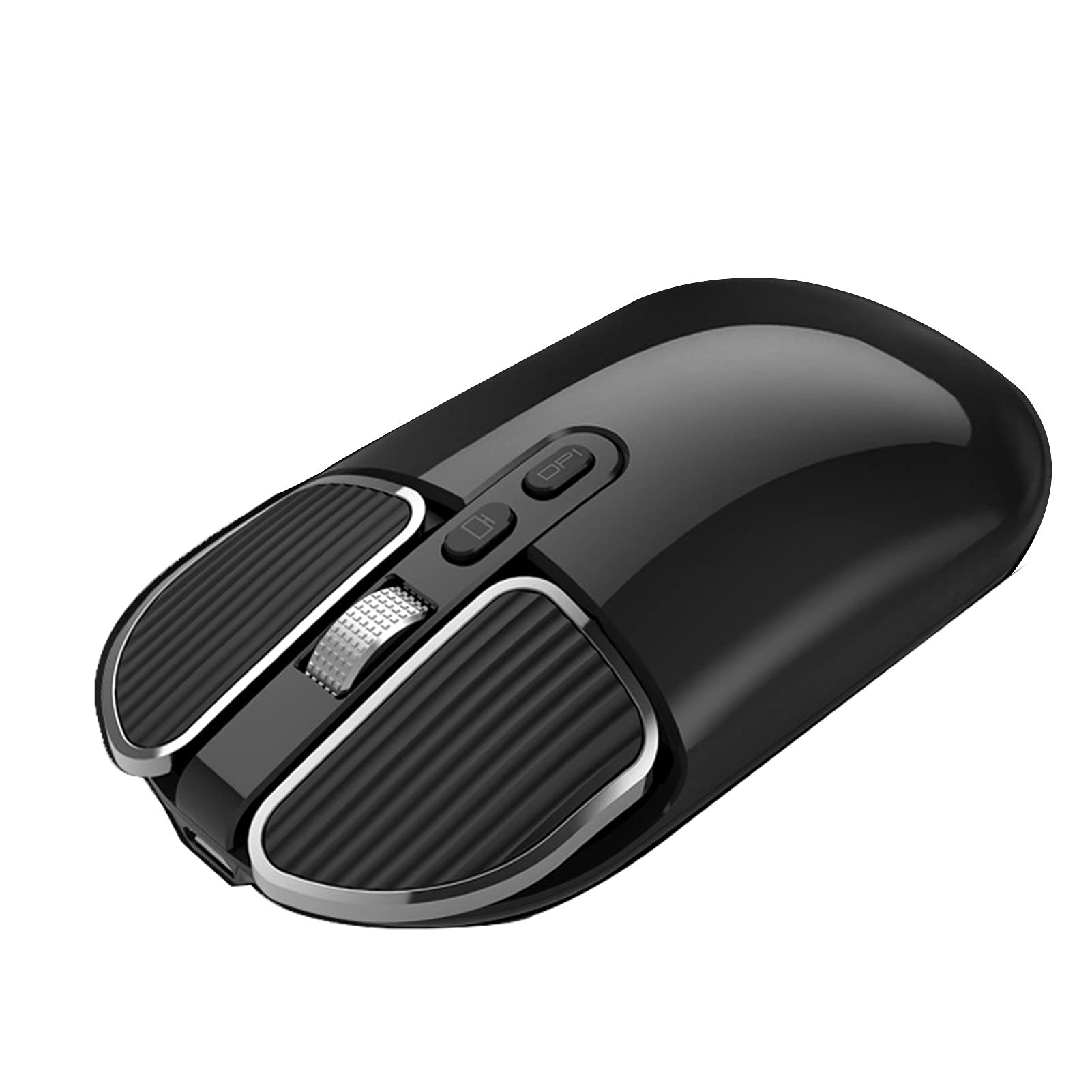
Figure 1: Top view of the Fiauli M203 wireless mouse. This image highlights the main buttons including the left and right click, the scroll wheel, the DPI adjustment button, and the mode switch button located near the scroll wheel.
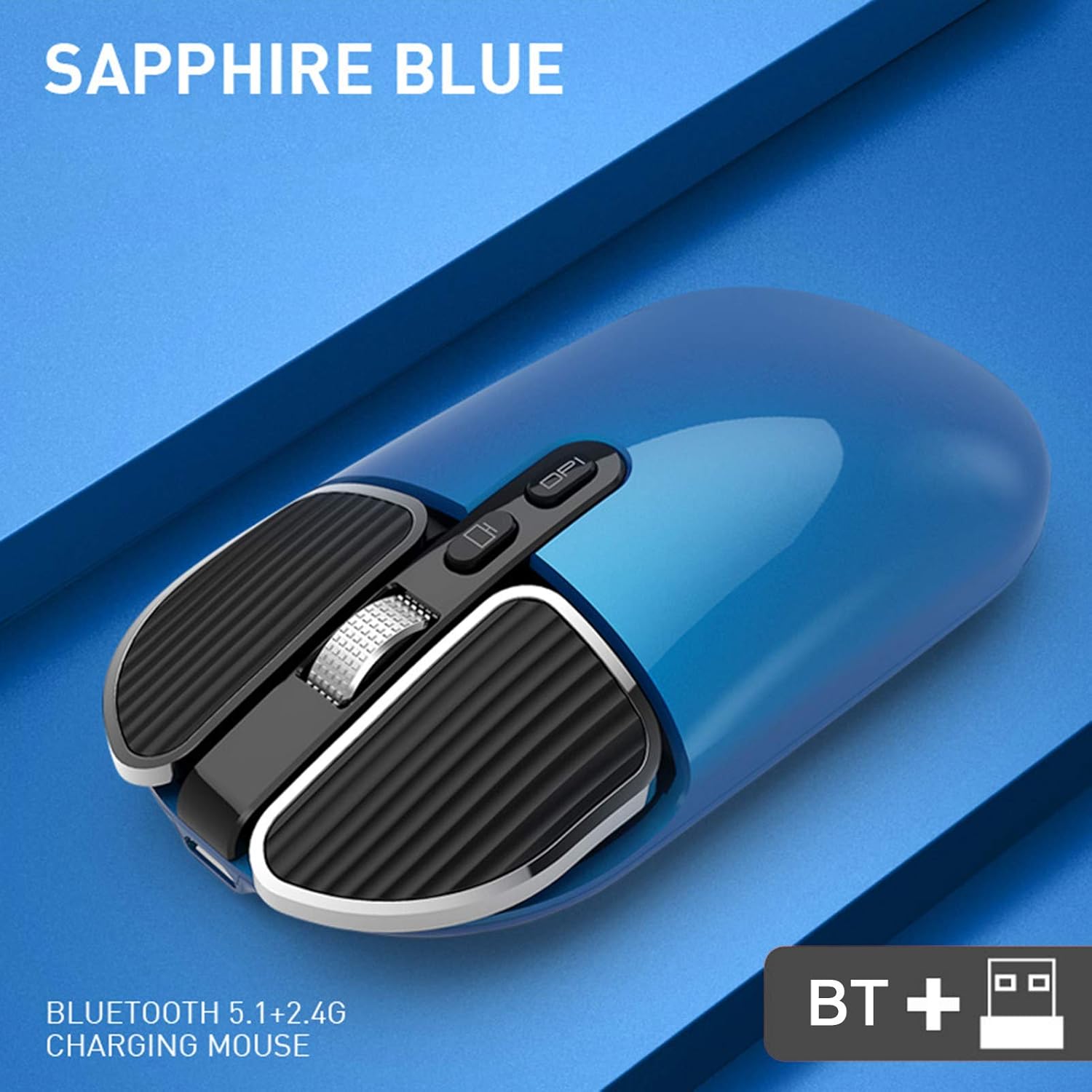
Figure 2: Bottom view of the Fiauli M203 wireless mouse. This image illustrates the optical sensor, the power ON/OFF switch, and the storage compartment for the Nano USB receiver.
3. Setup Instructions
3.1 Charging the Mouse
- Connect the provided USB charging cable to the charging port on the front of the mouse.
- Connect the other end of the USB cable to a USB power source (e.g., computer USB port, USB wall adapter).
- The indicator light will illuminate during charging and turn off when fully charged. A full charge typically provides up to 60 days of use.
3.2 Connecting via 2.4G USB Receiver
- Locate the Nano USB receiver, usually stored in the battery compartment on the bottom of the mouse.
- Insert the Nano USB receiver into an available USB port on your computer.
- Turn on the mouse using the power switch on the bottom.
- Press the mode switch button (refer to Figure 1) until the indicator light shows 2.4G mode (consult specific product indicator if available).
- Your computer should automatically detect and install the necessary drivers. The mouse is ready for use.
3.3 Connecting via Bluetooth
- Turn on the mouse using the power switch on the bottom.
- Press the mode switch button (refer to Figure 1) until the indicator light shows Bluetooth mode (consult specific product indicator if available).
- On your computer or device, go to Bluetooth settings.
- Enable Bluetooth and search for new devices.
- Select "Fiauli M203" (or similar name) from the list of available devices to pair.
- Once paired, the mouse is ready for use.
4. Operating Instructions
4.1 DPI Adjustment
The mouse features 3 adjustable DPI levels: 800, 1200, and 1600. To change the DPI, press the DPI button located behind the scroll wheel (refer to Figure 1). Each press will cycle through the DPI settings, allowing you to adjust cursor sensitivity to your preference.
4.2 Mode Switching (2.4G / Bluetooth)
To switch between 2.4G wireless mode and Bluetooth mode, press the mode switch button located near the DPI button (refer to Figure 1). The indicator light will change to reflect the active mode.
4.3 Silent Click Feature
The left and right click buttons are designed for silent operation, minimizing noise in quiet environments.
4.4 Scroll Wheel
The anti-slip scroll wheel allows for smooth navigation through documents and web pages.
5. Maintenance
5.1 Cleaning
To clean the mouse, gently wipe its surface with a soft, dry cloth. Avoid using harsh chemicals or abrasive materials, as these may damage the finish.
5.2 Battery Care
To prolong battery life, avoid fully discharging the mouse frequently. Recharge the mouse when the battery indicator suggests low power. Store the mouse in a cool, dry place when not in use for extended periods.
6. Troubleshooting
6.1 Mouse Not Responding
- Ensure the mouse is powered on.
- Check battery level and recharge if necessary.
- For 2.4G mode: Ensure the USB receiver is securely plugged into a working USB port. Try a different USB port.
- For Bluetooth mode: Ensure Bluetooth is enabled on your device and the mouse is correctly paired. Try unpairing and re-pairing the mouse.
- Ensure the mouse is in the correct mode (2.4G or Bluetooth) using the mode switch button.
6.2 Intermittent Connection
- Move the mouse closer to the USB receiver or Bluetooth device to reduce interference.
- Avoid using the mouse on highly reflective or transparent surfaces, which can affect optical tracking.
- Ensure no other wireless devices are causing interference.
7. Specifications
| Model | M203 |
| Connectivity Technology | Bluetooth 5.1, 2.4G Wireless (USB) |
| DPI Levels | 800 / 1200 / 1600 |
| Battery Capacity | 500mAh |
| Operating Noise | Less than 30 decibels (Silent Click) |
| Dimensions | Approx. 11.2 x 6 x 2.6 cm (4.4 x 2.4 x 1.0 inches) |
| Compatible Operating Systems | Windows XP, Chrome OS |
| Compatible Devices | Laptop, Personal Computer, Tablet |
| Hand Orientation | Ambidextrous |
| Motion Detection Technology | Optical |
8. Warranty and Support
Information regarding specific warranty details, spare parts availability, and software updates for this product is not provided in the product description. For further assistance or support, please refer to the retailer or manufacturer's official contact channels.