
1. Introduction
Thank you for choosing the PJGCWB PD-1805 Portable DVD Player. This device is designed to provide portable entertainment with its 14.1-inch HD swivel screen, support for multiple disc formats, and versatile connectivity options. This manual provides essential information for the proper setup, operation, and maintenance of your new portable DVD player.
2. Package Contents
Please verify that all items listed below are included in your package:
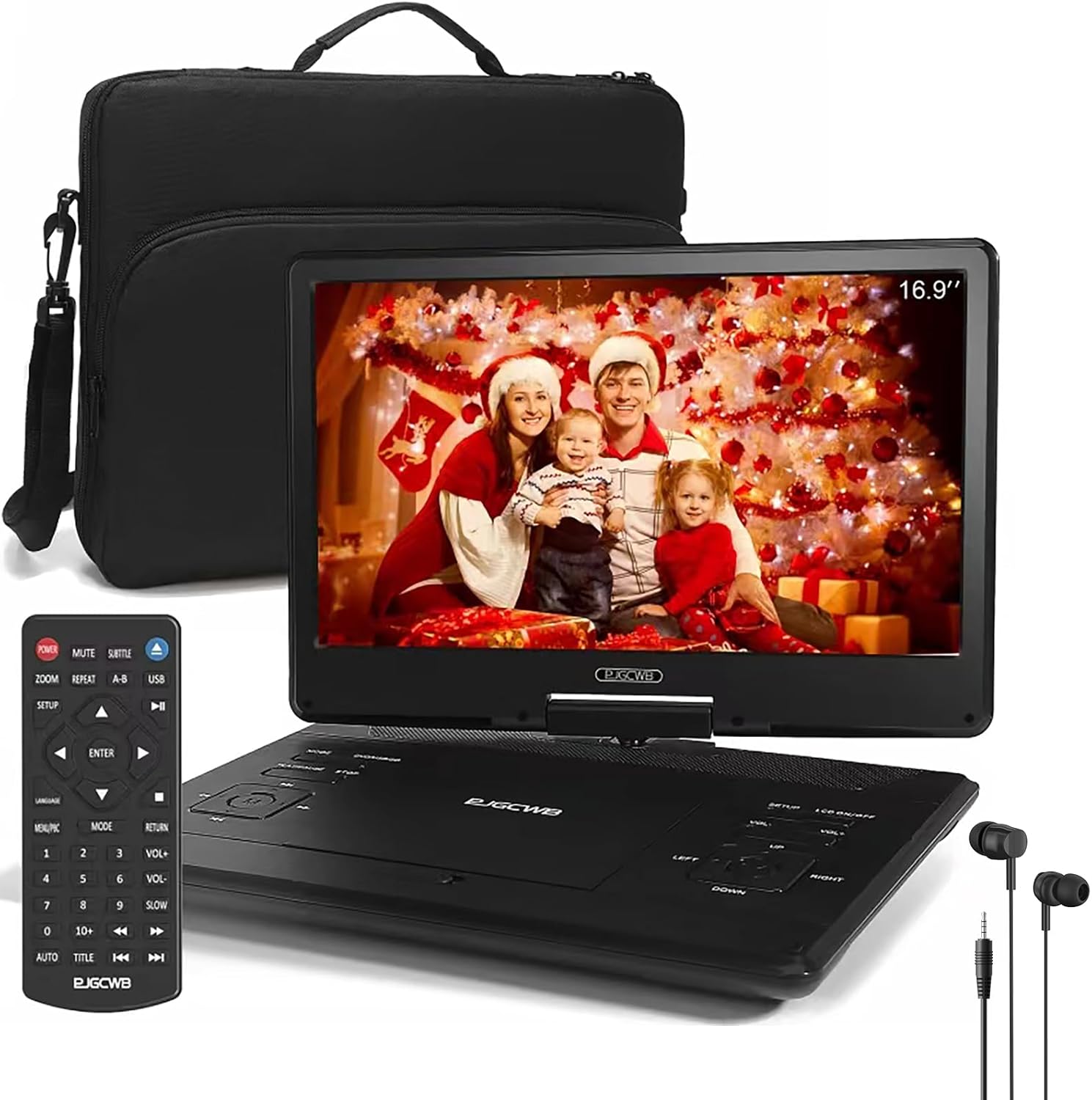
- PJGCWB PD-1805 Portable DVD Player
- Headphones
- Remote Control
- AC Power Adapter
- Car Charger
- AV Cable
- Carrying Bag
3. Product Overview
3.1. Components and Controls
Familiarize yourself with the various ports and controls on your portable DVD player.

- DC IN Port: Connect the AC power adapter or car charger here.
- USB Port: Insert a USB flash drive for media playback.
- SD Card Slot: Insert an SD card for media playback.
- AV IN Port: Connect external audio/video sources to display on the player's screen.
- AV OUT Port: Connect the player to an external display (e.g., TV) to output video and audio.
- Headphone Jack: Connect headphones for private listening.
- Power Switch: Slide to turn the player ON or OFF.
- Control Buttons: Buttons on the player's base for playback, menu navigation, and volume control.
4. Setup
4.1. Charging the Battery
Before first use, fully charge the internal lithium polymer battery. Connect the AC power adapter to the DC IN port on the player and plug it into a wall outlet. Alternatively, use the car charger to power or charge the device in a vehicle.

4.2. Powering On/Off
To turn on the player, slide the Power Switch to the 'ON' position. To turn it off, slide the switch to the 'OFF' position.
5. Operating Instructions
5.1. Disc Playback
- Open the disc cover gently.
- Place a compatible disc (DVD, CD, CD-R/+R, CD-RW/+RW, DVD-R/+R, DVD-RW/+RW, SVCD, VCD) onto the spindle with the label side facing up.
- Close the disc cover.
- The player will automatically detect and begin playback. Use the control buttons on the player or the remote control to manage playback (Play, Pause, Stop, Skip, Volume).
5.2. USB/SD Card Playback
Insert a USB flash drive into the USB port or an SD card into the SD card slot. The player will typically prompt you to select the media type (Movie, Music, Photo). Navigate through your files using the control buttons or remote and select the desired content for playback. Supported formats include MP3, WMA, WAV, JPEG, and VOB.

5.3. Swivel Screen Operation
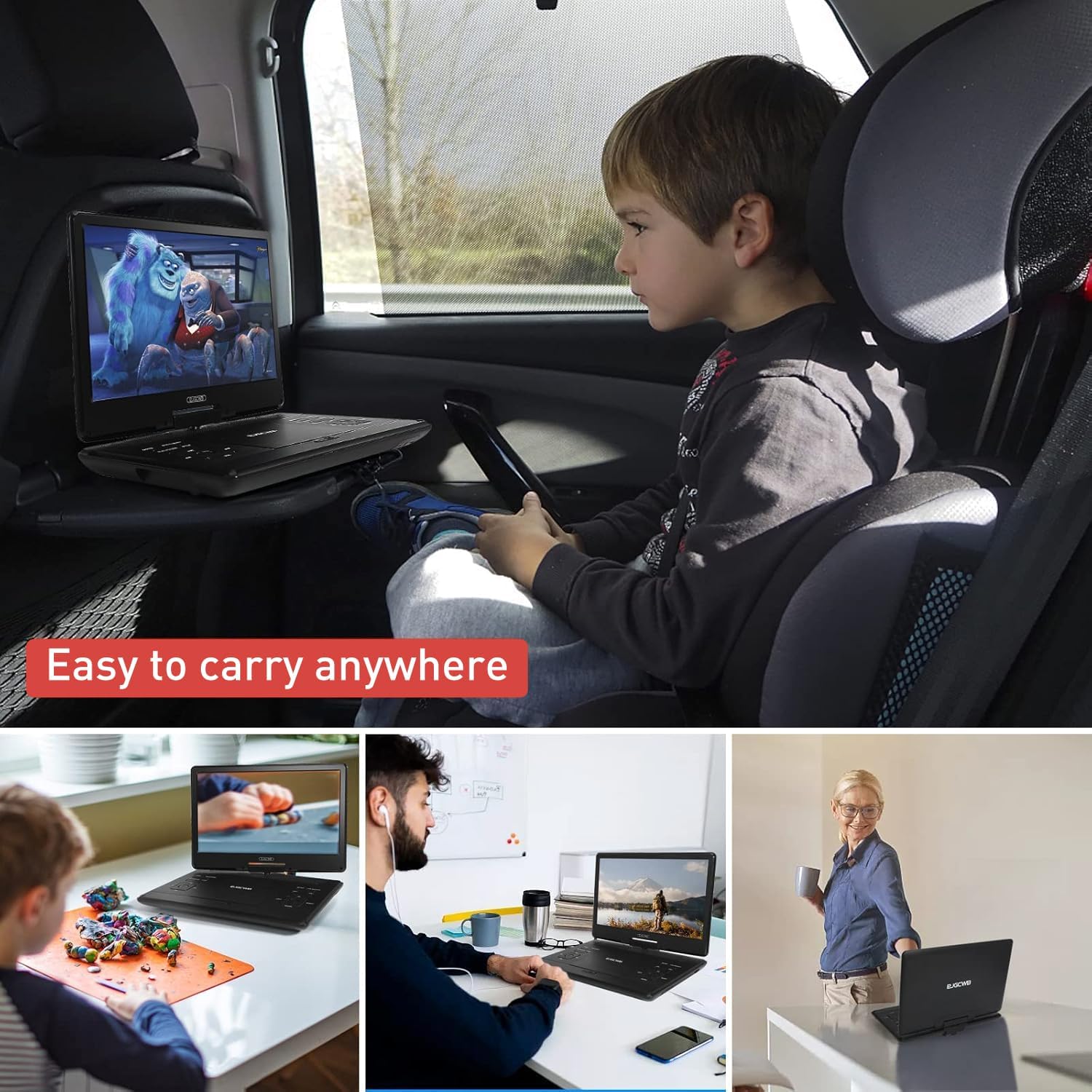
The 14.1-inch HD screen can swivel 270 degrees and flip 180 degrees, allowing for optimal viewing angles in various situations, including mounting to a car headrest.

5.4. Connecting to External Displays (AV-Out)
Use the included AV cable to connect the player's AV OUT port to the AV IN ports of an external display, such as a television. This allows you to enjoy your media on a larger screen.

5.5. Break-Point Memory Function
The built-in break-point memory function allows the player to resume playback from where you last stopped, even after the device has been powered off. This feature is automatically enabled.
5.6. Remote Control Usage
The included remote control provides full functionality for operating the DVD player from a distance. Ensure the remote is pointed towards the player's remote sensor during use.

6. Maintenance
To ensure the longevity and optimal performance of your PJGCWB PD-1805 Portable DVD Player, follow these maintenance guidelines:
- Cleaning: Use a soft, dry cloth to clean the player's exterior. For the screen, use a specialized screen cleaning cloth and solution if necessary, applying gently.
- Disc Care: Handle discs by their edges. Keep them clean and free of scratches. Store discs in their cases when not in use.
- Storage: When not in use for extended periods, store the player in a cool, dry place, away from direct sunlight and extreme temperatures.
- Battery: For optimal battery life, avoid fully discharging the battery frequently. Charge it regularly, even if not in constant use.
7. Troubleshooting
If you encounter issues with your portable DVD player, refer to the following common problems and solutions:
| Problem | Possible Solution |
|---|---|
| Player does not power on. | Ensure the power switch is in the 'ON' position. Connect the AC adapter or car charger to verify power supply. Check if the battery is charged. |
| Disc does not play or is unreadable. | Ensure the disc is clean and free of scratches. Verify the disc format is supported (not Blu-ray). Try a different disc. |
| No sound or low volume. | Adjust the volume on the player or remote. Check headphone connection if using. Ensure external speakers are connected correctly if applicable. |
| No picture on screen. | Ensure the screen is properly swiveled and flipped. Check screen brightness settings. If connected to an external display, ensure the AV cable is securely connected and the TV input is correct. |
| Remote control not working. | Ensure there are no obstructions between the remote and the player. Check and replace the remote control batteries if necessary. |
8. Specifications
Key technical specifications for the PJGCWB PD-1805 Portable DVD Player:
- Model Number: PD-1805
- Screen Size: 14.1 inches (diagonal)
- Display Resolution: 1280x800 HD
- Screen Swivel: 270-degree rotation, 180-degree flip
- Supported Media Types: CD, CD-R/+R, CD-RW/+RW, DVD, DVD-R/+R, DVD-RW/+RW, MP3, WMA, WAV, JPEG, SVCD, VCD (Does not support Blu-ray discs)
- USB/SD Card Support: Up to 32GB
- Battery: 1 Lithium Polymer battery (4-6 hours playback)
- Connectivity: USB, SD Card, AV IN, AV OUT, Headphone Jack, DC IN
- Product Dimensions: Approximately 17 x 17 x 17 inches
- Item Weight: Approximately 4.89 pounds
9. Warranty and Support
Your PJGCWB PD-1805 Portable DVD Player comes with a 24-month after-sales service. If you have any questions, concerns, or require technical assistance, please contact customer support. We are committed to responding to inquiries within 24 hours.
For further assistance, please refer to the contact information provided with your purchase or visit the official PJGCWB support website.