
1. Product Introduction
The ARESGAME AGV500 is a 500W power supply unit (PSU) designed for desktop ATX systems, featuring 80 Plus Bronze certification for energy efficiency. It provides stable power output and incorporates design elements for effective heat dissipation and quiet operation.
Key Features
- 500W Output: Provides reliable power for various PC configurations.
- 80 Plus Bronze Certified: Achieves 85% efficiency or higher under typical loads, reducing energy consumption and heat.
- Ultra Quiet 120mm Fan: Features intelligent fan speed control for optimal cooling with minimal noise.
- Excellent Heat Dissipation: Honeycomb ventilation design enhances airflow and cooling performance.
- Comprehensive Protection: Includes Over Voltage Protection (OVP), Under Voltage Protection (UVP), Over Power Protection (OPP), and Short Circuit Protection (SCP) for system safety.
- Non-Modular Design: All cables are permanently attached.
Package Contents
- 1 x ARESGAME AGV500 500W Power Supply
- 1 x AC Power Cord
- 1 x User Manual (this document)
- 1 x Quick Installation Guide
- 1 x PSU Tester
- 4 x Mounting Screws
- 4 x Cable Ties

Figure 1: The ARESGAME AGV500 500W Power Supply, showcasing its black casing and attached cables.
2. Important Safety Information
Please read and understand all safety instructions before installing or operating this power supply. Failure to comply with these instructions may result in electric shock, fire, or damage to the product and connected components.
- Electrical Hazard: Do not open the power supply unit. High voltages are present inside, even when the unit is unplugged. There are no user-serviceable parts.
- Ventilation: Ensure adequate ventilation around the power supply. Do not block any ventilation openings.
- Environment: Install the power supply in a dry, well-ventilated area, away from direct sunlight, heat sources, and moisture.
- Power Cord: Use only the provided AC power cord. Ensure the power cord is fully inserted into both the power supply and the wall outlet.
- Grounding: The power supply must be properly grounded.
- Overload: Do not overload the power supply. Ensure the total power consumption of your components does not exceed the PSU's rated wattage.
- Children: Keep the power supply and its components out of reach of children.
3. Setup and Installation
Before You Begin
- Turn off and unplug your computer from the wall outlet.
- Open your computer case.
- If replacing an existing power supply, disconnect all cables from the old PSU and remove it from the case.
- It is recommended to wear an anti-static wrist strap to prevent electrostatic discharge (ESD) damage to components.
Physical Installation
- Carefully place the ARESGAME AGV500 power supply into the designated PSU bay in your computer case.
- Align the screw holes on the power supply with those on the case.
- Secure the power supply using the four provided mounting screws.
Cable Connections
Connect the necessary cables from the power supply to your motherboard and other components. Refer to your motherboard and component manuals for specific connection points.

Figure 2: Overview of the ARESGAME AGV500's non-modular cable types and quantities, including Mainboard, CPU, PCI-E, SATA, and Molex connectors.
- 20+4 Pin Mainboard Power Connector: Connect to the main power socket on your motherboard.
- 8 (4+4) Pin CPU Power Connector: Connect to the CPU power socket on your motherboard.
- PCI-E 6+2 Pin Connector: Connect to graphics cards requiring PCI-E power. The AGV500 provides four such connectors.
- SATA Power Connector: Connect to SATA devices such as hard drives, solid-state drives, and optical drives. The AGV500 provides six SATA connectors.
- Molex Peripheral Connector: Connect to older peripherals or case fans. The AGV500 provides three Molex connectors.
- FDD Connector: Connect to floppy disk drives if needed (one provided).

Figure 3: Rear panel of the ARESGAME AGV500, showing the AC power input socket and the main power switch.
After connecting all internal components, connect the provided AC power cord to the power supply's input socket and then to a wall outlet.
4. Operating Instructions
Powering On/Off
- Ensure all internal connections are secure and the AC power cord is connected to both the PSU and the wall outlet.
- Flip the main power switch on the rear of the power supply to the 'I' (ON) position.
- Press the power button on your computer case to start the system.
- To power off, shut down your operating system normally. For complete power disconnection, flip the main power switch on the PSU to the 'O' (OFF) position and unplug the AC power cord.
5. Maintenance and Care
Proper maintenance ensures the longevity and optimal performance of your power supply.
- Cleaning: Periodically clean the exterior of the power supply and its fan grille to prevent dust buildup. Use compressed air to gently clear dust from the fan and ventilation areas. Ensure the power supply is turned off and unplugged before cleaning.
- Ventilation: Ensure that the computer case has adequate airflow and that the power supply's ventilation openings are not obstructed.
- Cable Management: Organize cables inside your computer case to improve airflow and prevent interference with cooling.
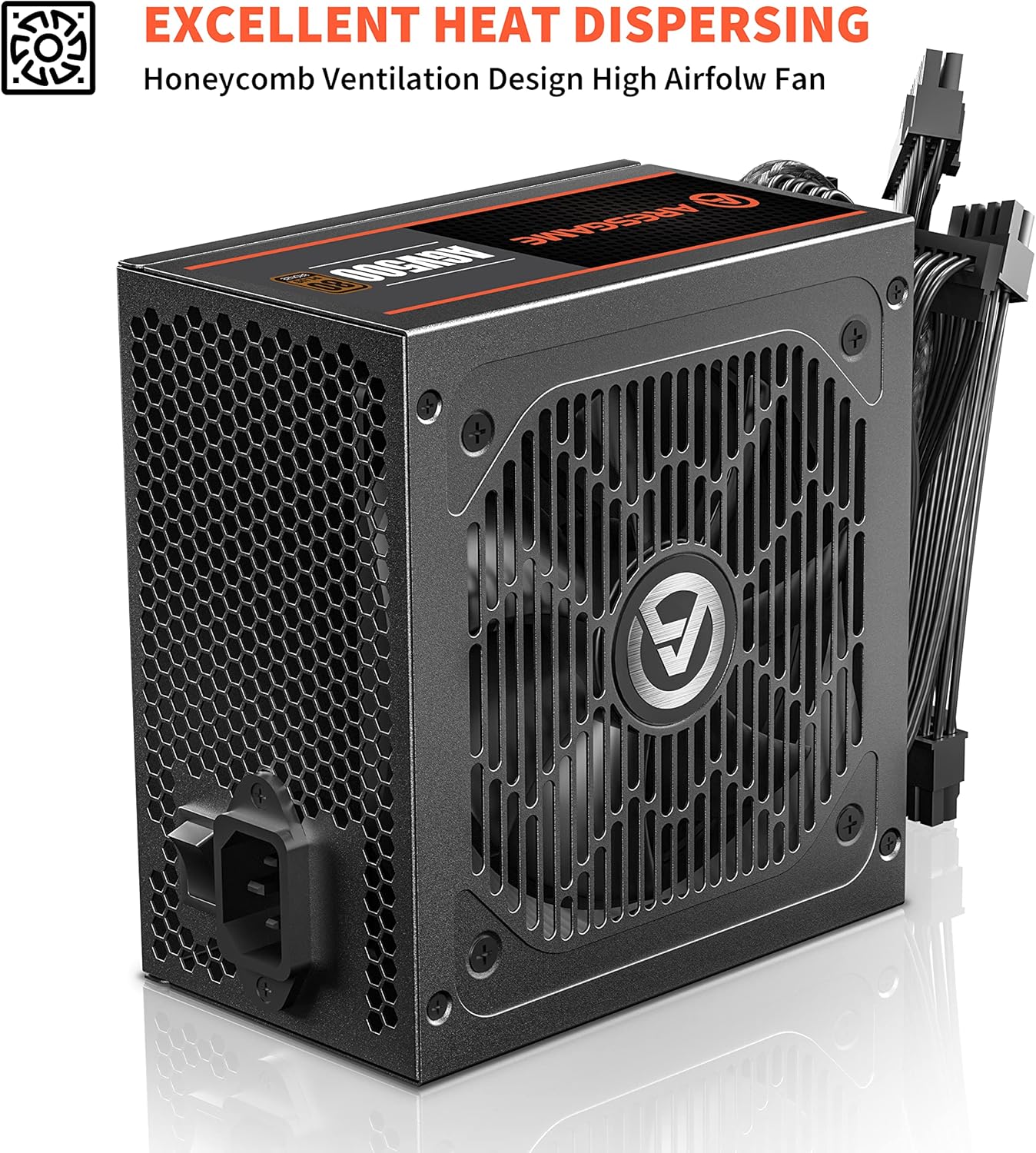
Figure 4: The honeycomb ventilation design on the ARESGAME AGV500, crucial for efficient heat dissipation.
6. Troubleshooting
If you encounter issues with your ARESGAME AGV500 power supply, refer to the following common problems and solutions:
| Problem | Possible Cause | Solution |
|---|---|---|
| Computer does not power on. | Power cord not connected, PSU switch off, faulty components, insufficient power. | Ensure AC power cord is fully plugged in. Verify PSU switch is in 'I' (ON) position. Check all internal power connections. Use the included PSU tester to verify PSU functionality. |
| System powers on but shuts down unexpectedly. | Overload, overheating, faulty components. | Ensure total component wattage does not exceed 500W. Check for proper ventilation and clean any dust. Verify all connections are secure. |
| Loud fan noise from PSU. | Dust buildup, fan obstruction, faulty fan. | Clean the PSU fan and grille with compressed air. Ensure no cables are obstructing the fan. If noise persists, contact customer support. |
| Burning smell or smoke. | Serious component failure. | Immediately turn off the computer and unplug the AC power cord. Do not attempt to restart. Contact customer support immediately. |
7. Technical Specifications
| Specification | Detail |
|---|---|
| Model | ARESGAME AGV500 |
| Wattage | 500W |
| 80 Plus Certification | Bronze Certified |
| Form Factor | ATX |
| Modular Type | Non-Modular |
| VAC Input | 100V-240V, 10-5A, 50-60Hz |
| Fan Size | 120mm |
| Cooling Method | Air |
| Product Dimensions (LxWxH) | 150mm x 140mm x 86mm (5.9 x 5.5 x 3.3 inches) |
| Item Weight | 4.33 pounds |
| Protection Features | OVP, UVP, OPP, SCP |
DC Output Table
| DC Output | +5V | +3.3V | +12V | -12V | +5Vsb |
|---|---|---|---|---|---|
| Max Output, A | 18A | 18A | 37.5A | 0.3A | 2.5A |
| Combined, W | 95W | 450W | 3.6W | 12.5W | |
| Output Power, P cont | 500W @ 40°C | ||||
Efficiency Information

Figure 5: 80 Plus Bronze efficiency curve for the AGV500, illustrating efficiency levels at various system loads for both 115Vac and 230Vac input.
8. Warranty and Customer Support
ARESGAME products are manufactured to high quality standards. This product is covered by a manufacturer's warranty against defects in materials and workmanship. Please refer to the warranty card included in your package or visit the official ARESGAME website for detailed warranty terms and conditions.
For technical assistance, troubleshooting, or warranty claims, please contact ARESGAME customer support through their official website or the contact information provided with your purchase. When contacting support, please have your product model (AGV500) and proof of purchase readily available.